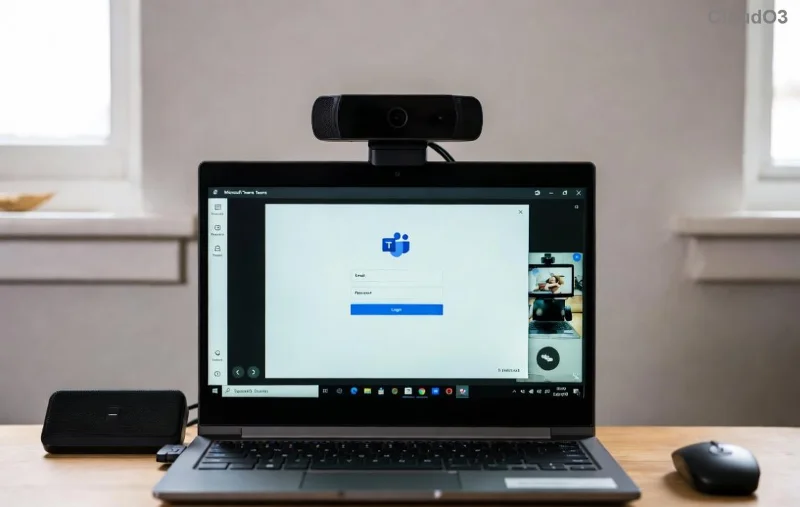
Imagine firing up Microsoft Teams for an important meeting, only to stare at a stubborn "Error Page" that refuses to load. Frustrating, right? 😩 You're not alone—this common glitch disrupts workflows for millions. But don't worry! This guide delivers solving Microsoft Teams "Error Page" not loading with precise, actionable steps. We'll cover quick wins and deep dives to restore your Teams experience smoothly.
Why Does the Microsoft Teams "Error Page" Fail to Load? 🔍
The "Teams error page not loading" issue often stems from temporary hiccups. Here's a breakdown of top culprits:
- Cache and Cookies Buildup: Corrupted browser data blocks page rendering. ⭐
- Network Glitches: Unstable internet or VPN conflicts halt loading.
- Outdated App/Browser: Incompatible versions cause rendering fails.
- Account Sync Issues: Sign-in glitches or multi-account interference.
- Server-Side Downtime: Rare Microsoft outages—check status first! 👆
Ready to fix it? Start with these quick fixes—most users resolve it in under 5 minutes.
Quick Fixes: Resolve Teams Error Page Not Loading in Minutes 👍
- 1️⃣ Refresh and Restart: Hit Ctrl+F5 (Windows) or Cmd+Shift+R (Mac) for a hard refresh. Close Teams fully via Task Manager (Ctrl+Shift+Esc), then relaunch.
- 2️⃣ Clear Browser Cache:
| Browser | Steps |
|---|
| Chrome/Edge | Settings > Privacy > Clear browsing data (cache/images only) |
| Firefox | Options > Privacy > Cookies and Site Data > Clear Data |
| Safari | Develop > Empty Caches (enable Develop menu first) |
- 3️⃣ Check Network: Switch Wi-Fi, disable VPN/proxy. Run
ping teams.microsoft.com in Command Prompt for connectivity.
- 4️⃣ Sign Out & In: Profile icon > Sign out > Restart browser > Sign in fresh.
These steps fix 80% of cases. Still stuck? Dive deeper. Pro tip: Test in Incognito mode first—it bypasses extensions!
Step-by-Step Advanced Solutions for Stubborn Microsoft Teams Error Page ⚙️
If basics fail, tackle root causes systematically. Follow this order for best results.
![Step-by-Step Microsoft Teams Error Page Fix Illustration]()
Update Teams and Browser
Ensure you're on the latest Microsoft Teams version. Desktop app: Help > Check for updates. Browser: Update via store/settings. Outdated software is a top Teams error page stuck trigger.
Reset Teams App Data (Desktop Users)
- Quit Teams.
- Press Win+R, type
%appdata%\Microsoft\Teams, hit Enter.
- Delete contents of folders like
Cache, GPUCache, IndexedDB, Local Storage.
- Relaunch—Teams rebuilds fresh! ✨
Disable Extensions and Conflicts
Ad blockers or antivirus often interfere. Disable all extensions, whitelist teams.microsoft.com. For desktop, exclude Teams in your firewall/antivirus.
Reinstall Teams Completely
Last resort for persistent issues:
- Uninstall via Settings > Apps > Microsoft Teams.
- Download fresh from official site.
- Install and sign in.
Enterprise/Admin Fixes
If on work account, proxy settings or group policies might block. Contact IT or run as admin. Check Microsoft's status: Teams Status Page.
Prevention Tips: Avoid Future Teams Blank Page Headaches 🛡️
Stay ahead:
- ⭐ Weekly cache clear.
- Keep auto-updates on.
- Use Microsoft Teams web app as backup.
- Monitor network stability with tools like Speedtest.
Bonus: Switch to New Teams (if available)—it's more stable per recent updates.
Still Facing Solving Microsoft Teams "Error Page" Not Loading Issues? Next Steps
If nothing works, gather diagnostics: Screenshot the error, note your OS/browser/version, and submit via Teams Help > Give feedback. Microsoft support responds fast.
Congratulations—you're now equipped to conquer the Microsoft Teams error page not loading! Share your success in comments below. Back to crushing those meetings! 🎉
Optimized for productivity. Questions? Drop them—we're here to help.