😩 Is your voice sounding muffled during Microsoft Teams calls, frustrating colleagues and killing your meetings? You're not alone—this common Microsoft Teams microphone muffled error hits users worldwide. But don't worry! This guide delivers quick, effective fixes to get your audio crystal-clear again. We'll start with simple checks and escalate to advanced solutions. Follow along, and you'll be back to smooth communication in minutes. Let's dive in! 🚀
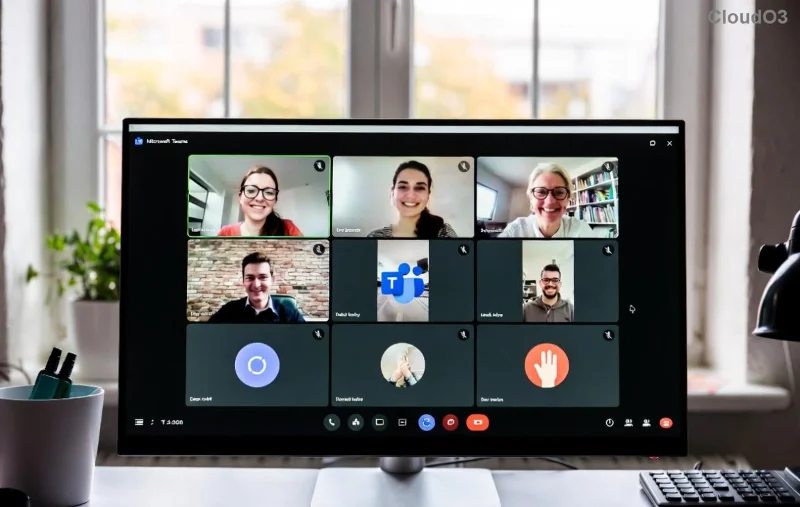
Why Does the Microsoft Teams Microphone Muffled Error Happen?
Before fixing, understand the culprits: outdated drivers, incorrect settings, hardware glitches, or software conflicts. Recent Teams updates have improved audio processing, but glitches persist. No need for tech expertise—our steps are user-friendly and tested on the latest versions.
Quick Wins: Basic Checks First (90% of Cases Fixed Here!)
Most Teams microphone muffled issues resolve with these starters. Test your mic after each step. 👍
- 1️⃣ Verify Hardware Basics
Ensure your microphone isn't muted or too low. Plug in headphones/external mic if using built-in. Speak test in Windows Sound settings (right-click speaker icon > Sounds > Recording tab > Test your mic). - 2️⃣ Check Teams Permissions
In Teams, go to Settings > Devices. Select your microphone and ensure "Make a test call" plays back clearly. Grant Teams microphone access in your OS privacy settings (Windows: Settings > Privacy > Microphone). - 3️⃣ Toggle Noise Suppression
Teams' AI noise suppression can over-process audio, causing muffling. In Settings > Devices, set Noise suppression to "Auto" or "Low." Test immediately!
Advanced Troubleshooting Microsoft Teams Microphone Muffled Error Steps
If basics fail, level up. These target software and drivers.
Update Everything to the Latest
Outdated apps/drivers are prime suspects. Update Teams via profile icon > Check for updates. For drivers:
- Windows: Device Manager > Audio inputs > Right-click mic > Update driver.
- Restart your PC post-update.
Reset Teams Audio Settings
Corrupted configs? Clear cache:
- Quit Teams completely (Task Manager > End task).
- Delete these folders: %appdata%\Microsoft\Teams (backup first).
- Restart Teams—settings reset fresh.
Windows Sound Tweaks
Teams pulls from system audio. Optimize:
| Setting | Action | Why It Helps |
|---|---|---|
| Exclusive Mode | Right-click mic in Sound settings > Properties > Advanced > Uncheck "Allow apps to take exclusive control." | Prevents Teams audio conflicts. |
| Enhancements | Properties > Enhancements > Disable all. | Stops muffling filters. |
| Sample Rate | Set to 48kHz (Teams optimal). | Matches Teams processing. |
Interference and Hardware Deep Dive
👎 USB hubs or Bluetooth? Switch ports/direct connect. Test with another mic/app (e.g., Zoom) to isolate. If hardware fault, calibrate via manufacturer's tool.
Last Resort: Reinstall or Registry Fix
顽固问题? Uninstall Teams via Settings > Apps, download fresh from official site. For pros: Run sfc /scannow in admin Command Prompt.
Pro Tips to Prevent Future Teams Muffled Microphone Issues ⭐
- Use wired headsets for reliability.
- Enable "Automatically adjust mic sensitivity" in Teams.
- Monitor Task Manager for high CPU during calls (close heavy apps).
- For large meetings, mute non-speakers to reduce echo.
For official guidance, check Microsoft's audio troubleshooting page.
Still Stuck? You've Got This! 🎉
Congrats on reaching here—you're now armed against the troubleshooting Microsoft Teams microphone muffled error! Most users fix it by step 3. If not, reply in comments or contact Teams support. Clear audio awaits—schedule that next call confidently! Questions? Drop them below. 👇








