How to Create a Poll in Microsoft Teams

Learn how to create a poll in Microsoft Teams chats, channels, and meetings, choose response settings, review results, and close voting.
To access the Microsoft Teams SharePoint site for a team, open one of its channels, select Shared, and choose Open in SharePoint from the library toolbar or its More commands menu. The connected document library opens in your browser. You do not need to be an administrator if you already have access.
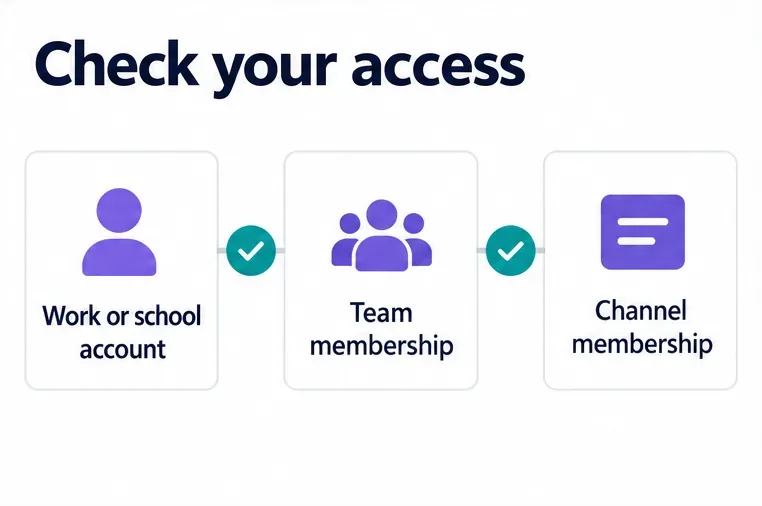
This guide covers Teams for work or school with SharePoint available through your organization. Use the account that belongs to the team. Team members normally have access to the parent SharePoint site; private and shared channels have separate membership requirements.
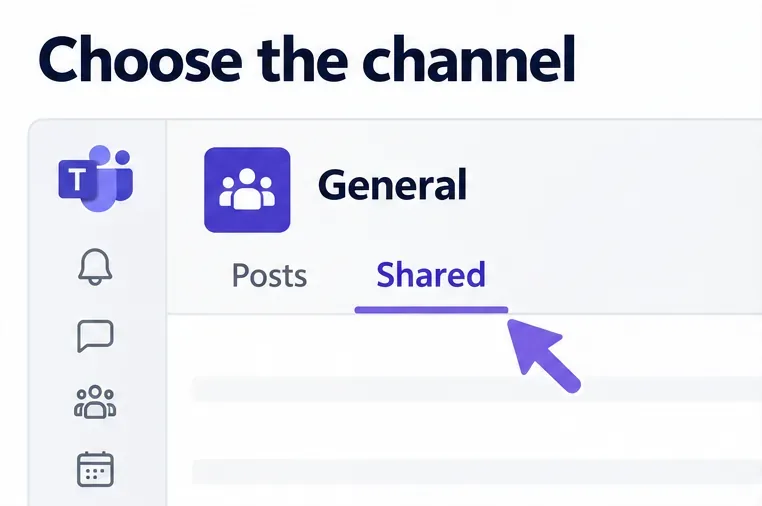
Microsoft's current instructions use Shared. If your interface still shows Files, open that tab instead. The illustrations below highlight the relevant controls; your layout may differ.
Choose the team and channel. Open Teams on your computer or in a browser, find the team in your channels list, and select the channel. To reach the team's main site, start with a standard channel rather than a private or shared channel.
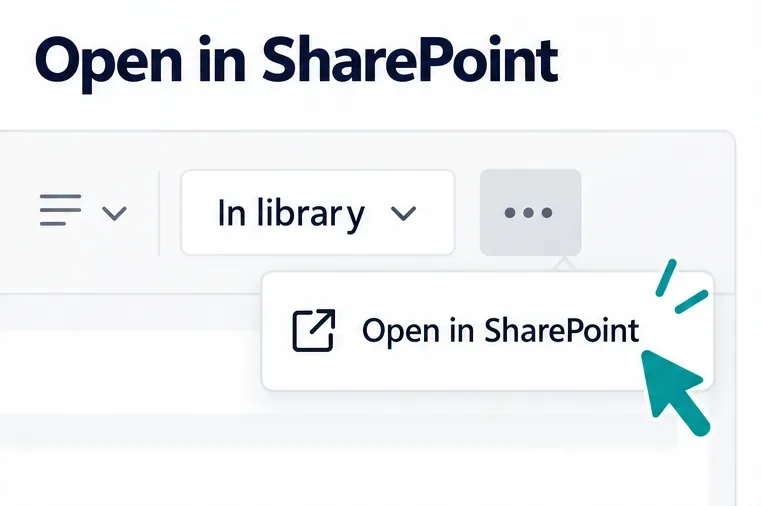
Open the channel library in SharePoint. Select Shared at the top. If you see separate views for posts and library content, select In library. Choose Open in SharePoint; it may be inside the More commands ellipsis menu on the library toolbar.
Confirm your browser account. If prompted, sign in with the account you use for this team. If the browser selects a different account automatically, switch accounts or use a separate browser profile or private window. An invited guest should use the identity associated with the invitation.
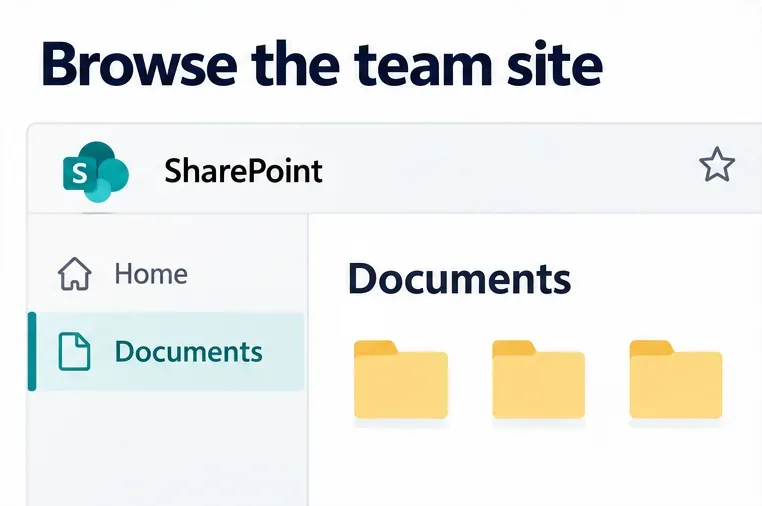
Browse the site. The link opens the channel's library location. Use the library breadcrumbs to move through folders, or select Home in the site's navigation when available. Documents returns you to the document library. Bookmark the page you want to revisit.
Microsoft documents the Shared and Open in SharePoint controls and the In library view. You do not need to upload a new file or edit a sharing link to find the site.
The channel you choose determines the site you reach:
| Channel type | Connected location | Normal site access |
|---|---|---|
| Standard | A channel folder in the team's parent SharePoint site | Team owners and members |
| Private | A separate site for that private channel | That channel's owners and members |
| Shared | A separate site for that shared channel | That channel's owners and members |
Being a team owner does not automatically make you a member of every private or shared channel. Microsoft explains this structure in its Teams and SharePoint integration guide.
Sign in at Microsoft 365, expand the navigation if needed, and open the nine-dot App launcher. Select SharePoint, or search for it if it is not visible.
On the SharePoint start page, search for the team site or look under Recent, Following, or frequent sites. You can follow the site for easier access later. See Microsoft's SharePoint start page guide. A saved site URL also works, provided your account still has permission.
Do not apply this workflow to personal Teams Free chats or communities. Their shared document attachments use personal OneDrive, according to Microsoft's personal Teams storage documentation. Likewise, work or school chat uploads use the sender's OneDrive for Business, while channel uploads use SharePoint; see file storage in Teams.
Learn how to create a poll in Microsoft Teams chats, channels, and meetings, choose response settings, review results, and close voting.
Learn how to mute channel and message notifications in Microsoft Teams, unfollow noisy threads, and control banners while understanding mention alerts.
Learn how to transfer a Microsoft Teams meeting between your computer and phone, use both devices together, and fix missing transfer options or audio issues.
Learn how to snooze a message in Microsoft Teams with Snooze Bot, return to it later, and use saved messages or mute controls when you need another option.
Learn how to create a team in Microsoft Teams, add members, choose channel types, manage permissions, and use the Teams admin center.
Learn how to download a Microsoft Teams recording from Teams, OneDrive, or SharePoint, and fix missing download options, access issues, and expired recordings.
Fix echo during Microsoft Teams meetings by removing duplicate audio connections, selecting the right headset and microphone, and checking audio settings.
Set up Microsoft Teams–Slack integration to launch Teams meetings from Slack. Learn account requirements, app permissions, setup steps, and quick fixes.
Unable to connect to Microsoft Teams meetings? Check the meeting link, account, network, and app, then learn when to contact the organizer or IT.
Microsoft Teams not syncing? Refresh messages across desktop, web, iPhone, and Android, identify account or file issues, and avoid unnecessary cache resets.








