How to Create a Poll in Microsoft Teams

Learn how to create a poll in Microsoft Teams chats, channels, and meetings, choose response settings, review results, and close voting.
To block someone on Microsoft Teams, open Chat, find the person, and select More options (...) > Block when available. The options depend on your account: Teams for personal use supports contact blocking, while work or school accounts distinguish between external contacts and people inside your organization.
| Your situation | What to check |
|---|---|
| Teams for personal use | Use the contact's Block option. |
| Work or school: external contact | Use Block in the chat list or Block contact on their profile. |
| Work or school: internal contact | Internal blocking requires an administrator-enabled Teams Premium feature. |
In Teams for personal use:
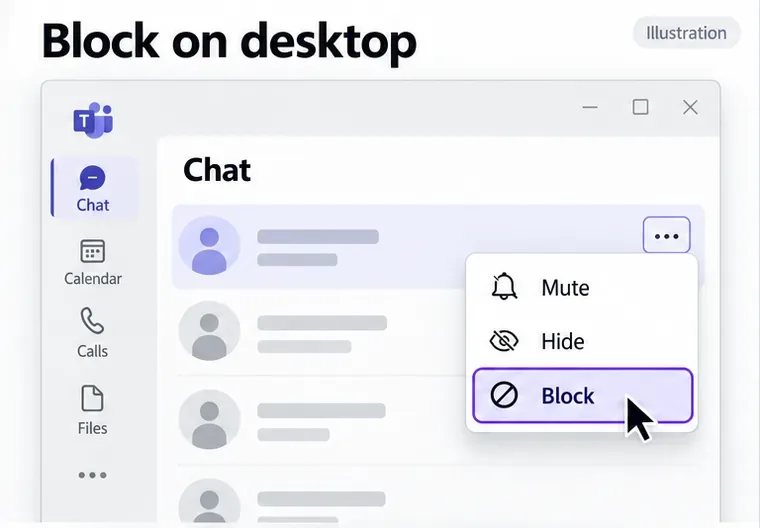
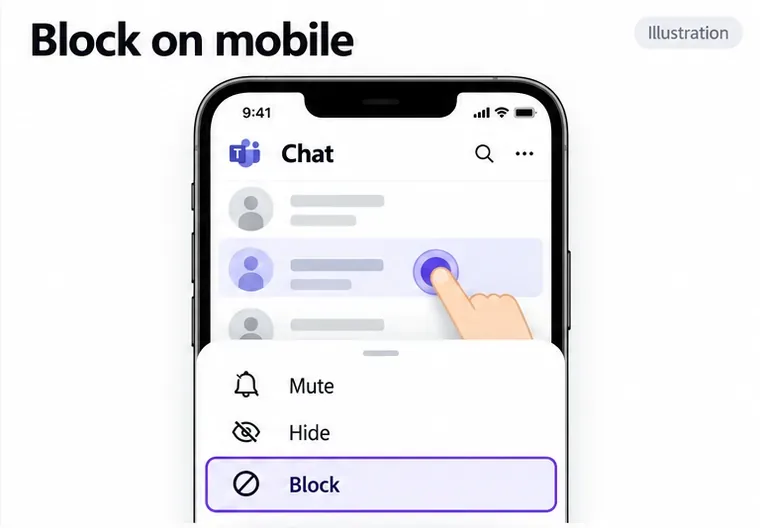
In Teams for personal use, open Chat, press and hold the person's conversation, then tap Block. See Microsoft's personal-account blocking guide.
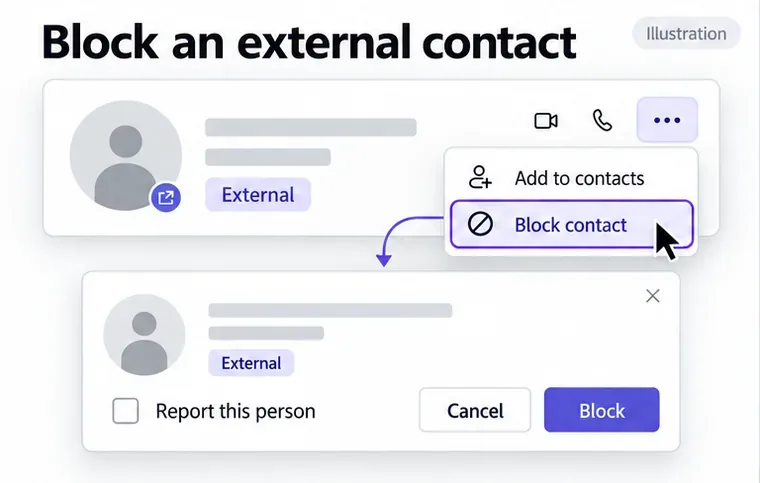
Find the person in your chat list and choose More options (...) > Block. Alternatively, hover over their profile picture, open the profile card's More options menu, and select Block contact.
If offered, select Report this person in the confirmation window. Reporting sends their contact information and messages to your IT administrator for review; the person is not told that you reported them. See Microsoft's external-contact instructions.
For an unfamiliar sender, check their name and email address before accepting a request. Microsoft recommends reviewing suspicious external chats rather than trusting a familiar-looking display name.
Meeting access is separate. You can still join a meeting regardless of whether you accept, delete, or block an external request, but your choice affects meeting chat. Blocking the inviter before joining can leave you without chat history or access to that chat. Check Microsoft's external request guidance before using these controls on a meeting invitation.
You can block an internal sender if your administrator has enabled the required policy. Choose Block on a new chat request, or use More options (...) > Block beside an existing conversation. Microsoft says the sender receives no blocking notification.
This internal blocking feature affects one-on-one chats; it does not affect group, channel, or meeting chats.
According to Microsoft's administrator documentation, it requires Teams Premium, the desktop or web client, and both organization-level and user-policy controls. Microsoft also notes a known issue: a blocked internal sender may still see your presence status.
First confirm which account you are using and whether the contact is internal or external. For internal contacts, ask your IT administrator to check your license and blocking policy. Sharing a team is not, by itself, a reliable explanation for every missing Block option.
If you only need fewer interruptions, mute the chat. On desktop or web, open the conversation's More options menu and select Mute. Choose Unmute there to restore notifications. Muting still lets messages arrive and remain available to read.
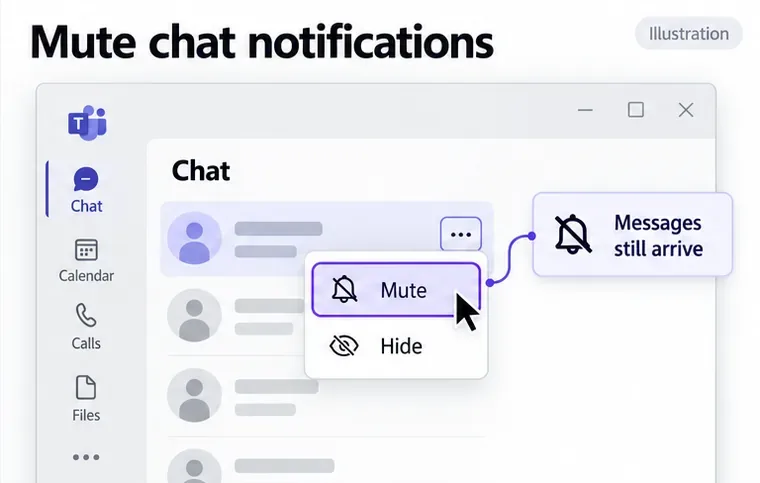
For personal-account mobile chats, press and hold the conversation and choose Mute chat. Hiding a chat only removes it from the recent list until another message arrives. Microsoft explains these differences in its personal chat controls and work-account chat controls.
For work-account chats, use More options (...) > Unblock beside the person. For external contacts, you can also open Settings > Privacy > Edit blocked contacts.
For personal accounts, desktop settings use People > Manage blocked users > Unblock. On mobile, open your profile picture, then Settings > People > Blocked contacts, and choose More > Unblock contact.
Personal-account blocking does not hide someone's messages in existing shared group chats or communities. It also does not revoke shared-file access. Review OneDrive sharing permissions separately if previously shared files should no longer be accessible.
Learn how to create a poll in Microsoft Teams chats, channels, and meetings, choose response settings, review results, and close voting.
Learn how to mute channel and message notifications in Microsoft Teams, unfollow noisy threads, and control banners while understanding mention alerts.
Learn how to transfer a Microsoft Teams meeting between your computer and phone, use both devices together, and fix missing transfer options or audio issues.
Learn how to snooze a message in Microsoft Teams with Snooze Bot, return to it later, and use saved messages or mute controls when you need another option.
Learn how to create a team in Microsoft Teams, add members, choose channel types, manage permissions, and use the Teams admin center.
Learn how to download a Microsoft Teams recording from Teams, OneDrive, or SharePoint, and fix missing download options, access issues, and expired recordings.
Fix echo during Microsoft Teams meetings by removing duplicate audio connections, selecting the right headset and microphone, and checking audio settings.
Set up Microsoft Teams–Slack integration to launch Teams meetings from Slack. Learn account requirements, app permissions, setup steps, and quick fixes.
Unable to connect to Microsoft Teams meetings? Check the meeting link, account, network, and app, then learn when to contact the organizer or IT.
Microsoft Teams not syncing? Refresh messages across desktop, web, iPhone, and Android, identify account or file issues, and avoid unnecessary cache resets.








