How to Create a Poll in Microsoft Teams

Learn how to create a poll in Microsoft Teams chats, channels, and meetings, choose response settings, review results, and close voting.
To cancel a meeting in Microsoft Teams, open Calendar, open a meeting you organized, and select its cancellation option. Complete the confirmation so the cancellation is sent to invitees. For a recurring meeting, check whether you are canceling one occurrence or the entire series.
If you are an attendee, decline the invitation instead. Leaving an active call is a separate action from canceling its calendar invitation.
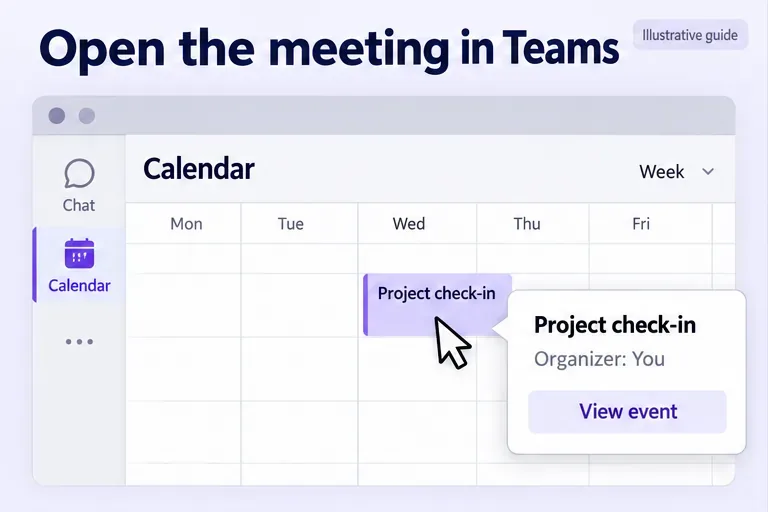
These instructions focus on Teams for work or school. Button names and placement can vary between calendar versions.
Microsoft documents the current calendar’s Edit or Cancel controls; its screen-reader instructions for other layouts also describe a Delete control followed by confirmation. Read the confirmation rather than relying only on the button’s label.
In Teams, tap Calendar, open the meeting, then tap Edit > Cancel as the organizer. Complete any confirmation. This path is documented in Microsoft’s mobile calendar guidance.
Teams and Outlook show the same scheduled meetings for your connected calendar, so Outlook is a useful alternative when Teams’ controls differ. Microsoft explains this connection in its Teams scheduling guide.
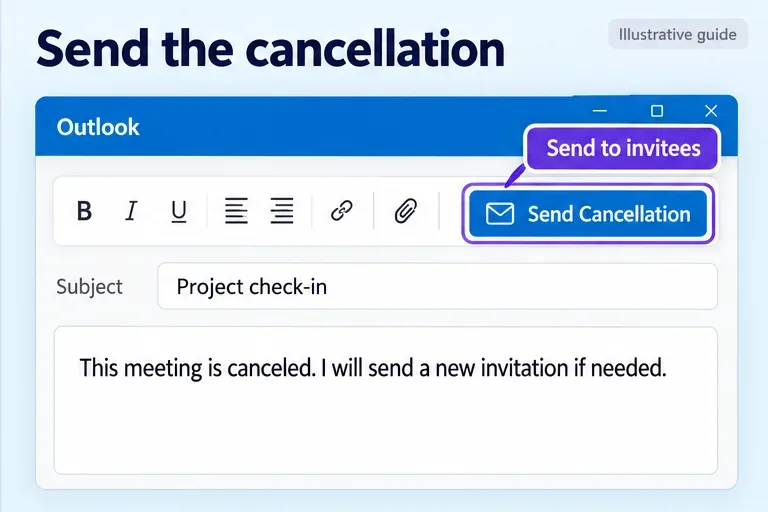
In classic Outlook for Windows, open Calendar, double-click the meeting you organized, select Cancel Meeting, add a message, and select Send Cancellation. Microsoft’s cancellation instructions confirm that the organizer sends the cancellation.
In Outlook on the web, select the meeting, choose Cancel, add an optional message, and select Send.
Choose carefully before confirming:
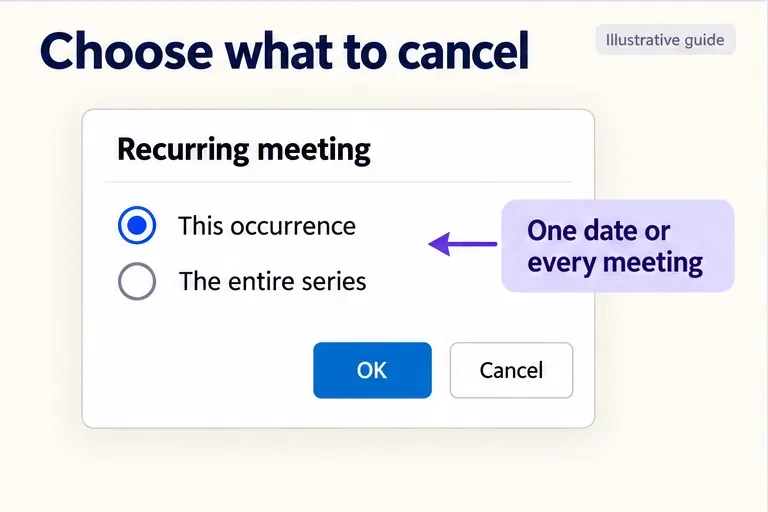
To stop future meetings while retaining the calendar history, Microsoft recommends changing the series end date. In classic Outlook, open the entire series, select Recurrence, set End by before the next unwanted meeting, and send the update. Save important details first: Microsoft warns that changing recurrence can delete agenda items, notes, and attachments added to previous instances.
Send the cancellation through the meeting’s calendar event so invited attendees receive the notice. A chat message is useful for urgent changes, but it does not replace the calendar cancellation.
Contact anyone who received only a copied meeting link separately. For a channel meeting, also post a short cancellation message in the channel. Avoid assuming that everyone has read the notice, especially when canceling close to the start time.
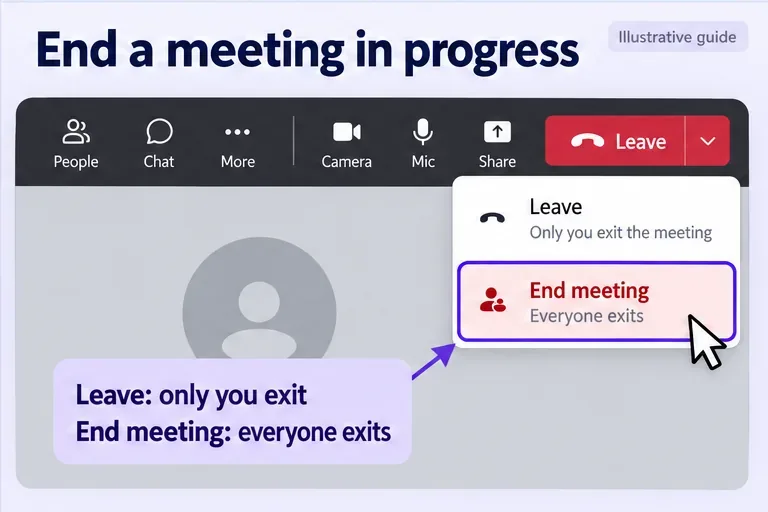
To disconnect everyone from an active meeting as the organizer, open the arrow beside Leave, select End meeting, then confirm with End. Selecting Leave alone exits only your session. Microsoft documents this in End a meeting for everyone. Ending the current call does not cancel future calendar occurrences.
Learn how to create a poll in Microsoft Teams chats, channels, and meetings, choose response settings, review results, and close voting.
Learn how to mute channel and message notifications in Microsoft Teams, unfollow noisy threads, and control banners while understanding mention alerts.
Learn how to transfer a Microsoft Teams meeting between your computer and phone, use both devices together, and fix missing transfer options or audio issues.
Learn how to snooze a message in Microsoft Teams with Snooze Bot, return to it later, and use saved messages or mute controls when you need another option.
Learn how to create a team in Microsoft Teams, add members, choose channel types, manage permissions, and use the Teams admin center.
Learn how to download a Microsoft Teams recording from Teams, OneDrive, or SharePoint, and fix missing download options, access issues, and expired recordings.
Fix echo during Microsoft Teams meetings by removing duplicate audio connections, selecting the right headset and microphone, and checking audio settings.
Set up Microsoft Teams–Slack integration to launch Teams meetings from Slack. Learn account requirements, app permissions, setup steps, and quick fixes.
Unable to connect to Microsoft Teams meetings? Check the meeting link, account, network, and app, then learn when to contact the organizer or IT.
Microsoft Teams not syncing? Refresh messages across desktop, web, iPhone, and Android, identify account or file issues, and avoid unnecessary cache resets.








