How to Create a Poll in Microsoft Teams

Learn how to create a poll in Microsoft Teams chats, channels, and meetings, choose response settings, review results, and close voting.
To change the download folder location in Microsoft Teams, open the desktop app and go to Settings and more (...) > Settings > Files and links. Under Downloads > Location, select Change and choose a folder. You can also have Teams ask where to save each download.
Using Teams in a browser? Adjust the browser's download settings instead. Microsoft does not support changing the download location through Teams settings on the web or mobile.
The following steps follow Microsoft's current download instructions. The folder-picker example uses Windows; the appearance of desktop dialogs can differ.
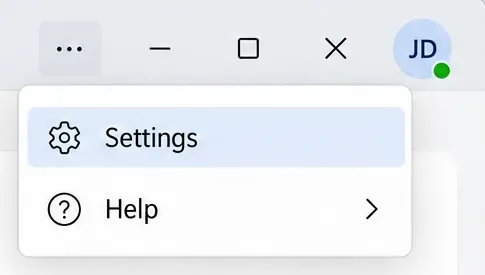
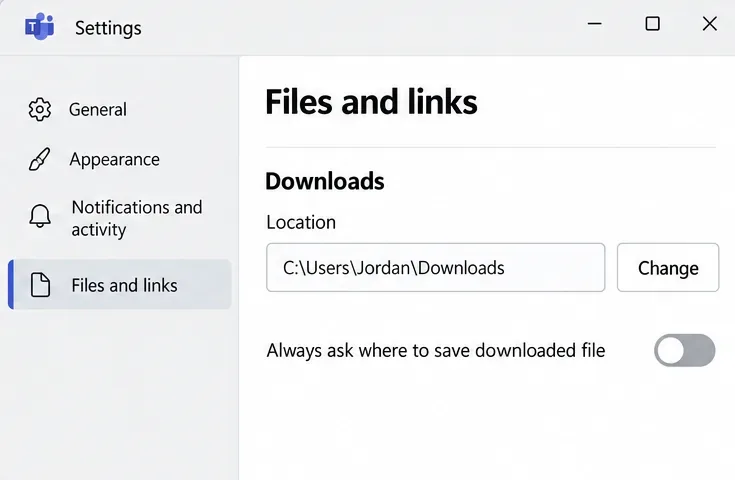
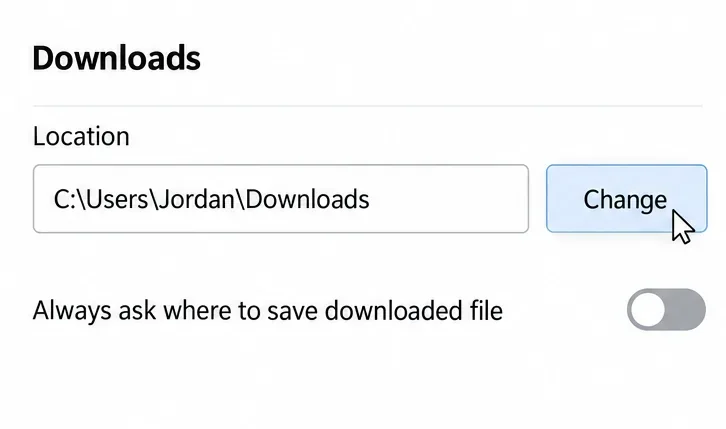
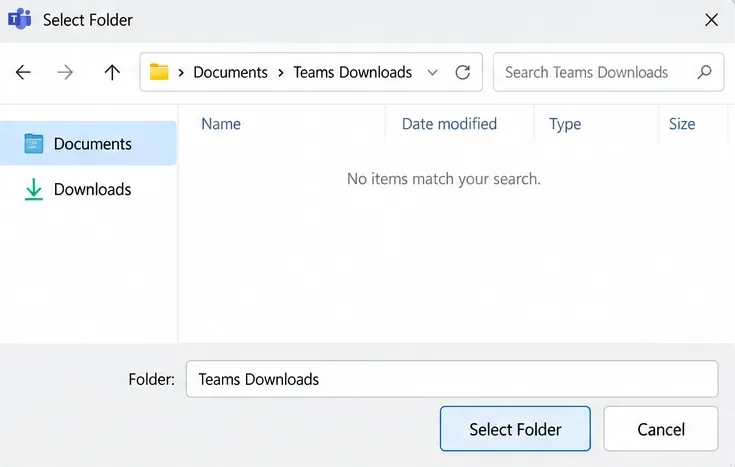
Choose a folder you can recognize easily, such as a dedicated Teams Downloads folder inside Documents. If you organize work by project, the per-download option below may be more practical than sending everything to one destination.
In the same Downloads section, turn on Always ask where to save downloaded file. This lets you choose a destination whenever you download a file, rather than relying on one preset folder.
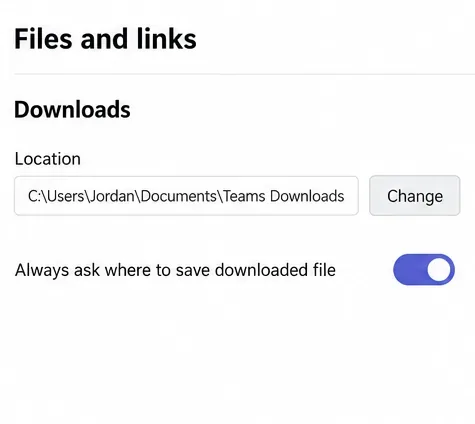
For example, you could save a proposal in a client's folder and a meeting handout in a separate project folder. Leave the toggle off when you prefer the convenience of a single download destination.
Open a channel's Shared tab, find a file, and select its three-dot More actions > Download menu. Confirm that the new file reaches your chosen folder, or that you receive a save-location prompt if you enabled that option.
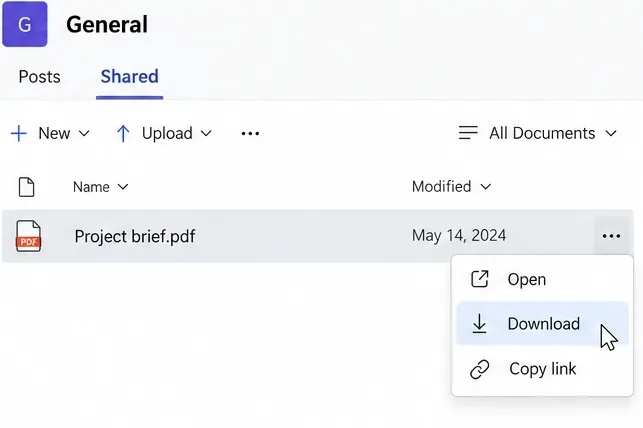
Use a new download for this check. Existing copies are not a useful test of the updated setting: locate those separately in the folder where you originally saved them.
When you download through Teams in a browser, use that browser's download preferences. This also applies when you open a Teams file in a browser and download it there.
Open Edge's three-dot menu and choose Settings > Downloads. Beside Location, select Change and choose your preferred folder. For a choice on each download, enable Ask me what to do with each download, then use Save as when offered.
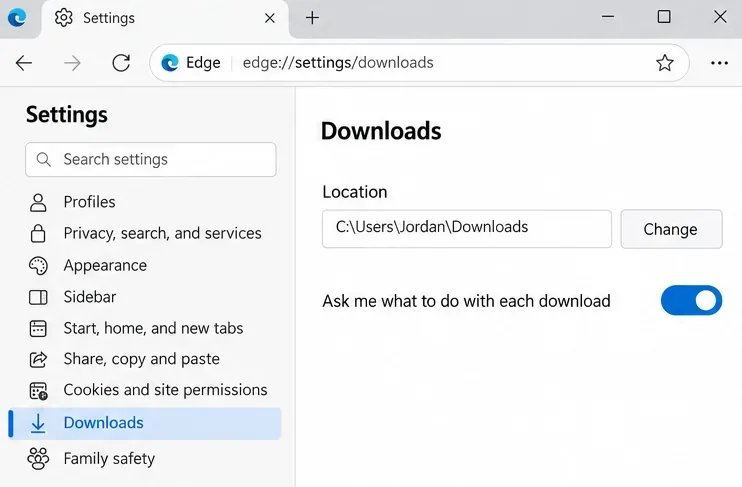
Microsoft explains these controls in its Edge download management guide. Changing Edge's default folder affects downloads handled by Edge, including downloads from other websites.
Open Chrome's three-dot menu, then Settings > Downloads. Select Change to set a default folder, or enable Ask where to save each file before downloading to choose a destination each time.
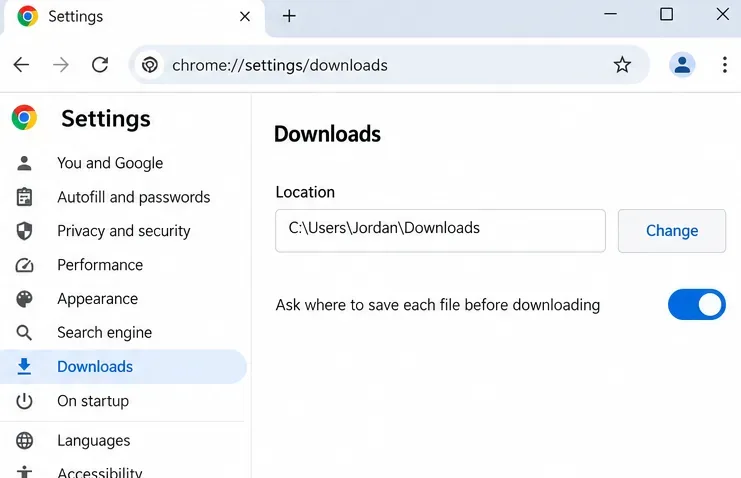
These are browser-wide preferences, as described in Google's download help. Simply opening a file in a browser does not guarantee a Save As dialog; the file may open for viewing first.
The download folder is the destination for a saved copy on your computer. It does not relocate the shared original. In work or school Teams, channel uploads are stored in the team's SharePoint location, while files sent in chat are stored in the sender's OneDrive for Business, according to Microsoft's file storage documentation.
Also, File open preference controls whether Office documents open in Teams, a desktop app, or a browser. It is a separate setting from the download destination; see Microsoft's file-opening guidance.
Learn how to create a poll in Microsoft Teams chats, channels, and meetings, choose response settings, review results, and close voting.
Learn how to mute channel and message notifications in Microsoft Teams, unfollow noisy threads, and control banners while understanding mention alerts.
Learn how to transfer a Microsoft Teams meeting between your computer and phone, use both devices together, and fix missing transfer options or audio issues.
Learn how to snooze a message in Microsoft Teams with Snooze Bot, return to it later, and use saved messages or mute controls when you need another option.
Learn how to create a team in Microsoft Teams, add members, choose channel types, manage permissions, and use the Teams admin center.
Learn how to download a Microsoft Teams recording from Teams, OneDrive, or SharePoint, and fix missing download options, access issues, and expired recordings.
Fix echo during Microsoft Teams meetings by removing duplicate audio connections, selecting the right headset and microphone, and checking audio settings.
Set up Microsoft Teams–Slack integration to launch Teams meetings from Slack. Learn account requirements, app permissions, setup steps, and quick fixes.
Unable to connect to Microsoft Teams meetings? Check the meeting link, account, network, and app, then learn when to contact the organizer or IT.
Microsoft Teams not syncing? Refresh messages across desktop, web, iPhone, and Android, identify account or file issues, and avoid unnecessary cache resets.








