How to Create a Poll in Microsoft Teams

Learn how to create a poll in Microsoft Teams chats, channels, and meetings, choose response settings, review results, and close voting.
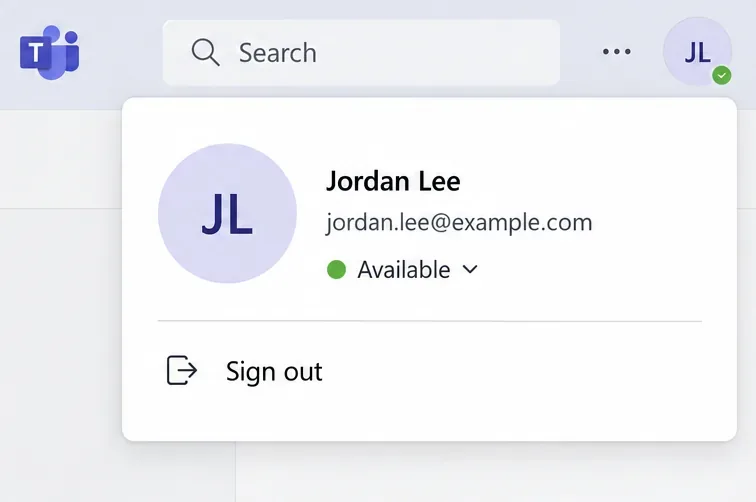
To change your Microsoft Teams profile picture, select your photo or initials at the top right, select the picture again in the account menu, upload a new image, and select Save. You can also update your photo in the mobile app. If your employer or school manages your account, its settings may limit this option.
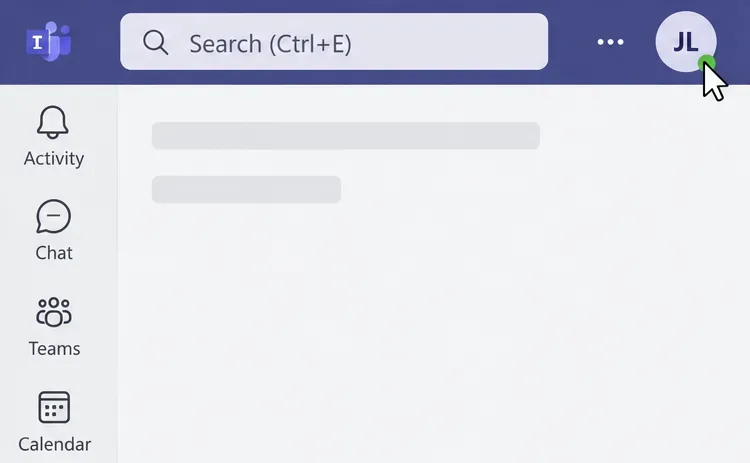
Check that you are using the account you want to update, especially if Teams contains both personal and work accounts. Changing one account's picture does not change a separate account's photo.
Your work or school photo is part of your Microsoft 365 profile and can appear in other services, including Outlook. Do not assume it will be visible only in Teams. Choose an image you are comfortable sharing with people who interact with that account.
Open Teams on Windows, Mac, or in your browser and sign in. Microsoft’s current Teams profile-picture instructions use the account manager rather than requiring an older “Change picture” link.
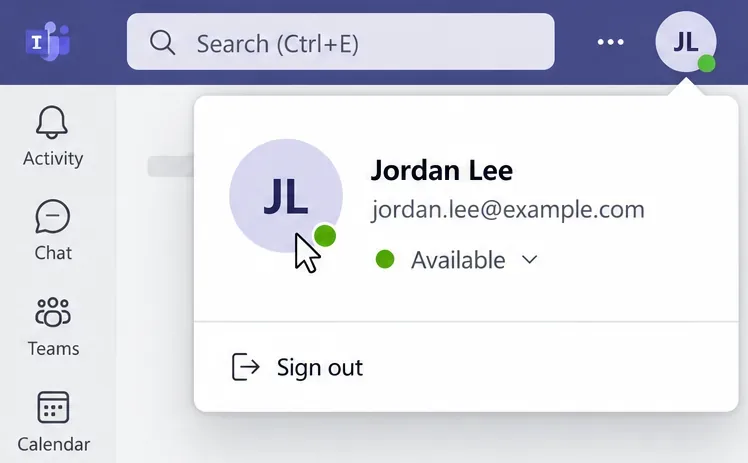
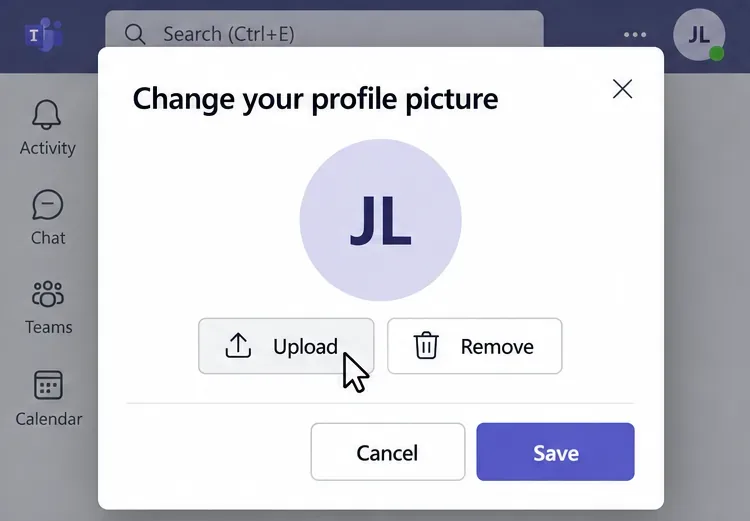
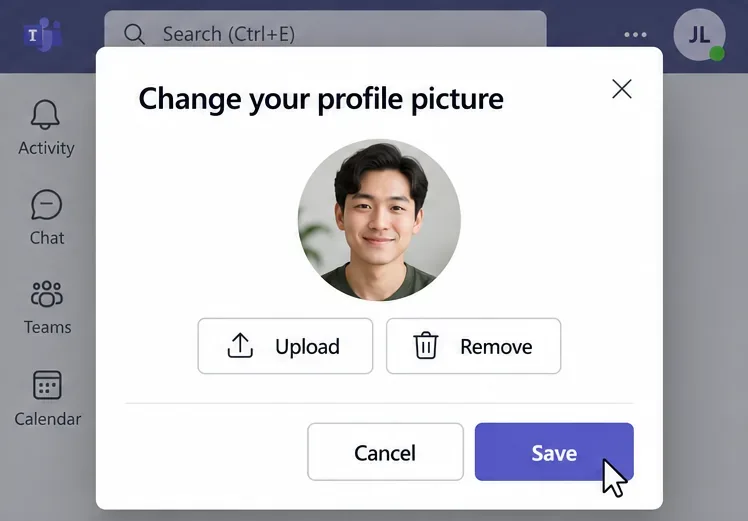
Personal accounts may show Upload picture instead of Upload. The example views show the controls to look for; their appearance can vary with your account and app version.
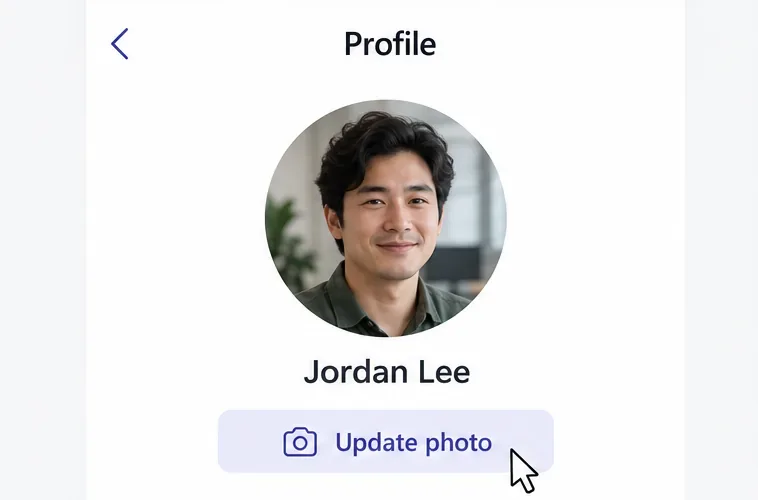
Tap your photo or initials at the top left of Teams, then tap your name to open your profile. Choose Update photo and take a photo or select an existing one. Complete the prompts and look for confirmation that the update succeeded.
Microsoft’s Android instructions start with More, followed by your picture and Edit image. Choose a photo or use the camera, then finish the prompts. Allow camera or photo access if requested so Teams can use the image you choose.
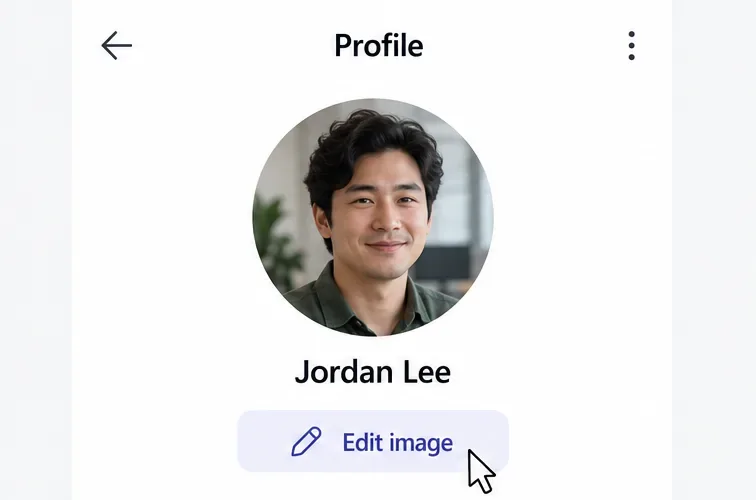
If those controls do not match your screen, use the personal-account profile settings: tap your picture, open Settings > Profile > Edit image, and select the photo-library or camera option. This menu also includes Remove photo. Personal and work accounts can use different navigation even on the same device.
On desktop, open your account menu and select the picture again. Choose Remove, then Save. Personal accounts may label the action Remove picture.
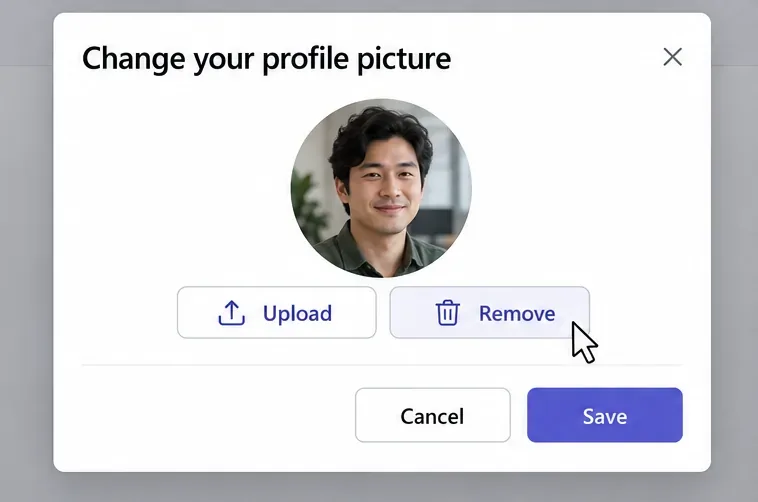
Once the removal reaches the app, Teams normally displays your initials instead of your uploaded photo. The old picture may remain visible temporarily in another app or on someone else’s device.
For a work or school account, try the My Account photo-update route: sign in at the portal linked in Microsoft’s instructions, select the edit icon on your current photo, upload the replacement, and save. If editing is unavailable there too, contact your IT or HR department; your organization may restrict photo changes.
An update is not guaranteed to appear everywhere immediately. Microsoft documents caching of user information and profile photos. Confirm you saved the change, check the account, then sign out of Teams and sign back in. Comparing the desktop and web views can help identify whether one client is showing an older copy.
If the picture remains stale, follow Microsoft’s cache-clearing instructions for your Teams version. Avoid applying old classic-Teams folder paths to the current app. Resetting Teams removes local app data, including personalization settings.
Prepare a clear, square JPG or PNG with your face near the center and some space around it. Preview it as a small circle before uploading. Crop or improve the original file in a photo editor if necessary; stretching a tiny image will not restore missing detail.
Learn how to create a poll in Microsoft Teams chats, channels, and meetings, choose response settings, review results, and close voting.
Learn how to mute channel and message notifications in Microsoft Teams, unfollow noisy threads, and control banners while understanding mention alerts.
Learn how to transfer a Microsoft Teams meeting between your computer and phone, use both devices together, and fix missing transfer options or audio issues.
Learn how to snooze a message in Microsoft Teams with Snooze Bot, return to it later, and use saved messages or mute controls when you need another option.
Learn how to create a team in Microsoft Teams, add members, choose channel types, manage permissions, and use the Teams admin center.
Learn how to download a Microsoft Teams recording from Teams, OneDrive, or SharePoint, and fix missing download options, access issues, and expired recordings.
Fix echo during Microsoft Teams meetings by removing duplicate audio connections, selecting the right headset and microphone, and checking audio settings.
Set up Microsoft Teams–Slack integration to launch Teams meetings from Slack. Learn account requirements, app permissions, setup steps, and quick fixes.
Unable to connect to Microsoft Teams meetings? Check the meeting link, account, network, and app, then learn when to contact the organizer or IT.
Microsoft Teams not syncing? Refresh messages across desktop, web, iPhone, and Android, identify account or file issues, and avoid unnecessary cache resets.








