How to Create a Poll in Microsoft Teams

Learn how to create a poll in Microsoft Teams chats, channels, and meetings, choose response settings, review results, and close voting.
To change your name on Microsoft Teams, update the account connected to Teams. Personal accounts let you edit your Microsoft account name; work or school accounts may require your IT administrator. To rename a team instead, you need to be a team owner.
Your display name identifies you in Teams. A team name identifies a shared workspace. These are separate settings, so choose the appropriate route:
| What you want to change | Where to start |
|---|---|
| Your personal account name | Microsoft account settings or the Teams personal mobile profile |
| Your work or school display name | Your organization's account settings or IT help desk |
| A team's name | Manage team, using an owner account |
Before making changes, check the email address shown in your Teams profile, particularly if you have both personal and work accounts. Each identity has its own profile, so updating one does not automatically update the other.
The interface examples below use fictional names. Layouts can vary by device and account type.
Open Teams with your personal account. Select your profile picture, then My Microsoft account. Alternatively, open the Microsoft account website and sign in with the same account.
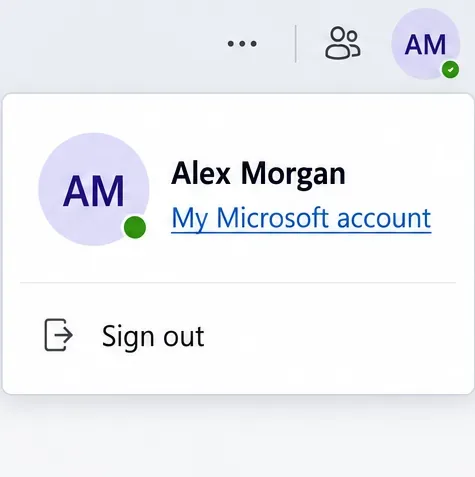
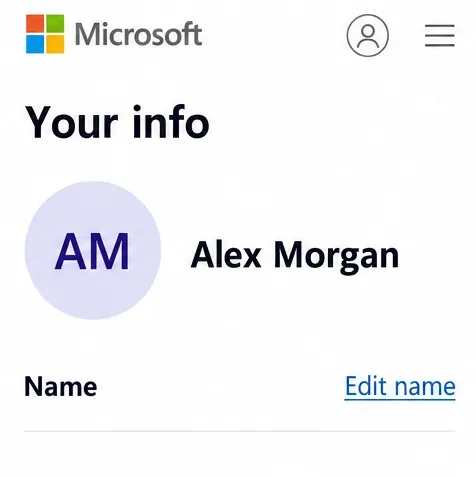
In the browser, select Your info, then Edit name.
Enter your updated first and last names, complete any verification prompt, and select Save.
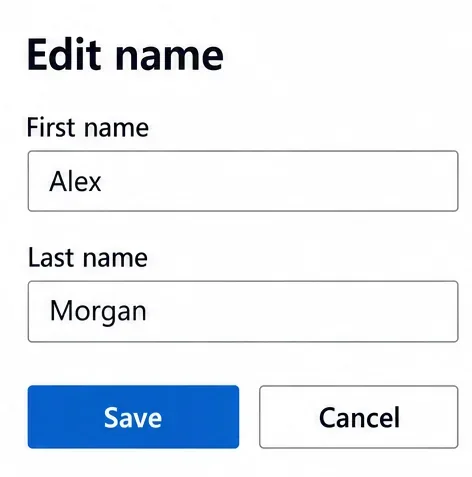
This changes your Microsoft account display name, so it can also appear in other services using that account, including Outlook.com and signed-in Windows devices. It is not a Teams-only nickname. Microsoft's account name guidance says updates can take up to 24 hours to appear everywhere.
For personal accounts, the mobile app also provides a profile-editing route:
Tap your profile picture, then Settings.

Open Profile.
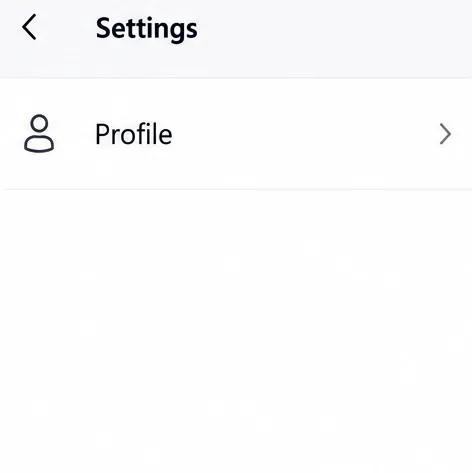
Tap the pencil icon beside your name and update your account name.
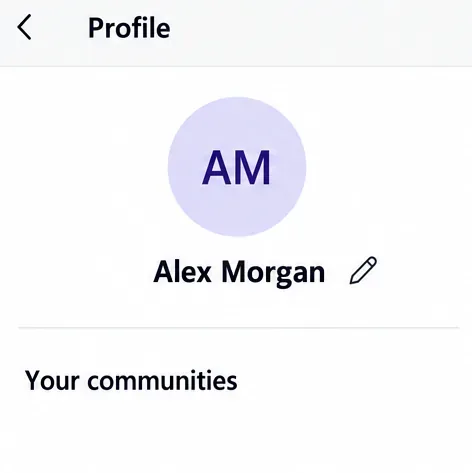
Microsoft confirms in its Teams personal profile instructions that this also updates your Microsoft account. If these controls are missing, check whether you are using a work or school account.
A company or school can restrict name changes. Start with your organization's account settings; if your name is not editable, contact IT with the display name you want. Microsoft's account name instructions explain this restriction. Editing a separate personal Microsoft account will not update your organization's identity.
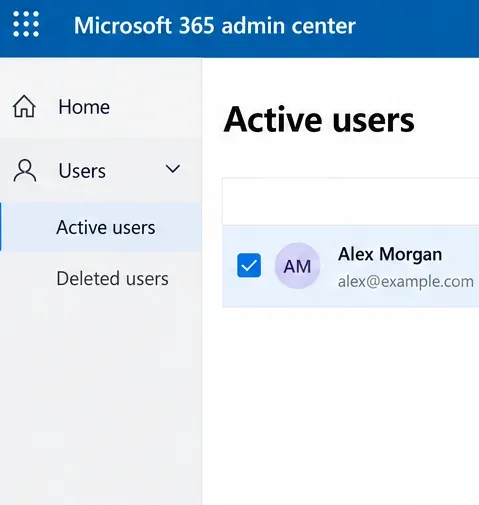
For authorized administrators: Microsoft documents the following route in the Microsoft 365 admin center. An appropriate role, such as User Administrator, is required.
Open Users > Active users and select the person's name.
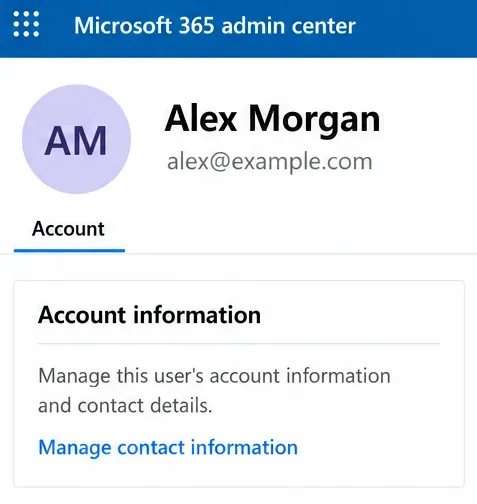
On the user's Account tab, select Manage contact information.
Update the display name and select Save changes.
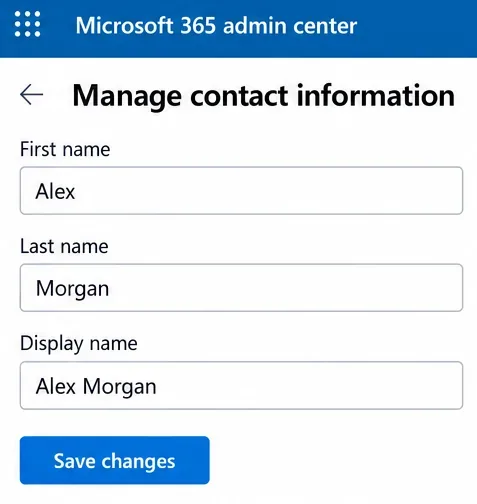
Follow Microsoft's administrator instructions for changing a display name. Changing an email address or sign-in username is a separate operation; it is unnecessary when only the displayed name needs correction.
Use this route for a department or project workspace. A regular team member cannot rename it; being a team owner is the relevant permission, rather than needing organization-wide administrator access.
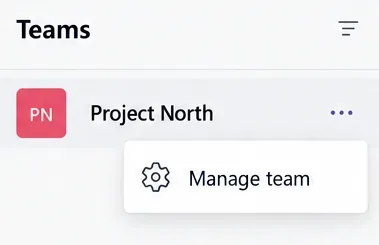
Find the team, open More options beside its name, and select Manage team.
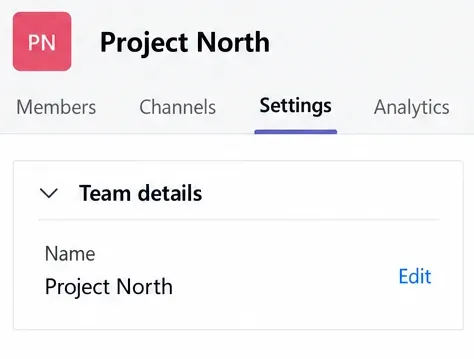
Select Settings, expand Team details, and select Edit.
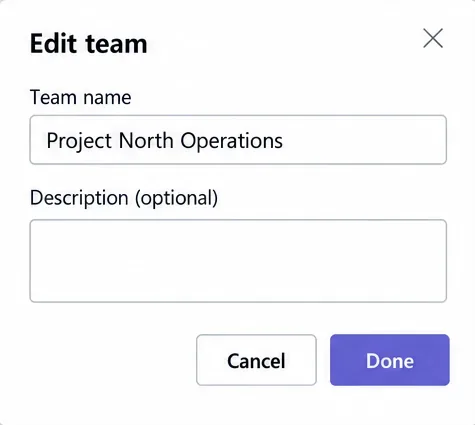
Enter the new team name and select Done.
This follows Microsoft's current team settings instructions. Keep the description and privacy setting as intended. Tell members about the rename in an appropriate channel so they recognize the workspace.
First, confirm that you edited the account currently selected in Teams. Then sign out and sign back in. For organizational accounts, ask IT to confirm the saved directory display name if the problem continues.
Teams can retain old profile information in its cache. Microsoft's Teams profile update troubleshooting guide documents service caching of up to three days and client caching of display names for up to 28 days. Those are cache limits, not a requirement to wait that long before seeking help. Signing out and back in is the recommended first refresh step.
Learn how to create a poll in Microsoft Teams chats, channels, and meetings, choose response settings, review results, and close voting.
Learn how to mute channel and message notifications in Microsoft Teams, unfollow noisy threads, and control banners while understanding mention alerts.
Learn how to transfer a Microsoft Teams meeting between your computer and phone, use both devices together, and fix missing transfer options or audio issues.
Learn how to snooze a message in Microsoft Teams with Snooze Bot, return to it later, and use saved messages or mute controls when you need another option.
Learn how to create a team in Microsoft Teams, add members, choose channel types, manage permissions, and use the Teams admin center.
Learn how to download a Microsoft Teams recording from Teams, OneDrive, or SharePoint, and fix missing download options, access issues, and expired recordings.
Fix echo during Microsoft Teams meetings by removing duplicate audio connections, selecting the right headset and microphone, and checking audio settings.
Set up Microsoft Teams–Slack integration to launch Teams meetings from Slack. Learn account requirements, app permissions, setup steps, and quick fixes.
Unable to connect to Microsoft Teams meetings? Check the meeting link, account, network, and app, then learn when to contact the organizer or IT.
Microsoft Teams not syncing? Refresh messages across desktop, web, iPhone, and Android, identify account or file issues, and avoid unnecessary cache resets.








