How to Create a Microsoft Teams Group Chat

To create a Microsoft Teams group chat, select New message, add at least two other people, and send your first message. You can also name the conversation before sending. You do not need to create a team or channel.

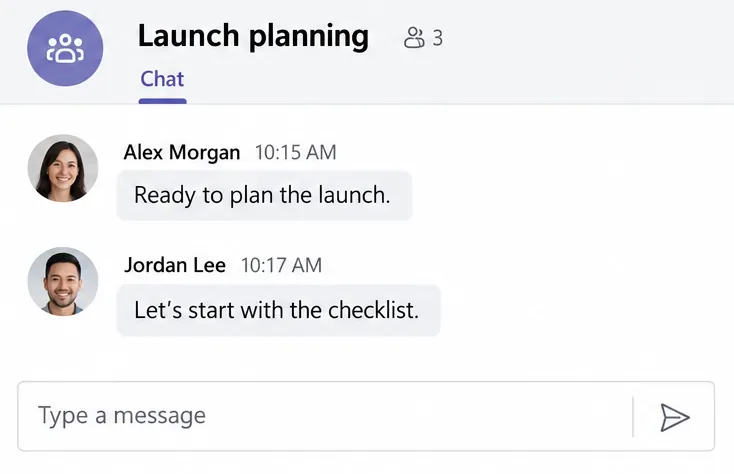
Launch planning group chat with three participants, two messages, and a message composer
A named group chat keeps a specific conversation together.

The desktop instructions below focus on work or school accounts. Personal accounts have a slightly different mobile flow, covered below. Button placement can vary with your Teams layout.

Create a group chat on desktop or the web

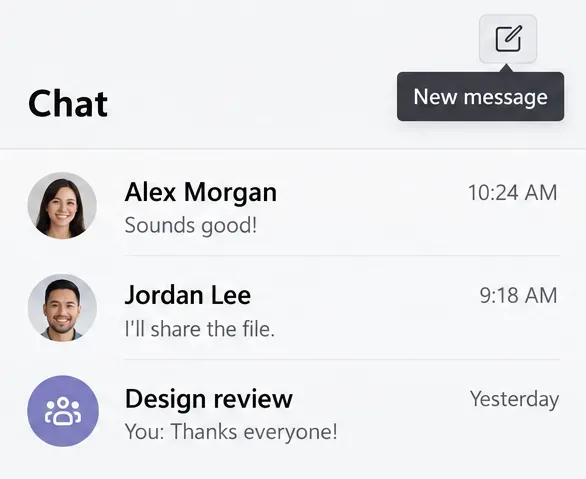
  1. Open a new conversation. In Teams, go to Chat and select the pencil-shaped New message button at the top of your chats and channels list.
    Chat list with the pencil-shaped New message button and its tooltip
    Use New message to start a conversation.
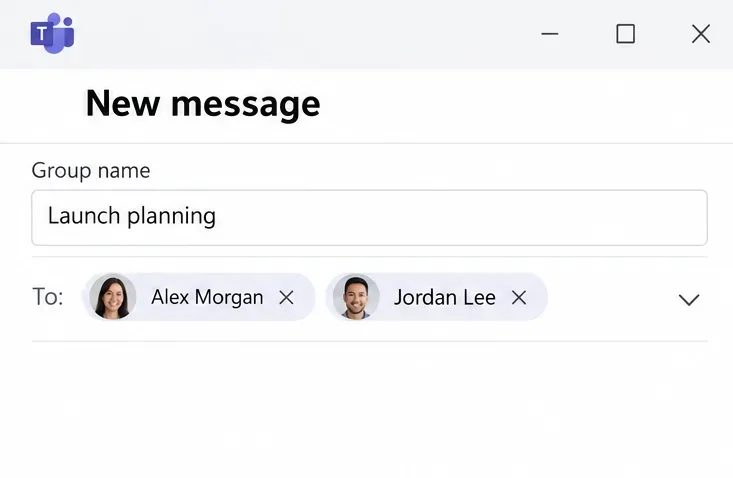
  2. Add the group name and recipients. Select the down arrow at the far right of To to reveal Group name. Enter a name, then select each person you want in the To field.
    New message view with Launch planning as the group name and two selected recipients
    Select each recipient before sending the opening message.
  3. Send the first message. Type in the compose box and select Send. Check the recipients before sending anything sensitive.

These steps follow Microsoft’s chat instructions. For a useful opening message, state the purpose and next action: “Let’s use this chat for launch questions. Please share your checklist updates here.” A specific name such as “Launch planning” is easier to recognize than a long list of participants.

Change the group chat name

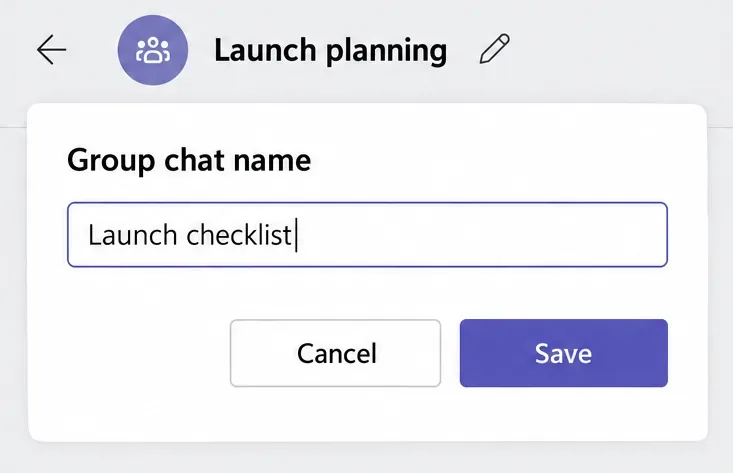
You can rename an existing conversation from the Teams mobile app. Open the chat and tap its name or participant names at the top to open the mobile chat dashboard. Tap the Edit pencil beside the group name, enter the replacement, and select Save.

Group chat name dialog containing Launch checklist with Cancel and Save buttons
Choose a short name that explains the conversation’s purpose.

Use a recognizable project or topic name. Avoid putting confidential client details in the title.

Add people and choose their chat history

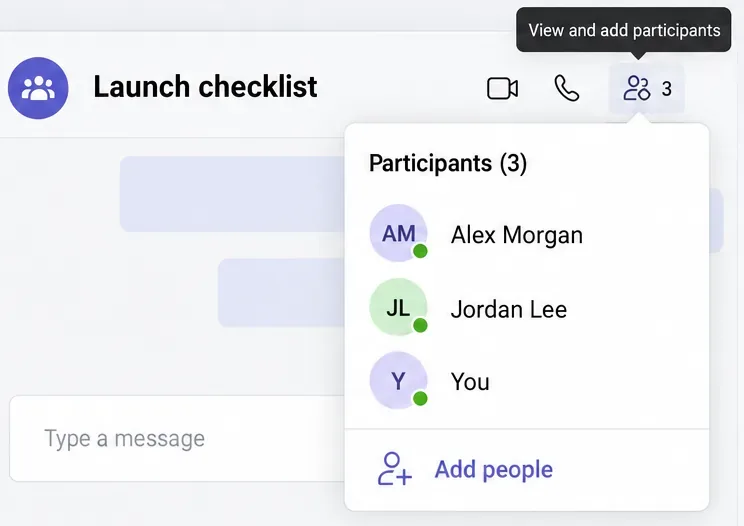
  1. Open the participant controls. In an existing desktop group chat, select View and add participants near the top, then Add people.
    Participant list for Launch checklist with three members and an Add people option
    The participant list shows who is already in the conversation.
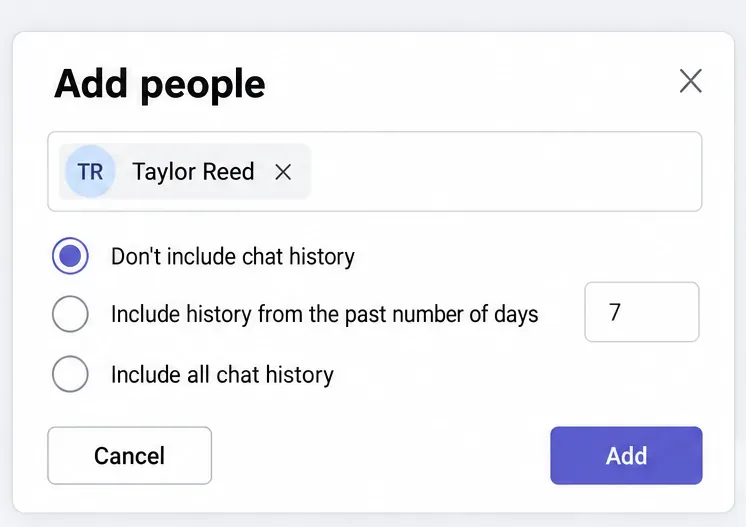
  2. Select the person and history to share. Enter the person’s name, review the available chat-history choices, and select Add. Share only the earlier messages the person needs.
    Add people dialog for Taylor Reed with no history selected and options for recent or all chat history
    Review the history selection before confirming Add.

Microsoft’s group chat guidance explains that history sharing is available when adding someone to an existing group chat. Adding a third person to a one-on-one chat creates a new group conversation; the original private conversation’s history does not move into it.

Create a group chat with a personal account on mobile

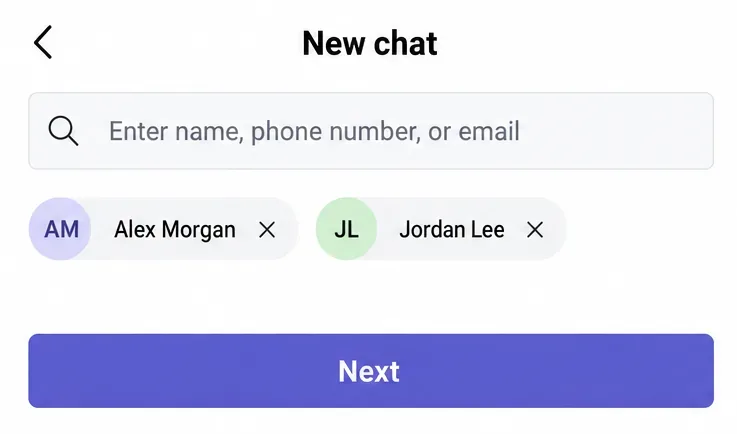
In Teams for personal use, tap New chat. Search for the people by name, phone number, or email, select your recipients, and tap Next. Type and send a message to finish creating the group. New contacts may need to accept an invitation before participating. See the Teams for personal use instructions for account-specific details.

Teams personal mobile New chat view with Alex Morgan and Jordan Lee selected above Next
Personal-account group creation includes selecting contacts and tapping Next.

Leave a Microsoft Teams group chat

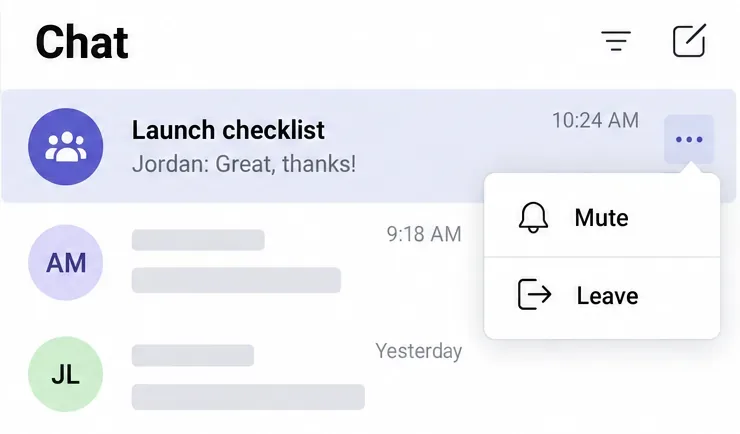
On desktop, find the group in your chat list and select More options (…) > Leave. On mobile, open the chat’s details and choose Leave chat; confirm if prompted.

Launch checklist chat row with a More options menu showing Mute and Leave
Choose Leave to exit, or Mute if you only want fewer notifications.

After leaving a group chat, you stop receiving new messages and need another participant to invite you back. Your earlier messages remain in the group. If notifications are the problem, muting the conversation lets you stay involved.

Why can’t I add someone or start a call?

  • They are outside your team: Sharing membership in the same team is not required. External participants can also join supported group chats when organizational policies allow it.
  • An external participant cannot be added: Verify their email address and ask IT about external-access or compliance restrictions. Adding an external person to an internal-only group creates a new chat. External-access participants also cannot share or attach files, so do not assume every group supports the same collaboration options. See Microsoft’s external chat guidance.
  • The group is too large: Work or school group chats support up to 250 people, with no more than 200 added at once. Audio and video calls from chat support up to 20. Above 20 chat participants, calling and some other features are disabled, according to Teams limits and specifications.

Leave a Comment

How to Create a Poll in Microsoft Teams

How to Create a Poll in Microsoft Teams

Learn how to create a poll in Microsoft Teams chats, channels, and meetings, choose response settings, review results, and close voting.

How to Mute Channel and Message Notifications in Microsoft Teams

How to Mute Channel and Message Notifications in Microsoft Teams

Learn how to mute channel and message notifications in Microsoft Teams, unfollow noisy threads, and control banners while understanding mention alerts.

How to Transfer a Microsoft Teams Meeting to Another Device

How to Transfer a Microsoft Teams Meeting to Another Device

Learn how to transfer a Microsoft Teams meeting between your computer and phone, use both devices together, and fix missing transfer options or audio issues.

How to Snooze a Message in Microsoft Teams

How to Snooze a Message in Microsoft Teams

Learn how to snooze a message in Microsoft Teams with Snooze Bot, return to it later, and use saved messages or mute controls when you need another option.

How to Create a Team in Microsoft Teams (and Manage It)

How to Create a Team in Microsoft Teams (and Manage It)

Learn how to create a team in Microsoft Teams, add members, choose channel types, manage permissions, and use the Teams admin center.

How to Download a Microsoft Teams Recording: Three Easy Solutions

How to Download a Microsoft Teams Recording: Three Easy Solutions

Learn how to download a Microsoft Teams recording from Teams, OneDrive, or SharePoint, and fix missing download options, access issues, and expired recordings.

Getting Echo During Microsoft Teams Meetings? Here’s How to Fix It

Getting Echo During Microsoft Teams Meetings? Here’s How to Fix It

Fix echo during Microsoft Teams meetings by removing duplicate audio connections, selecting the right headset and microphone, and checking audio settings.

Microsoft Teams–Slack Integration: How to Set It Up

Microsoft Teams–Slack Integration: How to Set It Up

Set up Microsoft Teams–Slack integration to launch Teams meetings from Slack. Learn account requirements, app permissions, setup steps, and quick fixes.

Unable to Connect to Microsoft Teams Meetings? How to Fix It

Unable to Connect to Microsoft Teams Meetings? How to Fix It

Unable to connect to Microsoft Teams meetings? Check the meeting link, account, network, and app, then learn when to contact the organizer or IT.

Fix Microsoft Teams Not Syncing: Full Guide

Fix Microsoft Teams Not Syncing: Full Guide

Microsoft Teams not syncing? Refresh messages across desktop, web, iPhone, and Android, identify account or file issues, and avoid unnecessary cache resets.