How to Create and Use a Microsoft Teams Calendar

To use the Microsoft Teams calendar, select Calendar in Teams and create a meeting or event. For a shared schedule inside a team, add a Channel calendar tab to a standard channel. These serve different purposes: your main calendar organizes your schedule, while a channel calendar brings that channel’s meetings together.

This guide covers Teams for work or school on desktop. Controls can vary with your organization’s settings and app version; the examples highlight the relevant controls.

Which Teams calendar do you need?

  • Main Calendar: Your meetings and events, connected to your Outlook/Exchange calendar for the same account.
  • Channel calendar: A channel-specific view of the team’s Microsoft 365 group calendar. It shows that channel’s meetings, rather than everyone’s personal appointments or every team event.

You do not normally need an administrator to create your everyday calendar. Admin help becomes relevant when Calendar is unavailable or cannot access your mailbox.

Open your calendar and schedule a meeting

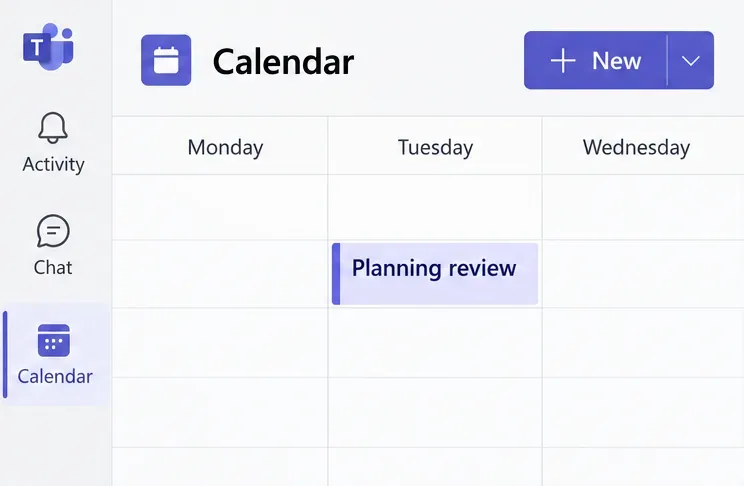
  1. Open Calendar. Select Calendar on the left side of Teams. Use the view selector to switch between available layouts, such as Work week, Week, or Month. Choose a view that makes scheduling conflicts easy to spot.
Teams Calendar selected in the app rail beside a calendar grid and New button
The main Calendar view brings your meetings together.
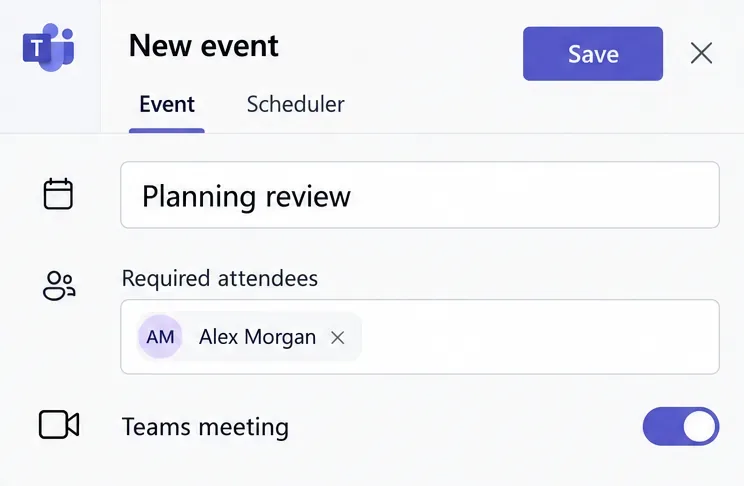
  1. Create an event. Select New or an empty calendar timeslot. Enter a title, attendees, date, start and end times, and an agenda. Turn on Teams meeting when participants need an online meeting link.
New event editor with required attendees, Save, and the Teams meeting switch on
Enable Teams meeting when the event needs an online join link.
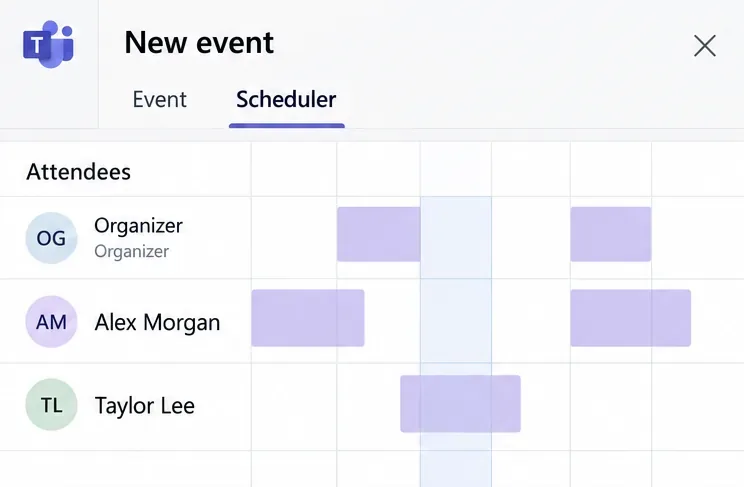
  1. Check availability. Open Scheduler to compare attendees’ schedules and time zones. Review busy blocks before choosing a slot, especially when people work in different regions.
Scheduler grid showing busy blocks for the organizer, Alex Morgan, and Taylor Lee
Scheduler helps you compare availability before sending invitations.
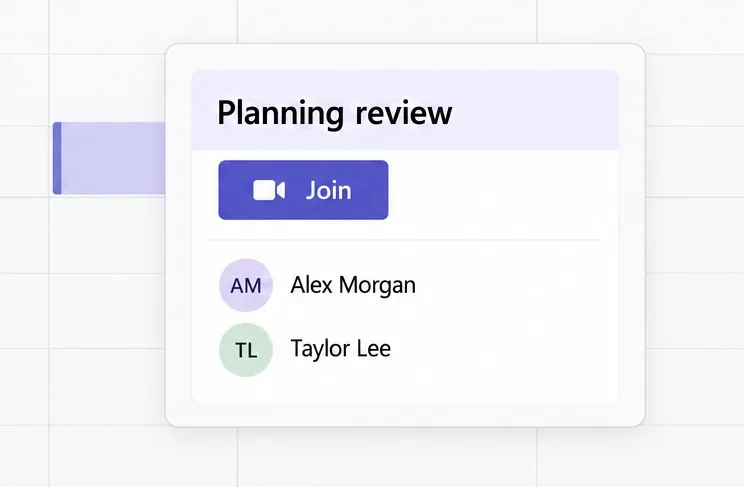
  1. Save and use the meeting. Select Save or Send, as shown in your form. Later, open the event and select Join. Organizers can change the meeting details and send an update when plans change.
Planning review event card with a Join button and two attendee names
Open a scheduled meeting to find its Join control.

Meetings scheduled in Teams also appear in Outlook for the connected account, and vice versa. Check that both apps use the same account before troubleshooting an apparent sync problem. See Microsoft’s meeting scheduling instructions.

Create a shared channel calendar

Use a standard channel that the intended team members can access. Channel calendars are not available in private channels. Adding the tab does not publish everyone’s personal schedule.

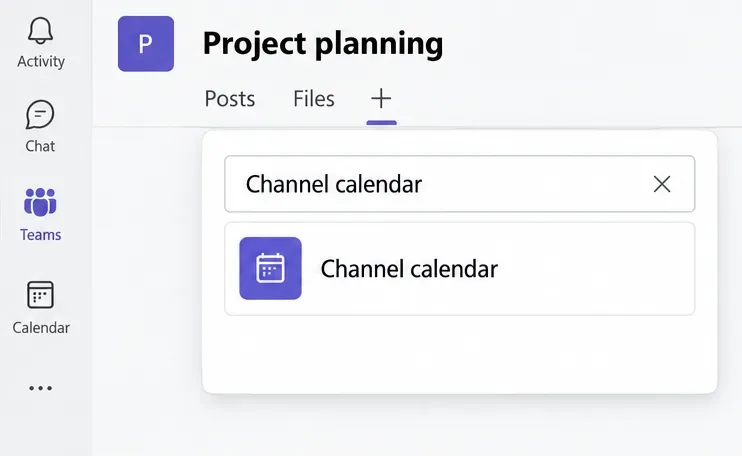
  1. Find the calendar app. Open the channel, select Add a tab (+) > Apps at the top, and search for Channel calendar. Select the matching app.
Channel calendar search result in the Project planning channel app picker
Search for Channel calendar when adding a tab to a standard channel.
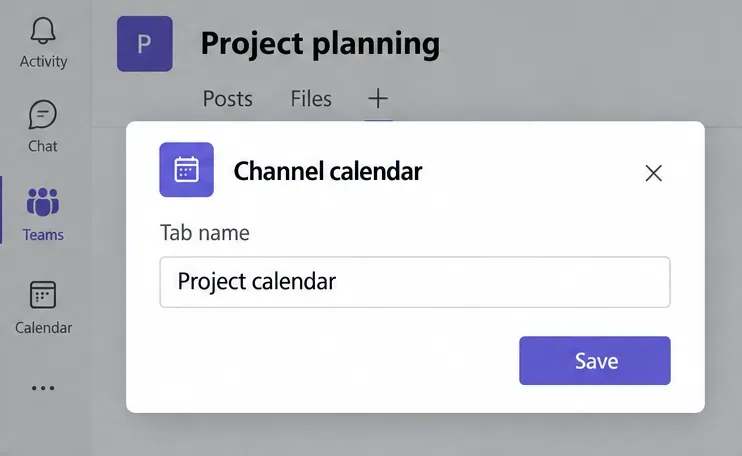
  1. Name the tab. Enter a useful name, such as “Project calendar,” and select Save. Members can use the tab to view and join meetings associated with that channel.
Channel calendar setup dialog with Project calendar as the tab name and a Save button
Give the channel calendar a name that members will recognize.

Microsoft explains the setup and visibility rules in its channel calendar guide.

Add channel meetings and keep your own schedule current

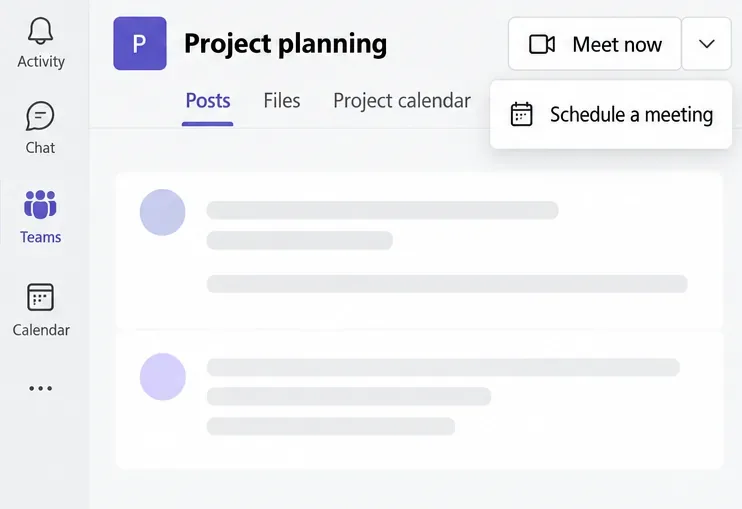
  1. Schedule in the channel. Open the dropdown beside Meet now and choose Schedule a meeting. Complete the details, check the channel, and select Send. For personal invitations, add required attendees individually or use Send personal invites where available.
Meet now dropdown showing Schedule a meeting in the Project planning channel
Use the channel’s meeting menu to schedule a channel meeting.
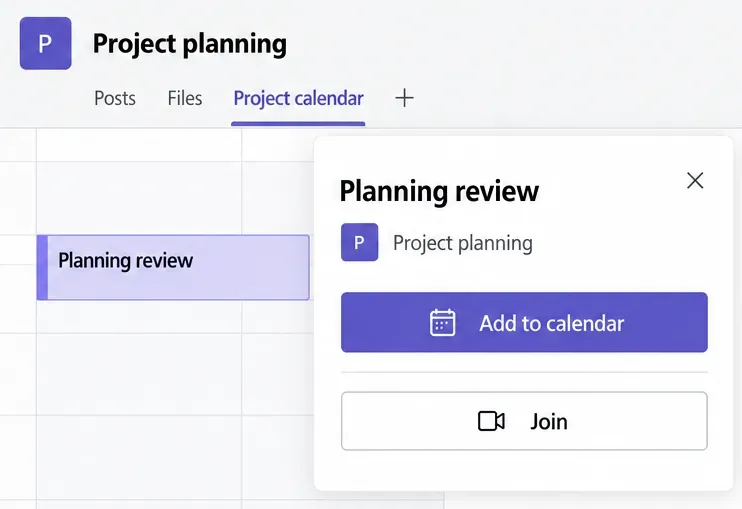
  1. Add a channel event to your calendar. If it is missing from your personal schedule, open the event in the channel calendar and select Add to calendar. Do not assume a channel post automatically reserves time for every member.
Planning review channel event with Add to calendar and Join actions
Add a channel event to your personal calendar when it is not already there.

Scheduling a channel meeting creates a post in that channel. The organizer sees the event in their personal calendar; other members’ invitations depend on how they were invited and applicable group settings. People outside your organization cannot access the channel calendar, so invite them directly when they should attend. Microsoft’s channel meeting instructions explain the invitation controls.

Share availability or fix a missing calendar

For access to your own schedule, use Calendar > More options > Share. Choose a person and the appropriate permission, then share. Availability-only access reveals less than full details; editing and delegation grant broader powers. Your organization may restrict these options. Review Microsoft’s calendar sharing permissions before granting access.

  • Calendar missing or not loading: Confirm the correct work or school account and whether Outlook opens for it. Ask IT to check Calendar availability in your assigned app policy and Teams’ access to the Exchange mailbox.
  • Channel meeting missing from your schedule: Check the channel calendar and your invitation status, then use Add to calendar if needed.

Administrators can follow Microsoft’s Teams and Exchange troubleshooting guide for mailbox and policy checks.

Leave a Comment

How to Create a Poll in Microsoft Teams

How to Create a Poll in Microsoft Teams

Learn how to create a poll in Microsoft Teams chats, channels, and meetings, choose response settings, review results, and close voting.

How to Mute Channel and Message Notifications in Microsoft Teams

How to Mute Channel and Message Notifications in Microsoft Teams

Learn how to mute channel and message notifications in Microsoft Teams, unfollow noisy threads, and control banners while understanding mention alerts.

How to Transfer a Microsoft Teams Meeting to Another Device

How to Transfer a Microsoft Teams Meeting to Another Device

Learn how to transfer a Microsoft Teams meeting between your computer and phone, use both devices together, and fix missing transfer options or audio issues.

How to Snooze a Message in Microsoft Teams

How to Snooze a Message in Microsoft Teams

Learn how to snooze a message in Microsoft Teams with Snooze Bot, return to it later, and use saved messages or mute controls when you need another option.

How to Create a Team in Microsoft Teams (and Manage It)

How to Create a Team in Microsoft Teams (and Manage It)

Learn how to create a team in Microsoft Teams, add members, choose channel types, manage permissions, and use the Teams admin center.

How to Download a Microsoft Teams Recording: Three Easy Solutions

How to Download a Microsoft Teams Recording: Three Easy Solutions

Learn how to download a Microsoft Teams recording from Teams, OneDrive, or SharePoint, and fix missing download options, access issues, and expired recordings.

Getting Echo During Microsoft Teams Meetings? Here’s How to Fix It

Getting Echo During Microsoft Teams Meetings? Here’s How to Fix It

Fix echo during Microsoft Teams meetings by removing duplicate audio connections, selecting the right headset and microphone, and checking audio settings.

Microsoft Teams–Slack Integration: How to Set It Up

Microsoft Teams–Slack Integration: How to Set It Up

Set up Microsoft Teams–Slack integration to launch Teams meetings from Slack. Learn account requirements, app permissions, setup steps, and quick fixes.

Unable to Connect to Microsoft Teams Meetings? How to Fix It

Unable to Connect to Microsoft Teams Meetings? How to Fix It

Unable to connect to Microsoft Teams meetings? Check the meeting link, account, network, and app, then learn when to contact the organizer or IT.

Fix Microsoft Teams Not Syncing: Full Guide

Fix Microsoft Teams Not Syncing: Full Guide

Microsoft Teams not syncing? Refresh messages across desktop, web, iPhone, and Android, identify account or file issues, and avoid unnecessary cache resets.