How to Create a Poll in Microsoft Teams

Learn how to create a poll in Microsoft Teams chats, channels, and meetings, choose response settings, review results, and close voting.
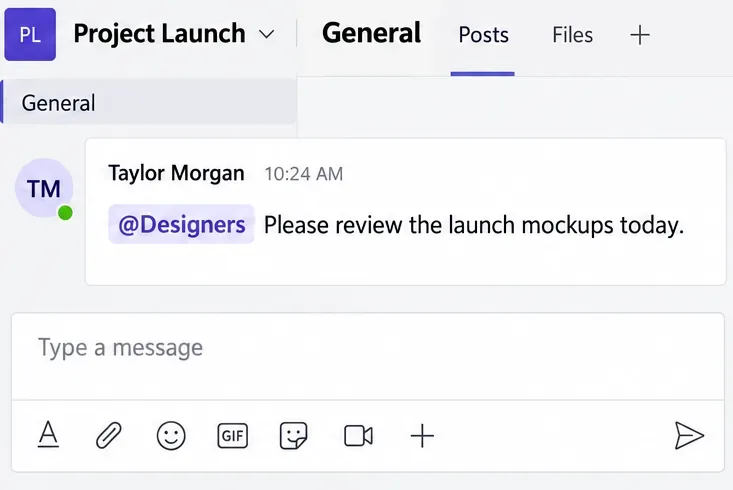
To create Microsoft Teams tags, open the menu beside a team, choose Manage tags, and create a named group of team members. Then type @ followed by the tag name in a channel message and select the matching tag to notify those people together.
For example, a Designers tag lets you request a design review without mentioning each person separately. Tags group people; they are not hashtags for organizing topics or labels attached to files.
You do not automatically need an administrator account. Team owners and members with the appropriate permissions can create custom tags. Your organization's policy determines who can manage them and whether owners can change that permission for individual teams.
These instructions focus on custom tags in a work or school team. Use the desktop app for the walkthrough. The location of your teams depends on whether you use the combined Chat view or separate Chat and Teams views.
Open your teams and channels list. In the combined layout, look in Chat; in the separate layout, open Teams. If the team is hidden, use See all your teams and channels or See all your teams at the bottom of the list.
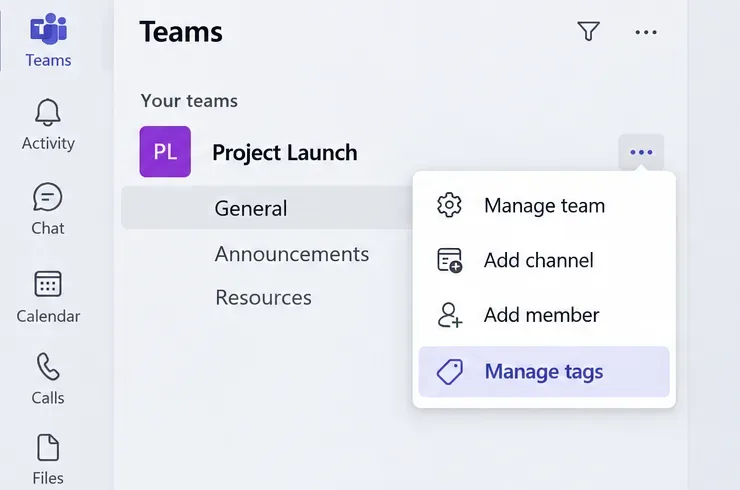
Hover over the team name, select More options (...), and choose Manage tags. Use the team menu for this walkthrough, rather than a channel's menu.
Microsoft explains these layout differences in its chat and channels navigation guide.
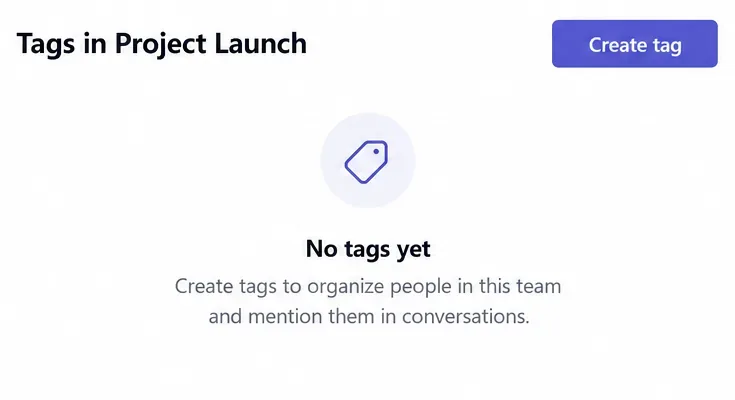
Review the existing tags before making another one. If the group you need is already there, use it instead of creating a duplicate. Otherwise, select Create tag.
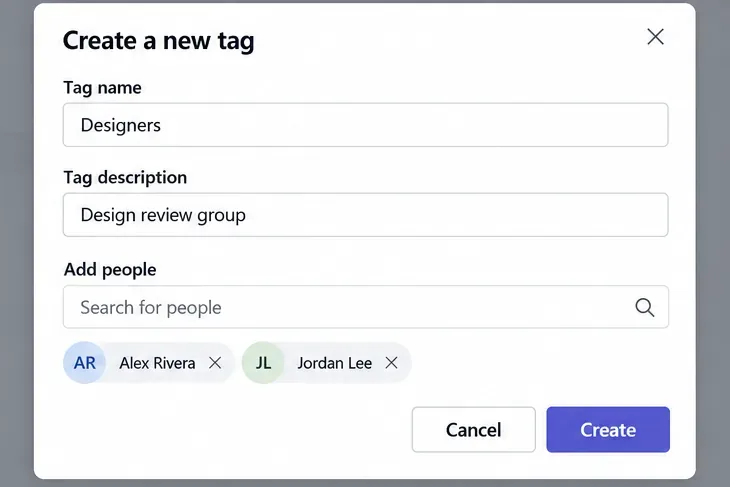
Enter a clear name, add a useful description, and select the people on your team who belong in the group. For this example, use Designers with the description Design review group. Check the selected names, then select Create.
Microsoft's tagging quick reference guide illustrates the creation form and the channel and chat workflows.
Return to the team's Manage tags area to inspect its tags and assigned people. Check membership before using a tag for an important request. If the membership is wrong and you cannot manage it, ask the team owner to update it.
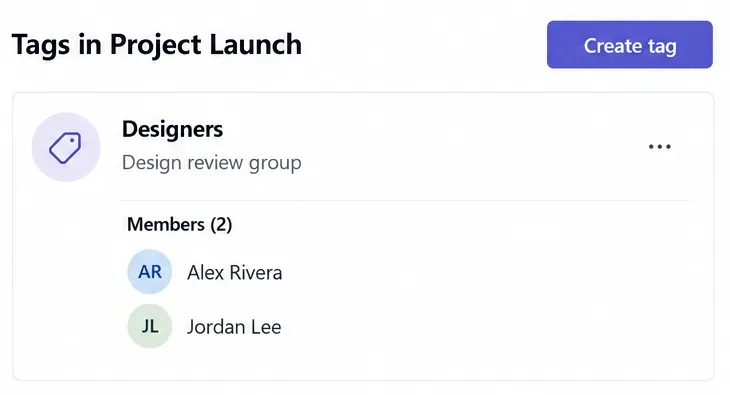
Prefer names that describe a stable responsibility, such as Designers, over vague names such as Group 1. Include the requested action in your message so recipients know why they were mentioned.
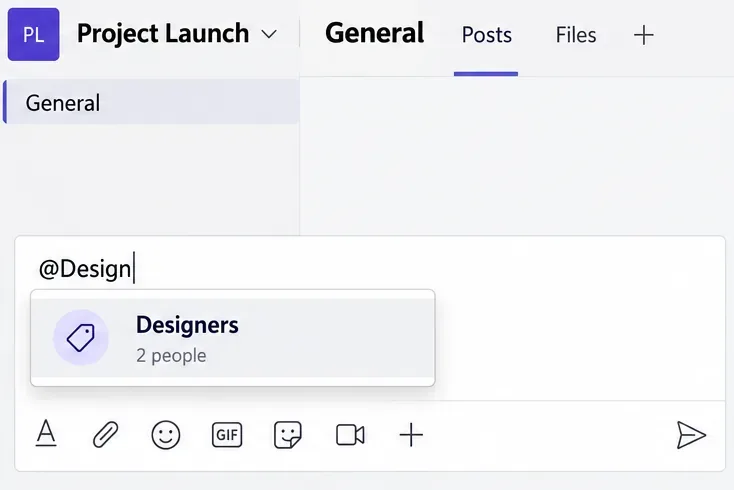
Selecting the suggestion makes it an actual mention. Simply leaving the name as ordinary text is insufficient. Assigned members receive a mention notification. They can find tag mentions through Tag mentions in Quick views or check Activity.
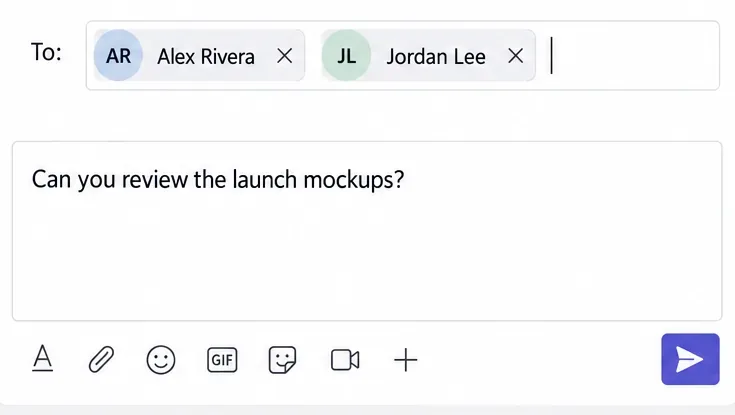
Select New message, type the tag name in the To field, and select the matching tag. Teams adds the tag's members as recipients.
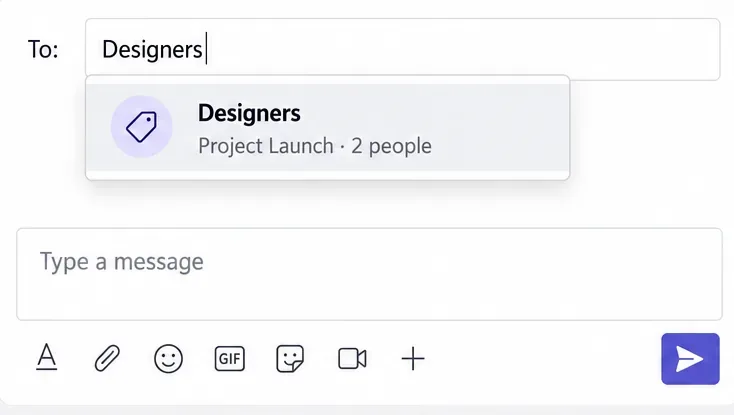
Review those names, write your message, and send it. Use a channel mention when the discussion belongs in the channel; start a chat when you want a conversation with the selected people.
See Microsoft's guide to using tags for these notification and messaging options.
Microsoft currently lists limits of 200 tags per team, 200 members per tag, and 25 tags per user within a team. Its tag administration documentation covers permissions, channel restrictions, and tag types.
Learn how to create a poll in Microsoft Teams chats, channels, and meetings, choose response settings, review results, and close voting.
Learn how to mute channel and message notifications in Microsoft Teams, unfollow noisy threads, and control banners while understanding mention alerts.
Learn how to transfer a Microsoft Teams meeting between your computer and phone, use both devices together, and fix missing transfer options or audio issues.
Learn how to snooze a message in Microsoft Teams with Snooze Bot, return to it later, and use saved messages or mute controls when you need another option.
Learn how to create a team in Microsoft Teams, add members, choose channel types, manage permissions, and use the Teams admin center.
Learn how to download a Microsoft Teams recording from Teams, OneDrive, or SharePoint, and fix missing download options, access issues, and expired recordings.
Fix echo during Microsoft Teams meetings by removing duplicate audio connections, selecting the right headset and microphone, and checking audio settings.
Set up Microsoft Teams–Slack integration to launch Teams meetings from Slack. Learn account requirements, app permissions, setup steps, and quick fixes.
Unable to connect to Microsoft Teams meetings? Check the meeting link, account, network, and app, then learn when to contact the organizer or IT.
Microsoft Teams not syncing? Refresh messages across desktop, web, iPhone, and Android, identify account or file issues, and avoid unnecessary cache resets.








