How to Create a Poll in Microsoft Teams

Learn how to create a poll in Microsoft Teams chats, channels, and meetings, choose response settings, review results, and close voting.
To customize Microsoft Teams notifications, open Settings and more (…) > Settings > Notifications and activity. Adjust your alerts there, then fine-tune busy channels and chats individually.
The desktop instructions below focus on work or school accounts. Teams for personal use has a different settings layout; Microsoft documents its desktop controls under Settings > Activity. Check mobile settings separately when reducing phone interruptions.
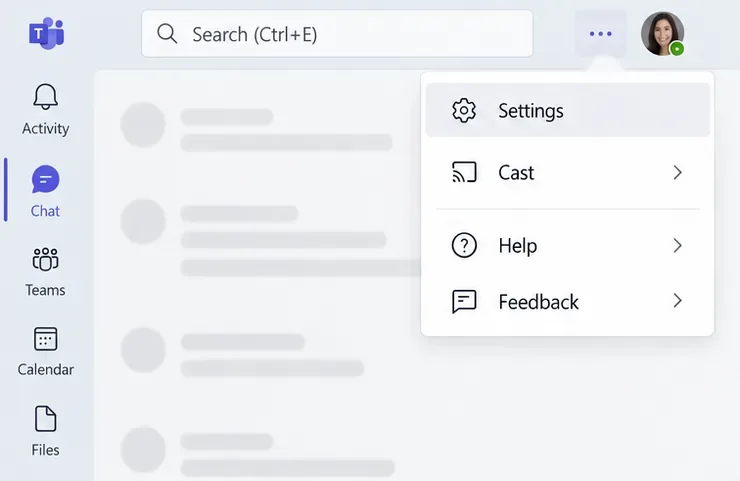
Select the three-dot Settings and more menu beside your profile picture, choose Settings, and open Notifications and activity. If you cannot find an option, use the settings search box.
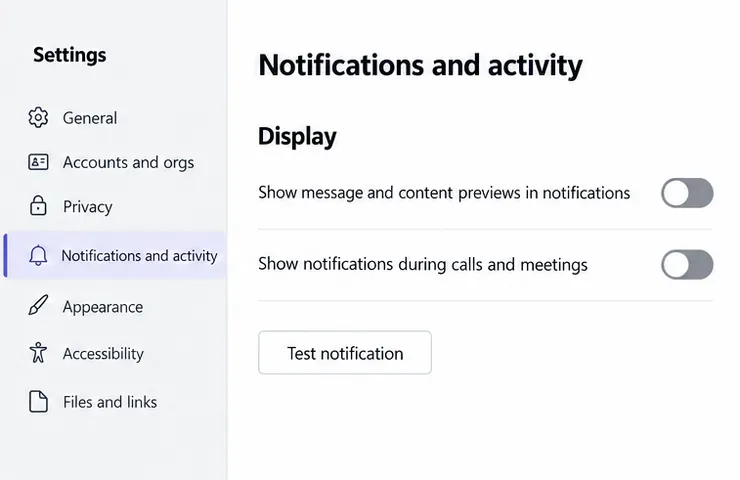
Review Sound and Display. Turn off previews for privacy or notifications during calls and meetings for fewer interruptions. Custom notification sounds are available on Windows and web. Use Test notification to check the result.
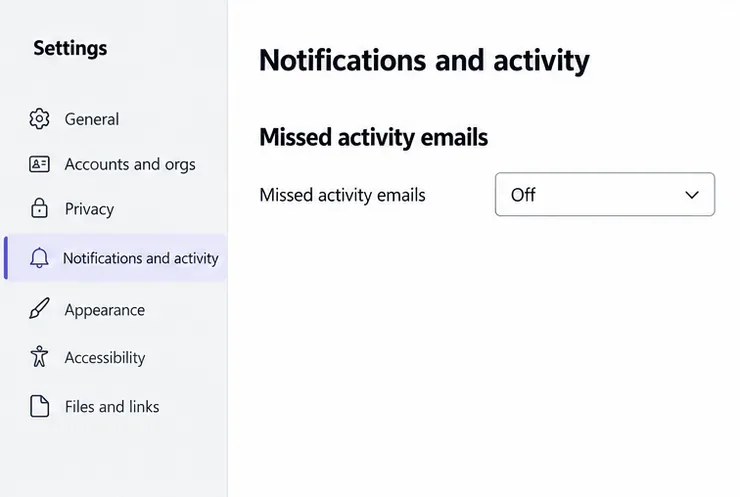
Under Chats and channels, adjust the available dropdowns for each notification type. Keep important alerts visible and reduce less useful activity. Under Missed activity emails, choose a frequency or turn summaries off.
Need availability alerts? The Presence section manages notifications about selected coworkers. See Microsoft's Teams notification settings guide for the available controls.
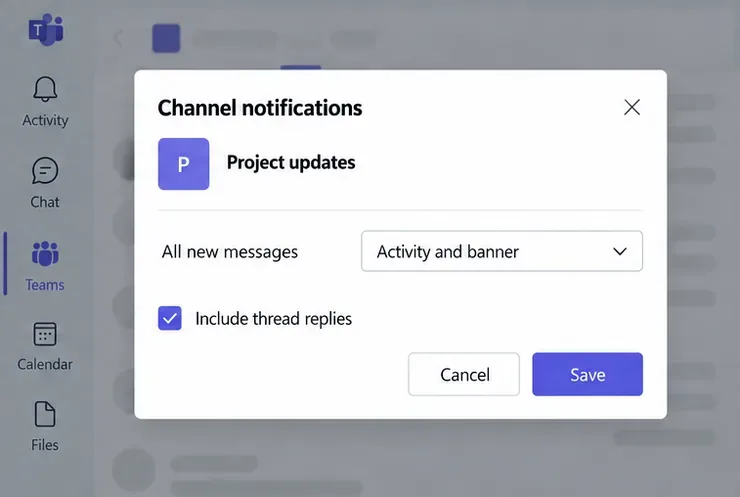
Beside the channel name, select More options (…) > Channel notifications. Choose alerts for new messages or posts, depending on the channel layout.
In Threads-layout channels, include thread replies if you need reply alerts. Following all new threads adds replies to Followed threads; following alone does not create Activity feed notifications. These channel-specific controls let you prioritize a project without enabling every channel alert.
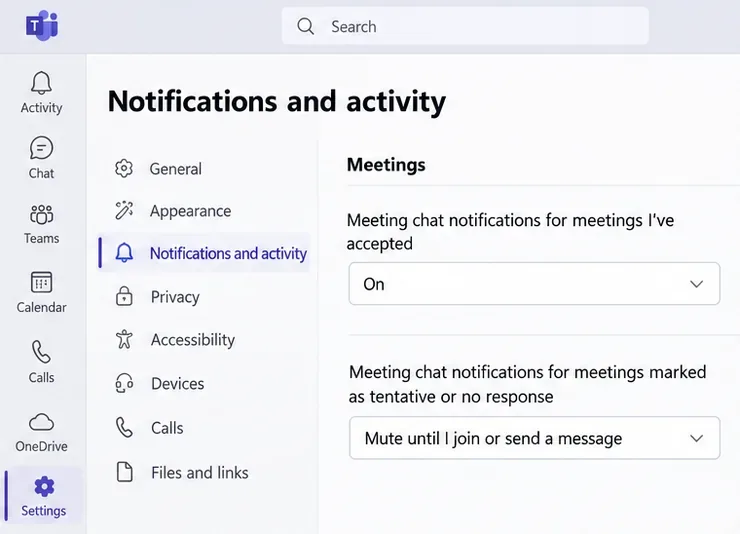
Open Meetings within notification settings. Review meeting-start alerts, then adjust chat notifications separately for meetings you accepted and those marked tentative or unanswered.
For a single meeting, accepting normally unmutes its chat. Tentative or unanswered invitations normally stay muted until you join or send a message. Changing your RSVP can update notification behavior. You can also mute an individual meeting chat from its three-dot menu. Microsoft's meeting-chat guide explains these differences.
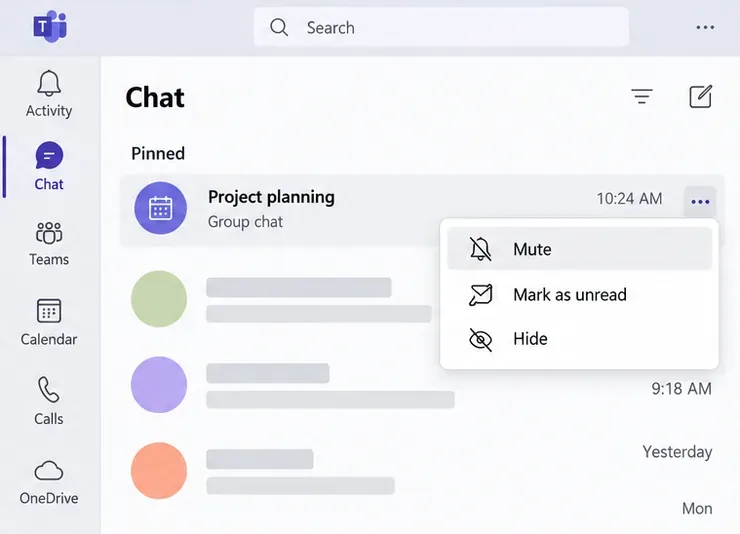
In your chat list, hover over a conversation and select More options (…) > Mute. You remain in the chat and can read its history. Ordinary message alerts stop, but @mentions can still notify you. Use Unmute in the same menu to restore alerts.
Hiding a chat only changes its visibility in the list. Use Mute rather than Hide when your goal is fewer notifications.
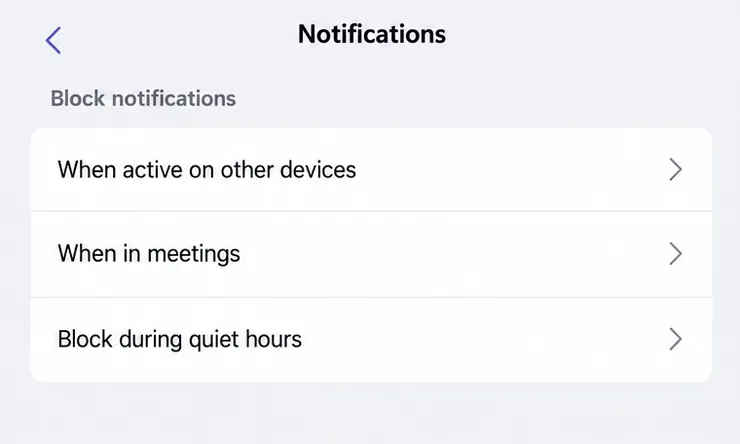
In the mobile app, tap your profile picture, then Notifications. Under Block notifications, open When active on other devices and enable blocking while you use Teams on desktop or web.
Mobile alerts resume after Teams detects several minutes of inactivity on those devices. Call notifications can still reach your phone. Review When in meetings separately if calls or meetings generate unwanted phone interruptions. Microsoft's mobile notification troubleshooting guide covers these settings.
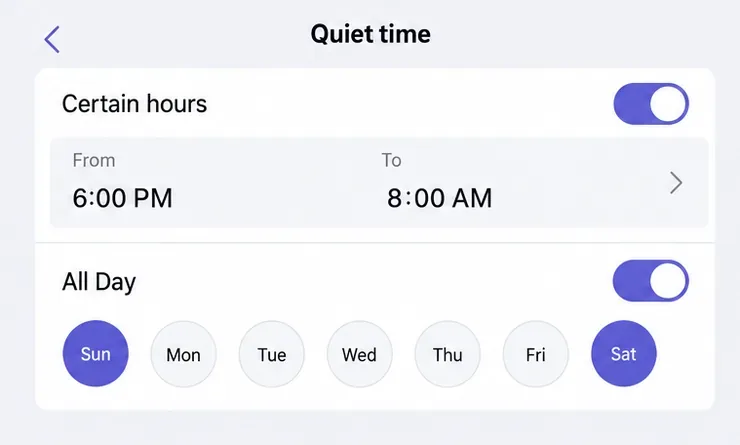
From mobile Notifications, select Block during quiet hours. Enable Certain hours for an overnight schedule or All Day for selected days off.
Quiet time silences sound and push notifications; new activity remains available when you open Teams. Coworkers are not told that your phone notifications are muted. Quiet hours follow your device's time zone, including when you travel. See Microsoft's quiet-time instructions before syncing schedules across mobile apps and devices.
Check the affected chat or channel first, then your device permissions. On Windows 11, review Settings > System > Notifications, including Do not disturb and app notification permissions. On phones, allow Teams notifications in the device's Settings app and review quiet hours or cross-device blocking before changing more settings.
Learn how to create a poll in Microsoft Teams chats, channels, and meetings, choose response settings, review results, and close voting.
Learn how to mute channel and message notifications in Microsoft Teams, unfollow noisy threads, and control banners while understanding mention alerts.
Learn how to transfer a Microsoft Teams meeting between your computer and phone, use both devices together, and fix missing transfer options or audio issues.
Learn how to snooze a message in Microsoft Teams with Snooze Bot, return to it later, and use saved messages or mute controls when you need another option.
Learn how to create a team in Microsoft Teams, add members, choose channel types, manage permissions, and use the Teams admin center.
Learn how to download a Microsoft Teams recording from Teams, OneDrive, or SharePoint, and fix missing download options, access issues, and expired recordings.
Fix echo during Microsoft Teams meetings by removing duplicate audio connections, selecting the right headset and microphone, and checking audio settings.
Set up Microsoft Teams–Slack integration to launch Teams meetings from Slack. Learn account requirements, app permissions, setup steps, and quick fixes.
Unable to connect to Microsoft Teams meetings? Check the meeting link, account, network, and app, then learn when to contact the organizer or IT.
Microsoft Teams not syncing? Refresh messages across desktop, web, iPhone, and Android, identify account or file issues, and avoid unnecessary cache resets.








