How to Create a Poll in Microsoft Teams

Learn how to create a poll in Microsoft Teams chats, channels, and meetings, choose response settings, review results, and close voting.
To download Google Meet on Android, iPhone, or iPad, use its official app store listing. On a computer, you can use Meet in a browser without downloading anything, or install Google’s progressive web app (PWA) through Chrome. The PWA opens in its own window and gives you an app icon for quicker access.
| Device | Official option |
|---|---|
| Windows, Mac, Chromebook, or Linux computer | Meet website; optional PWA installed through Chrome |
| Android phone or tablet | Google Meet from Google Play |
| iPhone or iPad | Google Meet from the App Store |
The desktop PWA provides the same Meet features as the website; installing it does not unlock additional meeting features. It also needs an internet connection for meetings. You do not need a separate Windows executable or Mac disk image from a download site.
Use an up-to-date version of Google Chrome for this installation method. Chrome does not have to be your default browser. Google supports its Meet PWA on Windows, macOS, Chrome OS, and Linux; see Google’s Meet web app instructions.
Open the official website. In Chrome, visit meet.google.com. Sign in with the Google account you intend to use, especially if your meetings belong to a work or school account.
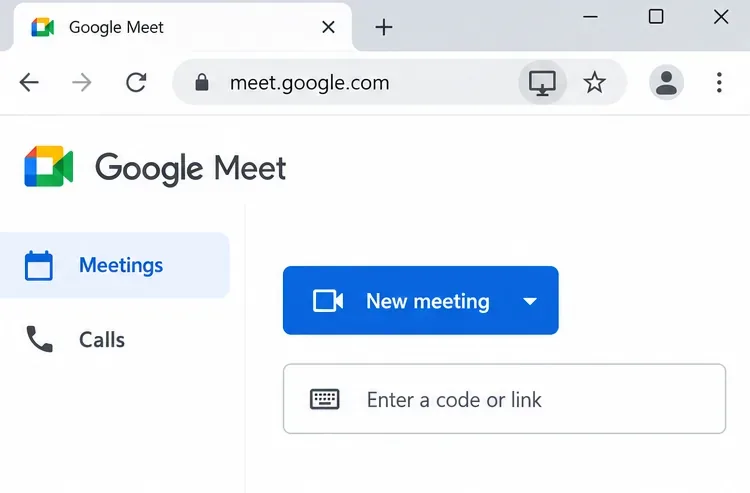
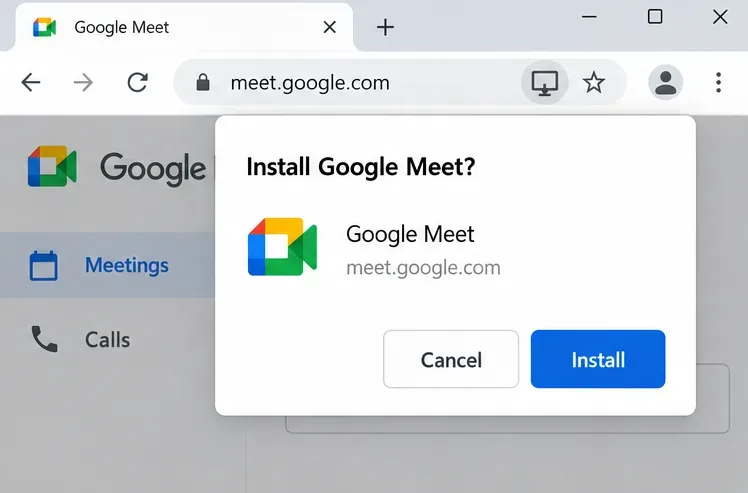
Install the web app. Click the Install icon at the right of the address bar, then confirm the installation. Check that the dialog identifies Google Meet and meet.google.com.
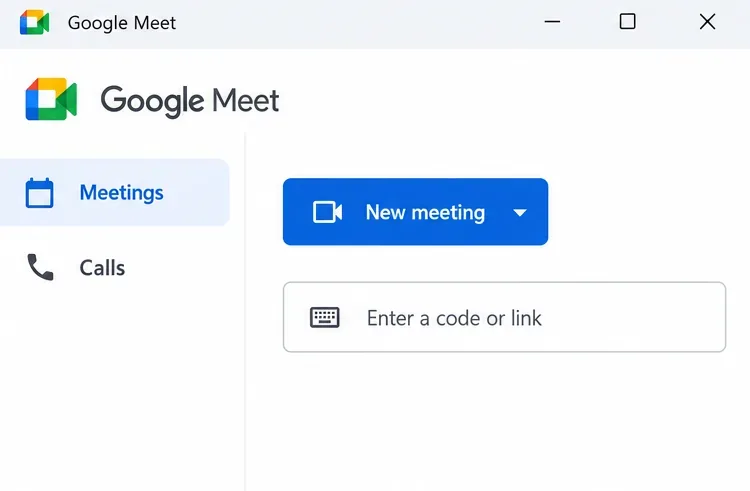
Open the installed app. Launch Google Meet from your computer’s app launcher. Select Meetings to create or join a meeting. The app runs in a separate window while remaining a Chrome-based web app.
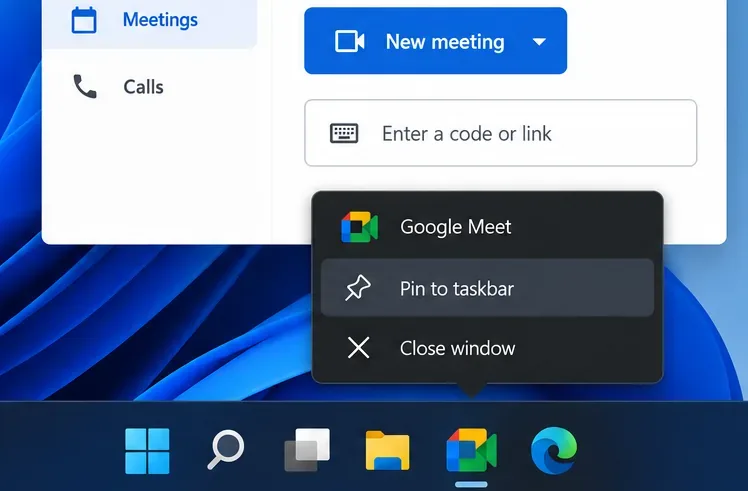
Pinning the installed app saves you from searching for it each time. Follow the option for your operating system.
On Windows: With Meet open, right-click its taskbar icon and choose Pin to taskbar. This follows Microsoft’s taskbar instructions; it keeps a shortcut available after you close the window.
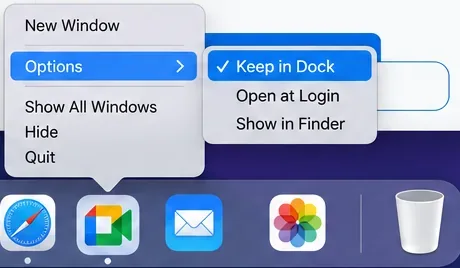
On a Mac: Open Meet, Control-click its Dock icon, and choose Options > Keep in Dock, as described in Apple’s Dock guide.
Use the official store links below rather than an APK site or a third-party download button. These links point to the current Meet app.
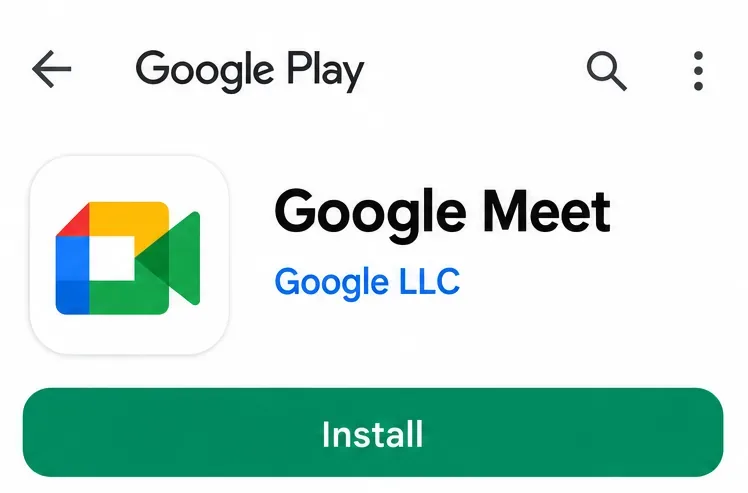
On Android: Open Google Meet on Google Play. Verify that the developer is Google LLC, then tap Install. If the listing shows Open, the app is already installed; use Update if offered.
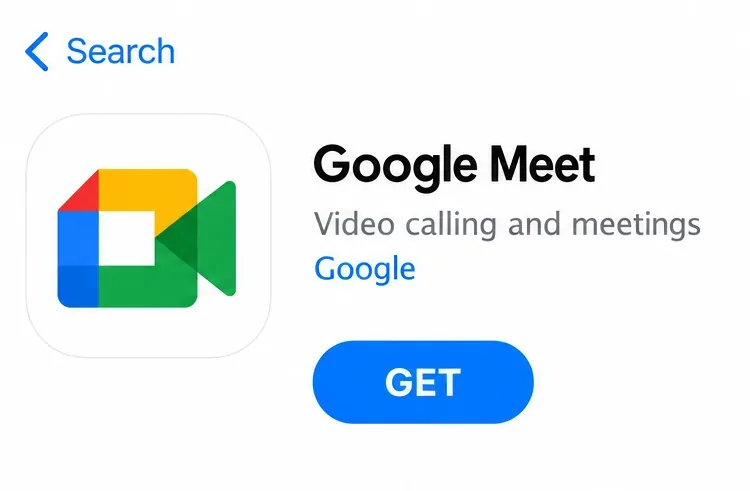
On iPhone or iPad: Open Google Meet on the App Store. Verify that the developer is Google, tap Get or the redownload icon, and authenticate if prompted. Open Meet after installation.
Check your account and permissions. Open Meet with the intended account. Allow camera and microphone access when you want to use video and audio. On a computer, browser permissions and operating system privacy settings can both affect access.
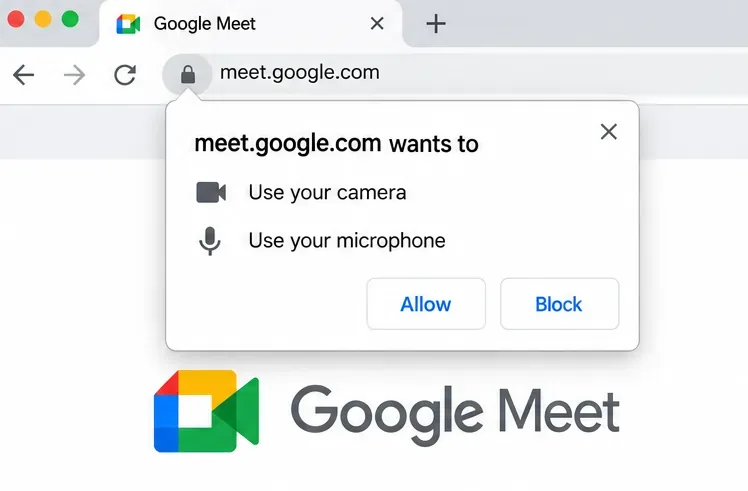
The interface examples highlight the relevant controls; their layout and wording can vary by browser and device. Check Google’s current Meet requirements if your operating system or browser is older.
If you only need to join a meeting on a computer, installation is optional. Current versions of Chrome, Firefox, Edge, and Safari support Meet in the browser.
Learn how to create a poll in Microsoft Teams chats, channels, and meetings, choose response settings, review results, and close voting.
Learn how to mute channel and message notifications in Microsoft Teams, unfollow noisy threads, and control banners while understanding mention alerts.
Learn how to transfer a Microsoft Teams meeting between your computer and phone, use both devices together, and fix missing transfer options or audio issues.
Learn how to snooze a message in Microsoft Teams with Snooze Bot, return to it later, and use saved messages or mute controls when you need another option.
Learn how to create a team in Microsoft Teams, add members, choose channel types, manage permissions, and use the Teams admin center.
Learn how to download a Microsoft Teams recording from Teams, OneDrive, or SharePoint, and fix missing download options, access issues, and expired recordings.
Fix echo during Microsoft Teams meetings by removing duplicate audio connections, selecting the right headset and microphone, and checking audio settings.
Set up Microsoft Teams–Slack integration to launch Teams meetings from Slack. Learn account requirements, app permissions, setup steps, and quick fixes.
Unable to connect to Microsoft Teams meetings? Check the meeting link, account, network, and app, then learn when to contact the organizer or IT.
Microsoft Teams not syncing? Refresh messages across desktop, web, iPhone, and Android, identify account or file issues, and avoid unnecessary cache resets.








