How to Create a Poll in Microsoft Teams

Learn how to create a poll in Microsoft Teams chats, channels, and meetings, choose response settings, review results, and close voting.
To use Microsoft Teams Shifts, open Shifts in Teams, create a schedule for your team, add people and shifts, then select Share with team. Shifts is normally enabled already. If you cannot find it, your Teams administrator should check app access before you start.
Users need a Teams license; Shifts is not limited to Enterprise subscriptions. Guests cannot use Shifts schedules. Use Teams desktop or web for setup and schedule management, and mobile for checking shifts and submitting requests. Team owners can manage schedules; administrators can also grant members the dedicated schedule owner role without giving them ownership of the entire team.
The example screens below show fictional staff and sample settings. Your organization's layout may differ.
Shifts is enabled by default. If it is missing, an administrator should open the Teams admin center and go to Teams apps > Manage apps > Shifts.
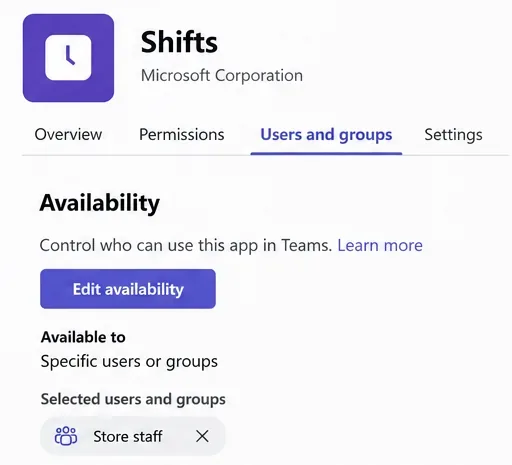
In organizations using app centric management, open Users and groups > Availability > Edit availability. Make Shifts available to the intended users or groups, then select Apply. In older environments, check that its status is Allowed and that the user's app permission policy permits it.
Pinning only creates a shortcut; it does not grant access. A Frontline Worker policy package is not a required activation step.
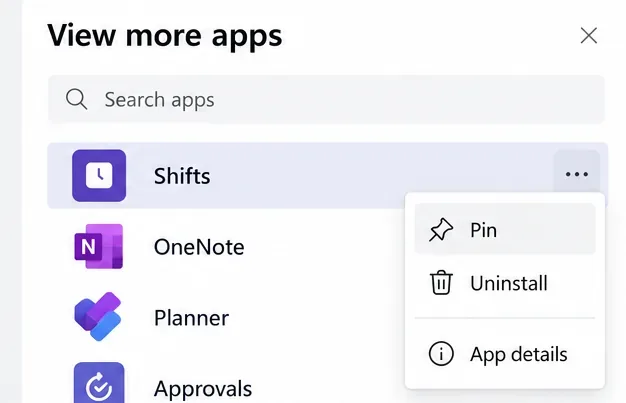
In Teams desktop or web, select View more apps on the left and find Shifts. Right-click Shifts and choose Pin for easier access. On mobile, tap Shifts in the app bar; swipe up from the app bar if it is hidden.
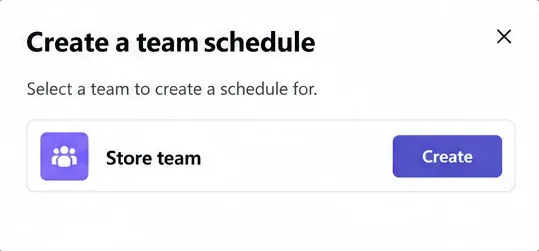
In Shifts, open Choose or create a schedule > New schedule. Select Create beside your team, set the time zone for the team's location, choose the closest city, and confirm. Each team has one schedule. The standard creation flow requires team ownership; ask your administrator about permissions if Create is unavailable.
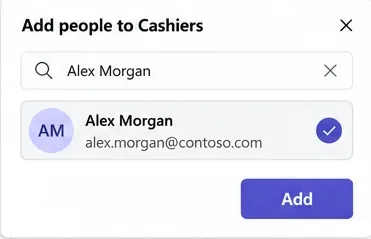
Organize staff by role or department. Rename Unnamed group, or select Add group and use its menu to rename it. Beside a group, select Add people, find a person, and select Add.
Only members of the associated team can be added. If someone is missing, check team membership and allow time for recent changes to appear. Microsoft's schedule creation guide explains these requirements.
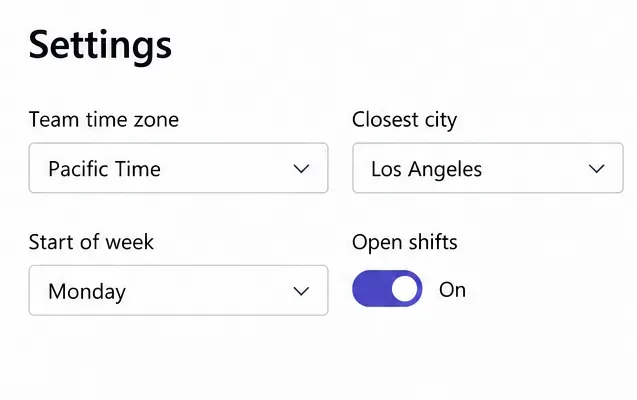
Open Settings to review the team time zone, closest city, and starting day of the week. Enable the request types your team should use, such as open shifts, swaps, offers, and time off. Time clock is optional. Settings you cannot change may be controlled by IT; see Microsoft's schedule settings reference.
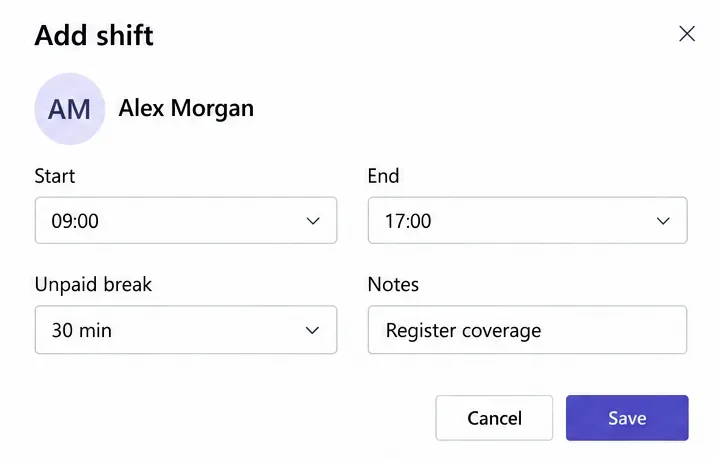
At the intersection of a person's row and the desired date, double-click an empty cell or choose More options > Add shift. Enter start and end times, breaks, and useful notes. Select Save to keep it unshared, or Share when ready.
For unassigned coverage, use the group's Open shifts row and Add open shift. You can also copy existing shifts and edit their details.
Select Share with team, confirm the date range, choose notification options, and select Share. Saving drafts alone does not publish them. Share subsequent edits too, so employees see the updated schedule. Use More options > View shared schedule to check what is currently published. Microsoft's publishing guide also covers recalling shared shifts.
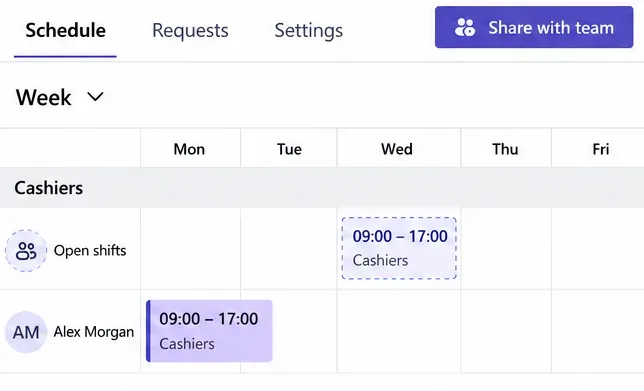
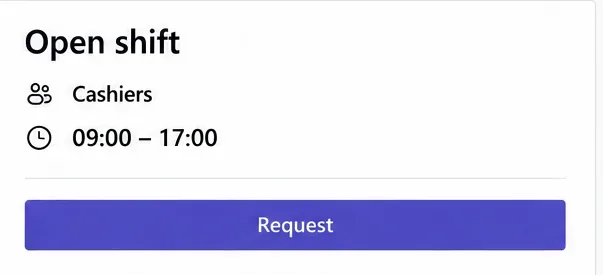
Employees can open Shifts to see published assignments. When enabled, select an open shift and choose Request, or use the available time-off, swap, and offer options. Track progress under Requests. Swaps and offers go to the coworker first and require manager approval after acceptance; they do not change the schedule immediately. See Microsoft's shift request instructions.
Learn how to create a poll in Microsoft Teams chats, channels, and meetings, choose response settings, review results, and close voting.
Learn how to mute channel and message notifications in Microsoft Teams, unfollow noisy threads, and control banners while understanding mention alerts.
Learn how to transfer a Microsoft Teams meeting between your computer and phone, use both devices together, and fix missing transfer options or audio issues.
Learn how to snooze a message in Microsoft Teams with Snooze Bot, return to it later, and use saved messages or mute controls when you need another option.
Learn how to create a team in Microsoft Teams, add members, choose channel types, manage permissions, and use the Teams admin center.
Learn how to download a Microsoft Teams recording from Teams, OneDrive, or SharePoint, and fix missing download options, access issues, and expired recordings.
Fix echo during Microsoft Teams meetings by removing duplicate audio connections, selecting the right headset and microphone, and checking audio settings.
Set up Microsoft Teams–Slack integration to launch Teams meetings from Slack. Learn account requirements, app permissions, setup steps, and quick fixes.
Unable to connect to Microsoft Teams meetings? Check the meeting link, account, network, and app, then learn when to contact the organizer or IT.
Microsoft Teams not syncing? Refresh messages across desktop, web, iPhone, and Android, identify account or file issues, and avoid unnecessary cache resets.








