How to Create a Poll in Microsoft Teams

Learn how to create a poll in Microsoft Teams chats, channels, and meetings, choose response settings, review results, and close voting.
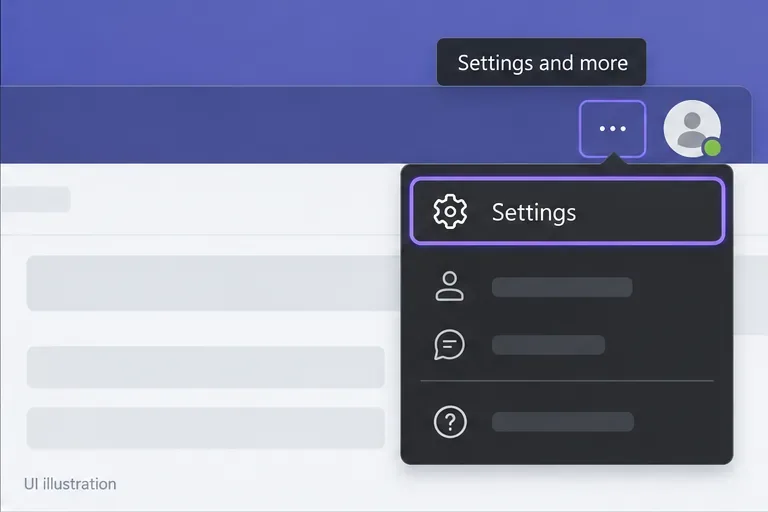
To enable Microsoft Teams dark mode on a computer, open Settings and more (...) next to your profile picture, select Settings > Appearance, and choose Dark under Theme. On an iPhone or Android phone, open your profile picture, then Settings > Appearance > Dark, and restart Teams if prompted.
Dark mode changes the Teams interface to darker backgrounds. You can select it directly or let Teams follow your device’s appearance. The illustrations below highlight the relevant controls; their layout may differ from your app.
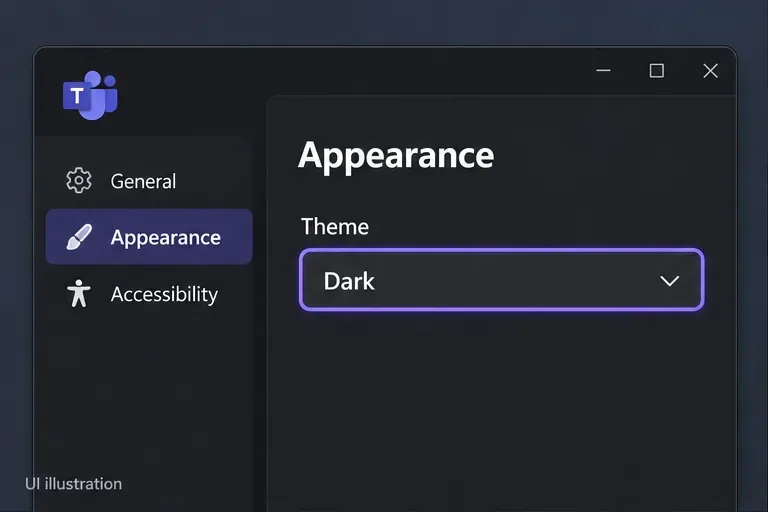
Use the controls inside Teams, rather than your browser’s toolbar or your computer’s display settings.
The desktop theme changes when you select it; you do not normally need to restart. In Teams on the web, look for the same Theme control in Teams’ own settings. Changing your browser’s overall appearance is a separate setting.
Microsoft’s appearance guide for Teams personal accounts documents the restart step on mobile. Do not look specifically for the old Close app button: follow the prompt your installed version displays. If your work or school app shows different controls, check for an update before troubleshooting further.
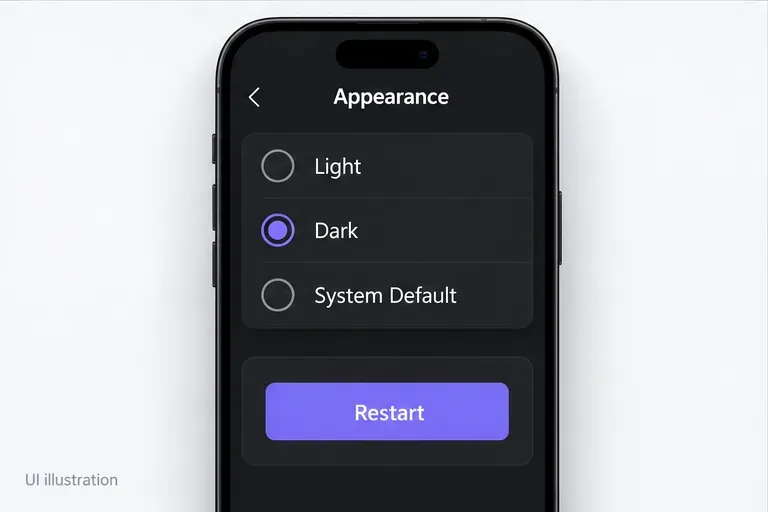
Choose Follow operating system theme on desktop, or System Default on mobile, when you want Teams to match your device. Choose Dark instead when you want a consistently dark Teams interface even while the device uses a light appearance.
To switch back manually, return to the same menu and select Light. If Teams changes appearance unexpectedly, check whether it is following the system before assuming the setting failed.
On supported desktop versions, open Settings > Appearance, leave the main theme on Light or the system-following option, and enable Always use dark theme for calls and meetings. Some versions reverse “calls” and “meetings” in the label.
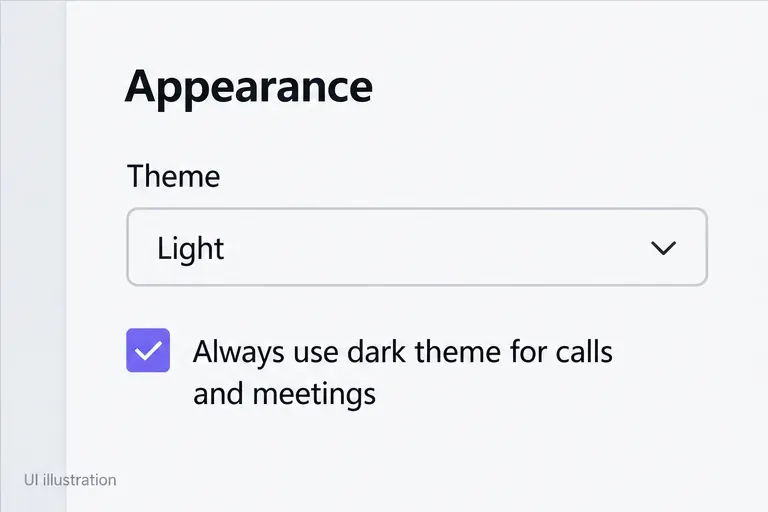
Microsoft’s Teams settings guide confirms this option for enterprise and consumer Teams. In enterprise Teams, it is not supported with the Classic theme; select another theme first.
Use Microsoft’s update instructions for the desktop process. You can also check your Teams version under Settings > About Teams on desktop, or Settings > About on mobile, when reporting a persistent problem.
A dark Teams window does not guarantee that every document page, image, shared screen, or embedded app becomes dark. Those items have their own content and display behavior. Avoid changing a document’s actual background or formatting just to match your Teams theme.
Embedded apps must respond to theme changes, as explained in Microsoft’s guidance for Teams app developers. If one tab stays bright while Teams menus are dark, check that app’s own appearance controls.
No. High contrast is a separate theme intended to make interface elements easier to distinguish. Where available, select it from Settings > Appearance > Theme if ordinary dark mode does not provide enough visual contrast.
See Microsoft’s color and contrast guidance for related accessibility options. Choose the theme that makes text and controls easiest for you to read.
Learn how to create a poll in Microsoft Teams chats, channels, and meetings, choose response settings, review results, and close voting.
Learn how to mute channel and message notifications in Microsoft Teams, unfollow noisy threads, and control banners while understanding mention alerts.
Learn how to transfer a Microsoft Teams meeting between your computer and phone, use both devices together, and fix missing transfer options or audio issues.
Learn how to snooze a message in Microsoft Teams with Snooze Bot, return to it later, and use saved messages or mute controls when you need another option.
Learn how to create a team in Microsoft Teams, add members, choose channel types, manage permissions, and use the Teams admin center.
Learn how to download a Microsoft Teams recording from Teams, OneDrive, or SharePoint, and fix missing download options, access issues, and expired recordings.
Fix echo during Microsoft Teams meetings by removing duplicate audio connections, selecting the right headset and microphone, and checking audio settings.
Set up Microsoft Teams–Slack integration to launch Teams meetings from Slack. Learn account requirements, app permissions, setup steps, and quick fixes.
Unable to connect to Microsoft Teams meetings? Check the meeting link, account, network, and app, then learn when to contact the organizer or IT.
Microsoft Teams not syncing? Refresh messages across desktop, web, iPhone, and Android, identify account or file issues, and avoid unnecessary cache resets.








