How to Create a Poll in Microsoft Teams

Learn how to create a poll in Microsoft Teams chats, channels, and meetings, choose response settings, review results, and close voting.
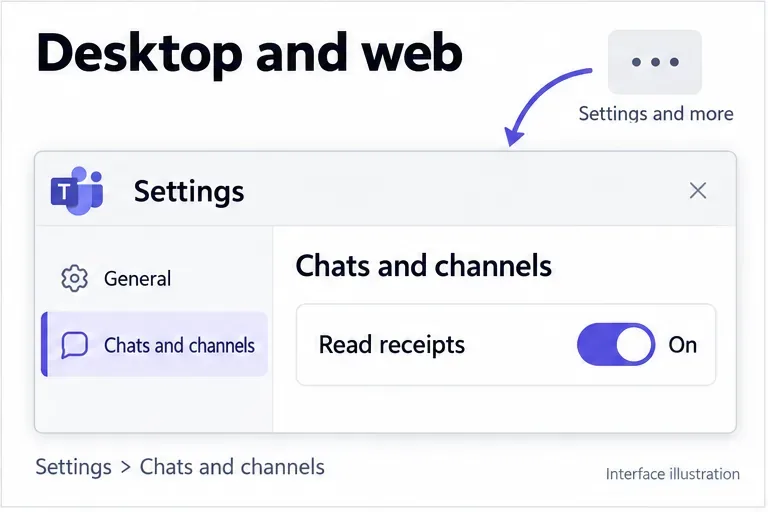
To enable or disable Microsoft Teams read receipts on a work or school account, open Settings and more (...) > Settings > Chats and channels, then change Read receipts. Your organization can control whether you are allowed to change this setting. Mobile and personal accounts use different menus, explained below.
This is the current path in Microsoft's work and school instructions. Older guides that send everyone to Privacy do not reflect the current documented menu.
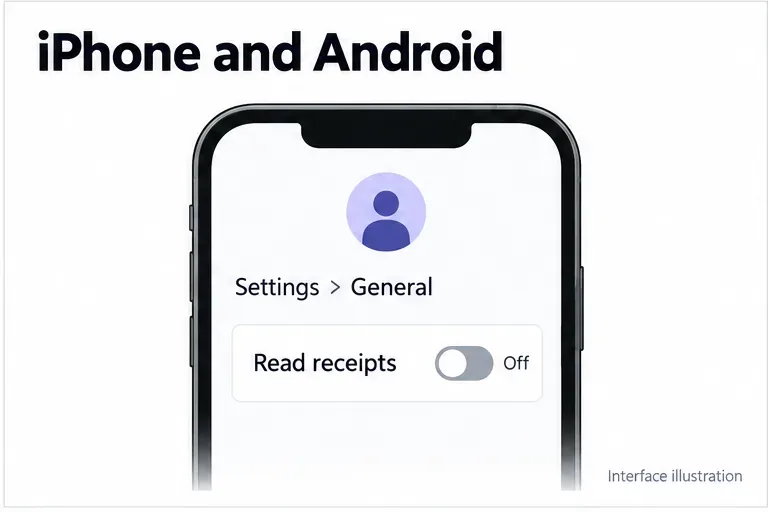
In the Teams mobile app, tap your profile picture, open Settings > General, and change Read receipts. If you switch organizations on your phone, check the setting for the organization you are currently using.
For personal use, Microsoft documents Settings > Chats > Read receipts instead. On mobile, start with your profile picture; on desktop, start with Settings and more. Follow the personal-account instructions if your menus do not match the work or school steps.
Personal-account receipts are enabled by default. Participants must have receipts enabled for messages to be counted as seen. Turning yours on does not override another person's preference.
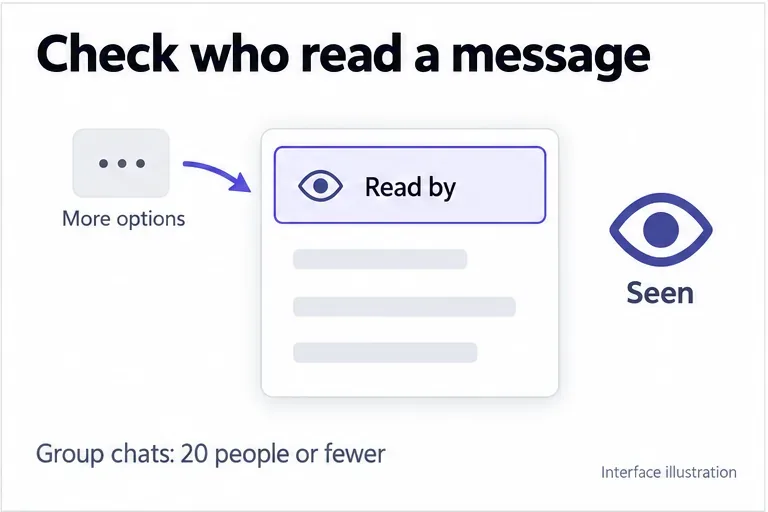
A Seen indicator identifies a read message; a sent confirmation alone does not. In a work or school group chat with 20 people or fewer, open your message's More options (...) > Read by menu to see available confirmations. You do not need to wait for everyone before checking that list.
For personal-account chats, the desktop command is also Read by. On mobile, touch and hold the message and select Seen by.
These are chat receipts, not a reader list for channel posts. A Seen indicator also is not proof that someone understood a request or agreed to complete it. If you need acknowledgment of an assignment or deadline, ask for a reply.
For organizational accounts, read receipts are part of messaging policies. A team owner's title alone should not be treated as permission to edit organization-wide policy; contact the administrator responsible for Teams settings.
An authorized administrator can open the Teams admin center, go to Messaging policies, select the relevant policy, and choose Edit. Change Read receipts, then select Save. Microsoft's messaging policy documentation describes three choices:
| Policy option | Effect |
|---|---|
| User controlled | Users choose whether receipts are on or off. |
| Turned on for everyone | Receipts are enabled without a user option to disable them. |
| Turned off for everyone | Receipts are disabled without a user option to enable them. |
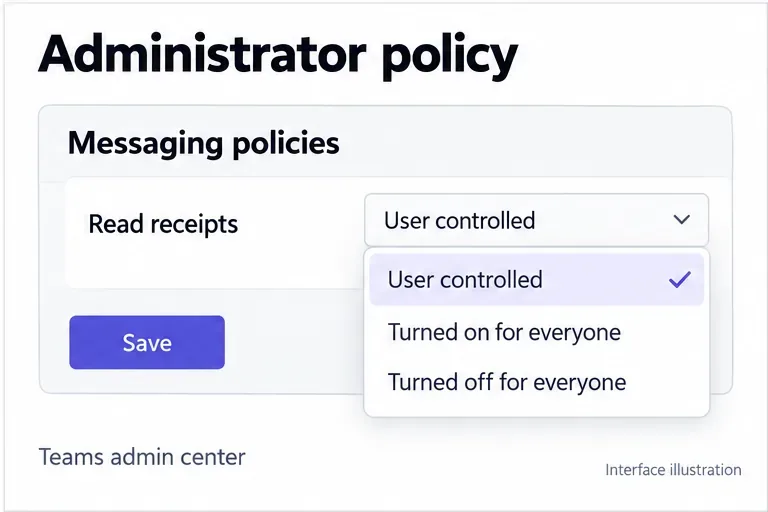
Check which policy applies to the affected user before editing Global. Users normally inherit the global policy unless a custom one is assigned. To enforce the same enabled behavior throughout the organization, Microsoft says all messaging policies must use the same receipt setting, or the organization must use only the global policy.
If you contact support, include the account type, chat type, participant count, and whether the setting is missing or simply producing no confirmations. That helps distinguish a policy restriction from an unsupported conversation or a client issue.
Learn how to create a poll in Microsoft Teams chats, channels, and meetings, choose response settings, review results, and close voting.
Learn how to mute channel and message notifications in Microsoft Teams, unfollow noisy threads, and control banners while understanding mention alerts.
Learn how to transfer a Microsoft Teams meeting between your computer and phone, use both devices together, and fix missing transfer options or audio issues.
Learn how to snooze a message in Microsoft Teams with Snooze Bot, return to it later, and use saved messages or mute controls when you need another option.
Learn how to create a team in Microsoft Teams, add members, choose channel types, manage permissions, and use the Teams admin center.
Learn how to download a Microsoft Teams recording from Teams, OneDrive, or SharePoint, and fix missing download options, access issues, and expired recordings.
Fix echo during Microsoft Teams meetings by removing duplicate audio connections, selecting the right headset and microphone, and checking audio settings.
Set up Microsoft Teams–Slack integration to launch Teams meetings from Slack. Learn account requirements, app permissions, setup steps, and quick fixes.
Unable to connect to Microsoft Teams meetings? Check the meeting link, account, network, and app, then learn when to contact the organizer or IT.
Microsoft Teams not syncing? Refresh messages across desktop, web, iPhone, and Android, identify account or file issues, and avoid unnecessary cache resets.








