How to Create a Poll in Microsoft Teams

Learn how to create a poll in Microsoft Teams chats, channels, and meetings, choose response settings, review results, and close voting.
To troubleshoot Microsoft Teams error code CAA7000a, try Teams in your browser first, then fully quit and reopen the desktop app. If the browser works but the app still fails, repair or reset Teams before considering a reinstall. These are troubleshooting options, not a guaranteed fix for every account.
Microsoft's public Teams sign-in error reference does not list CAA7000a. The code alone therefore does not establish a specific cause. Avoid assuming it always means a network outage or damaged installation.
The checks below help distinguish a desktop-app problem from an account, connection, or service issue. The repair instructions apply to the current Teams app on Windows 11; they replace older instructions written for classic Teams.
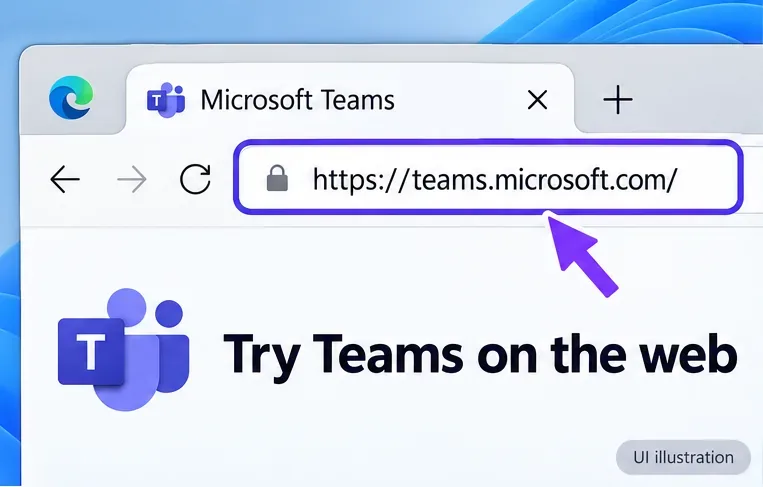
Open Teams on the web in an up-to-date browser and sign in with the same account you use in the app. If it works, you may be able to continue your meeting or chat while troubleshooting the desktop client.
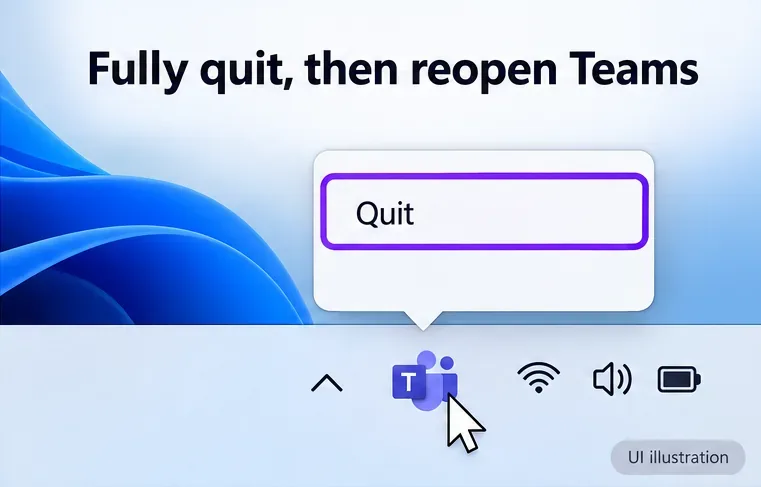
If Teams opens far enough to show your profile, select your profile picture and Sign out. Then fully close it: find the Teams icon in the Windows notification area near the clock, right-click it, and select Quit. Reopen Teams and sign in with the correct work, school, or personal account.
Complete any requested multifactor authentication. If the sign-in prompt does not appear, select a badged Teams icon in the notification area. Microsoft describes these steps in Restore your access to Teams.
Restart the computer if the app remains stuck. If Teams offers an update, install it and retry before resetting anything.
If the browser works and the Windows app still fails, close Teams and open Settings > Apps > Installed apps. Search for Microsoft Teams, select its three-dot menu, and choose Advanced options.
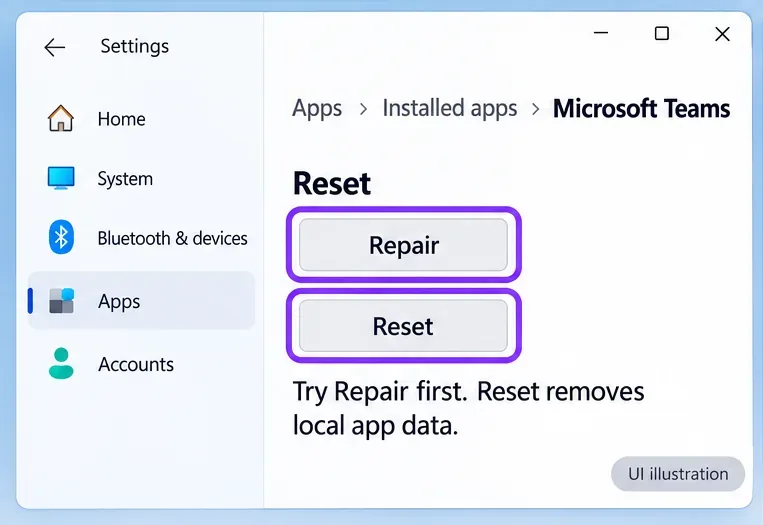
In the Reset section, try Repair if available, then reopen Teams. Microsoft's Windows app-repair instructions recommend Reset if Repair is unavailable or unsuccessful.
Before selecting Reset: save any unfinished work and collect diagnostic information if IT needs it. Reset deletes local app data, including personalization settings; be ready to sign in again. Select Reset, confirm the prompt, and reopen Teams. Initial loading may take longer while the cache rebuilds.
Microsoft's Teams cache guide documents this method for the current client. The old %appdata%\Microsoft\Teams location belongs to classic Teams. Do not use it as the current client's cache path or delete unrelated folders.
Cache clearing is a targeted local-client troubleshooting step. Microsoft specifically advises against using it for missing messages, missing channels, or incorrect unread counts because it removes diagnostic logs without fixing those issues.
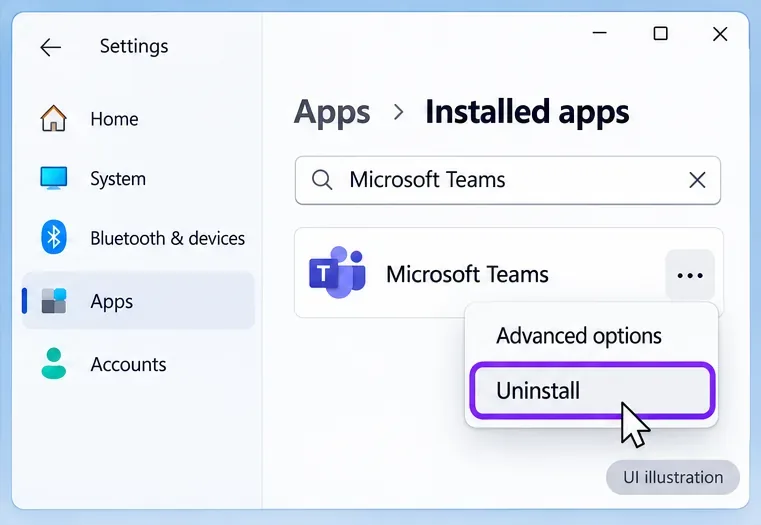
If desktop-only failure continues, open Settings > Apps > Installed apps, find Microsoft Teams, and select three dots > Uninstall. Follow the prompts, restart Windows, and reinstall from the official Teams download page or your organization's approved software portal.
On a managed computer, let IT handle installation if your permissions prevent it. Reinstallation will not resolve an account restriction or an ongoing service incident.
If CAA7000a persists, send IT the full error message, the time it occurred with your time zone, your Teams and Windows versions, and whether web or mobile access works. Include which checks you completed. Microsoft's sign-in troubleshooting guide provides administrator diagnostics and recommends collecting debug logs for unresolved cases.
Learn how to create a poll in Microsoft Teams chats, channels, and meetings, choose response settings, review results, and close voting.
Learn how to mute channel and message notifications in Microsoft Teams, unfollow noisy threads, and control banners while understanding mention alerts.
Learn how to transfer a Microsoft Teams meeting between your computer and phone, use both devices together, and fix missing transfer options or audio issues.
Learn how to snooze a message in Microsoft Teams with Snooze Bot, return to it later, and use saved messages or mute controls when you need another option.
Learn how to create a team in Microsoft Teams, add members, choose channel types, manage permissions, and use the Teams admin center.
Learn how to download a Microsoft Teams recording from Teams, OneDrive, or SharePoint, and fix missing download options, access issues, and expired recordings.
Fix echo during Microsoft Teams meetings by removing duplicate audio connections, selecting the right headset and microphone, and checking audio settings.
Set up Microsoft Teams–Slack integration to launch Teams meetings from Slack. Learn account requirements, app permissions, setup steps, and quick fixes.
Unable to connect to Microsoft Teams meetings? Check the meeting link, account, network, and app, then learn when to contact the organizer or IT.
Microsoft Teams not syncing? Refresh messages across desktop, web, iPhone, and Android, identify account or file issues, and avoid unnecessary cache resets.








