How to Create a Poll in Microsoft Teams

Learn how to create a poll in Microsoft Teams chats, channels, and meetings, choose response settings, review results, and close voting.
You already have a Google meeting scheduler in Google Calendar. Sign in, create an event, choose its date and time, add Google Meet video conferencing, and invite your guests. You do not need a separate scheduling extension.
Use a regular Calendar event when you choose the meeting time. If you want people to choose from your available times, use Calendar’s appointment schedules instead. The instructions below cover the desktop website; example screens use sample meeting details.
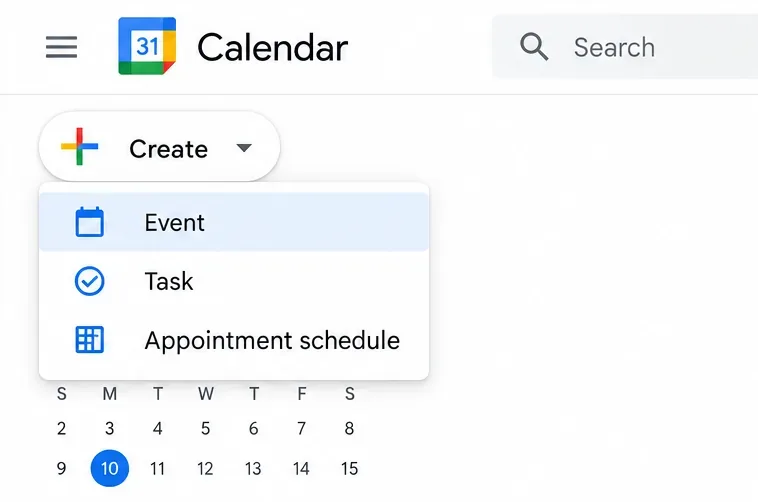
Open Google Calendar and sign in with the account you want to organize the meeting. Select Create > Event. You can also click an empty time on the calendar. Open More options if you need the full editor.
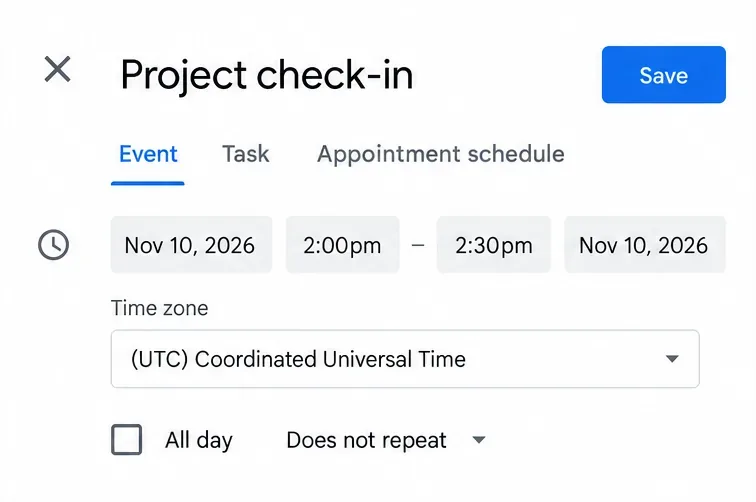
Enter a recognizable title, then choose the start and end dates and times. Leave All day unchecked for a timed meeting.
For participants in different regions, select Time zone beside the event time and choose the intended zone. Calendar displays the event in each guest’s calendar time zone. Check the date as well as the hour when coordinating across regions; Google explains this in its Calendar time zone guide.
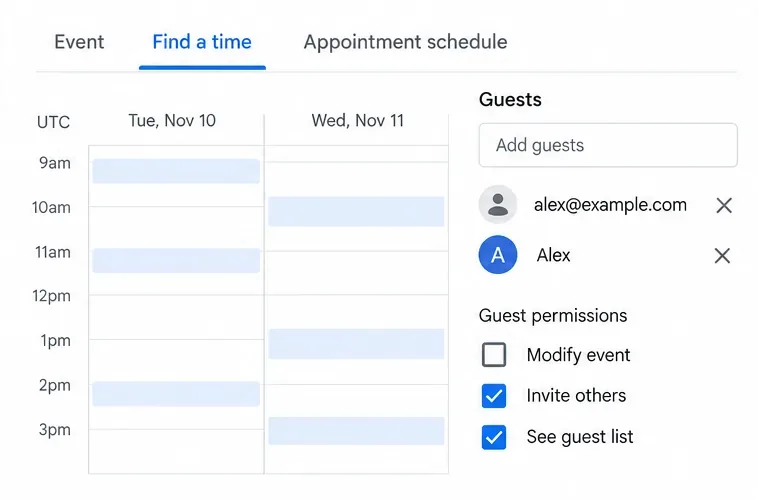
Enter participants’ email addresses in Add guests. Use Find a time to compare availability when their calendars are shared with you or your organization makes that information available. It cannot reveal an outside guest’s private calendar automatically.
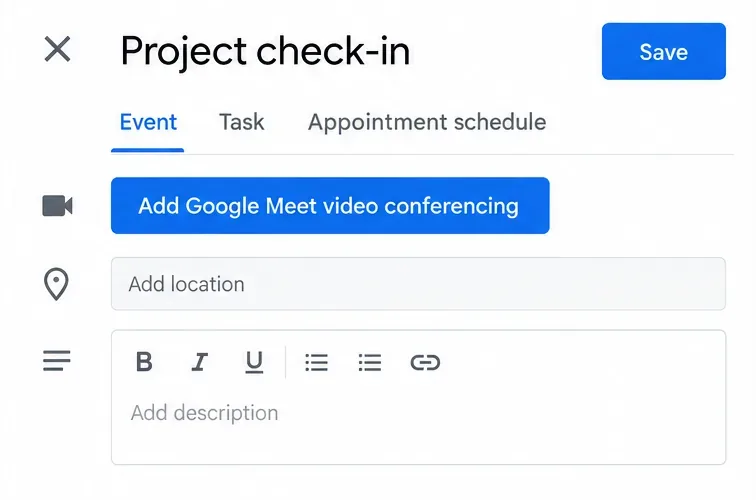
Add a short agenda or preparation notes in the description so invitees know what the meeting is for.
Select Add Google Meet video conferencing. Calendar adds the meeting’s joining details. Some work or school configurations add Meet automatically when you invite guests, so check whether a conference is already attached.
Join with Google Meet opens an existing conference; it is not the button for adding one. See Google’s instructions for adding or removing video conferencing.
Select Save, then Send when Calendar asks whether to email guests. Confirm any additional external-guest prompt your organization displays. Saving the event and sending its invitation are separate choices.
This workflow is documented in Google’s meeting planning guide.
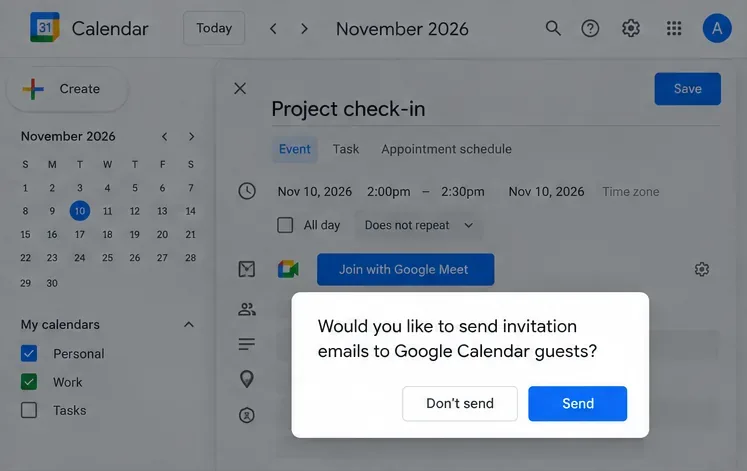
Starting from Meet? On Google Meet, open New or New meeting and choose Schedule in Google Calendar. Google’s Meet homepage guide distinguishes this from Create a meeting for later, which only creates a shareable link.
Open the original Calendar event and select the pencil-shaped Edit event button. Adjust the time, guests, or description, select Save, and send an update when prompted. Edit the existing event when rescheduling so guests can follow the change in one invitation.
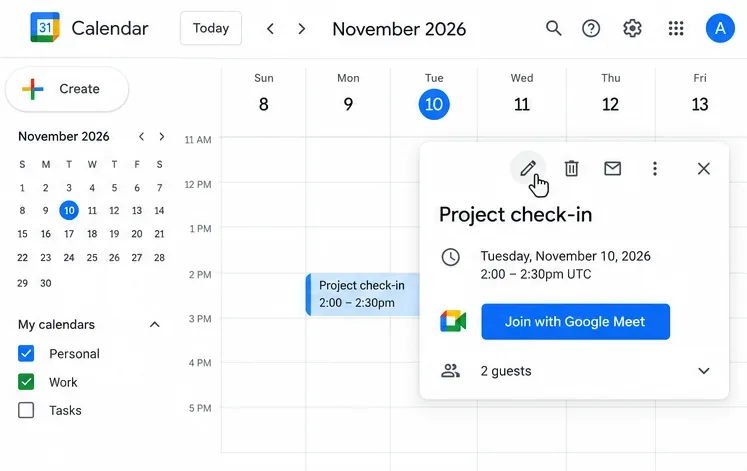
You must own the event or have permission to modify it. Google’s event creation and editing help explains the available permissions.
For a separate meeting, let Calendar create a new Meet code. Google warns that a reused code remains tied to the original event’s guest list, which can affect admission and access to recordings or chat. For a time change to the same meeting, edit its original event instead. Review Google’s meeting code guidance before copying old links into new invitations.
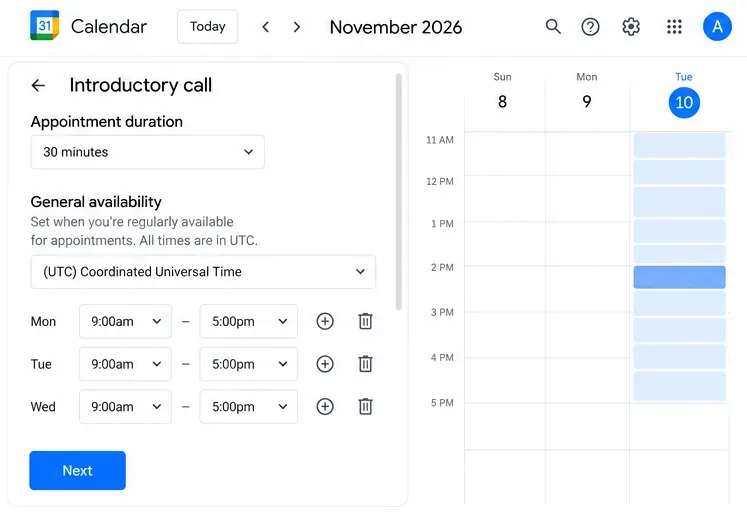
For a booking page, use Calendar on a computer and select Create > Appointment schedule. Set the title, appointment duration, availability, and time zone, then select Next.
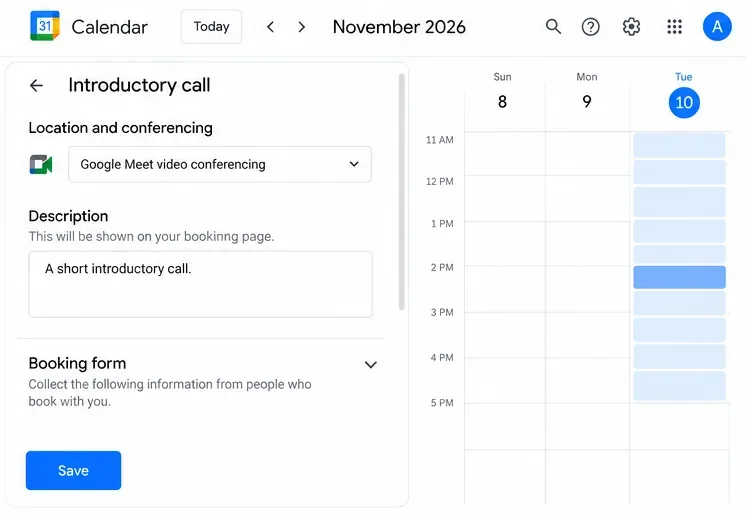
Under Location and conferencing, choose Google Meet video conferencing, finish the booking-page settings, and save. Google documents these settings in its appointment schedule setup guide.
Under Booking pages in Calendar’s left sidebar, hover over your page and select Copy link. Remember that booking pages are public to anyone with the link.
A personal Google Account or Business Starter account can create one booking page. Features such as additional schedules and automatic email reminders require eligible subscriptions; check Google’s appointment feature comparison. Appointment schedules cannot be created in the Android or iOS Calendar app.
Confirm you are using the intended account. For work or school accounts, ask your administrator about Calendar and Meet access. Google specifically notes that Workspace Essentials users cannot schedule Meet meetings in Google Calendar. Appointment schedule availability also depends on your subscription.
Learn how to create a poll in Microsoft Teams chats, channels, and meetings, choose response settings, review results, and close voting.
Learn how to mute channel and message notifications in Microsoft Teams, unfollow noisy threads, and control banners while understanding mention alerts.
Learn how to transfer a Microsoft Teams meeting between your computer and phone, use both devices together, and fix missing transfer options or audio issues.
Learn how to snooze a message in Microsoft Teams with Snooze Bot, return to it later, and use saved messages or mute controls when you need another option.
Learn how to create a team in Microsoft Teams, add members, choose channel types, manage permissions, and use the Teams admin center.
Learn how to download a Microsoft Teams recording from Teams, OneDrive, or SharePoint, and fix missing download options, access issues, and expired recordings.
Fix echo during Microsoft Teams meetings by removing duplicate audio connections, selecting the right headset and microphone, and checking audio settings.
Set up Microsoft Teams–Slack integration to launch Teams meetings from Slack. Learn account requirements, app permissions, setup steps, and quick fixes.
Unable to connect to Microsoft Teams meetings? Check the meeting link, account, network, and app, then learn when to contact the organizer or IT.
Microsoft Teams not syncing? Refresh messages across desktop, web, iPhone, and Android, identify account or file issues, and avoid unnecessary cache resets.








