How to Create a Poll in Microsoft Teams

Learn how to create a poll in Microsoft Teams chats, channels, and meetings, choose response settings, review results, and close voting.
To get a Microsoft Teams meeting link, open Calendar, select the meeting, and choose Share > Copy join link. If you are already in the meeting, use People > Share invite to copy its link. You can also find the joining link in the original invitation.
The exact controls depend on whether you use a work or school account or Teams Free for personal use. Follow the matching method below; you do not need to start a scheduled meeting just to retrieve its link.
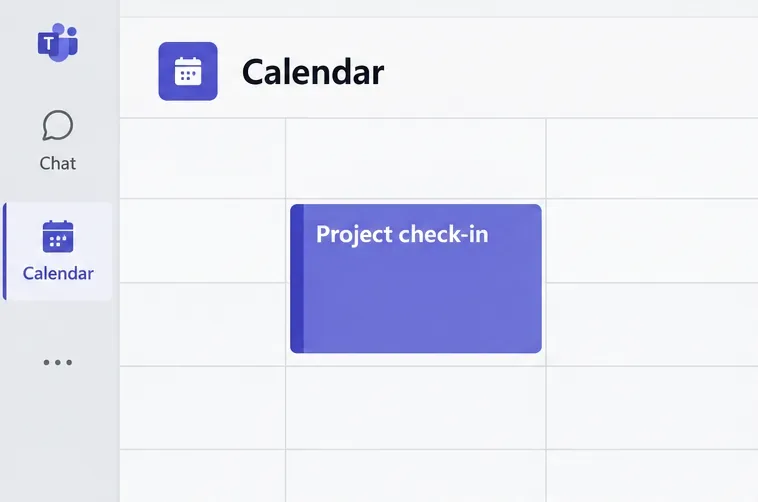
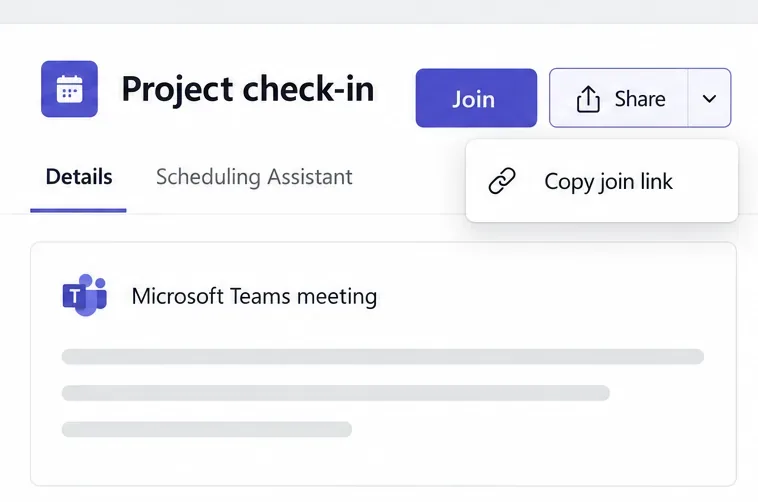
If you are creating the meeting, turn on the Teams meeting toggle and save the event first. An ordinary calendar appointment without online meeting details will not provide a Teams join link. See Microsoft’s meeting scheduling instructions.
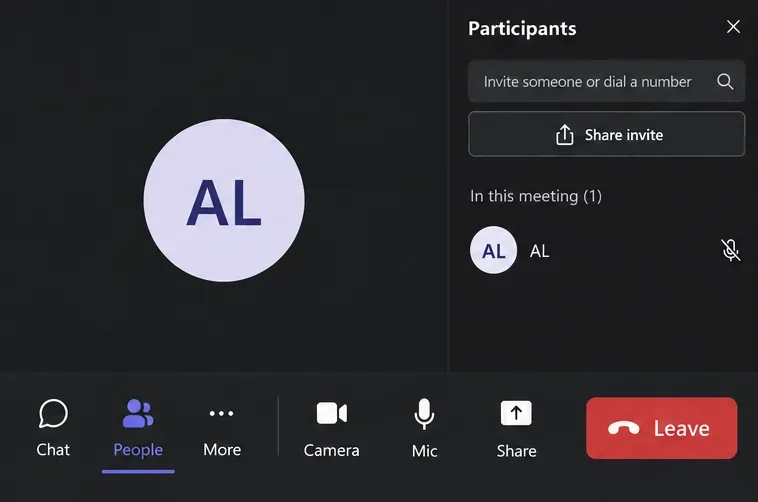
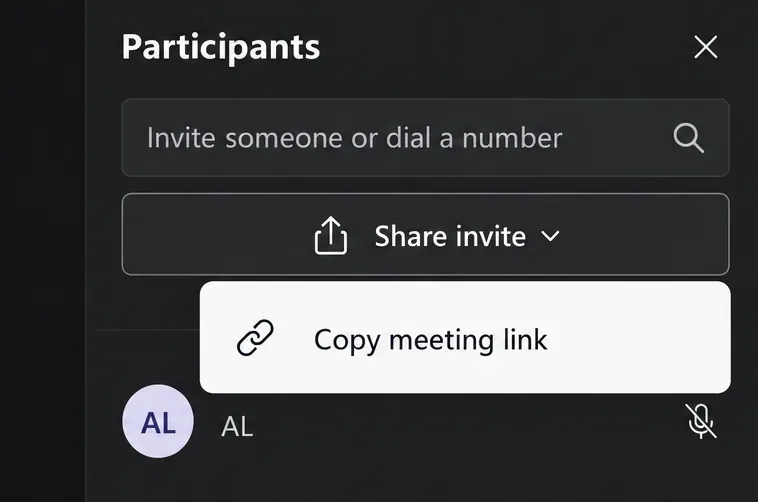
Closing the initial invitation prompt does not permanently remove access to the link. Microsoft documents returning to People > Share invite later in the meeting.
Need a new link instead? For work or school accounts with the option available, open Calendar > Meet now and select Get a link to share. Calendar’s Meet now option requires an Exchange Online mailbox. Details are in Microsoft’s instant meeting guide.
For Teams Free or personal use, the mobile route is:
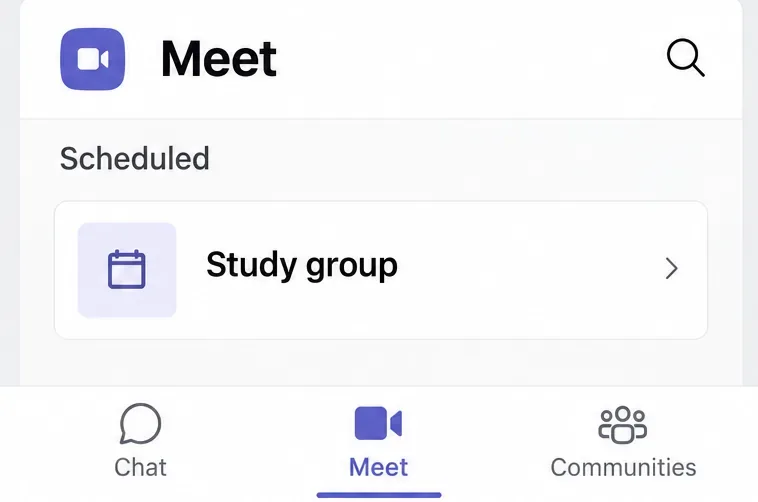
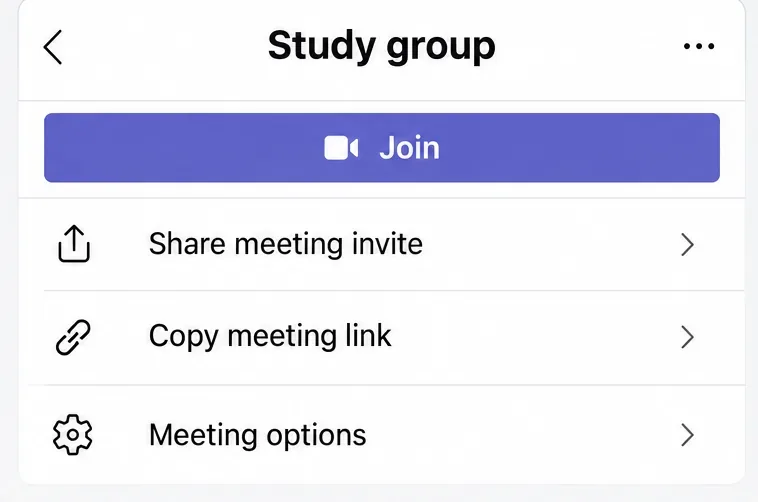
With a work or school account, open Calendar and tap the meeting to view its details. If your mobile version does not show a link-sharing control, copy the joining URL from the invitation email instead. You do not have to create another meeting or wait for everyone to leave.
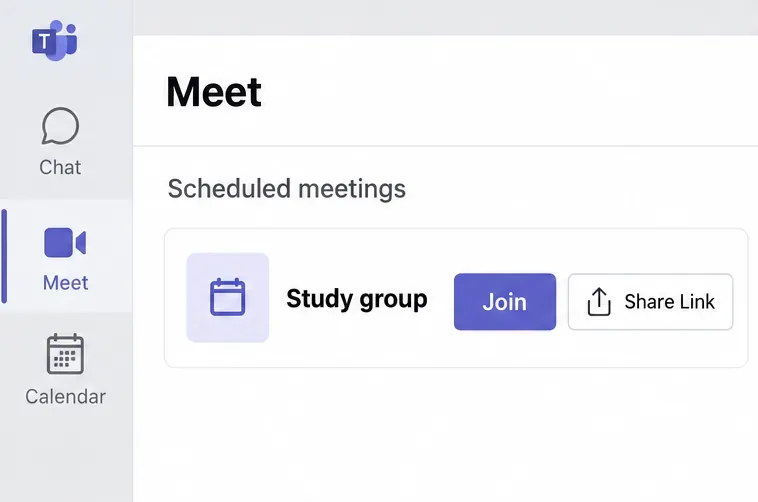

These personal-account controls differ from the work or school calendar. The old instruction to find a universal “Meetings” tab does not apply to every current version. See Microsoft’s personal meeting instructions.
If you received an invitation, open it in your email or Outlook calendar. Copy the full joining URL, or use your email app’s link-copy command on the joining hyperlink. Newer invitations may display the full address; older invitations may use text such as Join meeting now. Both lead to the meeting.
For a channel meeting, look in the relevant channel for its meeting invitation. To share outside that channel, retrieve the actual meeting join link through its calendar details or invitation. A link to a channel post may require channel access. Microsoft explains the available entry points in Microsoft’s guide to joining Teams meetings.
Share links with intended attendees. For formal scheduling, adding attendees or forwarding an invitation, when permitted, provides the calendar request as well as the link. See Microsoft’s meeting invitation guide.
Learn how to create a poll in Microsoft Teams chats, channels, and meetings, choose response settings, review results, and close voting.
Learn how to mute channel and message notifications in Microsoft Teams, unfollow noisy threads, and control banners while understanding mention alerts.
Learn how to transfer a Microsoft Teams meeting between your computer and phone, use both devices together, and fix missing transfer options or audio issues.
Learn how to snooze a message in Microsoft Teams with Snooze Bot, return to it later, and use saved messages or mute controls when you need another option.
Learn how to create a team in Microsoft Teams, add members, choose channel types, manage permissions, and use the Teams admin center.
Learn how to download a Microsoft Teams recording from Teams, OneDrive, or SharePoint, and fix missing download options, access issues, and expired recordings.
Fix echo during Microsoft Teams meetings by removing duplicate audio connections, selecting the right headset and microphone, and checking audio settings.
Set up Microsoft Teams–Slack integration to launch Teams meetings from Slack. Learn account requirements, app permissions, setup steps, and quick fixes.
Unable to connect to Microsoft Teams meetings? Check the meeting link, account, network, and app, then learn when to contact the organizer or IT.
Microsoft Teams not syncing? Refresh messages across desktop, web, iPhone, and Android, identify account or file issues, and avoid unnecessary cache resets.








