How to Create a Poll in Microsoft Teams

Learn how to create a poll in Microsoft Teams chats, channels, and meetings, choose response settings, review results, and close voting.
To install the Microsoft Teams iPad app, download Microsoft Teams from the App Store, open it, and sign in with your personal, work, or school account. You can then send messages, access your organization's channels, and join meetings. The app is free to download; available features depend on your account, subscription, and organization policies.
Check Compatibility on the official Microsoft Teams App Store listing to confirm that your iPadOS version meets the current installation requirement. Keep iPadOS updated, since Microsoft's support requirements change over time.
Use the app for meetings on an iPad. Microsoft states that Teams for Web does not support mobile browsers, so requesting a desktop website in Safari is not a supported substitute.
Open the App Store, search for Microsoft Teams, and select the app from Microsoft Corporation. Tap Get or the cloud download icon, then authenticate with Face ID, Touch ID, or your Apple Account password if prompted. When installation finishes, tap Open.
Select an account already shown, or enter the email address associated with Teams and follow the sign-in prompts. For company meetings, classes, or organizational channels, use the work or school account your organization provided.
You may need to complete multifactor authentication. Microsoft explains these mobile sign-in behaviors; the app may recognize an account already signed into another Microsoft app.
Allow microphone access to speak during calls and camera access to send video. Enable notifications if you want message and meeting alerts. These permissions may appear when you first use the relevant feature.
If you previously denied access, open iPad Settings > Privacy & Security > Microphone or Camera, then enable Teams. Apple's hardware permission guide explains these controls.
Navigation can differ by account type, app version, and layout. In particular, work or school channels may appear inside Chat rather than under a separate Teams tab.
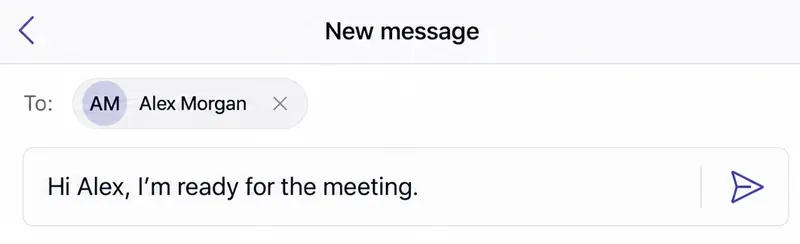
Open Chat > New message, enter a person's name, select the correct recipient, and type your message. Tap Send. Add more recipients to start a group conversation. Microsoft documents the mobile steps in its Teams chat guide.
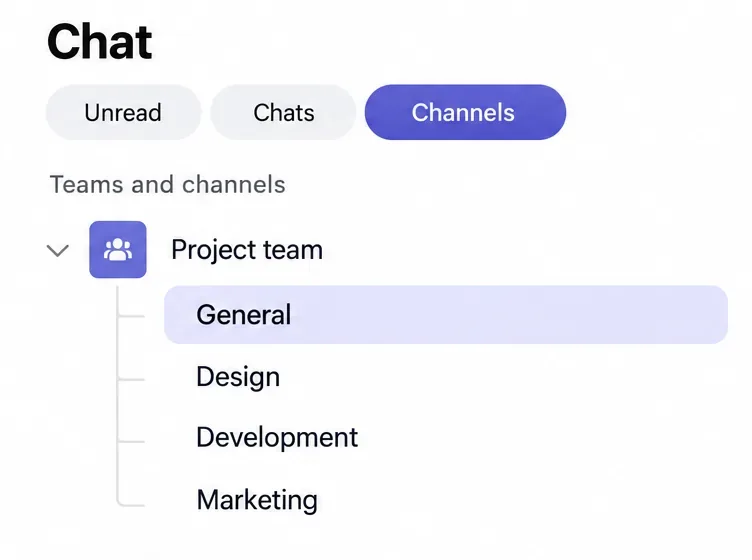
In the combined view, open Chat and look for the Channels filter or Teams and channels section. Expand a team and select its channel. If your app uses separate views, open Teams instead.
Microsoft's iOS navigation guidance describes switching views through More > Customize list view. Personal accounts have a different experience, including communities.
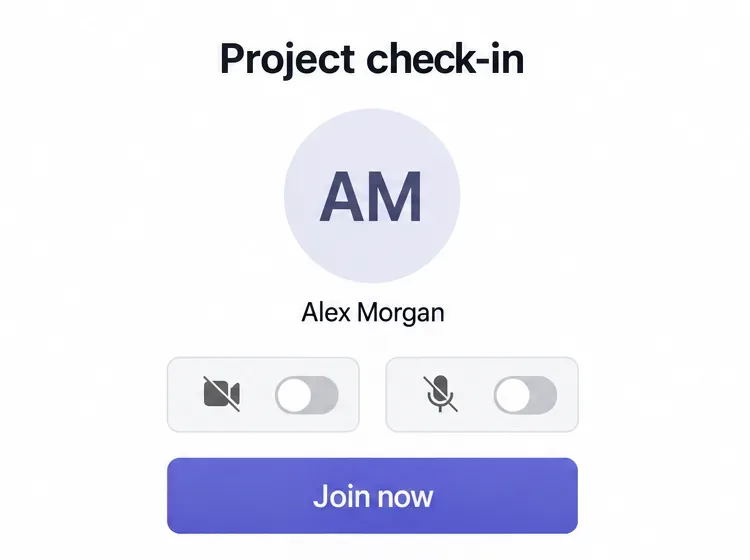
Tap the meeting link in your invitation to open Teams, or open Calendar, select the meeting, and tap Join. Check your account, microphone, and camera before entering, then tap Join now when shown.
You may wait in a lobby until admitted. Some meetings allow joining without signing in; others require an approved work or school account. Follow the options offered for that meeting. See Microsoft's mobile meeting instructions.
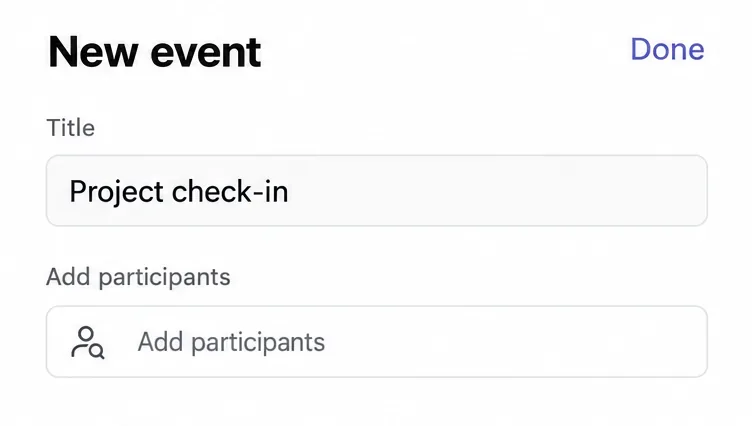
Open Calendar > New event. Enter a title, tap Add participants, and set the date, start time, and end time. Review the details and tap Done to schedule it and invite participants. These are Microsoft's documented mobile scheduling steps; personal-account controls can differ.
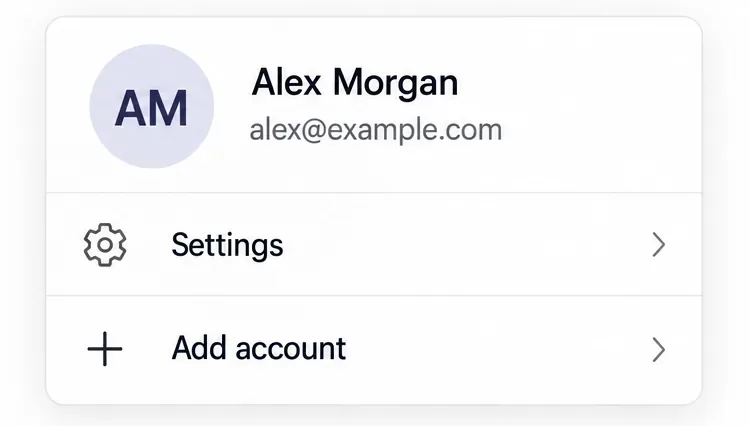
Tap your profile picture to find Settings and account controls. To add another account, choose Add account and complete sign-in. Microsoft's account instructions explain this option. Organization-managed devices may restrict which accounts you can add.
For persistent problems, update Teams through the App Store, restart the iPad, and give your IT administrator the exact error message if access remains blocked.
Learn how to create a poll in Microsoft Teams chats, channels, and meetings, choose response settings, review results, and close voting.
Learn how to mute channel and message notifications in Microsoft Teams, unfollow noisy threads, and control banners while understanding mention alerts.
Learn how to transfer a Microsoft Teams meeting between your computer and phone, use both devices together, and fix missing transfer options or audio issues.
Learn how to snooze a message in Microsoft Teams with Snooze Bot, return to it later, and use saved messages or mute controls when you need another option.
Learn how to create a team in Microsoft Teams, add members, choose channel types, manage permissions, and use the Teams admin center.
Learn how to download a Microsoft Teams recording from Teams, OneDrive, or SharePoint, and fix missing download options, access issues, and expired recordings.
Fix echo during Microsoft Teams meetings by removing duplicate audio connections, selecting the right headset and microphone, and checking audio settings.
Set up Microsoft Teams–Slack integration to launch Teams meetings from Slack. Learn account requirements, app permissions, setup steps, and quick fixes.
Unable to connect to Microsoft Teams meetings? Check the meeting link, account, network, and app, then learn when to contact the organizer or IT.
Microsoft Teams not syncing? Refresh messages across desktop, web, iPhone, and Android, identify account or file issues, and avoid unnecessary cache resets.








