How to Create a Poll in Microsoft Teams

Learn how to create a poll in Microsoft Teams chats, channels, and meetings, choose response settings, review results, and close voting.
To join a Microsoft Teams meeting as a guest, open the meeting link in your invitation, choose the browser or Teams app, and follow the joining prompts. For many work or school meetings, you can attend without a Teams account or team membership. However, the organizer's policies may require email verification or an authorized account.
Teams uses “guest” in two different ways:
A meeting invitation alone does not give you access to the organization's teams, channels, or files. The interface examples below use sample details; labels and layouts can vary.
Use Microsoft Edge or Google Chrome for the browser joining process. You do not need to install the desktop app.
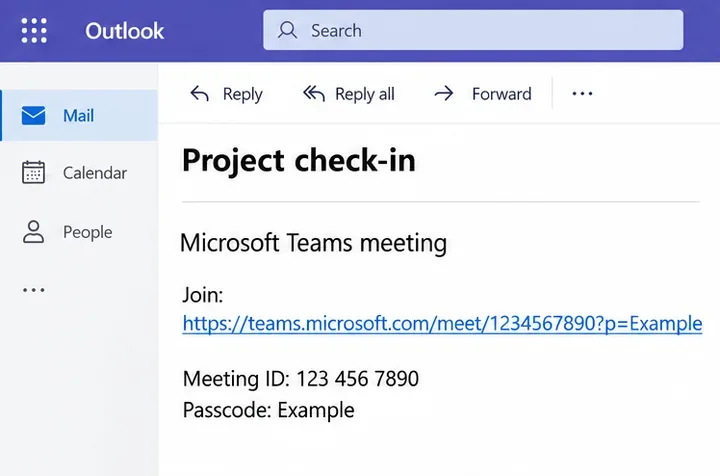
Select the meeting URL in your email or calendar invitation. Some invitations show a full URL; others use linked text such as Join the meeting now. Both take you to the meeting.
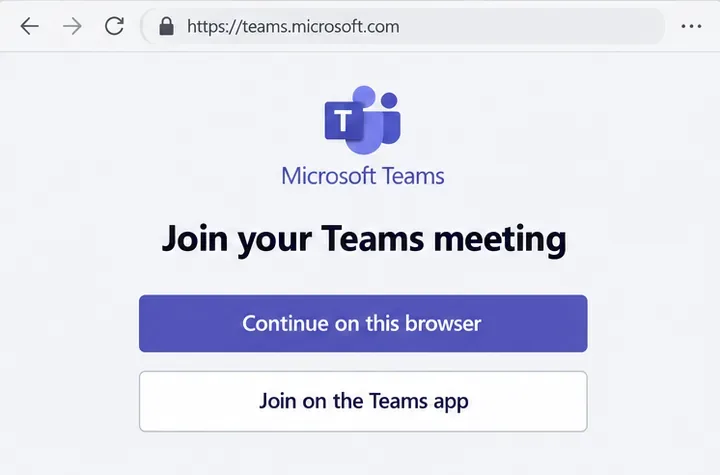
Select Continue on this browser. If you prefer an installed Teams app, use the app option instead. A browser prompt may also offer to open Teams; choose the route you intend to use.
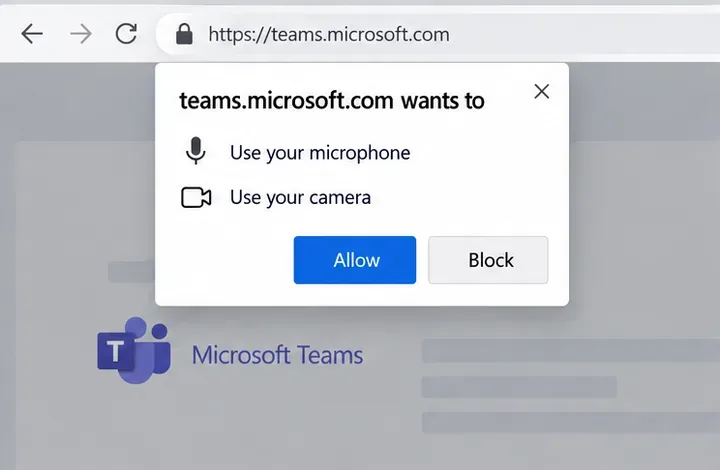
Allow the browser to access the devices you plan to use. Granting permission does not require you to leave your microphone or camera switched on during the meeting.
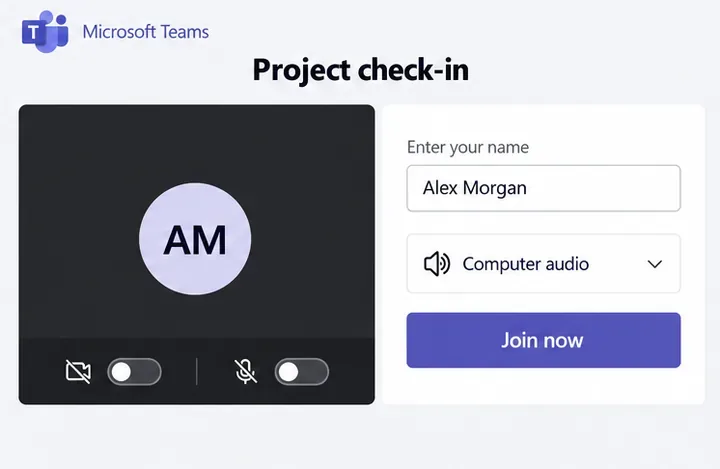
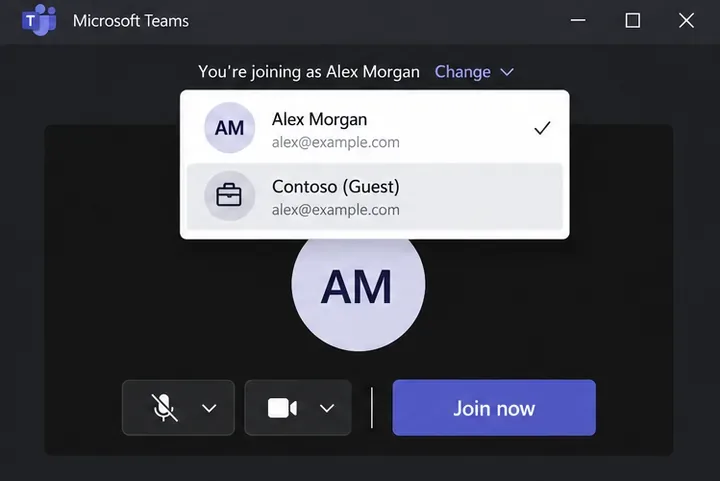
On the pre-join screen, enter a name the organizer will recognize. Check your audio selection and camera state before proceeding. If Teams has selected an existing account, confirm that it is the identity you intend to use.
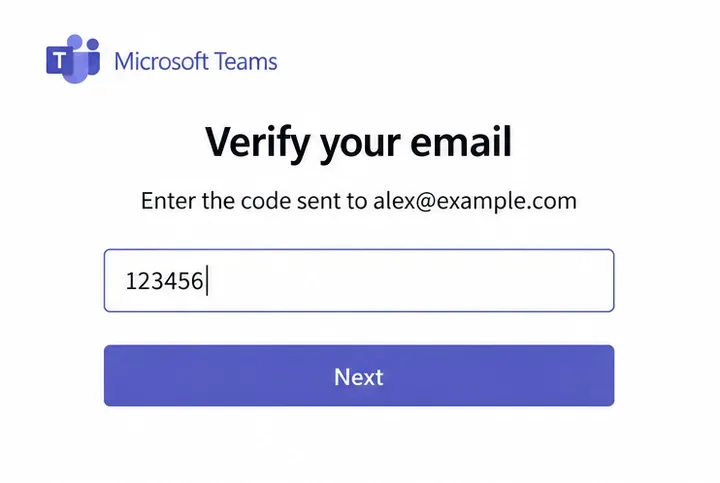
Some meetings ask for an email address. Follow the sign-in prompts for an existing Microsoft account, or request and enter the emailed code when that option is offered. Continue joining after verification. This requirement depends on the host's settings; it is not universal.
A waiting message means you have reached the lobby, not the meeting itself. Someone authorized to manage admission must let you in. Contact the organizer if the meeting has started and you are still waiting.
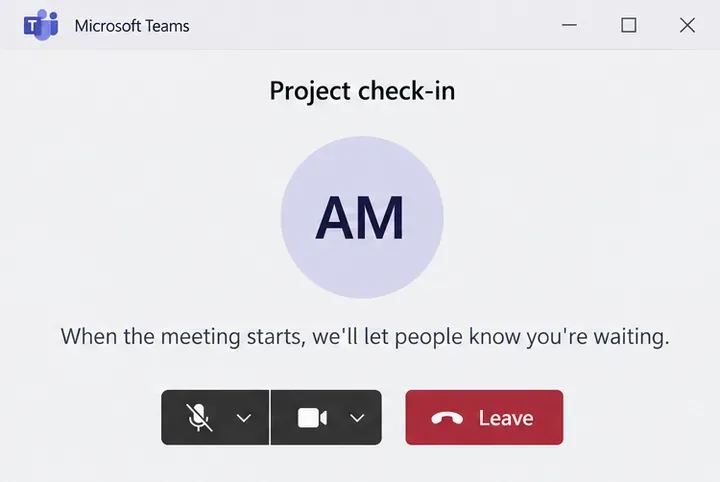
The host controls who waits in the lobby. Email-code requirements are governed by anonymous participant verification settings.
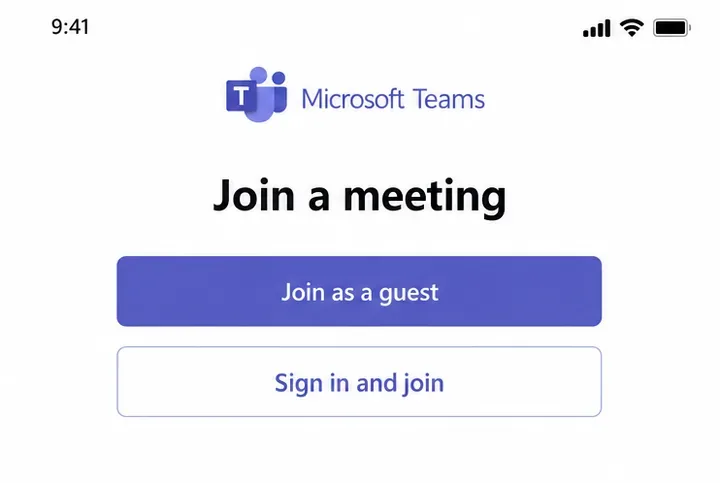
Use the Teams mobile app; Teams meetings are not supported in mobile web browsers. Open the invitation link, install the app if necessary, then reopen the link. Choose Join as a guest, enter your name, and tap Join meeting. Allow microphone access if you want to speak. Email verification or an authorized sign-in may still be required.
First accept the separate guest invitation using the email address that was invited, and review any requested permissions. Guest team access can take a few hours to become available.
In Teams, open your profile picture and select the host organization. Open the meeting link or its calendar entry. On the pre-join screen, check the organization shown; use Change if you need to select the correct guest identity. If the guest organization is missing after you have accepted access, restart Teams.
Microsoft explains these account choices in its guide to meetings outside your organization. For an active channel meeting you can access, open the channel and select Join, as described in the meeting joining guide.
Meetings hosted through Teams personal accounts can require a Teams account. Share the exact error message with the organizer and consult Microsoft's meeting access troubleshooting instead of assuming every failure is a guest-access setting.
Learn how to create a poll in Microsoft Teams chats, channels, and meetings, choose response settings, review results, and close voting.
Learn how to mute channel and message notifications in Microsoft Teams, unfollow noisy threads, and control banners while understanding mention alerts.
Learn how to transfer a Microsoft Teams meeting between your computer and phone, use both devices together, and fix missing transfer options or audio issues.
Learn how to snooze a message in Microsoft Teams with Snooze Bot, return to it later, and use saved messages or mute controls when you need another option.
Learn how to create a team in Microsoft Teams, add members, choose channel types, manage permissions, and use the Teams admin center.
Learn how to download a Microsoft Teams recording from Teams, OneDrive, or SharePoint, and fix missing download options, access issues, and expired recordings.
Fix echo during Microsoft Teams meetings by removing duplicate audio connections, selecting the right headset and microphone, and checking audio settings.
Set up Microsoft Teams–Slack integration to launch Teams meetings from Slack. Learn account requirements, app permissions, setup steps, and quick fixes.
Unable to connect to Microsoft Teams meetings? Check the meeting link, account, network, and app, then learn when to contact the organizer or IT.
Microsoft Teams not syncing? Refresh messages across desktop, web, iPhone, and Android, identify account or file issues, and avoid unnecessary cache resets.








