How to Create a Poll in Microsoft Teams

Learn how to create a poll in Microsoft Teams chats, channels, and meetings, choose response settings, review results, and close voting.
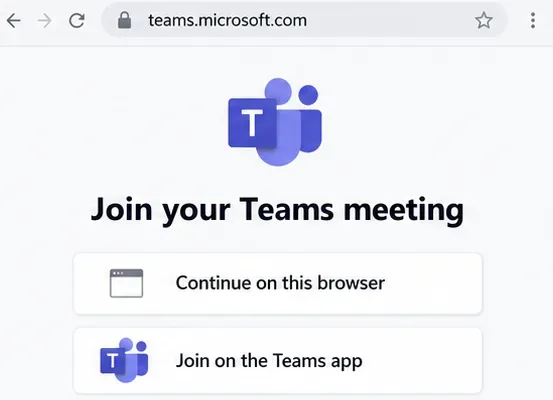
To join a Microsoft Teams meeting, open the meeting link in your invitation, choose the Teams app or a supported desktop browser, check your microphone and camera, and select Join now. You may enter immediately or wait in the lobby for admission.
You can also join through your Teams calendar, a channel, or a meeting ID and passcode. Joining without an account depends on the organizer’s settings.
For computer sound, select Computer audio and confirm the intended speaker and microphone. Keep your microphone muted until you need to speak. Your camera can stay off.
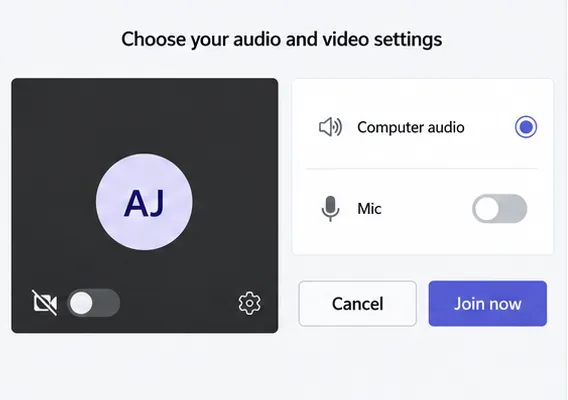
Microsoft explains the available audio sources in its Teams audio settings guide.
On a computer, you do not need to install Teams. Use Microsoft Edge or Google Chrome for the browser joining route.
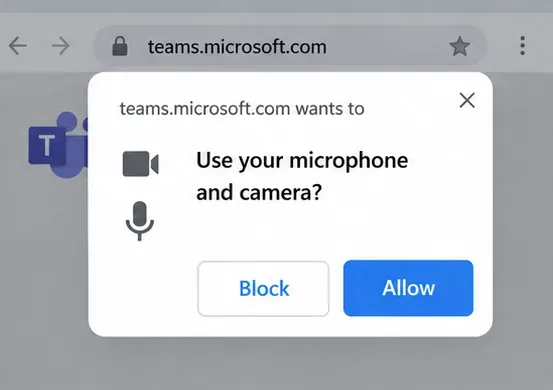
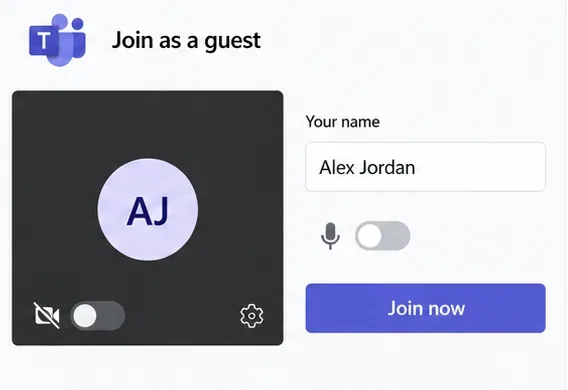
A meeting link does not guarantee anonymous access. Some meetings require an authorized account or email verification. If prompted, follow the sign-in instructions or enter the one-time code sent to your email. See Microsoft’s instructions for joining without an account.
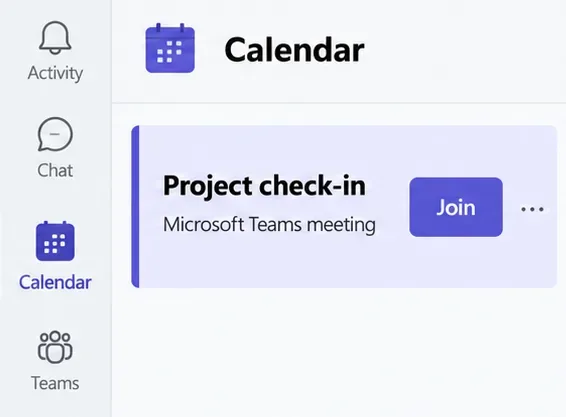
Open Calendar, select the meeting, and choose Join. Check your devices on the pre-join screen before entering.
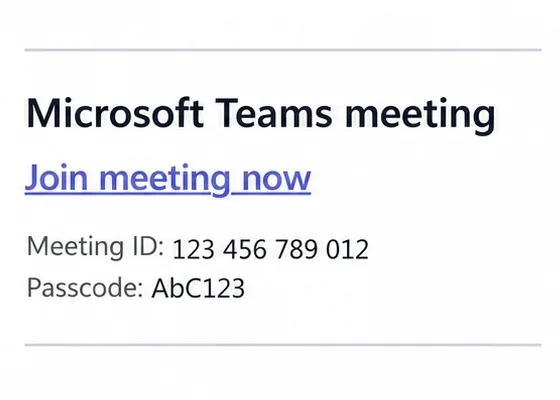
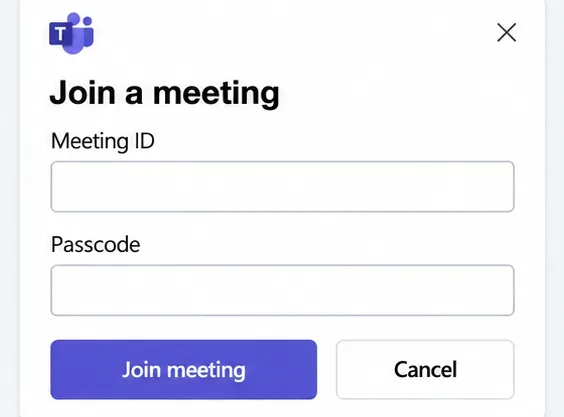
Open Microsoft’s Join a Teams meeting page, enter the Meeting ID and Passcode from your invitation, and select the join button. These meeting credentials are separate from your account password.
In the desktop app, you can also use Calendar > the arrow beside Meet now > Join with an ID. That calendar option requires an Exchange Online mailbox.
Open the channel hosting the meeting and select Join on its meeting invitation. For a meeting already underway, you can also open its chat and select Join at the top.
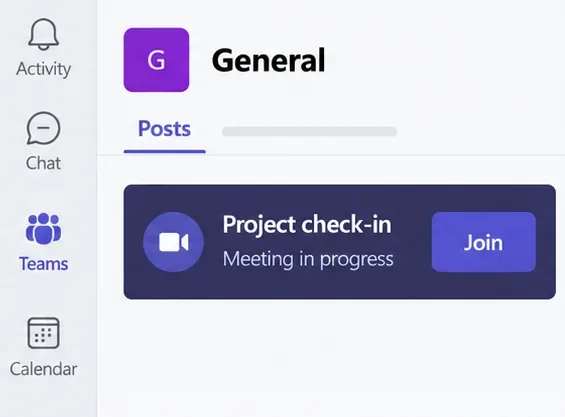
These routes are documented in Microsoft’s guide to joining Teams meetings.
Use the Teams mobile app; Teams meetings are not supported in mobile web browsers.
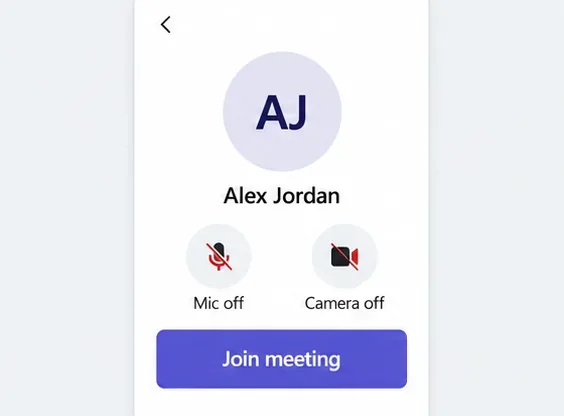
If your invitation includes a dial-in number and Phone conference ID, call that number and follow the prompts. Use the details in your own invitation, not the examples below.
This connects meeting audio; use another device for shared visuals if needed. See Microsoft’s phone joining instructions.
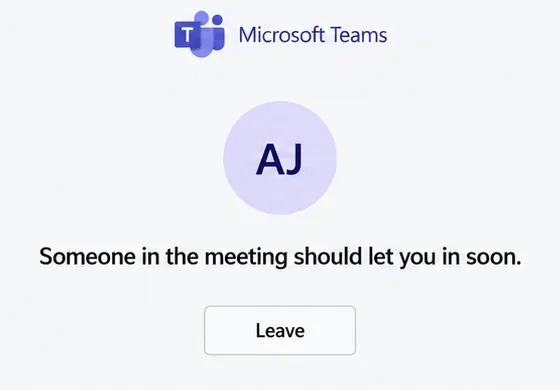
Match the message you see to Microsoft’s meeting joining troubleshooting guide before changing unrelated settings.
Learn how to create a poll in Microsoft Teams chats, channels, and meetings, choose response settings, review results, and close voting.
Learn how to mute channel and message notifications in Microsoft Teams, unfollow noisy threads, and control banners while understanding mention alerts.
Learn how to transfer a Microsoft Teams meeting between your computer and phone, use both devices together, and fix missing transfer options or audio issues.
Learn how to snooze a message in Microsoft Teams with Snooze Bot, return to it later, and use saved messages or mute controls when you need another option.
Learn how to create a team in Microsoft Teams, add members, choose channel types, manage permissions, and use the Teams admin center.
Learn how to download a Microsoft Teams recording from Teams, OneDrive, or SharePoint, and fix missing download options, access issues, and expired recordings.
Fix echo during Microsoft Teams meetings by removing duplicate audio connections, selecting the right headset and microphone, and checking audio settings.
Set up Microsoft Teams–Slack integration to launch Teams meetings from Slack. Learn account requirements, app permissions, setup steps, and quick fixes.
Unable to connect to Microsoft Teams meetings? Check the meeting link, account, network, and app, then learn when to contact the organizer or IT.
Microsoft Teams not syncing? Refresh messages across desktop, web, iPhone, and Android, identify account or file issues, and avoid unnecessary cache resets.








