How to Create a Poll in Microsoft Teams

Learn how to create a poll in Microsoft Teams chats, channels, and meetings, choose response settings, review results, and close voting.
To join a team in Microsoft Teams, sign in with the correct account, then use the owner's team link, enter a join code, or search for the team. If you're outside the organization, ask the owner for a guest invitation instead.
This guide covers work and school teams. Joining a meeting is a different process: a meeting invitation or meeting ID does not make you a team member. The examples below show desktop controls; your layout may vary.
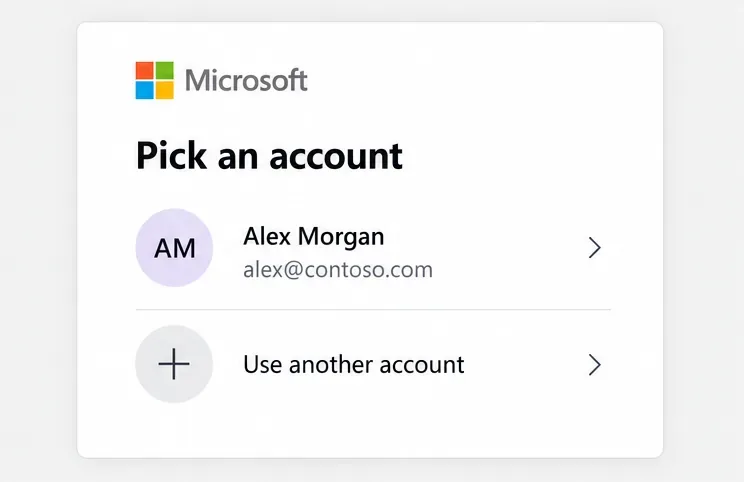
Use the work or school account associated with the team. If your organization created an account for you, get the sign-in details from IT and complete any password-change or verification prompts. Signing in alone does not guarantee that someone has added you to the intended team.
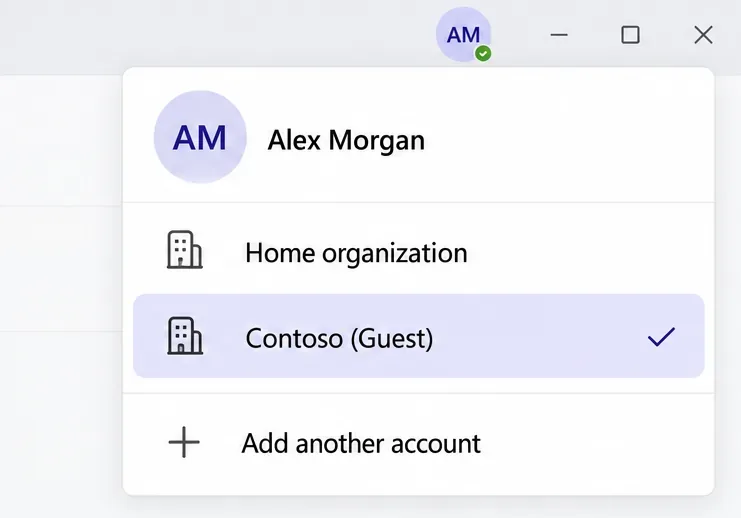
Already using Teams with another account? Select your profile picture and choose the appropriate account or organization. If it isn't listed, select Add another account. Microsoft explains these options in its account and organization guide.
Creating a personal Microsoft account does not automatically grant access to an employer's or school's teams. Confirm the expected email address with the owner before setting up another account.
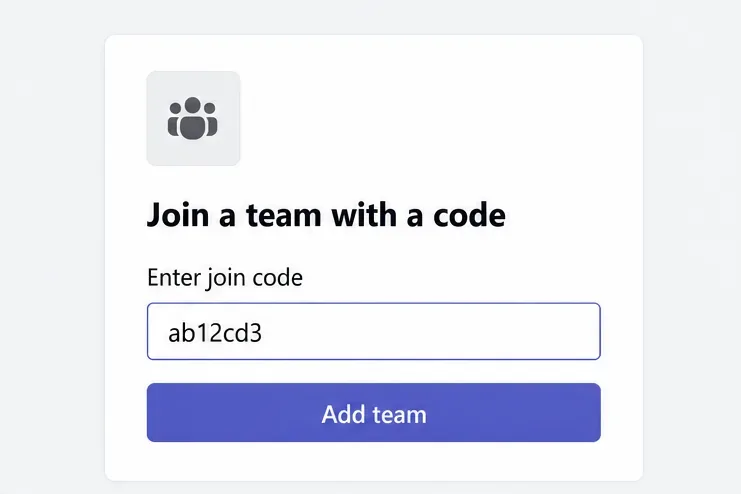
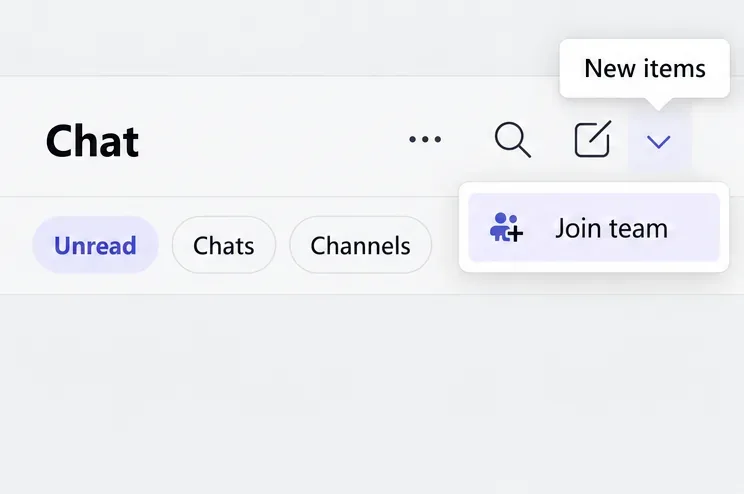
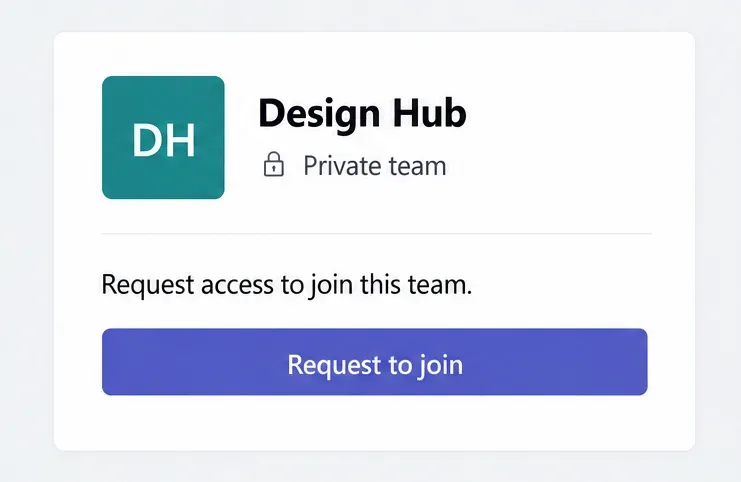
A team code is different from a meeting ID or passcode. For private teams, follow any approval prompt. Microsoft's link and code instructions describes the current controls and private-team approval behavior.
A shared link is not automatic permission. If you are an external guest, use the owner's guest invitation rather than a general team link or join code.
Don't have a link or code? You may be able to find the team inside your organization.
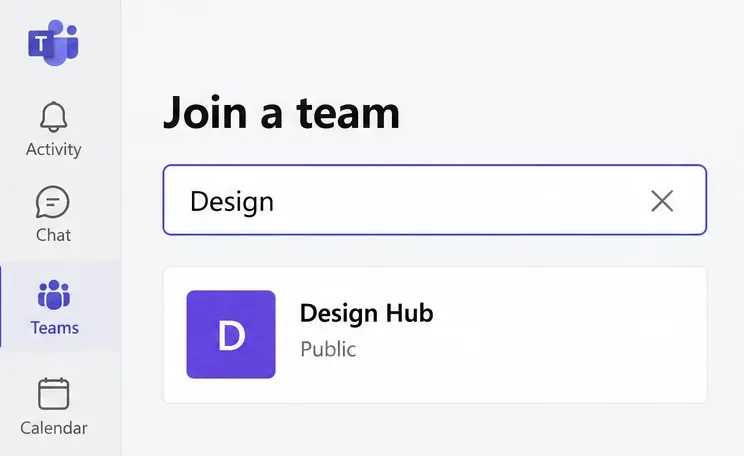
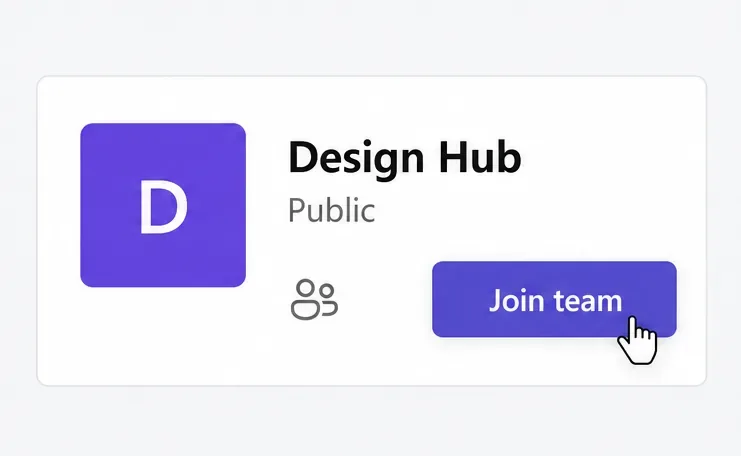
A private team may be absent from search because its owner hasn't enabled discoverability. Ask the owner directly instead of repeatedly searching. Microsoft's find and join a team guide covers both discovery and membership requests.
External collaborators need the host organization to allow guest access. A team owner must add your email address; having an external chat with someone does not establish team membership. Business and consumer email addresses can be used for guest invitations, subject to the organization's policies.
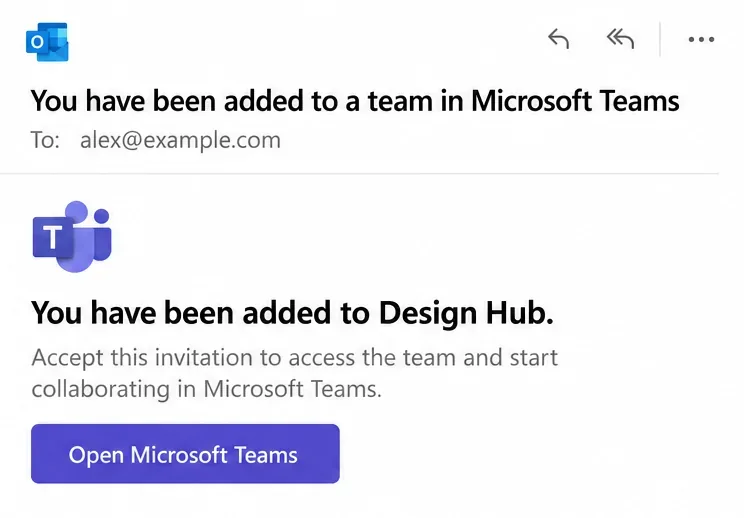
Microsoft's guest experience documentation explains why accepting the invitation is necessary. Access can take a few hours after a guest is added. If the owner cannot invite you, their administrator should check guest-access settings, as described in Microsoft's guest setup instructions.
Learn how to create a poll in Microsoft Teams chats, channels, and meetings, choose response settings, review results, and close voting.
Learn how to mute channel and message notifications in Microsoft Teams, unfollow noisy threads, and control banners while understanding mention alerts.
Learn how to transfer a Microsoft Teams meeting between your computer and phone, use both devices together, and fix missing transfer options or audio issues.
Learn how to snooze a message in Microsoft Teams with Snooze Bot, return to it later, and use saved messages or mute controls when you need another option.
Learn how to create a team in Microsoft Teams, add members, choose channel types, manage permissions, and use the Teams admin center.
Learn how to download a Microsoft Teams recording from Teams, OneDrive, or SharePoint, and fix missing download options, access issues, and expired recordings.
Fix echo during Microsoft Teams meetings by removing duplicate audio connections, selecting the right headset and microphone, and checking audio settings.
Set up Microsoft Teams–Slack integration to launch Teams meetings from Slack. Learn account requirements, app permissions, setup steps, and quick fixes.
Unable to connect to Microsoft Teams meetings? Check the meeting link, account, network, and app, then learn when to contact the organizer or IT.
Microsoft Teams not syncing? Refresh messages across desktop, web, iPhone, and Android, identify account or file issues, and avoid unnecessary cache resets.








