How to Create a Poll in Microsoft Teams

Learn how to create a poll in Microsoft Teams chats, channels, and meetings, choose response settings, review results, and close voting.
To leave a Microsoft team, open the menu beside the team's name, select Leave team, and confirm. You can do this in the desktop or web app, or in Teams for Android. Microsoft currently directs iPhone and iPad users to the desktop or web app instead.
These instructions apply to teams in a work or school organization. Leaving a team changes your membership; it is different from leaving a meeting, closing a group chat, or signing out. The example screens use a fictional team called Project Atlas.
The same basic process works on Windows, Mac, and the web. Your navigation may look different depending on whether you use Microsoft's combined or separate chat and channels view.
Find the team. Open Teams with the account that belongs to it. In the combined layout, open Chat and use the Channels filter to find your teams and channels. In the separate layout, open Teams. Locate the team name, rather than an individual channel such as General.
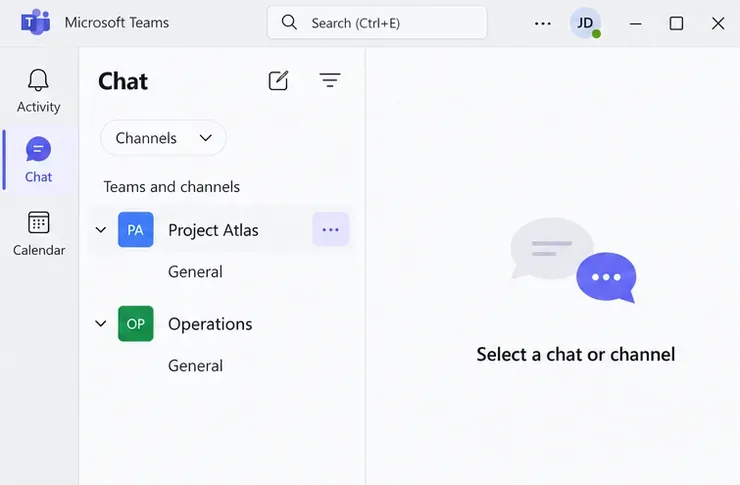
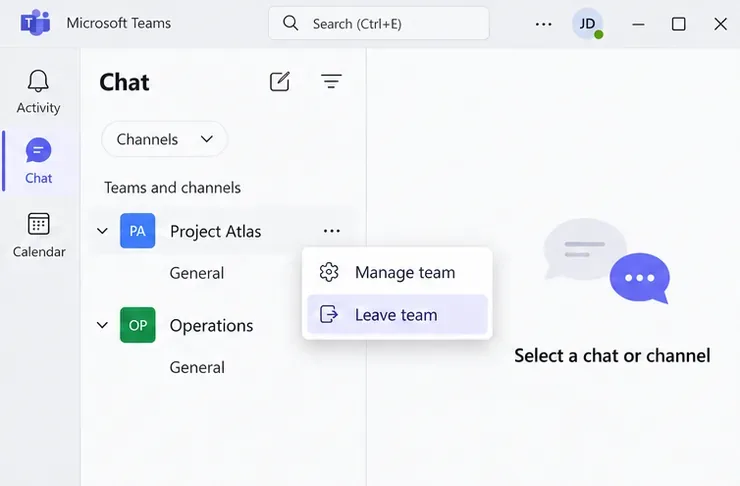
Open the team's menu. Point to its name and select More options (...), then choose Leave team. Check that you opened the menu for the correct team.
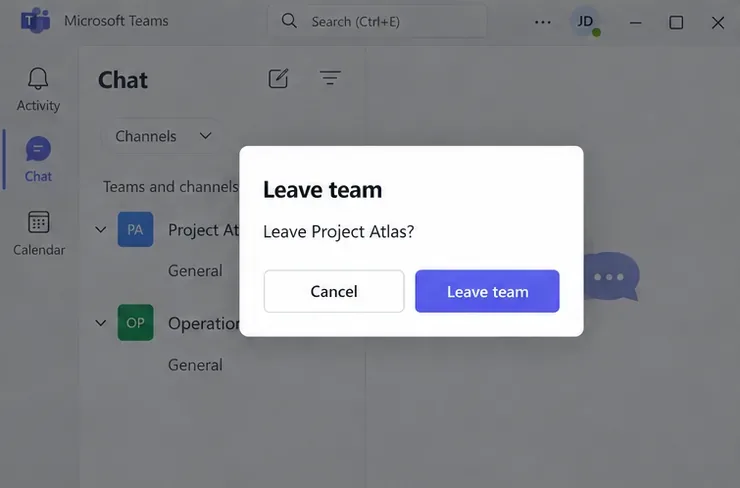
Confirm your choice. Read the confirmation and approve leaving. Cancel if you selected the wrong team. Microsoft documents this confirmation in its official instructions for leaving a team.
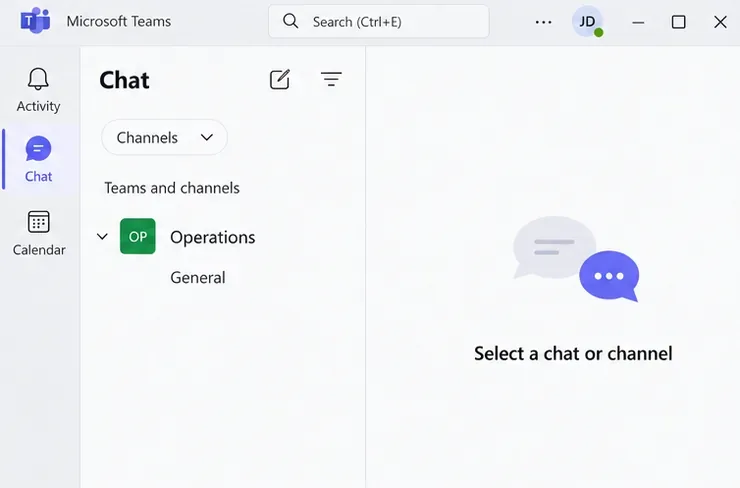
Check the list afterward. The team should disappear from your membership list. If another device still shows it, refresh or reopen Teams before assuming the change failed.
Open the Teams Android app, tap Teams, and find the team you want to leave.
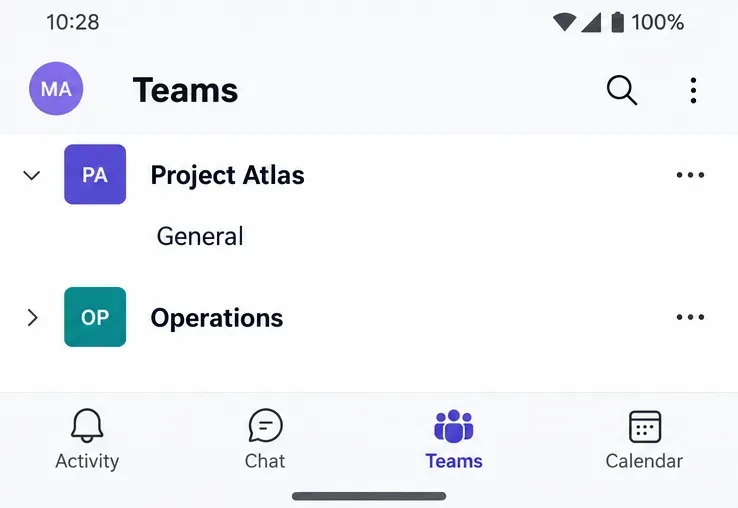
Tap More options (...) beside the team's name, then tap Leave team.
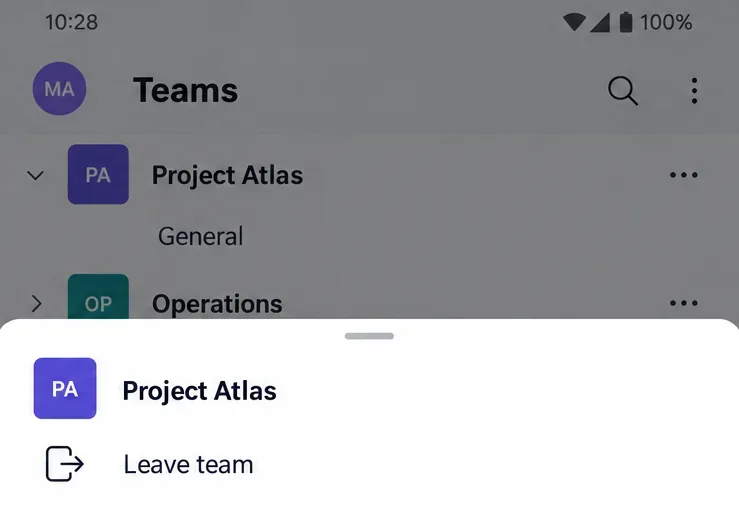
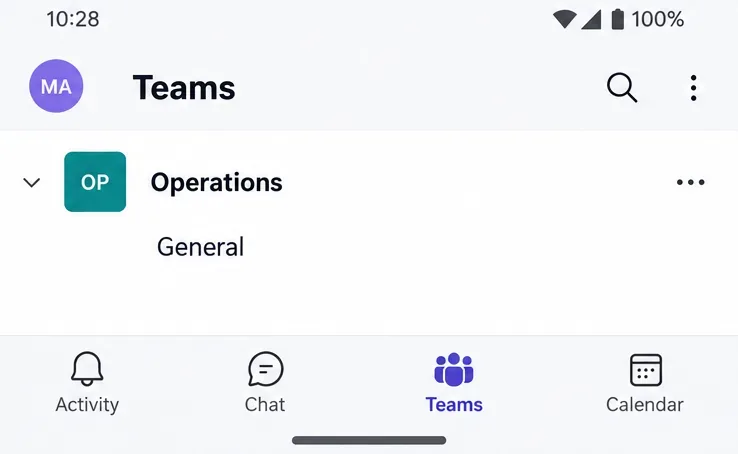
Complete any confirmation shown and check that the team is no longer listed. If the action is unavailable, use the desktop or web app to check the membership restrictions below.
Microsoft's current iOS instructions say to use the desktop or web app to leave a team. Sign in on a computer and follow the desktop steps above. Do not assume Android's menu instructions apply to the iOS app.
A missing command does not necessarily mean the app is broken. First, verify that you are in the correct account and organization and that you opened the team's menu, rather than a channel or chat menu.
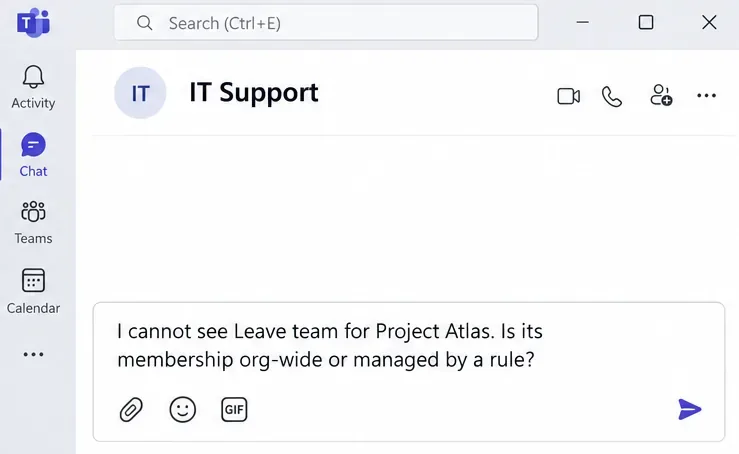
A useful request is: “I no longer need Project Atlas, but Leave team is unavailable. Can you check whether its membership is organization-wide or managed by a rule?”
Finish any handoff and make sure you have an approved way to access work you still need. Do not assume old channel or file links will remain usable after your membership ends. Leaving removes you from the team; it does not delete the team for everyone else.
If you manage the team, arrange another owner before departing. Microsoft explains how an existing owner can make another member a team owner.
Also, team membership and app licensing are different administrative matters. Teams licenses are assigned to users, including through group-based policies. Do not assume leaving one team automatically cancels your license; ask IT if access to Teams itself is a concern.
Leaving is not necessarily permanent. Eligible users can usually join a public team directly. A private team requires the owner's approval or help adding you back. If you were a guest, contact the owner about restoring access. Microsoft's guide to finding and joining teams explains the public and private routes.
Learn how to create a poll in Microsoft Teams chats, channels, and meetings, choose response settings, review results, and close voting.
Learn how to mute channel and message notifications in Microsoft Teams, unfollow noisy threads, and control banners while understanding mention alerts.
Learn how to transfer a Microsoft Teams meeting between your computer and phone, use both devices together, and fix missing transfer options or audio issues.
Learn how to snooze a message in Microsoft Teams with Snooze Bot, return to it later, and use saved messages or mute controls when you need another option.
Learn how to create a team in Microsoft Teams, add members, choose channel types, manage permissions, and use the Teams admin center.
Learn how to download a Microsoft Teams recording from Teams, OneDrive, or SharePoint, and fix missing download options, access issues, and expired recordings.
Fix echo during Microsoft Teams meetings by removing duplicate audio connections, selecting the right headset and microphone, and checking audio settings.
Set up Microsoft Teams–Slack integration to launch Teams meetings from Slack. Learn account requirements, app permissions, setup steps, and quick fixes.
Unable to connect to Microsoft Teams meetings? Check the meeting link, account, network, and app, then learn when to contact the organizer or IT.
Microsoft Teams not syncing? Refresh messages across desktop, web, iPhone, and Android, identify account or file issues, and avoid unnecessary cache resets.








