How to Create a Poll in Microsoft Teams

Learn how to create a poll in Microsoft Teams chats, channels, and meetings, choose response settings, review results, and close voting.
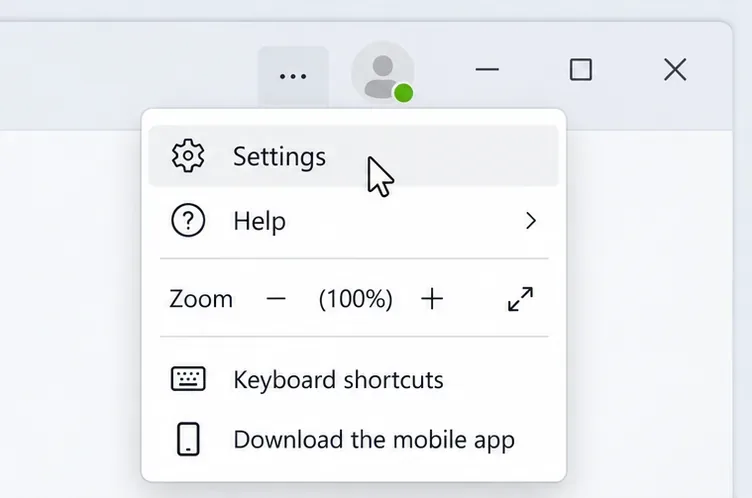
To make a Microsoft Teams test call, open the desktop app and go to Settings and more (...) > Settings > Devices. Under Audio settings, select Make a test call, then follow Test Call Bot's prompts to record and hear a short message.
Microsoft documents this feature for the Windows and Mac desktop apps, not Teams on the web. The instructions below follow Teams for work or school; personal accounts can have different options. Microsoft's call settings guide explains the supported test-call workflow.
Connect the headset or speakers you plan to use for your meeting. Check any physical mute switch before starting. The interface examples below show the relevant controls; your layout and device names may differ.
Sign in to the Teams desktop app. Select Settings and more (...) beside your profile picture, choose Settings, then select Devices. Use the three-dot menu rather than looking for Settings inside your profile menu.
If the settings list is difficult to navigate, use its search box to find device settings.
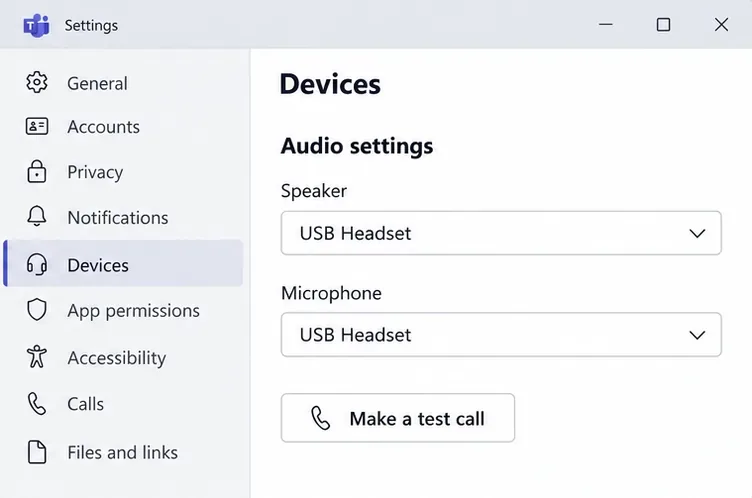
Under Audio settings, check both the Speaker and Microphone dropdowns. Select the devices you actually want to use. For example, choosing a USB headset as the speaker does not mean you should leave the microphone set to your laptop's built-in mic.
Select Make a test call. Microsoft's audio settings instructions also explain how to change these selections before or during a meeting.
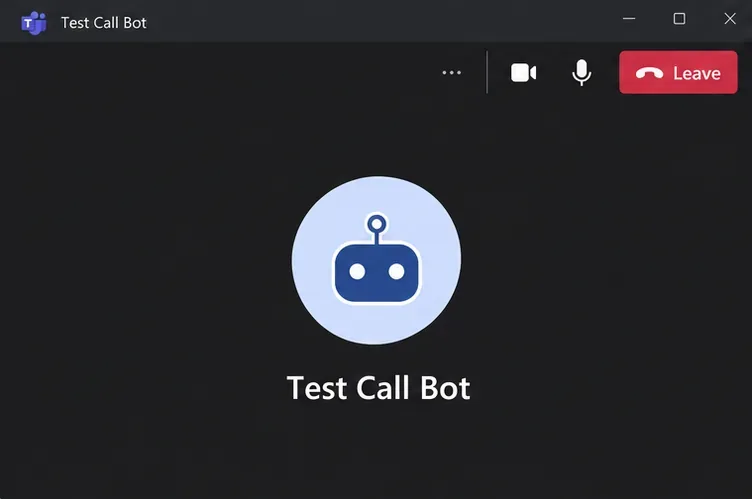
Listen to Test Call Bot and speak when prompted. A simple sentence such as “I'm checking my microphone before the meeting” is enough. Wait for the recording to play back, then review the test summary.
Hearing the bot checks audio output; hearing your own message checks microphone capture and playback. Listen for missing words, low volume, or distortion. If something sounds wrong, change the relevant device setting and repeat the call.
Microsoft says the test recording is deleted immediately after the call. Its microphone troubleshooting guide currently lists the test-call feature as English-only.
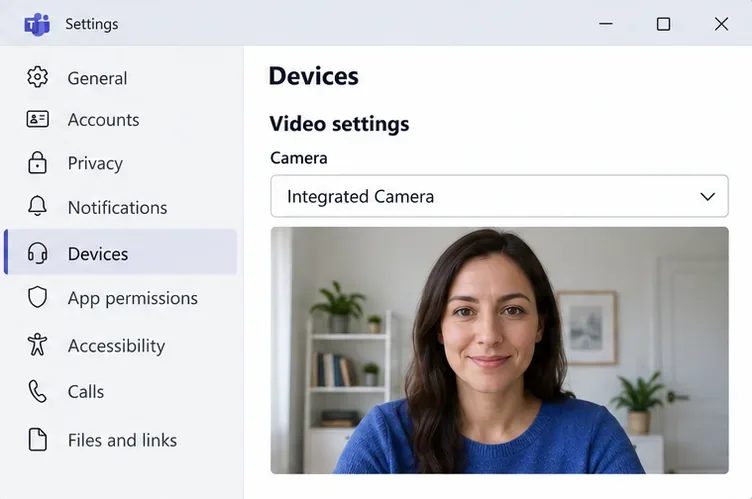
You can inspect your camera without running another test call. Return to Settings > Devices, find Video settings > Camera, and choose the webcam you want to use. Check the preview for framing, lighting, and an unobstructed lens.
A visible preview confirms that Teams can receive video from the selected camera. It does not confirm what another participant can see in a live meeting.
First, check whether you are using a browser. The bot test is unavailable in Teams on the web; use the Windows or Mac desktop app for the documented workflow. Update Teams if your desktop interface differs substantially.
Do not assume Teams Free or a personal account includes the same test-call button. Microsoft documents personal-account device settings separately. If the bot is unavailable, select your devices there and arrange a brief call with someone who can confirm your sound and video. A camera preview alone cannot confirm microphone audio.
| Problem | What to check |
|---|---|
| No bot audio or playback | Confirm the selected speaker, raise its volume, and check the computer's output volume. Reconnect wired headphones or charge and reconnect a Bluetooth headset. |
| The bot plays, but your message is silent | Choose the correct microphone, release its physical mute switch, and check microphone permissions. |
| Camera preview is blank | Open the lens shutter, select the correct camera, close other apps using it, and reconnect an external webcam. |
On Windows 11, check Settings > Privacy & security > Microphone or Camera. Allow access for Teams and desktop apps as applicable. On a Mac, review the corresponding permissions in System Settings > Privacy & Security.
For persistent issues, use Microsoft's speaker troubleshooting or camera troubleshooting. Contact your IT administrator if permissions are locked or devices remain unavailable.
Learn how to create a poll in Microsoft Teams chats, channels, and meetings, choose response settings, review results, and close voting.
Learn how to mute channel and message notifications in Microsoft Teams, unfollow noisy threads, and control banners while understanding mention alerts.
Learn how to transfer a Microsoft Teams meeting between your computer and phone, use both devices together, and fix missing transfer options or audio issues.
Learn how to snooze a message in Microsoft Teams with Snooze Bot, return to it later, and use saved messages or mute controls when you need another option.
Learn how to create a team in Microsoft Teams, add members, choose channel types, manage permissions, and use the Teams admin center.
Learn how to download a Microsoft Teams recording from Teams, OneDrive, or SharePoint, and fix missing download options, access issues, and expired recordings.
Fix echo during Microsoft Teams meetings by removing duplicate audio connections, selecting the right headset and microphone, and checking audio settings.
Set up Microsoft Teams–Slack integration to launch Teams meetings from Slack. Learn account requirements, app permissions, setup steps, and quick fixes.
Unable to connect to Microsoft Teams meetings? Check the meeting link, account, network, and app, then learn when to contact the organizer or IT.
Microsoft Teams not syncing? Refresh messages across desktop, web, iPhone, and Android, identify account or file issues, and avoid unnecessary cache resets.








