How to Create a Poll in Microsoft Teams

Learn how to create a poll in Microsoft Teams chats, channels, and meetings, choose response settings, review results, and close voting.
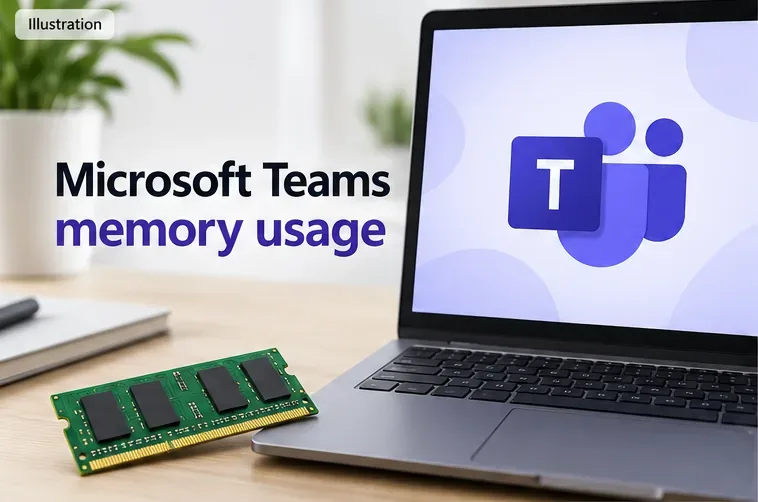
To manage Microsoft Teams memory usage, check whether Teams is actually slowing your computer, enable Efficiency mode, and fully quit and update the app. Reduce unnecessary background activity and video workload before trying an app reset. A large RAM reading alone does not identify a fault.
The instructions below focus on the current Teams desktop app and Windows 11, with Mac alternatives where relevant. Menu availability can vary by version and organization.
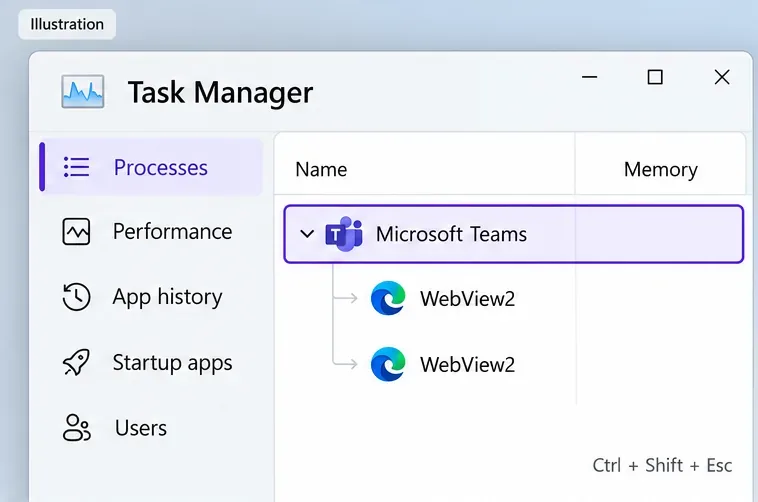
On Windows, press Ctrl + Shift + Esc to open Task Manager. In Processes, find Microsoft Teams and expand its group. Also check Performance > Memory to see how much memory the whole computer is using.
On a Mac, use Activity Monitor’s Memory tab and look at overall memory pressure as well as Teams.
Compare Teams while idle and during a meeting, then repeat after making one change. There is no single RAM reading that diagnoses a problem across every workload. Look for persistent growth accompanied by freezing, poor calls, or slowdowns in other apps.
Multiple processes are expected. As Microsoft’s WebView2 FAQ explains, Teams and other apps use WebView2 subprocesses. Do not assume every msedgewebview2.exe entry belongs to Teams.
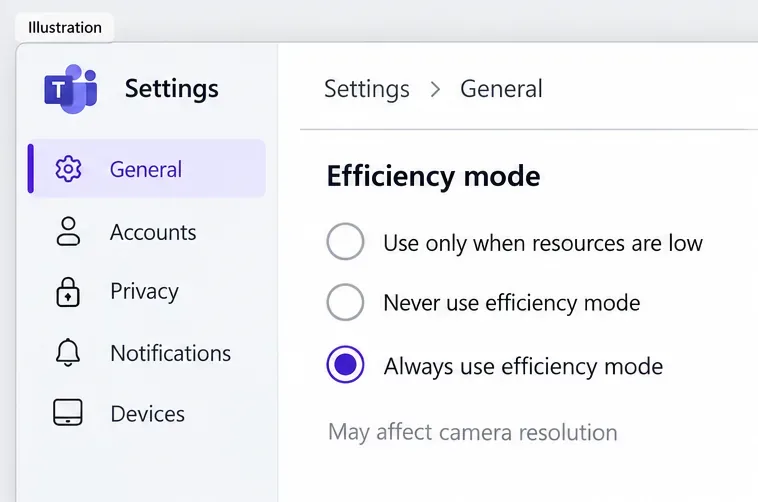
Open Settings and more (…) beside your profile picture, choose Settings > General, and find Efficiency mode.
Try the always-on option if your computer struggles. Microsoft warns that it can affect features such as camera resolution. See Microsoft’s Teams settings guide. If the control is missing, update Teams and check with IT.
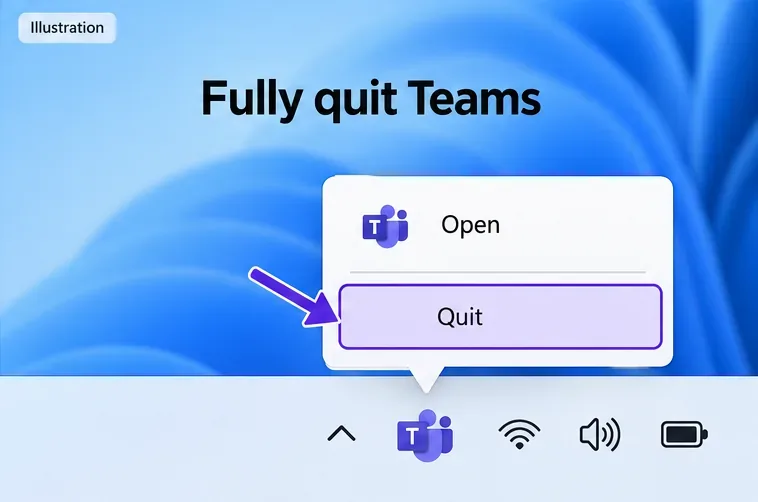
Finish your call and save any work. On Windows, right-click the Teams icon in the notification area, including the hidden-icons area if needed, and select Quit. On a Mac, use Command + Q. Reopen Teams and compare its behavior. Restart the computer if the wider system remains sluggish.
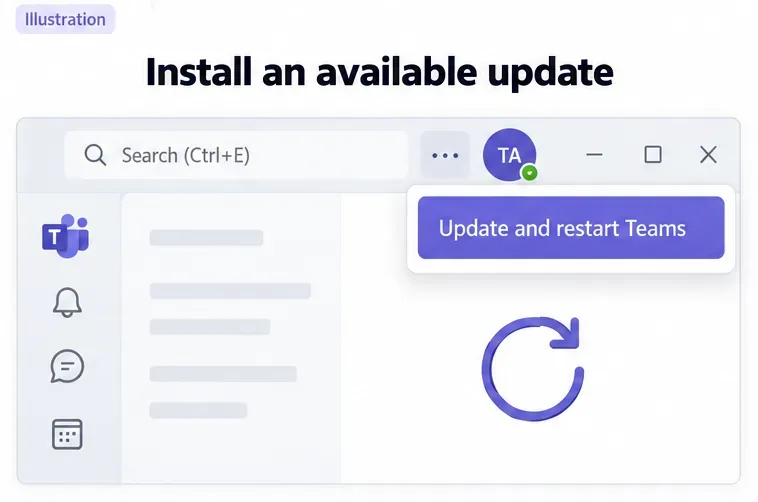
Teams normally updates automatically while idle. When an update appears at the top of the app, select Update > Update and restart Teams. Reopen it manually if necessary. These are Microsoft’s update instructions; older guides showing a profile-menu “Check for updates” command may not match your version.
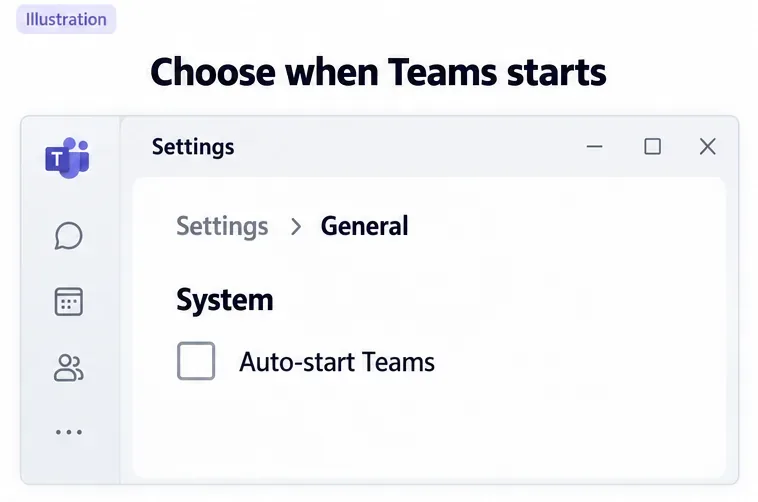
In Settings > General > System, clear Auto-start Teams if you prefer to launch it yourself. Where available, also review the setting that keeps Teams running after its window closes.
Disabling startup prevents an automatic launch; it does not lower memory use during an active meeting. Fully quitting Teams also means you will not receive desktop calls or notifications until you reopen it.
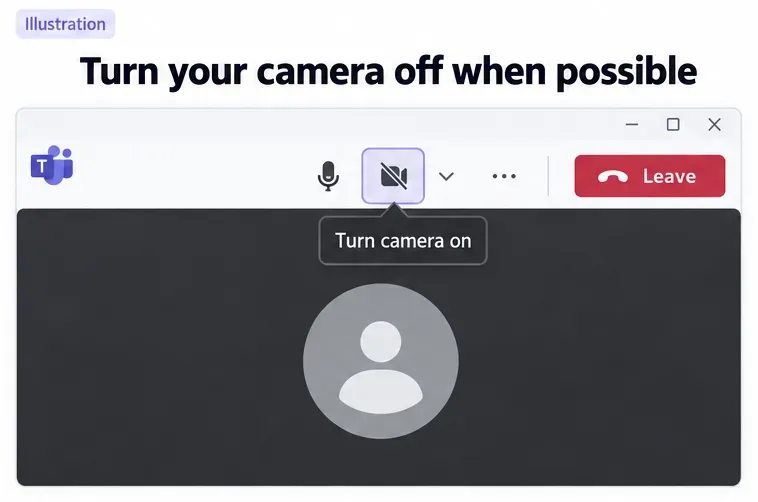
Close unused applications and browser tabs. If the meeting allows it, turn your camera off. Where your version offers it, you can also turn off incoming video through the meeting’s More actions menu.
These measures reduce overall resource demands, although the RAM reduction will vary. If slowdowns occur specifically when a laptop is docked to a 4K display, consult Microsoft’s meeting performance workarounds; display and video processing can contribute to the problem.
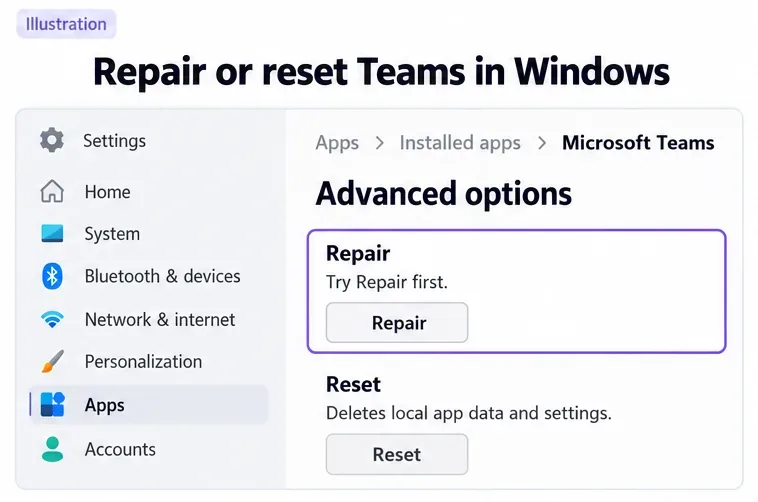
If the problem survives an update and restart, follow Windows app repair guidance: open Settings > Apps > Installed apps, find Microsoft Teams, select its … menu, then Advanced options. Choose Repair if available and test again.
Consider Reset only if the issue persists. Reset deletes local app data, including personalization settings. Be ready to sign in again. Microsoft also provides a manual cache-clearing method for current Teams in Microsoft’s current cache instructions; the old %appdata%\Microsoft\Teams path is for classic Teams.
Cache clearing is a targeted troubleshooting step, not routine RAM maintenance or a guaranteed fix. Microsoft advises against it for missing chats, channels, or incorrect unread counts because it removes diagnostic logs without fixing those issues.
If memory keeps growing with repeated slowdowns, record the Teams version, operating system, affected activity, and before-and-after readings. Give IT those details before clearing diagnostic data. Check the Teams system requirements, including the current WebView2 requirement on Windows.
As a comparison, try Teams in an up-to-date supported desktop browser after quitting the desktop app. Better behavior there can help narrow the investigation; it does not prove the browser will always use less RAM.
Learn how to create a poll in Microsoft Teams chats, channels, and meetings, choose response settings, review results, and close voting.
Learn how to mute channel and message notifications in Microsoft Teams, unfollow noisy threads, and control banners while understanding mention alerts.
Learn how to transfer a Microsoft Teams meeting between your computer and phone, use both devices together, and fix missing transfer options or audio issues.
Learn how to snooze a message in Microsoft Teams with Snooze Bot, return to it later, and use saved messages or mute controls when you need another option.
Learn how to create a team in Microsoft Teams, add members, choose channel types, manage permissions, and use the Teams admin center.
Learn how to download a Microsoft Teams recording from Teams, OneDrive, or SharePoint, and fix missing download options, access issues, and expired recordings.
Fix echo during Microsoft Teams meetings by removing duplicate audio connections, selecting the right headset and microphone, and checking audio settings.
Set up Microsoft Teams–Slack integration to launch Teams meetings from Slack. Learn account requirements, app permissions, setup steps, and quick fixes.
Unable to connect to Microsoft Teams meetings? Check the meeting link, account, network, and app, then learn when to contact the organizer or IT.
Microsoft Teams not syncing? Refresh messages across desktop, web, iPhone, and Android, identify account or file issues, and avoid unnecessary cache resets.








