How to Create a Poll in Microsoft Teams

Learn how to create a poll in Microsoft Teams chats, channels, and meetings, choose response settings, review results, and close voting.
To schedule a Google Meet meeting, create a Google Calendar event, choose a date and time, add Google Meet video conferencing, and invite your guests. Save the event and send the invitations. If you only need a link to share later, Meet can create one without scheduling a calendar event.
Sign in to the Google account you want to organize the meeting with. You can use a personal account; a paid subscription is not required for basic scheduling. Work or school administrators may restrict meeting creation. Google Workspace Essentials users cannot schedule through Google Calendar, according to Google’s scheduling guide.
The interface examples below highlight the relevant controls. Their placement can vary by account and app version.
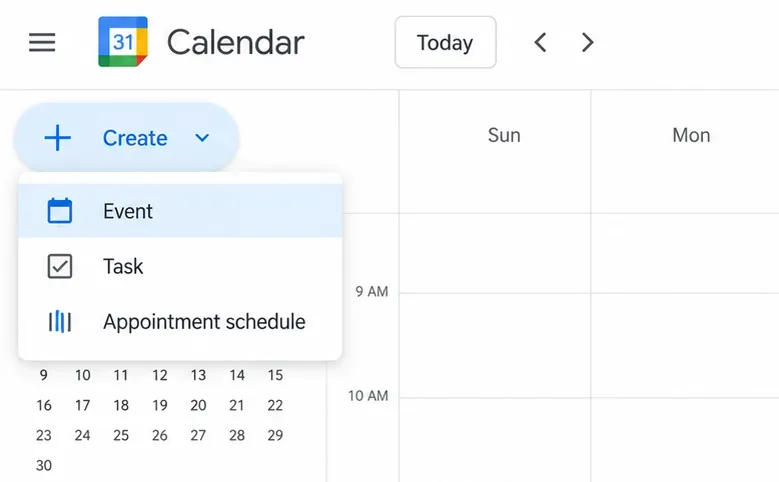
Open Google Calendar and select Create > Event, or click an empty time on your calendar. Give the event a recognizable title. Open the full event editor if you need more options.
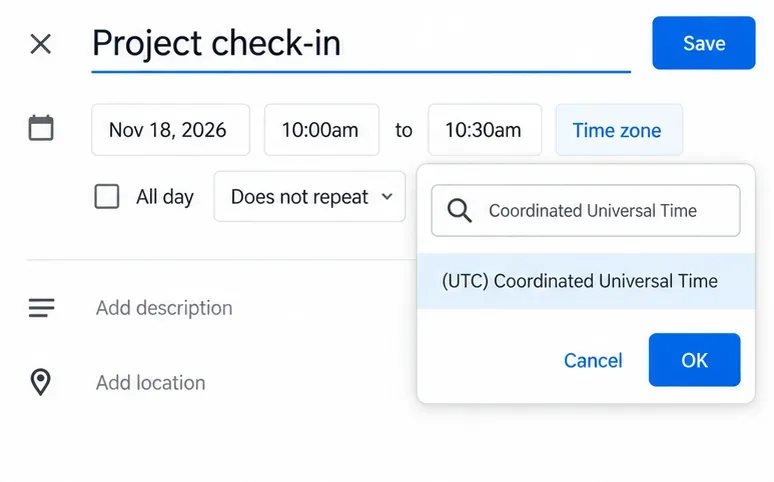
Enter the meeting’s date, start time, and end time. Check Time zone when scheduling across regions. Calendar displays the event in each guest’s configured time zone, so guests may see a different clock time or date. See Google’s time zone guidance.
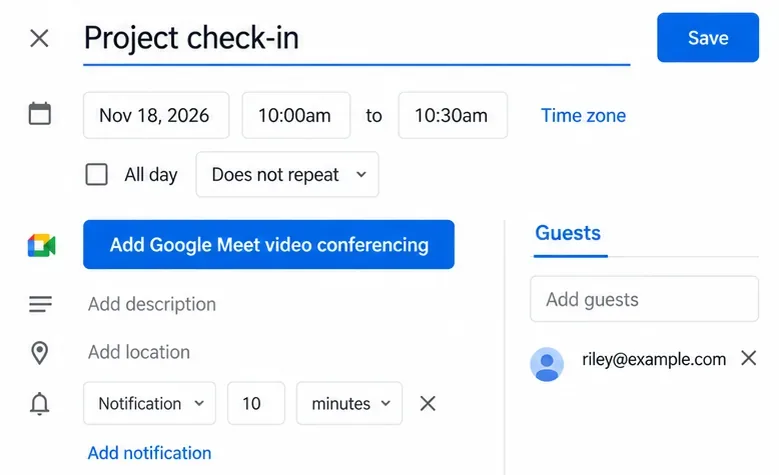
Select Add Google Meet video conferencing unless Meet details are already present. Enter attendees’ email addresses under Guests and add an agenda if helpful. You can invite people who do not use Google Calendar, too.
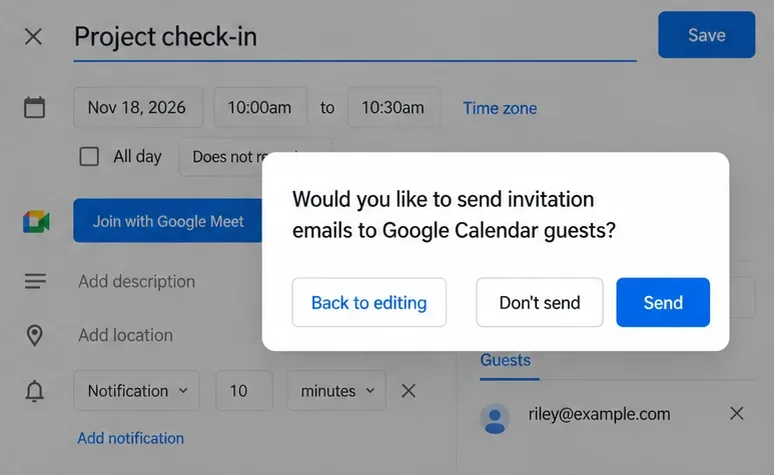
Click Save, then Send when asked whether to email guests. Reopen the saved event to confirm that it contains the Meet joining details. At meeting time, open the event and select Join with Google Meet.
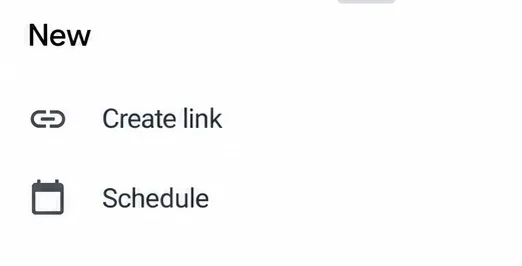
In the updated Google Meet app, tap New > Schedule. This opens a Google Calendar event. Google documents this path for both Android and iPhone and iPad. Have Google Calendar installed for this workflow.
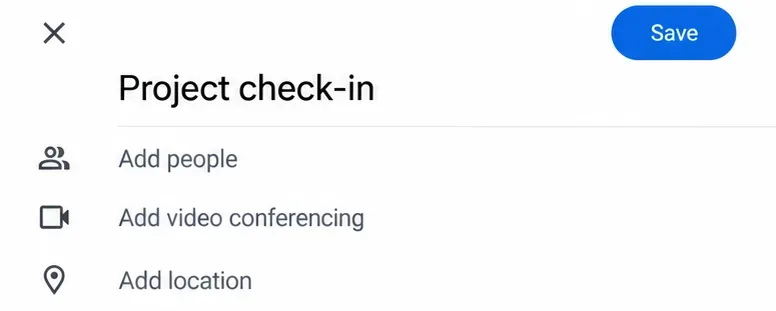
Check the title, date, time zone, guests, and Meet details, then tap Save. Send invitation emails if prompted. Alternatively, start directly in the Google Calendar app with + > Event; use Add video conferencing if a Meet link has not been added automatically.
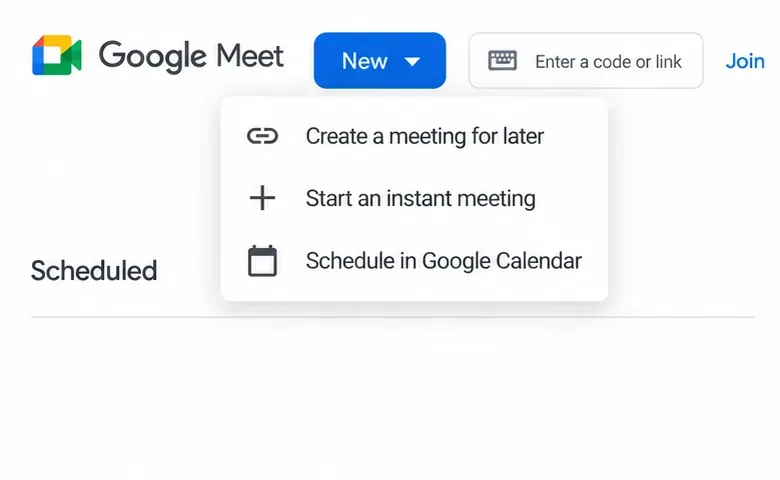
Open Google Meet on your computer and select New > Create a meeting for later. Some layouts label the button New meeting. To create a dated invitation instead, choose Schedule in Google Calendar.
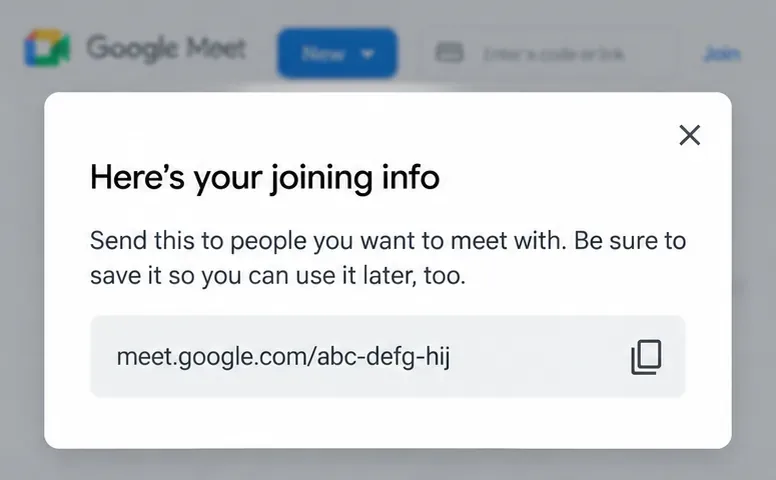
Use the copy icon to save the link, then share it privately. Creating a link does not set a meeting time, send calendar invitations, or create reminders. On mobile, the equivalent link-only option is New > Create link.
For regular meetings with the same group, use Calendar’s Does not repeat menu to set a recurring schedule. Create a new event and Meet code for unrelated meetings or different guest groups: access and meeting records can remain tied to the original event’s guest list.
Links do not have a universal one-month lifespan. Under Google’s current expiration rules, Calendar-created codes expire when they have been unused for 60 days and have no future calendar events. Codes created on the Meet homepage expire 365 days after their last use.
Learn how to create a poll in Microsoft Teams chats, channels, and meetings, choose response settings, review results, and close voting.
Learn how to mute channel and message notifications in Microsoft Teams, unfollow noisy threads, and control banners while understanding mention alerts.
Learn how to transfer a Microsoft Teams meeting between your computer and phone, use both devices together, and fix missing transfer options or audio issues.
Learn how to snooze a message in Microsoft Teams with Snooze Bot, return to it later, and use saved messages or mute controls when you need another option.
Learn how to create a team in Microsoft Teams, add members, choose channel types, manage permissions, and use the Teams admin center.
Learn how to download a Microsoft Teams recording from Teams, OneDrive, or SharePoint, and fix missing download options, access issues, and expired recordings.
Fix echo during Microsoft Teams meetings by removing duplicate audio connections, selecting the right headset and microphone, and checking audio settings.
Set up Microsoft Teams–Slack integration to launch Teams meetings from Slack. Learn account requirements, app permissions, setup steps, and quick fixes.
Unable to connect to Microsoft Teams meetings? Check the meeting link, account, network, and app, then learn when to contact the organizer or IT.
Microsoft Teams not syncing? Refresh messages across desktop, web, iPhone, and Android, identify account or file issues, and avoid unnecessary cache resets.








