How to Create a Poll in Microsoft Teams

Learn how to create a poll in Microsoft Teams chats, channels, and meetings, choose response settings, review results, and close voting.
To send a Microsoft Teams invite to join a team, open the team’s More options (...) menu, choose Add member, select a coworker or enter a guest’s email address, and click Add. Outside guests receive an invitation email. You can also share a channel link, but that link does not grant membership by itself.
These instructions cover work or school teams in the desktop or web app. You normally need team owner permissions; you do not need to be a Microsoft 365 administrator. Members who are not owners can submit a request for an owner to approve.
Teams supports combined or separate views. Find your team under Chat in the combined layout or Teams in the separate layout. The examples below use sample names and the separate layout; your screen may differ.
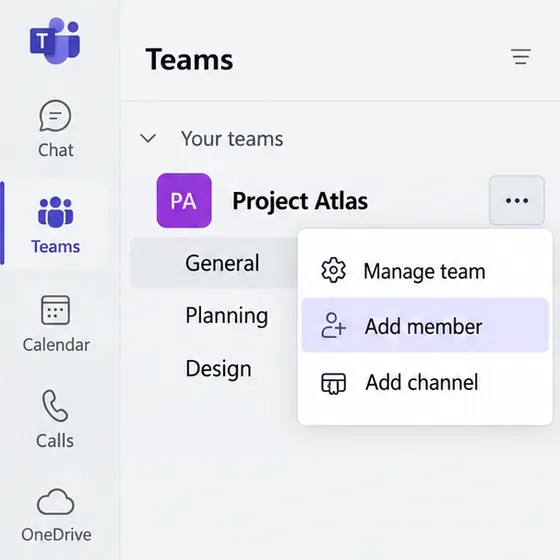
Locate the correct team, hover over its name, and select the three-dot menu. Choose Add member. Use the menu beside the team name, rather than a channel name.
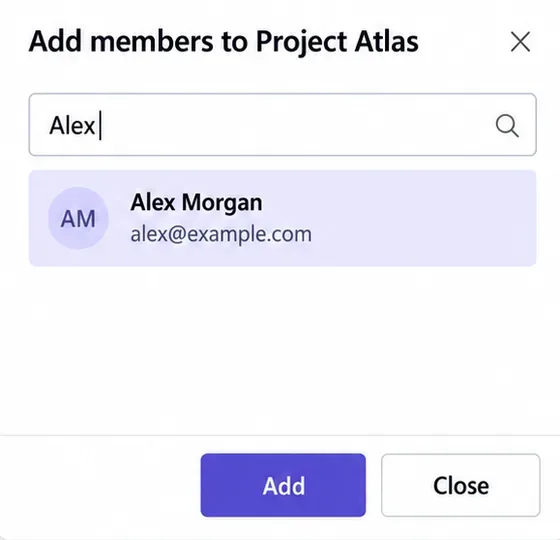
Type the person’s name and select the matching directory result. Check the displayed email address, especially when several people have similar names. You can also search supported groups when adding multiple coworkers. If you are inviting an outside guest, use the next step instead.
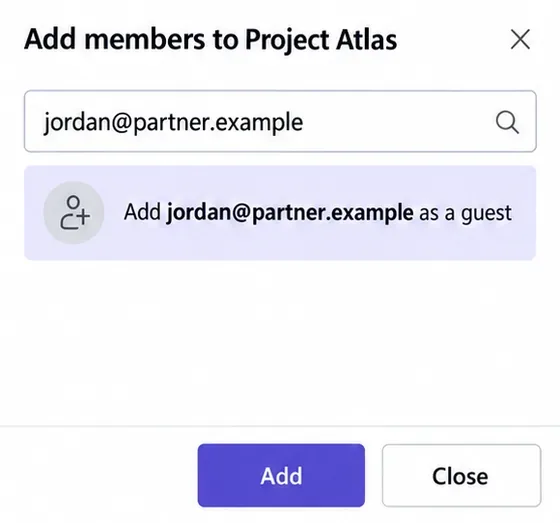
For someone outside your organization, enter their complete email address and select the guest suggestion to confirm it. Business and consumer email accounts can be used. Review the guest’s display name before completing the addition.
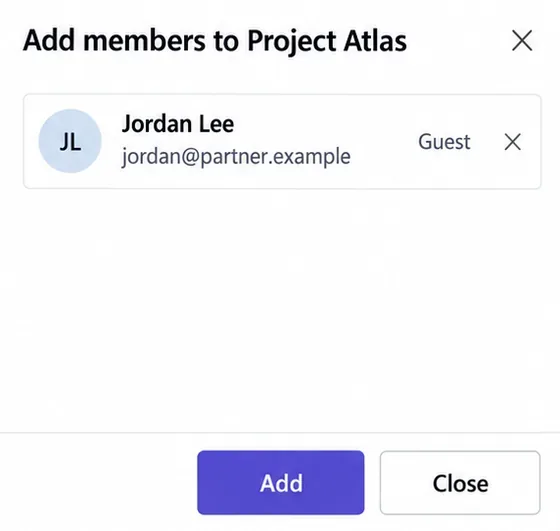
Check the selected identity, then click Add. Keep ordinary collaborators as members; give owner permissions only when they need to manage the team. See Microsoft’s member instructions and guest invitation instructions for the documented workflows.
The guest receives a welcome email and must accept the invitation. They should use the invited identity, complete any sign-in or verification prompts, and select your organization’s guest account in Teams if necessary. Internal members are added through the directory workflow; guest acceptance is a separate requirement.
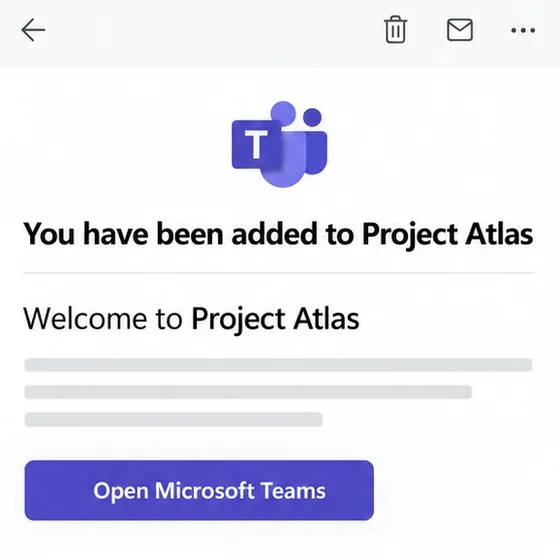
For a shortcut to a team’s conversation, Microsoft’s current link-sharing instructions use a channel’s Copy link command. If your menu differs from older instructions mentioning “Get link to team,” use this channel-link method. Add outside guests by email first.
Expand the team and find the channel you want to share, such as General. Check that you are sharing the intended team’s channel before copying anything.
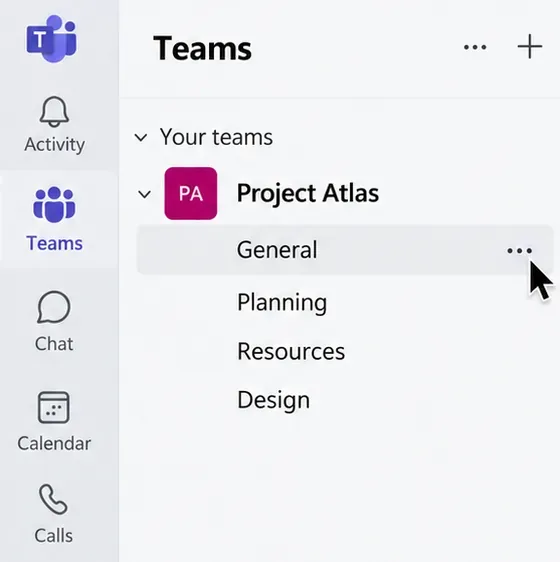
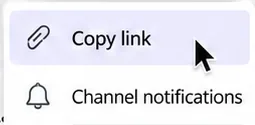
Hover over the channel, open its three-dot menu, and choose Copy link. Teams copies the link to your clipboard automatically.
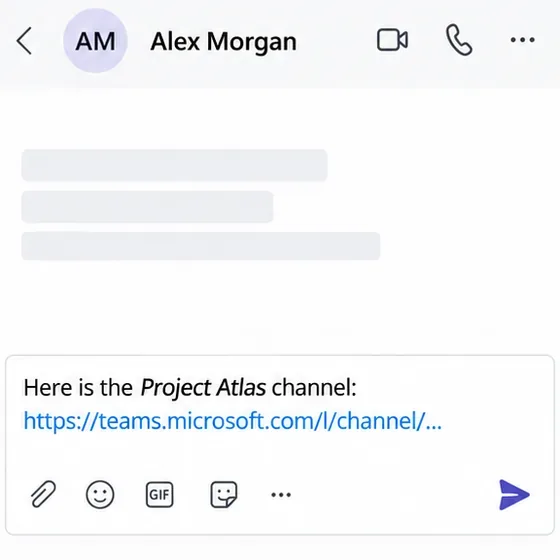
Paste it into an email or chat, explain which team and channel it opens, and send it to the intended recipient. A channel link is a navigation shortcut, not an invitation to a scheduled call.
If someone receives a team join link for a private team, the owner must approve their access request. Public teams do not require that approval. Microsoft’s guidance on joining with a team link also states that guests cannot join a team through a link or code.
A meeting invitation is separate from team membership. A scheduled call uses a calendar event and meeting join link, rather than the team membership workflow above. Microsoft’s meeting invitation instructions cover adding attendees and sharing the meeting link when your goal is a call.
Learn how to create a poll in Microsoft Teams chats, channels, and meetings, choose response settings, review results, and close voting.
Learn how to mute channel and message notifications in Microsoft Teams, unfollow noisy threads, and control banners while understanding mention alerts.
Learn how to transfer a Microsoft Teams meeting between your computer and phone, use both devices together, and fix missing transfer options or audio issues.
Learn how to snooze a message in Microsoft Teams with Snooze Bot, return to it later, and use saved messages or mute controls when you need another option.
Learn how to create a team in Microsoft Teams, add members, choose channel types, manage permissions, and use the Teams admin center.
Learn how to download a Microsoft Teams recording from Teams, OneDrive, or SharePoint, and fix missing download options, access issues, and expired recordings.
Fix echo during Microsoft Teams meetings by removing duplicate audio connections, selecting the right headset and microphone, and checking audio settings.
Set up Microsoft Teams–Slack integration to launch Teams meetings from Slack. Learn account requirements, app permissions, setup steps, and quick fixes.
Unable to connect to Microsoft Teams meetings? Check the meeting link, account, network, and app, then learn when to contact the organizer or IT.
Microsoft Teams not syncing? Refresh messages across desktop, web, iPhone, and Android, identify account or file issues, and avoid unnecessary cache resets.








