How to Create a Poll in Microsoft Teams

Learn how to create a poll in Microsoft Teams chats, channels, and meetings, choose response settings, review results, and close voting.
To send a Microsoft Teams meeting invite, open Calendar, create an event, add attendees, turn on Teams meeting, and send the invitation. For a meeting already underway, use Share invite or request that someone join directly from the People panel.
The instructions below focus on Teams for work or school. Calendar layouts and button labels can vary. A scheduled invitation gives recipients the meeting time and join link; sharing only a link is better suited to a quick invitation.
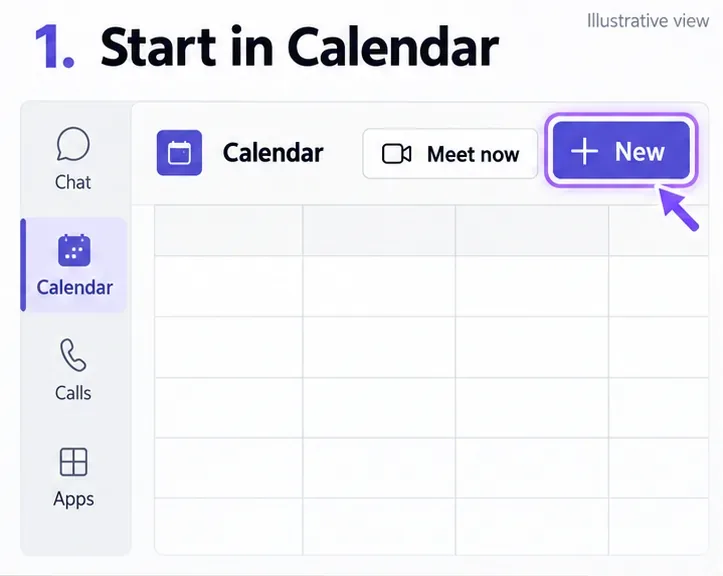
Open the event editor. In Teams, select Calendar, then New or a time slot. You can schedule a regular meeting without choosing a team or channel.
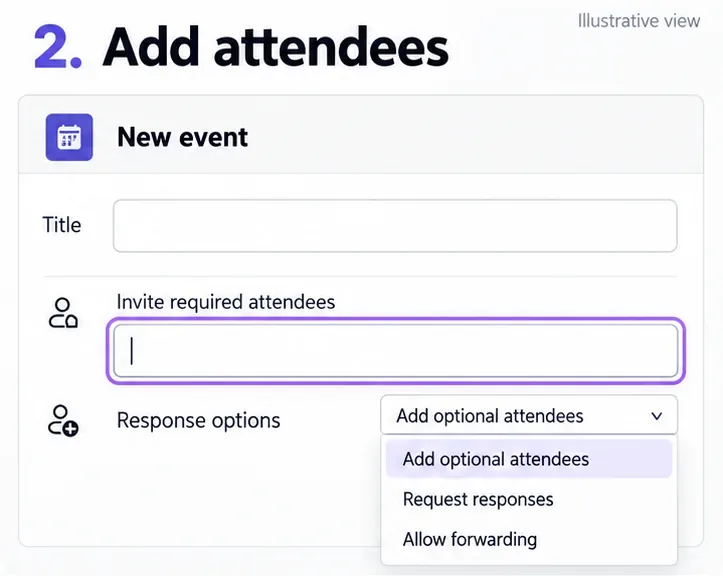
Add the details and recipients. Enter a clear title, date, start and end times, and a short agenda. Add people under Invite required attendees or Required attendees. For someone outside your organization, enter their full email address. In the new calendar, use Response options > Add optional attendees for people whose attendance is optional.
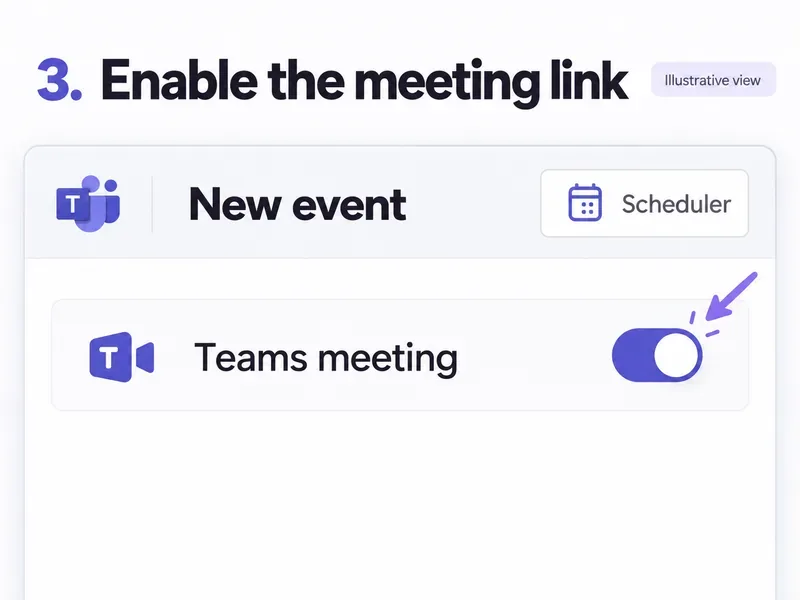
Enable the online meeting. Turn on Teams meeting. Use Scheduler to check availability and attendees' time zones before choosing a time. Review the date and time zone carefully when participants work in different locations.
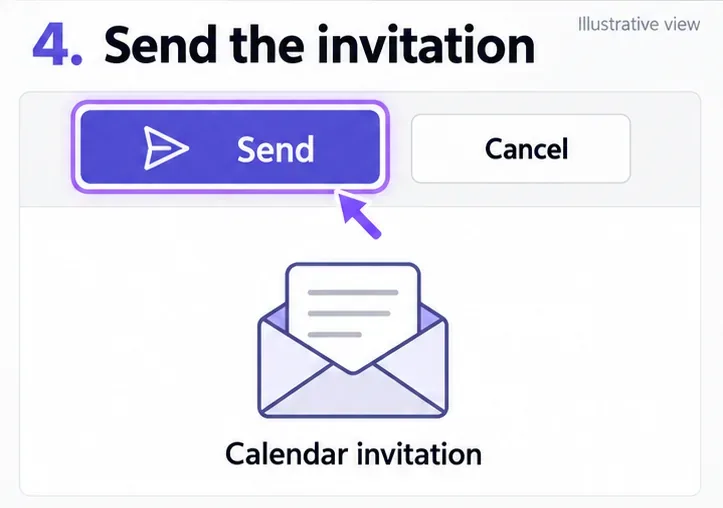
Send the invitation. Select Send to invite the listed attendees. Some calendar layouts use Save to complete event creation. Recipients receive an email containing the meeting link. Reopen the event to check the attendee list and join details.
Microsoft documents the current controls in its meeting scheduling guide and Teams calendar guide. The illustrations highlight the relevant controls; their placement may differ in your app.
If you organized the meeting, update the existing event rather than creating a second meeting.
Open the meeting for editing. Find it in Calendar, select it, and choose More options > Edit. For a recurring meeting, check whether you are changing one occurrence or the series.
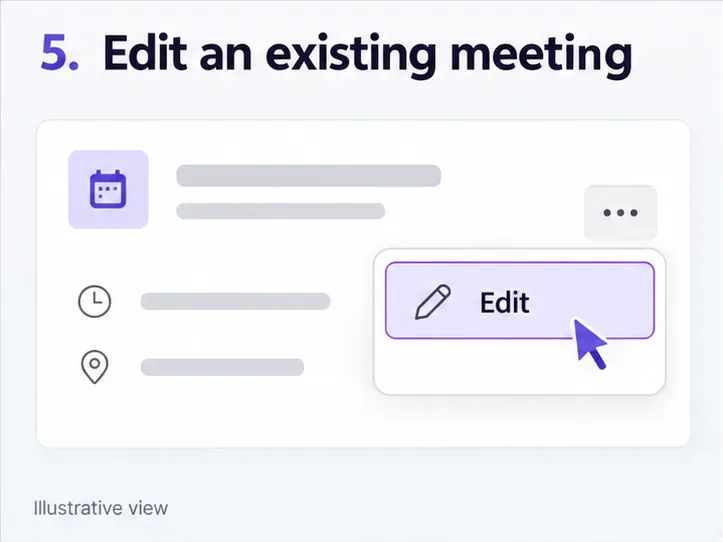
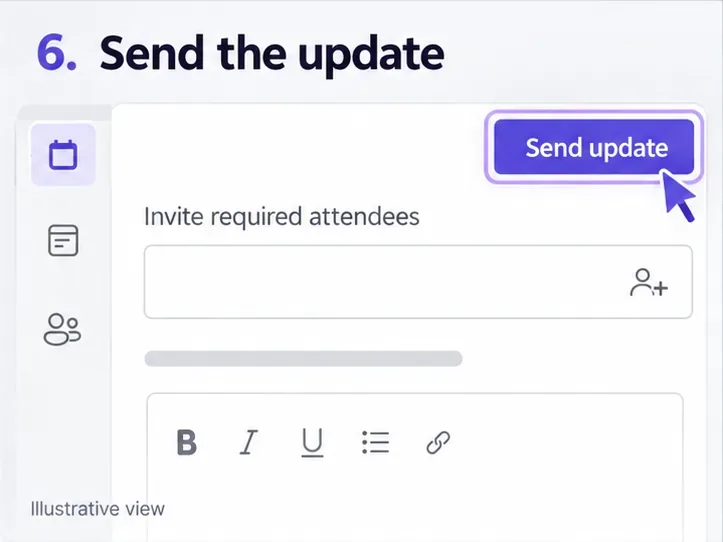
Add the attendee and send the update. Enter the person's name or full email address in the attendee field, then select Send or Send update. You do not need to open Scheduling Assistant just to add a recipient.
If you are an attendee, use the event's Forward option when available. The organizer is notified when you forward it. Forwarding is unavailable if the organizer disabled Allow forwarding. See Microsoft's guide to inviting and forwarding.
You can share an instant meeting without manually composing an email.
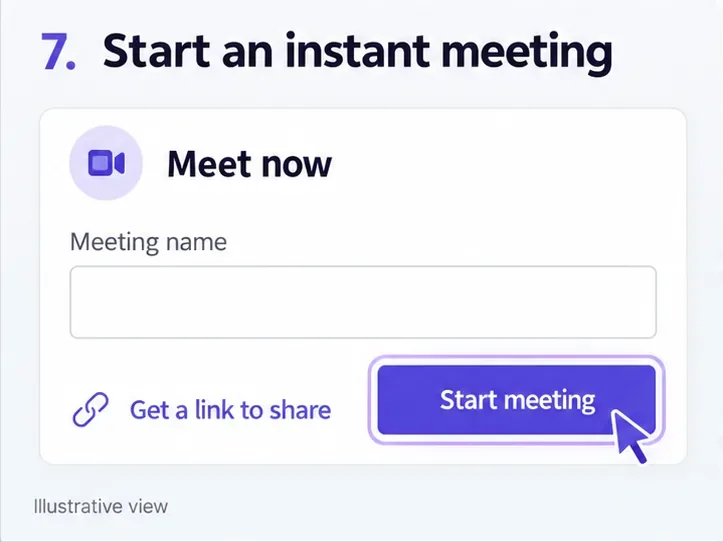
Start the meeting. From Calendar, select Meet now. Name the meeting, select Start meeting, then Join now. Get a link to share lets you distribute the link before entering.
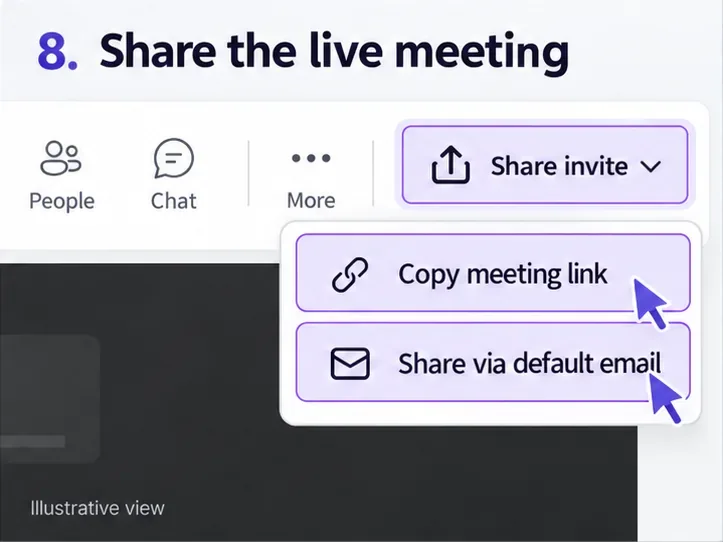
Choose how to invite people. Use Copy meeting link to paste the link into a chat or message. Alternatively, select Share invite > Share via default email, add recipients, and send. For someone available in your directory, open People, search for them, and use Request to join.
Microsoft's instant meeting instructions also explain that Calendar's Meet now option requires an Exchange Online mailbox.
On mobile: Open Teams > Calendar > New event, enter a title, use Add participants, complete the details, and tap Done.
In new Outlook: Open Calendar > New event, enable Teams meeting, add attendees and details, then select Send. Join information is added after sending; Save as draft does not add it. Microsoft's Outlook scheduling guide specifies that this integration requires a supported Microsoft 365 Business Exchange account.
Learn how to create a poll in Microsoft Teams chats, channels, and meetings, choose response settings, review results, and close voting.
Learn how to mute channel and message notifications in Microsoft Teams, unfollow noisy threads, and control banners while understanding mention alerts.
Learn how to transfer a Microsoft Teams meeting between your computer and phone, use both devices together, and fix missing transfer options or audio issues.
Learn how to snooze a message in Microsoft Teams with Snooze Bot, return to it later, and use saved messages or mute controls when you need another option.
Learn how to create a team in Microsoft Teams, add members, choose channel types, manage permissions, and use the Teams admin center.
Learn how to download a Microsoft Teams recording from Teams, OneDrive, or SharePoint, and fix missing download options, access issues, and expired recordings.
Fix echo during Microsoft Teams meetings by removing duplicate audio connections, selecting the right headset and microphone, and checking audio settings.
Set up Microsoft Teams–Slack integration to launch Teams meetings from Slack. Learn account requirements, app permissions, setup steps, and quick fixes.
Unable to connect to Microsoft Teams meetings? Check the meeting link, account, network, and app, then learn when to contact the organizer or IT.
Microsoft Teams not syncing? Refresh messages across desktop, web, iPhone, and Android, identify account or file issues, and avoid unnecessary cache resets.








