How to Create a Poll in Microsoft Teams

Learn how to create a poll in Microsoft Teams chats, channels, and meetings, choose response settings, review results, and close voting.
To set out of office in Teams, open your profile picture, select Set status message > Schedule out of office, enable automatic replies, enter your message and schedule, then save.
For a connected work or school account, Teams and Outlook synchronize these settings. A regular status message is a separate feature: it lets you display a note without configuring email replies.
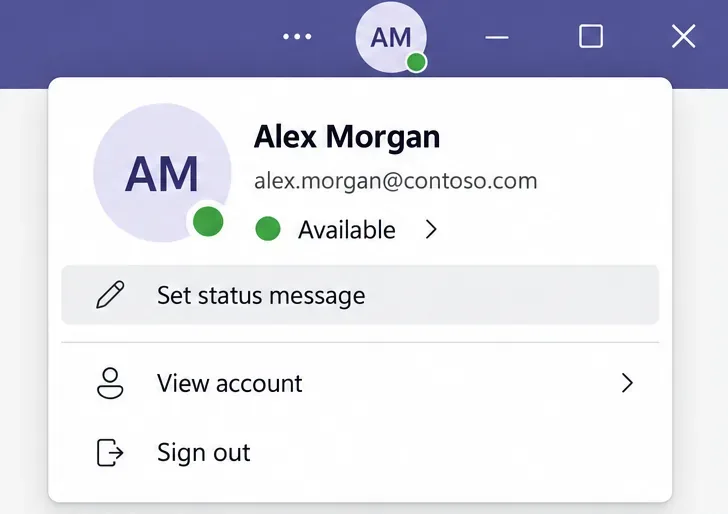
Select your profile picture, then Set status message.
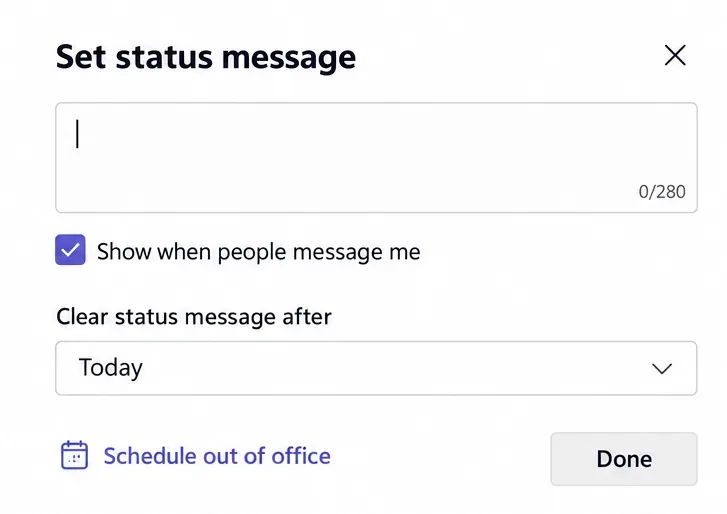
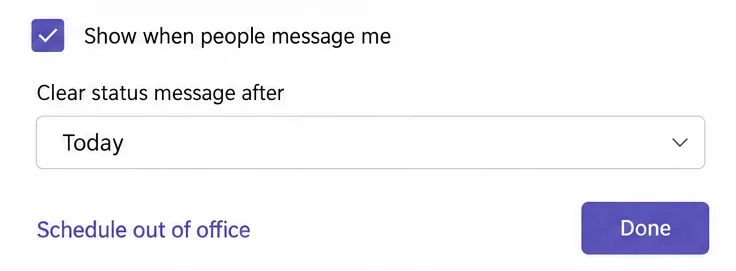
Select Schedule out of office beneath the status-message editor.
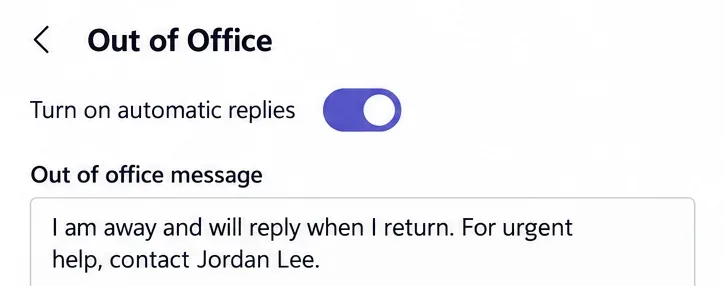
Switch on Turn on automatic replies and enter your absence notice. External replies are optional; choose contacts only or all external senders as appropriate.
Check Send replies only during a time period, choose the start and end, and select Save. See Microsoft’s Teams scheduling instructions.
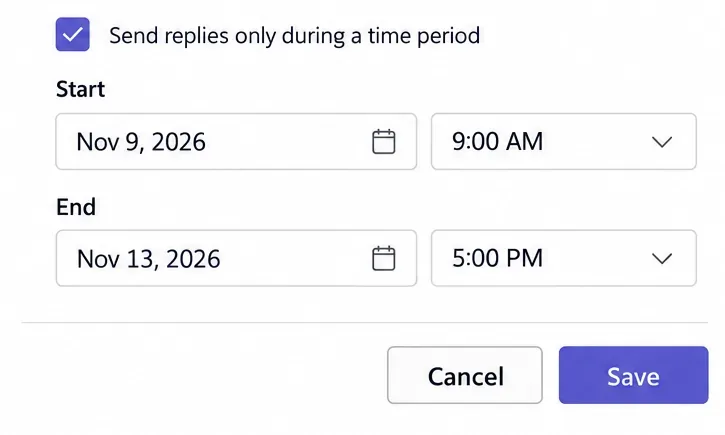
You can also reach this screen through Settings and more > Settings > General > Out of Office > Schedule.
Before leaving, reopen the saved settings to check your message, recipient scope, and dates. Choose an end time that reflects when you will resume responding. Without a scheduled end, remember to turn replies off yourself when you return.
Include your return date, whether you will check messages, and a backup contact who has agreed to cover urgent requests. For example:
I’m out of the office through November 13 and will return November 16. I won’t be checking Teams or email. For urgent project questions, contact Jordan Lee at [approved contact address]. Otherwise, I’ll respond after I return.
Replace every example detail before saving. If colleagues work across time zones, name the zone when giving a specific return time. Keep an external version brief and avoid sharing internal project details or a colleague’s private contact information.
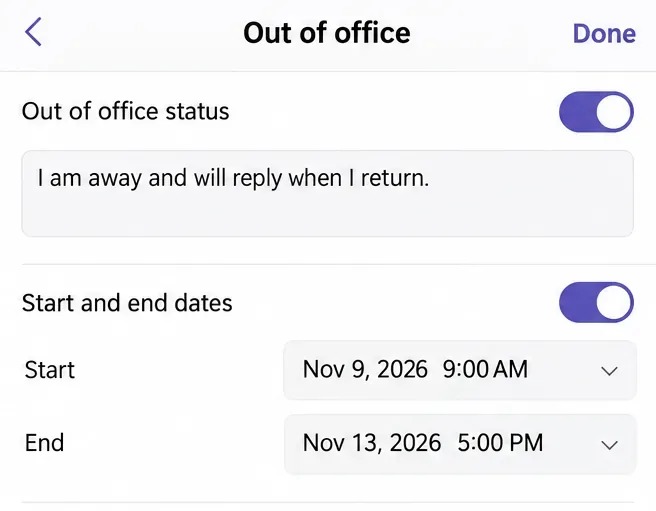
Tap your profile picture, your current status, then Out of office. Enable the auto-reply switch, add your message, set the start and end dates, and save with Done. Labels can vary slightly by app version.
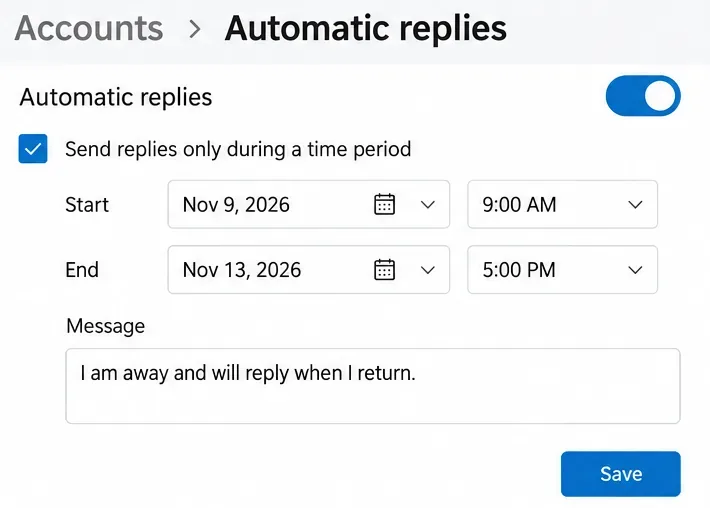
You can also configure automatic replies in Outlook. Use the mailbox associated with your Teams account, rather than another account you happen to have open.
Enter your reply and time range, review the external-sender options, then save. Outlook’s built-in automatic replies do not support Gmail, Yahoo, or other POP/IMAP accounts. If the option is missing, check your account type and Outlook version using Microsoft’s Outlook automatic-reply guide.
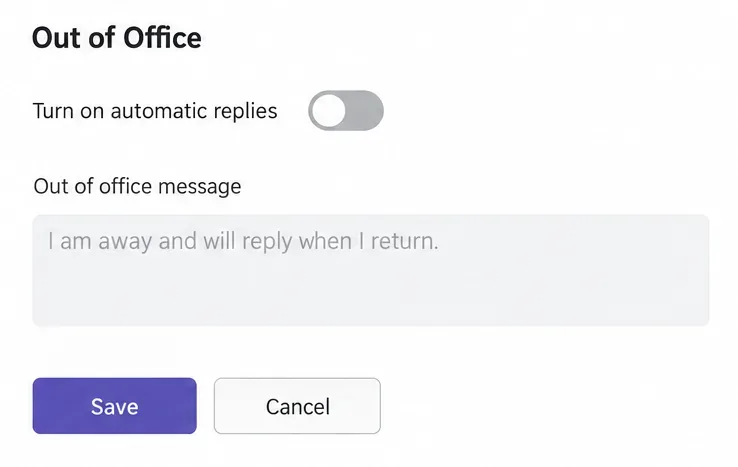
Reopen the Out of Office screen, switch Turn on automatic replies off, and select Save. A scheduled reply ends automatically at its selected end time.
For an afternoon away, open Set status message, type a note, enable Show when people message me, choose when it should clear, and select Done. This note does not set up Outlook automatic replies.
According to Microsoft’s status-message guidance, an existing Teams status message can prevent your Outlook out-of-office reply from being displayed in Teams. Clear an outdated custom note if the absence message is missing.
Check automatic replies in the correct Outlook mailbox and look for a current calendar event marked Out of office. Either can affect the indicator. Being active in Teams can also show your availability alongside Out of Office, as explained in Microsoft’s Teams presence documentation.
Out of Office does not block incoming chats or silence notifications. Check notification settings separately if you need uninterrupted time away. If Teams and Outlook still disagree after you verify and reopen the settings, ask your organization’s IT support to investigate.
Learn how to create a poll in Microsoft Teams chats, channels, and meetings, choose response settings, review results, and close voting.
Learn how to mute channel and message notifications in Microsoft Teams, unfollow noisy threads, and control banners while understanding mention alerts.
Learn how to transfer a Microsoft Teams meeting between your computer and phone, use both devices together, and fix missing transfer options or audio issues.
Learn how to snooze a message in Microsoft Teams with Snooze Bot, return to it later, and use saved messages or mute controls when you need another option.
Learn how to create a team in Microsoft Teams, add members, choose channel types, manage permissions, and use the Teams admin center.
Learn how to download a Microsoft Teams recording from Teams, OneDrive, or SharePoint, and fix missing download options, access issues, and expired recordings.
Fix echo during Microsoft Teams meetings by removing duplicate audio connections, selecting the right headset and microphone, and checking audio settings.
Set up Microsoft Teams–Slack integration to launch Teams meetings from Slack. Learn account requirements, app permissions, setup steps, and quick fixes.
Unable to connect to Microsoft Teams meetings? Check the meeting link, account, network, and app, then learn when to contact the organizer or IT.
Microsoft Teams not syncing? Refresh messages across desktop, web, iPhone, and Android, identify account or file issues, and avoid unnecessary cache resets.








