How to Create a Poll in Microsoft Teams

Learn how to create a poll in Microsoft Teams chats, channels, and meetings, choose response settings, review results, and close voting.
To set up a Microsoft Teams waiting room, open your scheduled meeting’s options and choose who can bypass the lobby. Select Only organizers and co-organizers if you want other attendees to wait for approval. Check the separate phone dial-in setting, too.
Teams calls its waiting room the lobby. It controls entry; it does not automatically gather everyone and start the meeting at the same time. Configure it before the meeting so you can review arrivals when you are ready.
Use the account that organized the meeting. These instructions follow the current Teams desktop interface; the layout can vary. Microsoft’s meeting options guide documents the current controls.
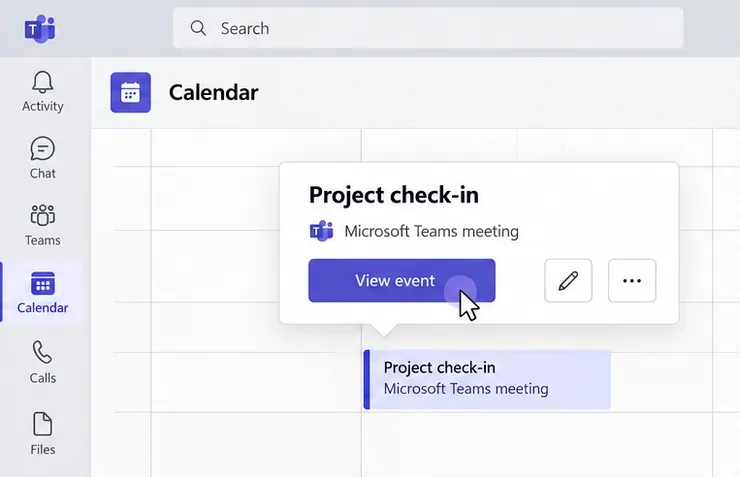
Open the event. In Teams, select Calendar, choose your scheduled meeting, and select View event. You do not need to start a channel meeting first.
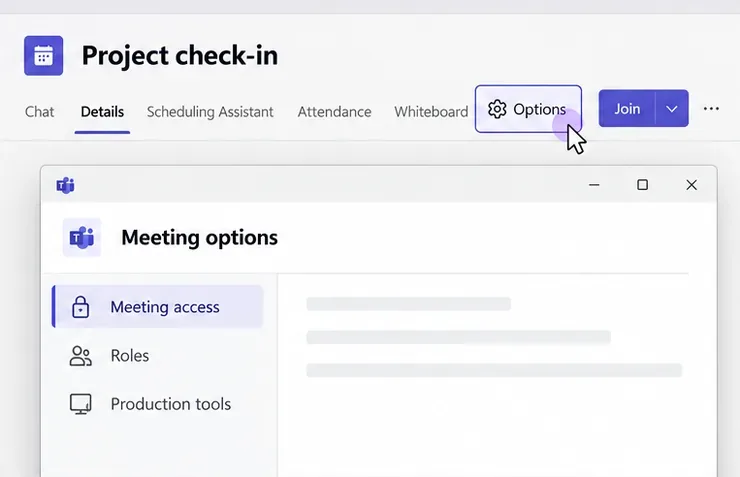
Open the access settings. Select Options, then Meeting access. Meeting options may open in a separate browser window.
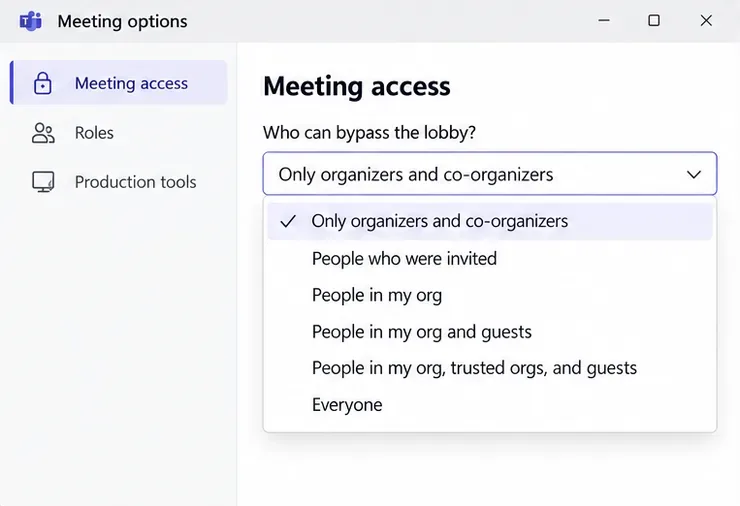
Choose who must wait. Open Who can bypass the lobby? and select Only organizers and co-organizers. This is the current choice for making other attendees wait, rather than the older “Only me” wording.
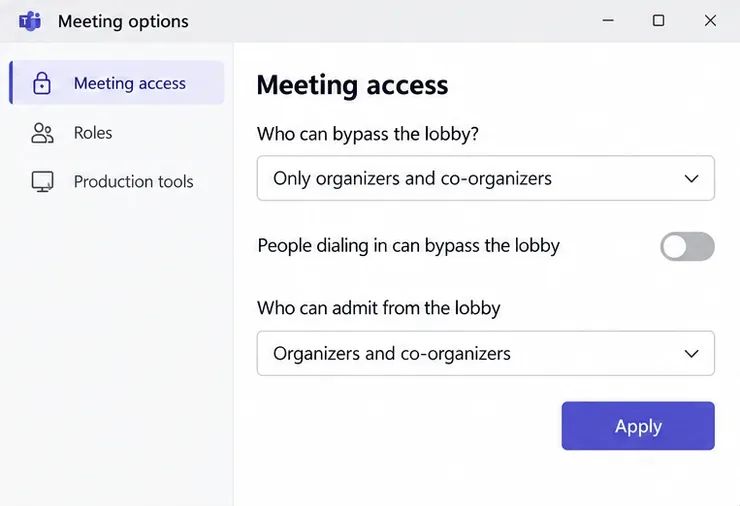
Check admission controls and apply. Turn People dialing in can bypass the lobby off if callers should wait. Set Who can admit from the lobby to Organizers and co-organizers if only those roles should approve arrivals. Select Apply.
If shown, leave Reject anyone who can’t bypass the lobby off when you want people to wait for admission. Turning it on rejects people who lack bypass permission.
You can allow familiar groups to enter directly while keeping others in the lobby. The organizer and co-organizers bypass the lobby with each choice below.
| Setting | Who else enters directly? |
|---|---|
| Only organizers and co-organizers | No other attendees; check phone dial-in separately. |
| People in my org | People signed in from your organization; guests and external people wait. |
| People in my org and guests | Your organization’s users and people with guest access. |
| Everyone | Anyone with the meeting link, subject to organizational join policies. |
Do not assume every meeting lets everyone enter by default. Your administrator determines the initial rules. Microsoft’s lobby policy reference explains how participant types and phone callers are handled.
For a busy meeting, arrange for a co-organizer to help monitor arrivals. Co-organizers can bypass the lobby and admit people. See Microsoft’s co-organizer requirements and setup instructions before assigning that role.
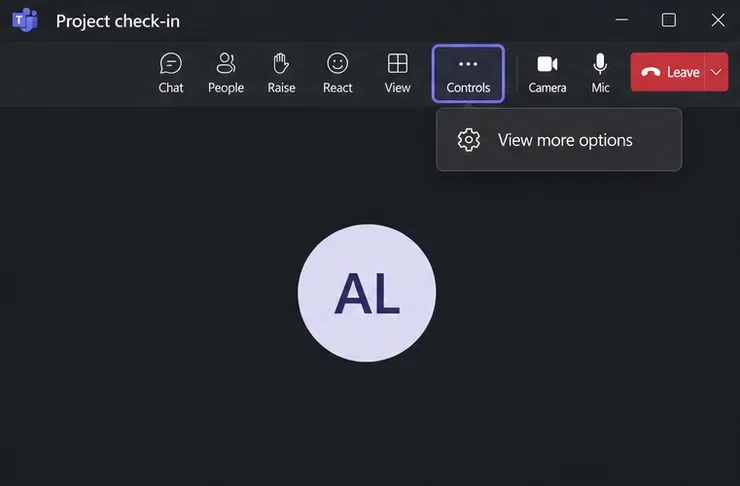
In the meeting toolbar, select Controls > View more options. Open Meeting access, adjust the bypass, dial-in, or admission settings, and select Apply. People already waiting in the lobby remain there; admit them separately.
By default, organizers, co-organizers, and presenters can manage the lobby, unless the admission setting restricts that permission.
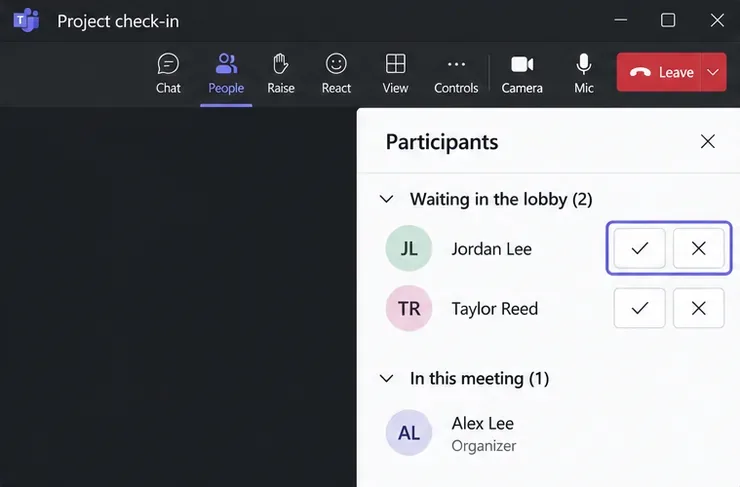
See Microsoft’s lobby management instructions for additional admission controls.
Attendees who must wait see a message that someone needs to let them in. Waiting does not mean their connection failed. If nobody admits them, they should contact the organizer directly.
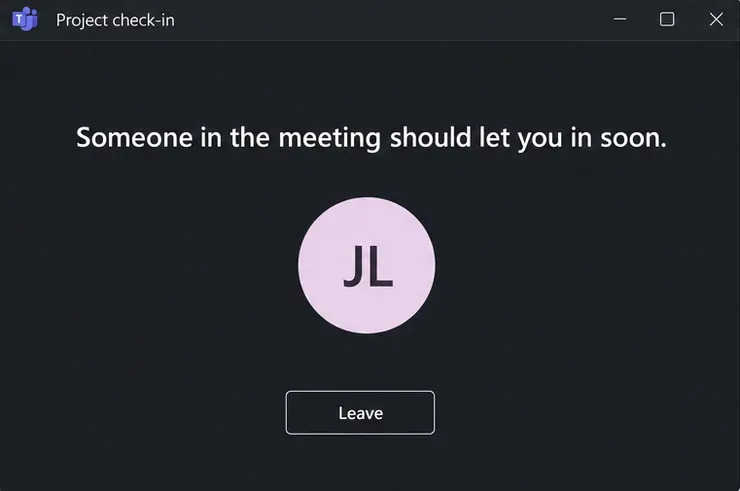
For specific error messages, use Microsoft’s Teams meeting join troubleshooting guide.
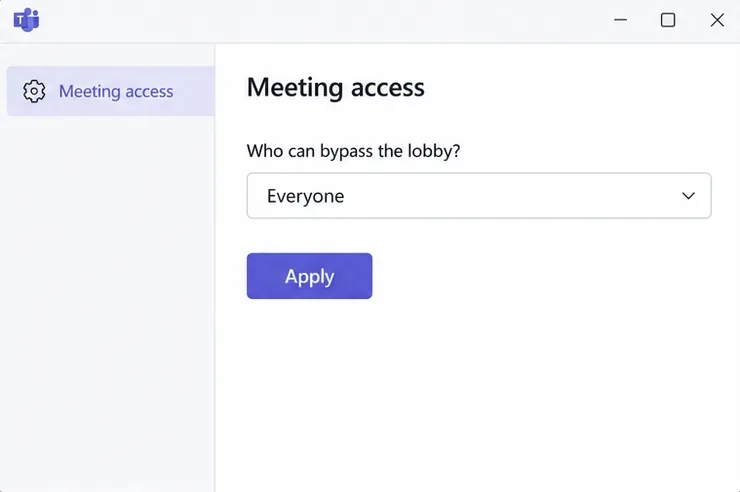
Return to Meeting access, set Who can bypass the lobby? to Everyone, and select Apply. Organizational policies can still require some arrivals to wait until an eligible participant joins. For a meeting series, lobby changes also affect future meetings in that series.
Learn how to create a poll in Microsoft Teams chats, channels, and meetings, choose response settings, review results, and close voting.
Learn how to mute channel and message notifications in Microsoft Teams, unfollow noisy threads, and control banners while understanding mention alerts.
Learn how to transfer a Microsoft Teams meeting between your computer and phone, use both devices together, and fix missing transfer options or audio issues.
Learn how to snooze a message in Microsoft Teams with Snooze Bot, return to it later, and use saved messages or mute controls when you need another option.
Learn how to create a team in Microsoft Teams, add members, choose channel types, manage permissions, and use the Teams admin center.
Learn how to download a Microsoft Teams recording from Teams, OneDrive, or SharePoint, and fix missing download options, access issues, and expired recordings.
Fix echo during Microsoft Teams meetings by removing duplicate audio connections, selecting the right headset and microphone, and checking audio settings.
Set up Microsoft Teams–Slack integration to launch Teams meetings from Slack. Learn account requirements, app permissions, setup steps, and quick fixes.
Unable to connect to Microsoft Teams meetings? Check the meeting link, account, network, and app, then learn when to contact the organizer or IT.
Microsoft Teams not syncing? Refresh messages across desktop, web, iPhone, and Android, identify account or file issues, and avoid unnecessary cache resets.








