How to Create a Poll in Microsoft Teams

Learn how to create a poll in Microsoft Teams chats, channels, and meetings, choose response settings, review results, and close voting.
To set up a Zoom meeting in Outlook, install Zoom for Outlook, create a calendar event, set its date and time, and select Add a Zoom Meeting. Then send the invitation from Outlook.
Zoom recommends its Zoom for Outlook add-in for desktop and web. It is different from the older downloadable Outlook plugin. Microsoft also identifies Zoom for Outlook as the web add-in replacement for the Zoom Outlook plugin in new Outlook for Windows.
You need a Zoom account and permission to install or use add-ins. Zoom's installation requirements specify an Exchange account for the desktop add-in. If your desktop setup only has an IMAP account, check whether you have a supported Outlook web mailbox; otherwise use the manual invitation method below.
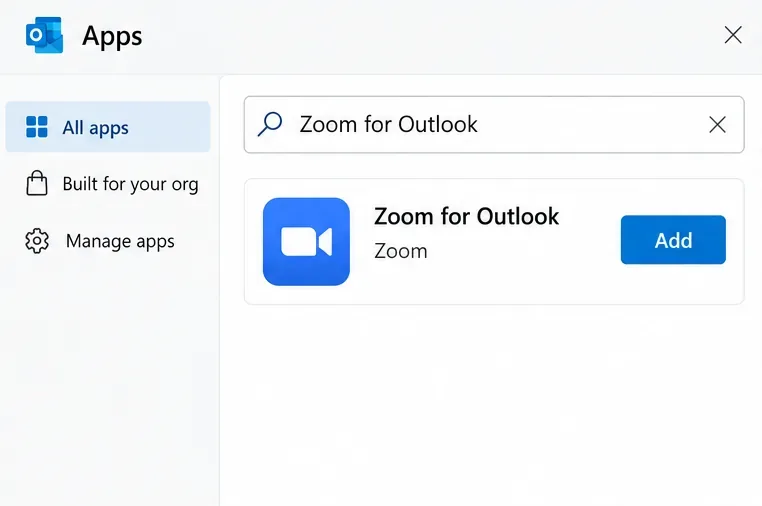
In new Outlook or Outlook on the web, select More apps > Add apps. Search for Zoom for Outlook, open its listing, and select Add. Review the requested permissions.
In classic Outlook for Windows, start with Home > All Apps, then Add Apps or Get Add-ins. Older builds may show Get Add-ins directly. Microsoft explains these variations in its Outlook add-in instructions. If your administrator already deployed Zoom, skip installation.
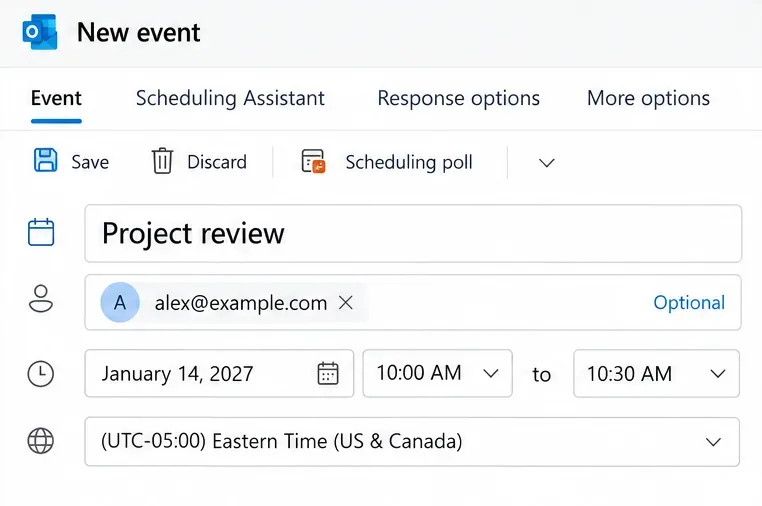
Open Calendar and choose New event. In classic Windows Outlook, choose Home > New Meeting; on Mac, choose New Event.

Add a descriptive title, invitees, and start and end times. Confirm the calendar and time zone, especially for people in different locations. Microsoft's event creation guide explains the calendar fields.
Set the date and time before adding Zoom. Otherwise, Zoom can use the event's initial default time, potentially causing the meeting to expire before the intended date.
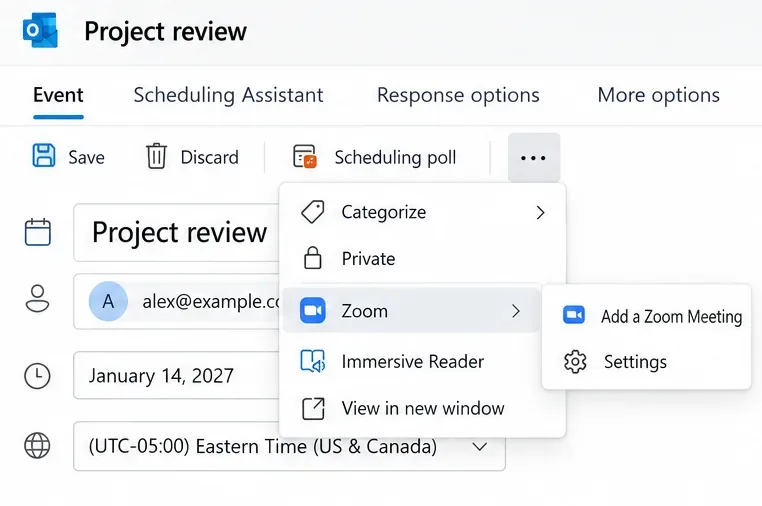
In the event toolbar, select Zoom > Add a Zoom Meeting. If Zoom is hidden, check Apps or the three-dot menu. Classic Windows Outlook may show Zoom > Settings instead.
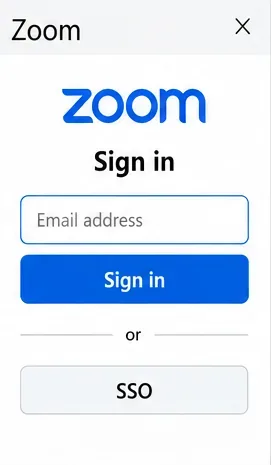
Complete the Zoom sign-in prompt, using SSO if your organization requires it. Confirm the account that should host the meeting.
Check the available video, audio, and meeting options. If the settings pane is open, select Add Zoom Meeting to insert the joining information.
Review the security defaults, too. A passcode protects entry, while Waiting Room lets the host admit participants. Account policies may restrict available choices; Zoom documents these meeting settings and security options.
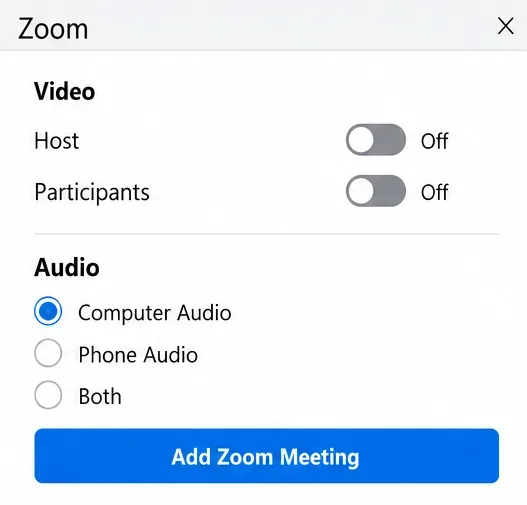
Confirm the Zoom joining details appear, review recipients, and send the Outlook invitation. Button labels vary by client. See Zoom's desktop and web scheduling instructions for version-specific steps.
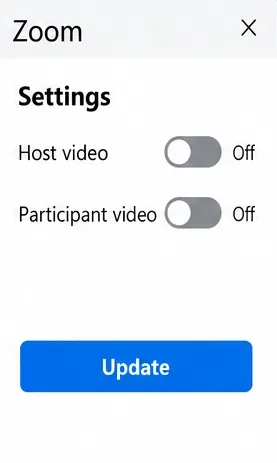
Reopen the event, change the details, and select Zoom > Settings > Update where available. Then send the updated Outlook invitation.
Supported new Outlook and web configurations also offer Send auto-sync. Availability depends on your client and sign-in state; do not assume classic Outlook supports it. Auto-sync does not cover canceling or deleting meetings.
Schedule the meeting in Zoom, open its details, and copy the invitation or joining link. Paste it into a new Outlook calendar invitation, match the date and time, add attendees, and send. Zoom also provides an Outlook Calendar option that downloads an ICS file; its invitation guide explains both methods.
Learn how to create a poll in Microsoft Teams chats, channels, and meetings, choose response settings, review results, and close voting.
Learn how to mute channel and message notifications in Microsoft Teams, unfollow noisy threads, and control banners while understanding mention alerts.
Learn how to transfer a Microsoft Teams meeting between your computer and phone, use both devices together, and fix missing transfer options or audio issues.
Learn how to snooze a message in Microsoft Teams with Snooze Bot, return to it later, and use saved messages or mute controls when you need another option.
Learn how to create a team in Microsoft Teams, add members, choose channel types, manage permissions, and use the Teams admin center.
Learn how to download a Microsoft Teams recording from Teams, OneDrive, or SharePoint, and fix missing download options, access issues, and expired recordings.
Fix echo during Microsoft Teams meetings by removing duplicate audio connections, selecting the right headset and microphone, and checking audio settings.
Set up Microsoft Teams–Slack integration to launch Teams meetings from Slack. Learn account requirements, app permissions, setup steps, and quick fixes.
Unable to connect to Microsoft Teams meetings? Check the meeting link, account, network, and app, then learn when to contact the organizer or IT.
Microsoft Teams not syncing? Refresh messages across desktop, web, iPhone, and Android, identify account or file issues, and avoid unnecessary cache resets.








