How to Create a Poll in Microsoft Teams

Learn how to create a poll in Microsoft Teams chats, channels, and meetings, choose response settings, review results, and close voting.
To set up the Microsoft Teams organization chart, an administrator assigns each employee a manager in Microsoft Entra ID. Teams uses those reporting relationships to display the hierarchy automatically. Employees view it by selecting a colleague’s profile picture and opening Organization.
You do not draw the chart inside Teams, and names or job titles alone do not establish who reports to whom. Microsoft Entra ID is the current name for Azure Active Directory, so older Azure AD instructions refer to the same directory service.
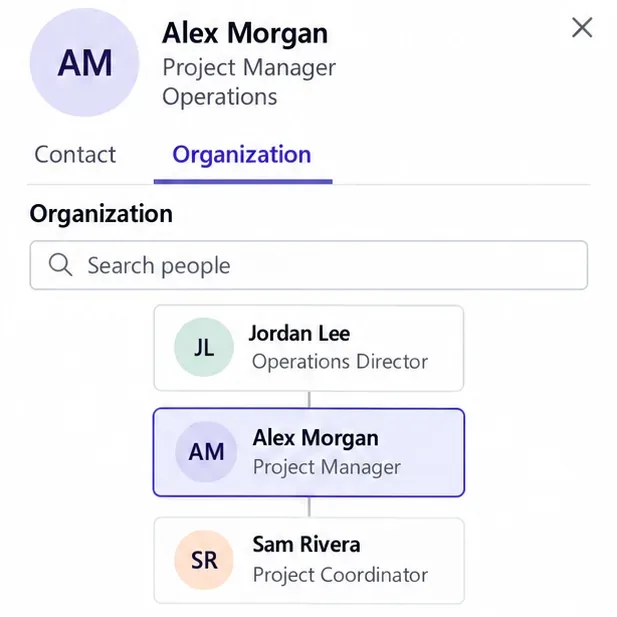
See Microsoft’s user profile instructions for permissions and synchronized-account requirements. Employees who only need to view the chart can skip to the viewing instructions below.
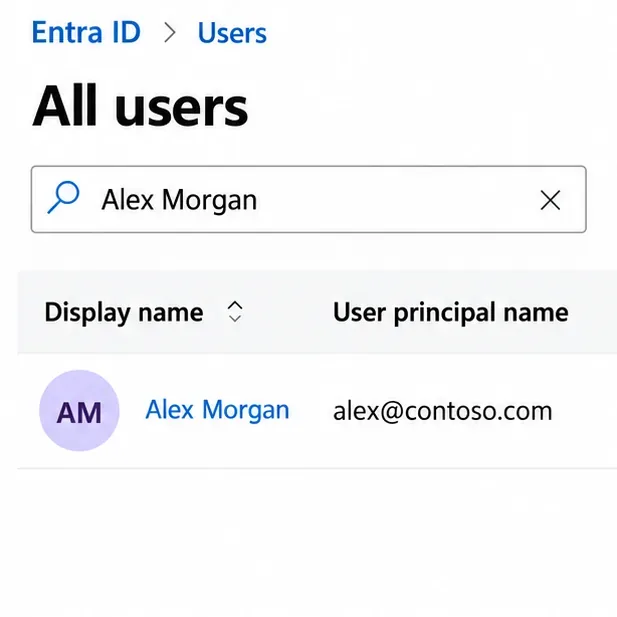
Sign in to the Microsoft Entra admin center. Open Entra ID > Users, search for the employee, and select their account. Check the username as well as the display name so you do not edit someone with a similar name.
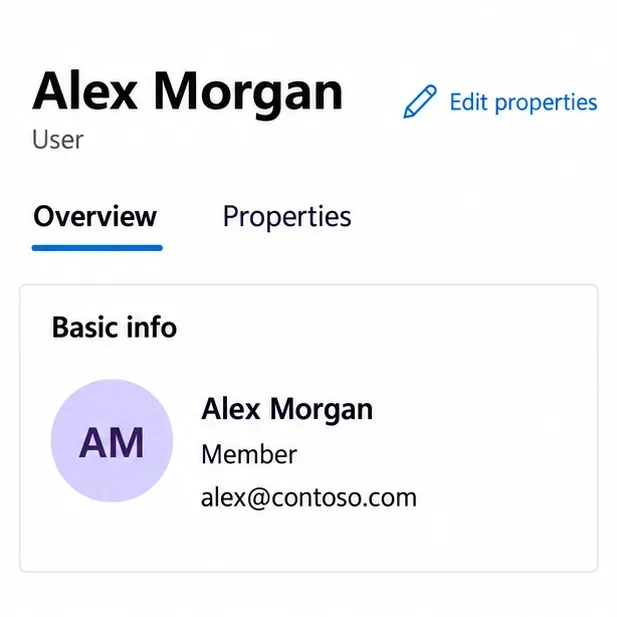
Select Edit properties, then open the Job information category. Alternatively, use Properties and the pencil icon beside the relevant category.
Review the employee’s job title and department. These make profiles easier to understand, but the Manager field establishes the reporting connection. Microsoft’s Entra user profile documentation explains the property categories and editing controls.
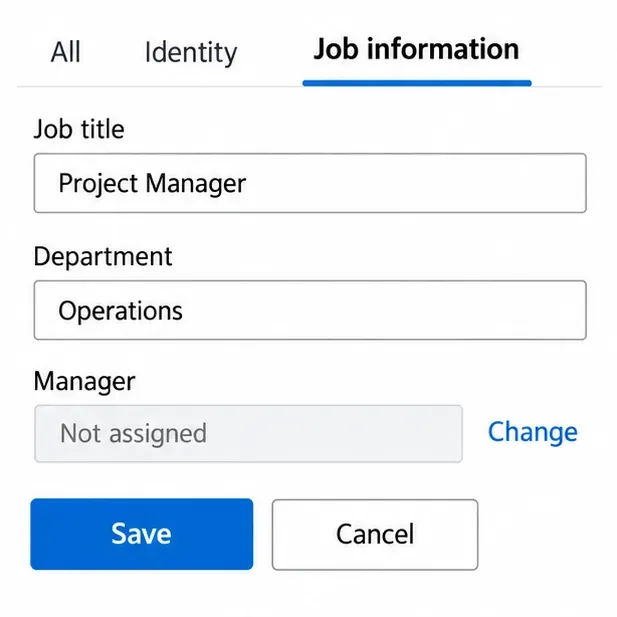
Under Manager, open the manager selection control. Search for the correct person, confirm their account, and select them. Save the profile changes.
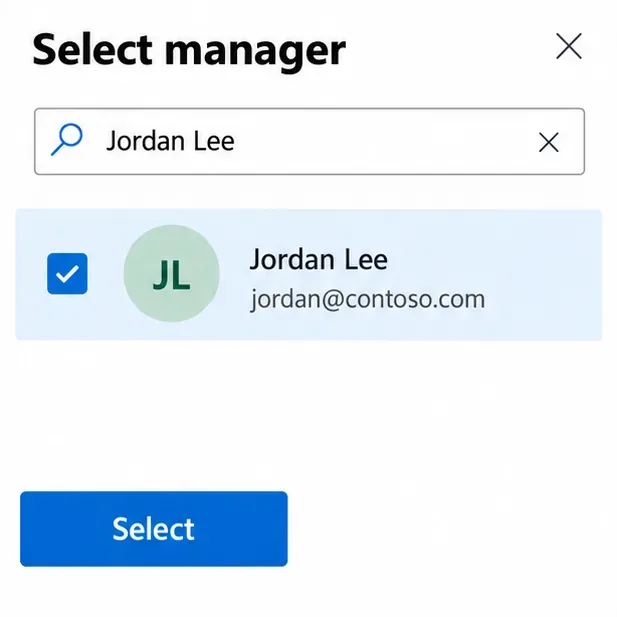
Repeat for the employees whose reporting links are missing or incorrect. For example, assign Jordan as Alex’s manager and Alex as Sam’s manager. The resulting chain connects all three people. Direct reports come from these employee-to-manager assignments; you do not maintain a separate list on the manager’s profile. Microsoft documents this behavior through the manager relationship.
A Teams administrator should open the Teams admin center and go to Teams > Teams settings > Organization. Turn on Show organization tab for users and save any changes. Microsoft’s Teams settings reference lists this setting as on by default, but your organization may have changed it.
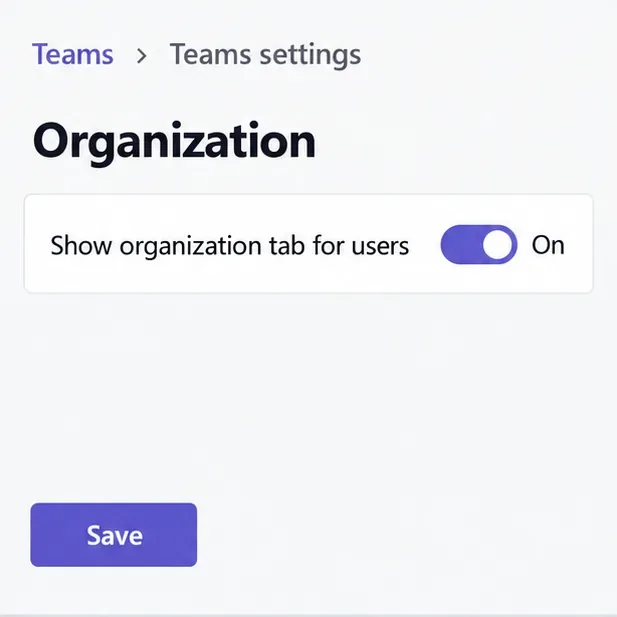
The current entry point is the person’s profile card, rather than relying on an Organization tab across the top of a chat. See Microsoft’s Organization tab guide.
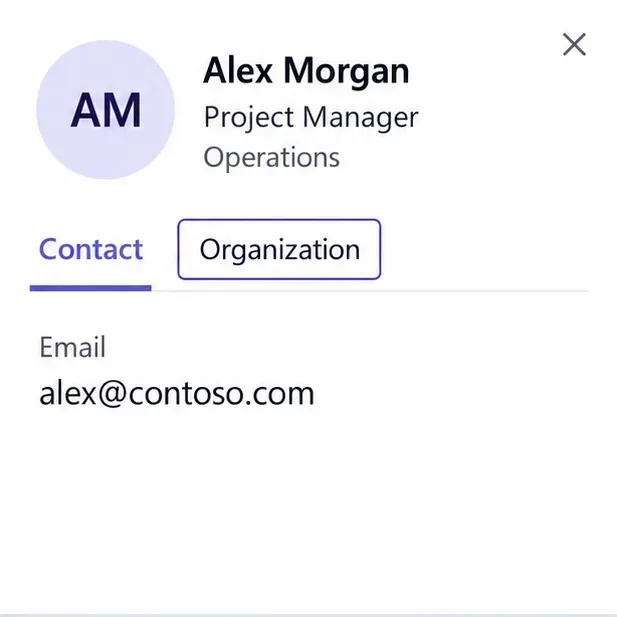
As a final check, navigate to the manager and confirm the expected employees appear beneath them. Compare the results with your approved reporting structure before updating the rest of the directory.
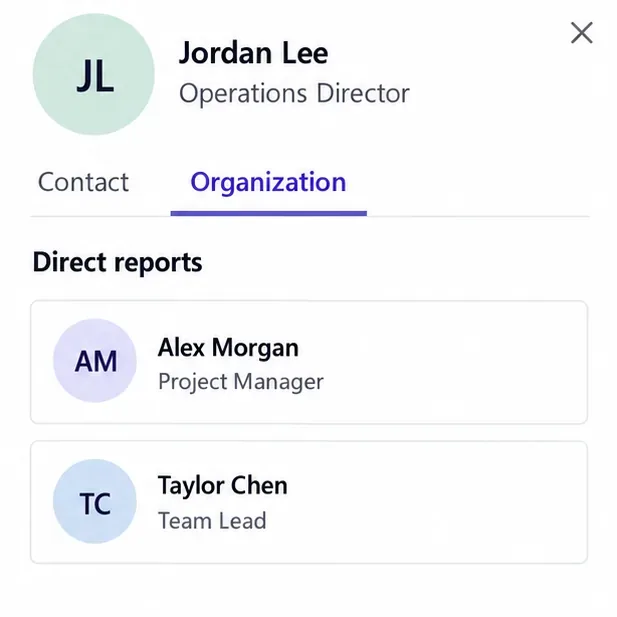
Microsoft’s Microsoft’s profile card documentation explains organization-controlled fields and cross-tenant visibility. Its Works with suggestions describe collaboration and should not be treated as a list of direct reports.
If your own reporting details are wrong and you cannot edit them, send the correction to IT or HR. Adding private contact information to someone’s card does not change the organization’s shared directory.
Learn how to create a poll in Microsoft Teams chats, channels, and meetings, choose response settings, review results, and close voting.
Learn how to mute channel and message notifications in Microsoft Teams, unfollow noisy threads, and control banners while understanding mention alerts.
Learn how to transfer a Microsoft Teams meeting between your computer and phone, use both devices together, and fix missing transfer options or audio issues.
Learn how to snooze a message in Microsoft Teams with Snooze Bot, return to it later, and use saved messages or mute controls when you need another option.
Learn how to create a team in Microsoft Teams, add members, choose channel types, manage permissions, and use the Teams admin center.
Learn how to download a Microsoft Teams recording from Teams, OneDrive, or SharePoint, and fix missing download options, access issues, and expired recordings.
Fix echo during Microsoft Teams meetings by removing duplicate audio connections, selecting the right headset and microphone, and checking audio settings.
Set up Microsoft Teams–Slack integration to launch Teams meetings from Slack. Learn account requirements, app permissions, setup steps, and quick fixes.
Unable to connect to Microsoft Teams meetings? Check the meeting link, account, network, and app, then learn when to contact the organizer or IT.
Microsoft Teams not syncing? Refresh messages across desktop, web, iPhone, and Android, identify account or file issues, and avoid unnecessary cache resets.








