How to upload files to Microsoft Teams

To upload files to Microsoft Teams, open a channel’s Shared tab and select Upload, or use Attach file in a chat or channel message. Choose your file, let it upload, and send the message if you attached it to a conversation.

The instructions below cover Teams for work or school, primarily on desktop and the web. Menu placement can vary; some layouts still display Files instead of Shared. The illustrations highlight the controls to look for.

Choose where to upload your file

Your destination determines where the file is stored and who receives access. According to Microsoft’s file storage guide:

DestinationStorage and access
ChannelThe channel’s SharePoint location; accessible to channel members.
One-on-one or group chatYour OneDrive for Business; shared with the people in that conversation.

Standard channels use the team’s SharePoint site. Private and shared channels have separate sites, as explained in Microsoft’s collaboration architecture. Always open the intended channel before uploading.

1. Upload directly to a channel’s Shared tab

This method puts a document in the channel library without requiring a conversation post.

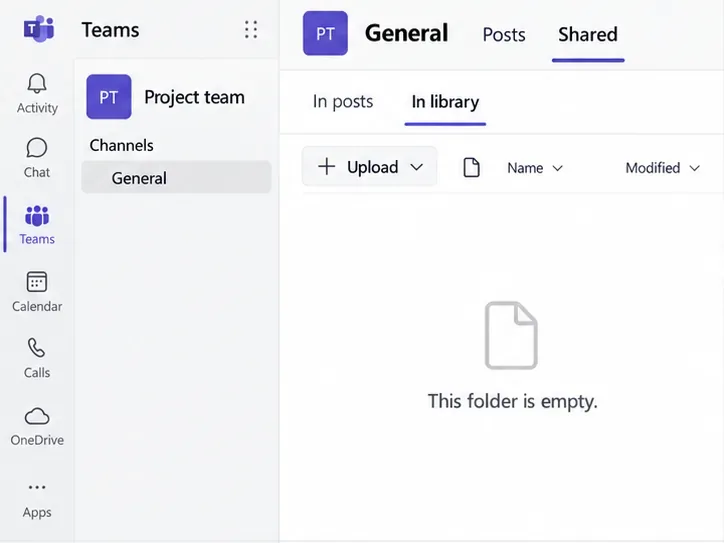
  1. Open the team and channel. Select Shared, then In library if that view is available.
    Teams General channel with Shared and In library selected
    Open the channel’s file library before choosing an upload destination.
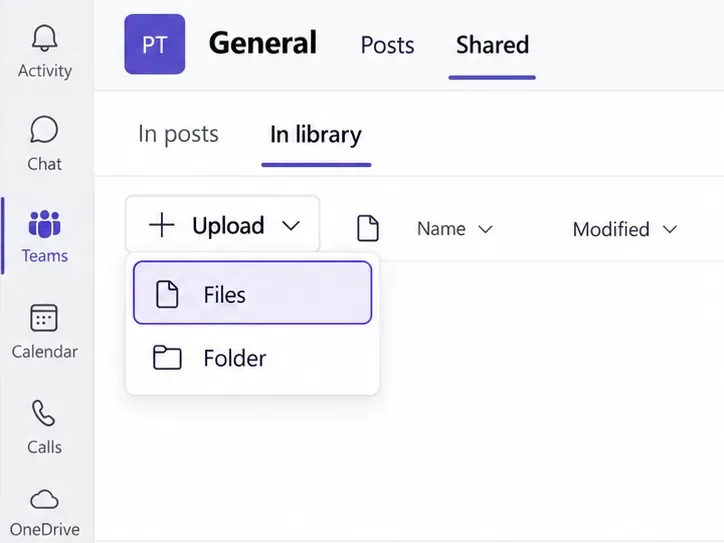
  2. Select Upload, choose Files if a menu appears, select your document, and select Open. You can also drag files from your computer into the library.
    Upload menu in a Teams channel library with Files highlighted
    Use Upload to choose documents stored on your computer.
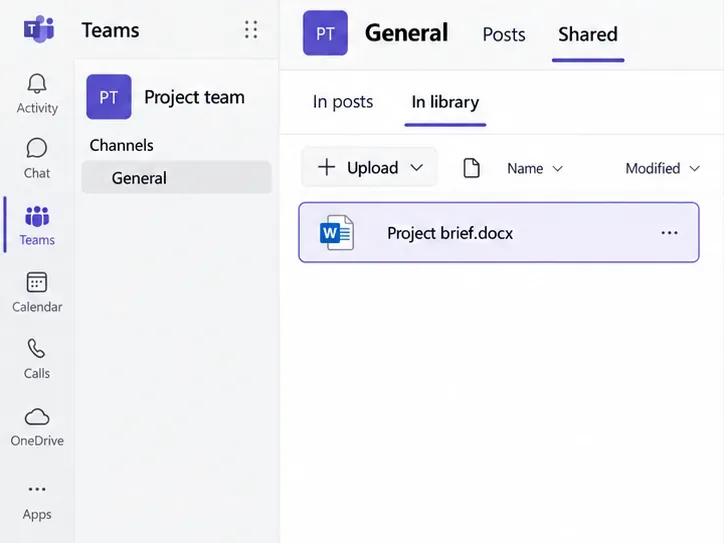
  3. Wait for the upload to finish, then confirm that the document appears in the file list. Open it to check that you selected the correct file.
    Example Project brief document in the Teams channel file list
    Find the uploaded document in the same channel library.

These options follow Microsoft’s channel upload instructions. To draw attention to the document, share its link in a channel post with a short explanation.

2. Attach a file to a chat or channel message

Use this method when the file needs an accompanying message, whether you are sharing with one person, a group chat, or a channel.

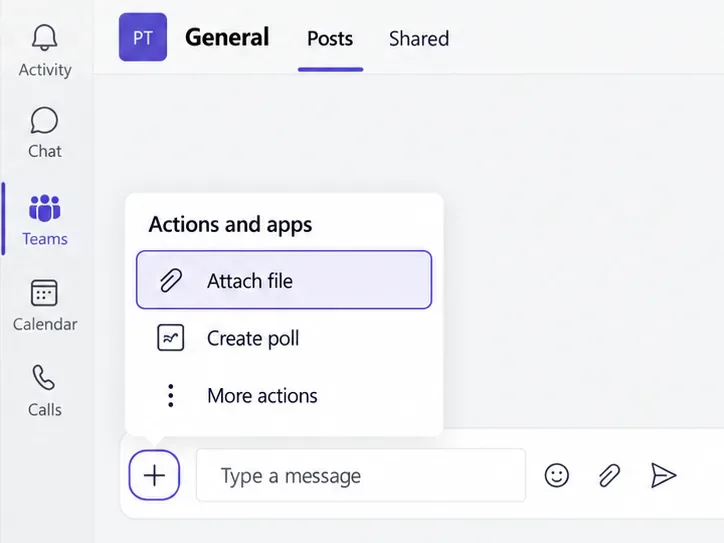
  1. Open the conversation and start a message or channel post. In the compose box, select Actions and apps, then Attach file.
    Actions and apps menu with Attach file highlighted in Teams
    Open Attach file from the message composer.
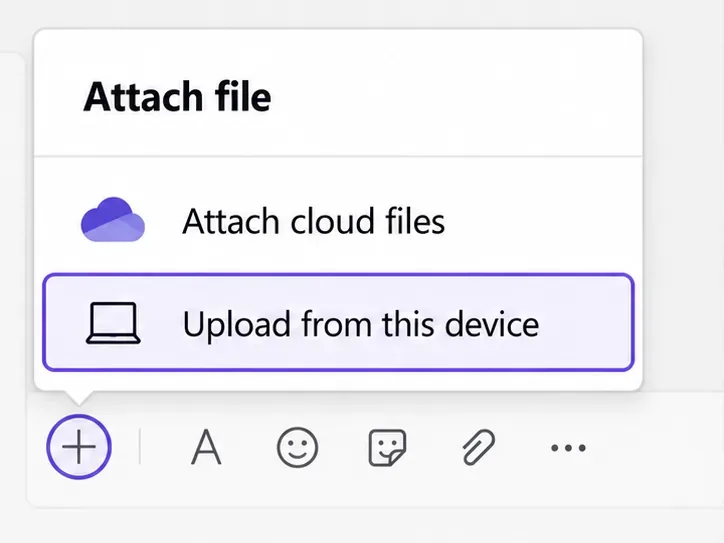
  2. Choose Upload from this device for a local file. To share something already stored online, choose Attach cloud files instead.
    Teams attachment menu showing Attach cloud files and Upload from this device
    Choose a local upload or an existing cloud file.
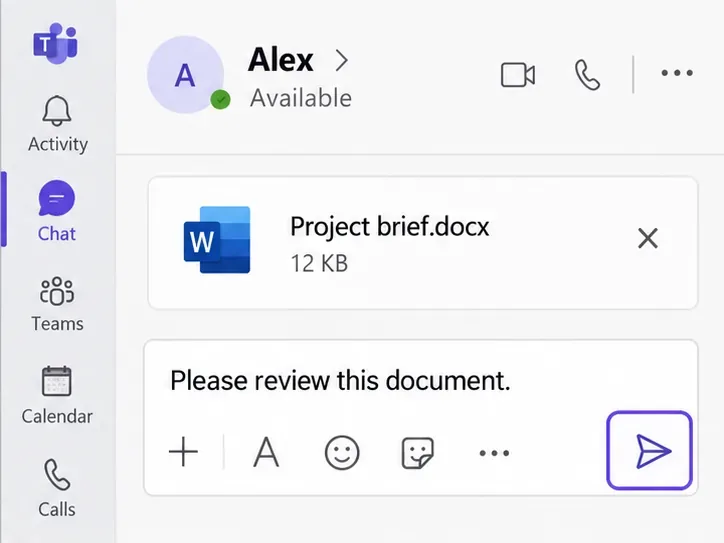
  3. Select the document, add any context, and select Send. For larger files, watch the upload indicator until the attachment becomes available.
    Teams chat draft containing a document attachment and the Send button
    Send the attachment with a message that explains what recipients should do.

See Microsoft’s attachment instructions for supported attachment options. When sharing an existing cloud file, check its permissions. If Teams displays a Give access banner, review the recipients and select Update access before sending, following Microsoft’s sharing guidance.

3. Upload through SharePoint

You can also use the channel’s underlying document library in a browser. You need permission to contribute files; you do not normally need Microsoft 365 administrator access.

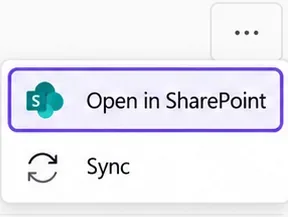
  1. In the channel’s Shared library, open More commands and select Open in SharePoint. This opens the relevant channel location.
    More commands menu showing Open in SharePoint and Sync
    Open the channel’s connected SharePoint location from Teams.
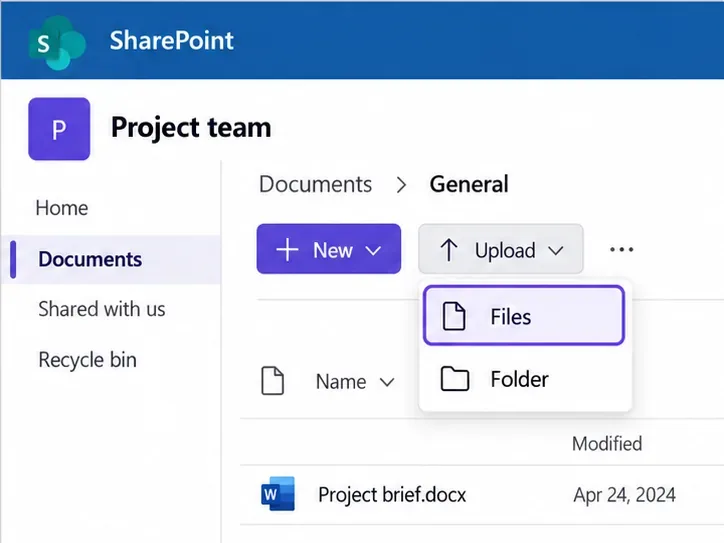
  2. In that library or channel folder, select Upload, choose your file, and complete the upload. Return to the channel library to find the same document.
    SharePoint Documents General folder with the Upload Files menu open
    Upload into the channel folder rather than an unrelated library location.

The navigation is documented in Teams–SharePoint integration documentation; contribution permissions are covered by SharePoint upload guidance. Changes to the connected files appear in Teams as well.

Upload files from the Teams mobile app

In a mobile chat or channel message, tap the plus sign, then Attach, and choose the file location. Select your document and send it. The available device and cloud locations depend on your phone and account. Find shared documents through the conversation’s file area afterward.

Why won’t a file upload or open?

  • No upload permission: Ask the team owner or SharePoint administrator to check your access. Opening SharePoint does not bypass permissions.
  • File too large or path too long: SharePoint’s file limits specify a 250 GB maximum per file and a 400-character decoded path limit, including the filename. Available storage can impose another constraint.
  • Recipients cannot open it: Recheck the file’s sharing settings, especially for an existing cloud attachment or someone outside your organization.
  • File seems missing: Check the original chat or channel’s Shared tab. In a channel, switch to In library to browse stored documents rather than only files and links shared in posts.

Leave a Comment

How to Create a Poll in Microsoft Teams

How to Create a Poll in Microsoft Teams

Learn how to create a poll in Microsoft Teams chats, channels, and meetings, choose response settings, review results, and close voting.

How to Mute Channel and Message Notifications in Microsoft Teams

How to Mute Channel and Message Notifications in Microsoft Teams

Learn how to mute channel and message notifications in Microsoft Teams, unfollow noisy threads, and control banners while understanding mention alerts.

How to Transfer a Microsoft Teams Meeting to Another Device

How to Transfer a Microsoft Teams Meeting to Another Device

Learn how to transfer a Microsoft Teams meeting between your computer and phone, use both devices together, and fix missing transfer options or audio issues.

How to Snooze a Message in Microsoft Teams

How to Snooze a Message in Microsoft Teams

Learn how to snooze a message in Microsoft Teams with Snooze Bot, return to it later, and use saved messages or mute controls when you need another option.

How to Create a Team in Microsoft Teams (and Manage It)

How to Create a Team in Microsoft Teams (and Manage It)

Learn how to create a team in Microsoft Teams, add members, choose channel types, manage permissions, and use the Teams admin center.

How to Download a Microsoft Teams Recording: Three Easy Solutions

How to Download a Microsoft Teams Recording: Three Easy Solutions

Learn how to download a Microsoft Teams recording from Teams, OneDrive, or SharePoint, and fix missing download options, access issues, and expired recordings.

Getting Echo During Microsoft Teams Meetings? Here’s How to Fix It

Getting Echo During Microsoft Teams Meetings? Here’s How to Fix It

Fix echo during Microsoft Teams meetings by removing duplicate audio connections, selecting the right headset and microphone, and checking audio settings.

Microsoft Teams–Slack Integration: How to Set It Up

Microsoft Teams–Slack Integration: How to Set It Up

Set up Microsoft Teams–Slack integration to launch Teams meetings from Slack. Learn account requirements, app permissions, setup steps, and quick fixes.

Unable to Connect to Microsoft Teams Meetings? How to Fix It

Unable to Connect to Microsoft Teams Meetings? How to Fix It

Unable to connect to Microsoft Teams meetings? Check the meeting link, account, network, and app, then learn when to contact the organizer or IT.

Fix Microsoft Teams Not Syncing: Full Guide

Fix Microsoft Teams Not Syncing: Full Guide

Microsoft Teams not syncing? Refresh messages across desktop, web, iPhone, and Android, identify account or file issues, and avoid unnecessary cache resets.