How to Use a Zoom Meeting Code to Join a Meeting

To use a Zoom meeting code, choose Join in Zoom Workplace, enter the meeting ID from your invitation, and provide the meeting passcode if requested. You can also enter the ID on Zoom's join page or use it when dialing in by phone.

Find the meeting ID and passcode

Zoom calls the meeting code a meeting ID. IDs can have 9, 10, or 11 digits; they are not always 10 digits. The passcode is a separate security credential, not your Zoom account password. Check the invitation or ask the host for both.

A recurring meeting or personal meeting room can reuse an ID, so use the invitation for the correct session. See Zoom's explanation of meeting IDs.

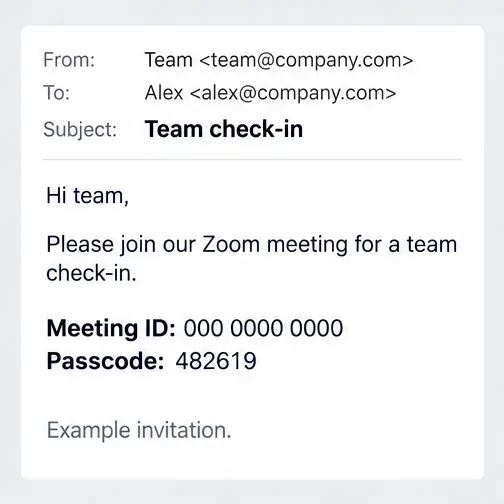
Example Zoom invitation showing the meeting ID and a separate passcode
Example details only: use the meeting ID and passcode supplied by your host.

Join on Windows or macOS

Open the current Zoom Workplace desktop app. If you need it, use the official Zoom Download Center.

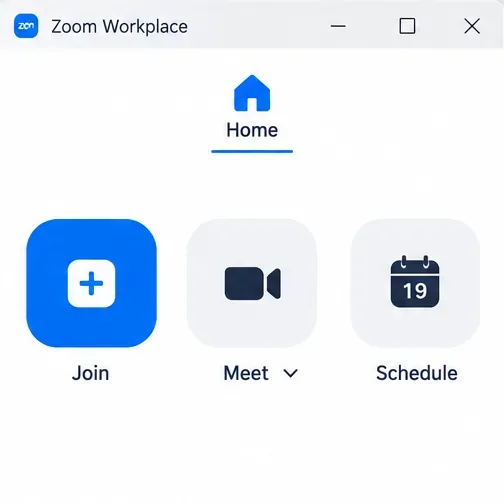
  1. Choose Join. If signed in, open Home and select Join. If signed out, choose the option to join a meeting on the welcome screen.
    Zoom Workplace Home screen with the Join control beside Meet and Schedule
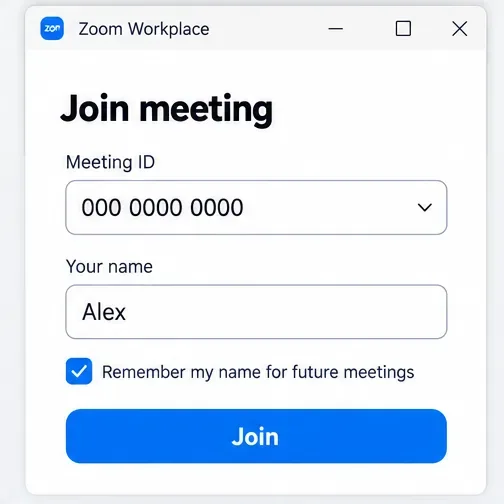
  2. Enter the meeting ID. Add or check your display name, then click Join.
    Desktop Join meeting dialog with separate meeting ID and name fields
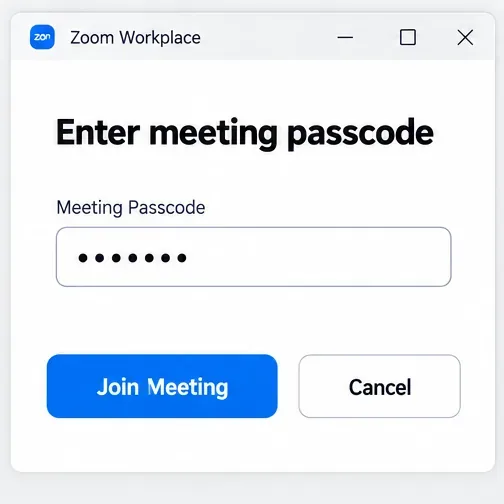
  3. Provide the passcode. Enter the meeting passcode when requested and confirm. Depending on the app version, credential entry may look different.
    Zoom desktop meeting passcode prompt with Join Meeting and Cancel buttons
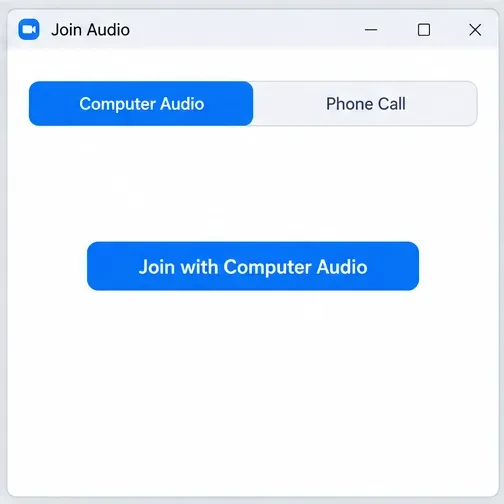
  4. Check audio and video. Review the preview if shown, continue joining, and choose computer audio when prompted if you want to use your computer's microphone and speakers.
    Zoom Join Audio dialog with the Join with Computer Audio button

Zoom documents the guest entry option in its desktop app guide.

Join on iPhone, iPad, or Android

The current mobile app uses Home rather than the older Meet & Chat instructions.

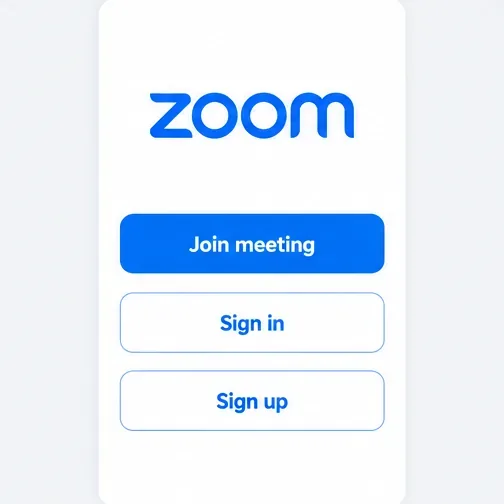
  1. Open Zoom Workplace. Tap Join meeting if signed out, or go to Home > Join if signed in.
Zoom mobile welcome screen showing Join meeting, Sign in, and Sign up
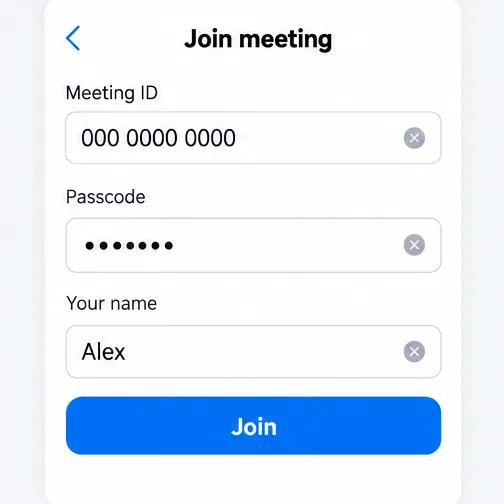
  1. Enter the meeting ID and passcode, and check your display name. Newer layouts may place these fields together.
  2. Tap Join. Review the preview and respond to microphone or camera permission requests as needed.
Mobile Join meeting form showing meeting ID, passcode, name, and Join button

See Zoom's mobile joining instructions for the current navigation.

Join with a code in a web browser

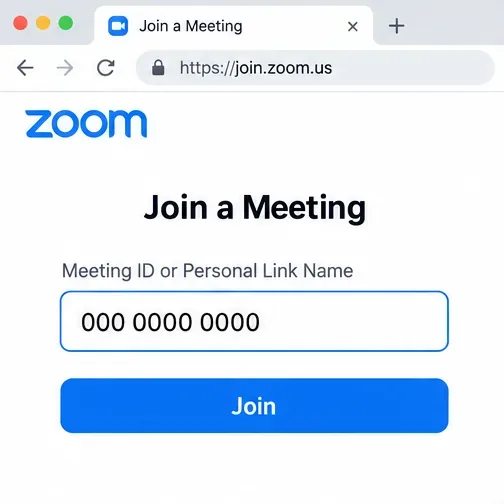
  1. Visit Zoom's Join a Meeting page, enter the meeting ID, and click Join.
    Zoom browser join page with a Meeting ID or Personal Link Name field
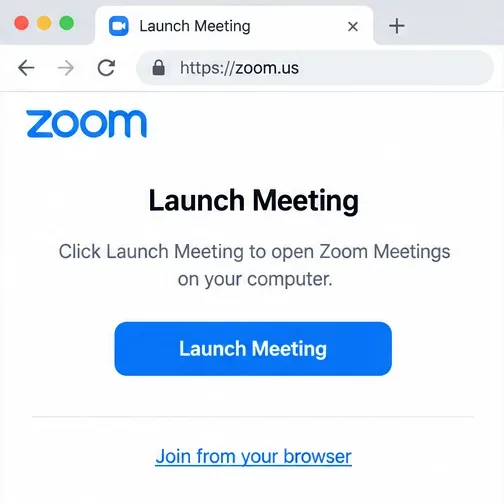
  2. To use the installed app, accept the prompt to open Zoom. To stay in the browser, cancel that prompt and select Join from your browser if available.
    Zoom launcher page with Join from your browser below Launch Meeting
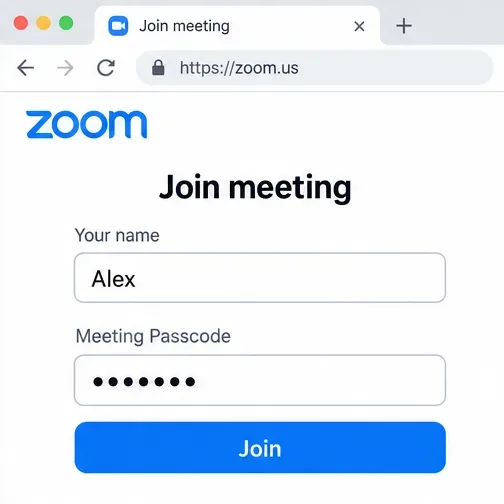
  3. Enter your display name and the meeting passcode when requested, then click Join.
    Zoom browser join form with name and meeting passcode fields
  4. Allow microphone and camera access if you plan to use them, then wait for admission if required.

The browser link depends on the host's settings. Most guests do not need an account, but the host can require sign-in or an approved organization account. Consult Zoom's guide to joining without an account.

Use the meeting code to dial in by phone

Dial-in provides audio only and must be available for that meeting. Use a telephone number from the invitation; the meeting ID is not a phone number.

  1. Call an appropriate dial-in number listed in the invitation. Carrier charges may apply.
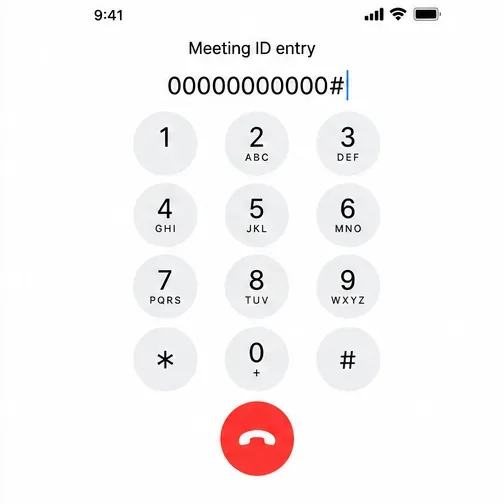
  2. When prompted, enter the meeting ID followed by #.
  3. Enter your participant ID followed by # if you are linking an existing app session. Otherwise, press # to skip that prompt.
  4. Enter the telephone passcode from the invitation when requested, followed by #.
Phone keypad showing an example meeting ID followed by the pound key

Follow the automated prompts; availability depends on the host's audio settings and subscription. See Zoom's telephone joining instructions.

If the meeting code does not work

  • Invalid meeting ID: Recheck every digit against the latest invitation. Ask the host to confirm the meeting still exists; IDs can expire or be deleted.
  • Incorrect passcode: Copy the passcode from the current invitation, keeping its capitalization and avoiding extra spaces. Ask the host if it has changed.
  • Sign-in required: Use the account the host permits. A meeting ID does not bypass authentication requirements.
  • Waiting for the host to start: The session has not started. Confirm the invitation's date, time, and time zone with the host.
  • Waiting Room: Stay connected until the host admits you.
Zoom Waiting Room message saying the meeting host will let the participant in soon
A Waiting Room requires host admission; retyping the meeting code will not admit you.

Zoom explains the distinction between waiting for a meeting to start and admission during the meeting joining process.

Leave a Comment

How to Create a Poll in Microsoft Teams

How to Create a Poll in Microsoft Teams

Learn how to create a poll in Microsoft Teams chats, channels, and meetings, choose response settings, review results, and close voting.

How to Mute Channel and Message Notifications in Microsoft Teams

How to Mute Channel and Message Notifications in Microsoft Teams

Learn how to mute channel and message notifications in Microsoft Teams, unfollow noisy threads, and control banners while understanding mention alerts.

How to Transfer a Microsoft Teams Meeting to Another Device

How to Transfer a Microsoft Teams Meeting to Another Device

Learn how to transfer a Microsoft Teams meeting between your computer and phone, use both devices together, and fix missing transfer options or audio issues.

How to Snooze a Message in Microsoft Teams

How to Snooze a Message in Microsoft Teams

Learn how to snooze a message in Microsoft Teams with Snooze Bot, return to it later, and use saved messages or mute controls when you need another option.

How to Create a Team in Microsoft Teams (and Manage It)

How to Create a Team in Microsoft Teams (and Manage It)

Learn how to create a team in Microsoft Teams, add members, choose channel types, manage permissions, and use the Teams admin center.

How to Download a Microsoft Teams Recording: Three Easy Solutions

How to Download a Microsoft Teams Recording: Three Easy Solutions

Learn how to download a Microsoft Teams recording from Teams, OneDrive, or SharePoint, and fix missing download options, access issues, and expired recordings.

Getting Echo During Microsoft Teams Meetings? Here’s How to Fix It

Getting Echo During Microsoft Teams Meetings? Here’s How to Fix It

Fix echo during Microsoft Teams meetings by removing duplicate audio connections, selecting the right headset and microphone, and checking audio settings.

Microsoft Teams–Slack Integration: How to Set It Up

Microsoft Teams–Slack Integration: How to Set It Up

Set up Microsoft Teams–Slack integration to launch Teams meetings from Slack. Learn account requirements, app permissions, setup steps, and quick fixes.

Unable to Connect to Microsoft Teams Meetings? How to Fix It

Unable to Connect to Microsoft Teams Meetings? How to Fix It

Unable to connect to Microsoft Teams meetings? Check the meeting link, account, network, and app, then learn when to contact the organizer or IT.

Fix Microsoft Teams Not Syncing: Full Guide

Fix Microsoft Teams Not Syncing: Full Guide

Microsoft Teams not syncing? Refresh messages across desktop, web, iPhone, and Android, identify account or file issues, and avoid unnecessary cache resets.