How to Create a Poll in Microsoft Teams

Learn how to create a poll in Microsoft Teams chats, channels, and meetings, choose response settings, review results, and close voting.
To use your Zoom personal meeting ID (PMI), select it when starting or scheduling a meeting, then share the invitation with your guests. Your PMI opens your personal meeting room, so you can reuse the same meeting number instead of generating a new one each time.
Free accounts can use a PMI; customizing its number requires an eligible Licensed user account. Use this room for people you know and meet regularly. For public events or consecutive meetings with different groups, choose an automatically generated meeting ID instead.
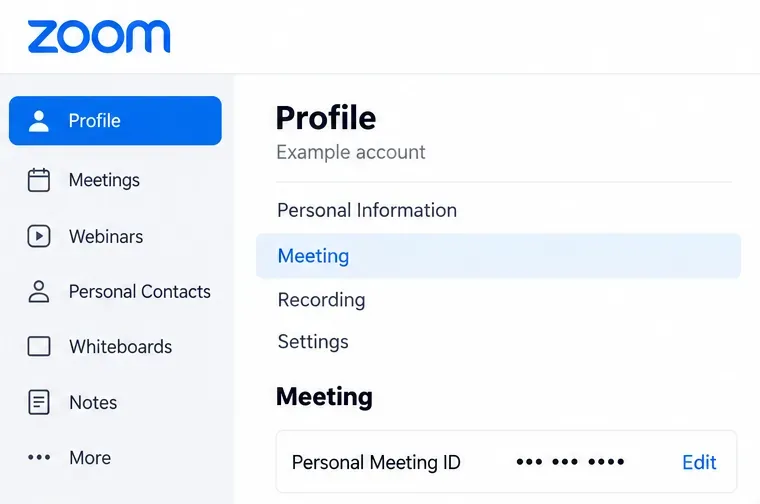
Sign in to the Zoom web portal and open Profile. Under Meeting, locate Personal Meeting ID. Reveal the number if it is hidden.
This number identifies your personal room. It is separate from the meeting passcode and the host key; do not share your host key with guests.
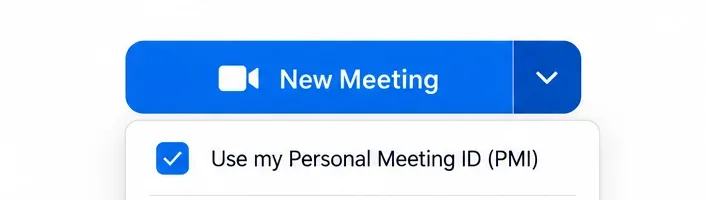
In the signed-in Zoom Workplace desktop app, open the arrow beside New Meeting and check Use my Personal Meeting ID (PMI). Then click New Meeting to start that room.
To make PMI your default for instant meetings, open the web portal's Settings > Meeting and enable Use Personal Meeting ID (PMI) when starting an instant meeting under Schedule Meeting. An administrator may lock this setting. See Zoom's instant-meeting PMI settings.
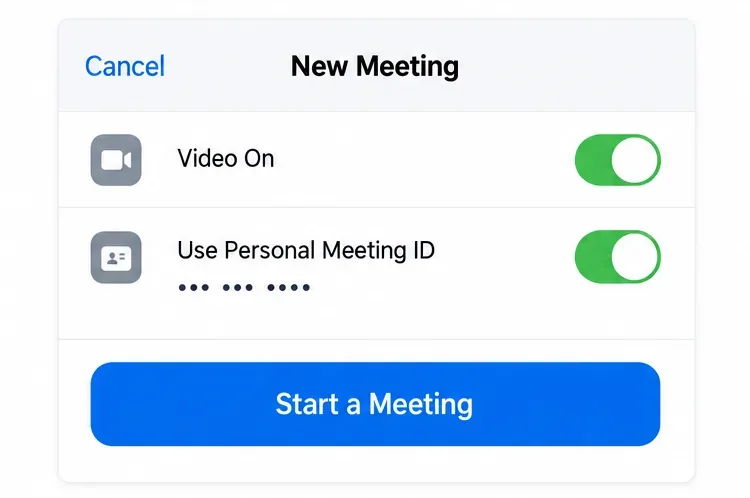
Sign in to the Zoom Workplace mobile app and tap New Meeting. Turn on Use Personal Meeting ID, choose whether to start with video, and tap Start a Meeting. Check the PMI toggle before starting if you switch between personal-room and automatically generated meetings.
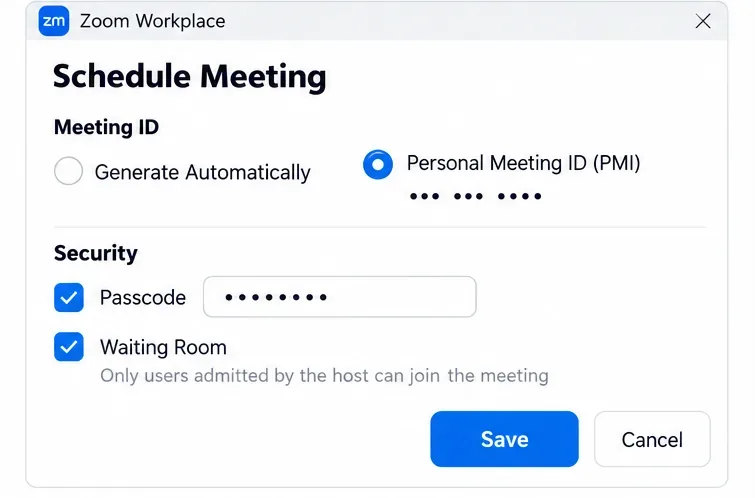
On mobile, use the Use Personal Meeting ID toggle while scheduling. Some options depend on your account's policies; consult Zoom's meeting scheduling instructions if a control is unavailable.
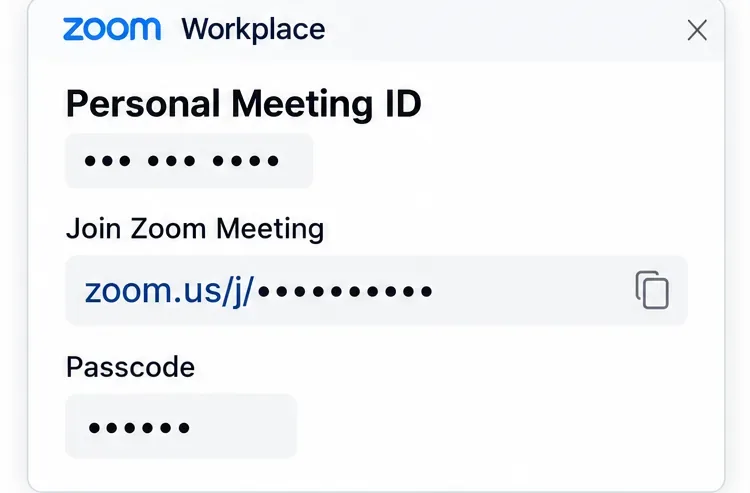
In the desktop app's Meetings tab, open Personal Meeting ID to view the room details and copy its link. On mobile, open the PMI information icon in Meetings and use Send Invitation or Copy to Clipboard. Navigation can vary by app layout.
For a scheduled session, share that session's complete invitation. Zoom can add session-specific information to PMI links. Follow Zoom's PMI usage and sharing guidance.
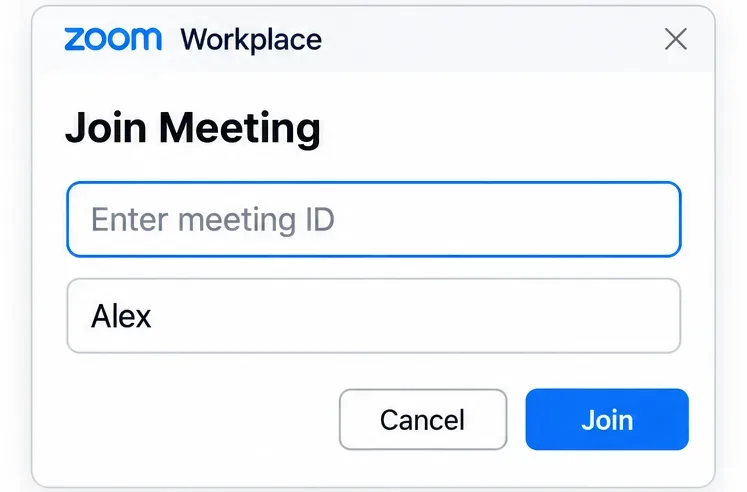
Open the host's invitation link, or select Join in Zoom and enter their meeting ID. Enter the passcode when prompted and wait for admission if the Waiting Room is enabled. A PMI alone does not bypass security controls.
Guests generally do not need a Zoom account, but a host can require authentication. Zoom explains these exceptions in its guest joining instructions.
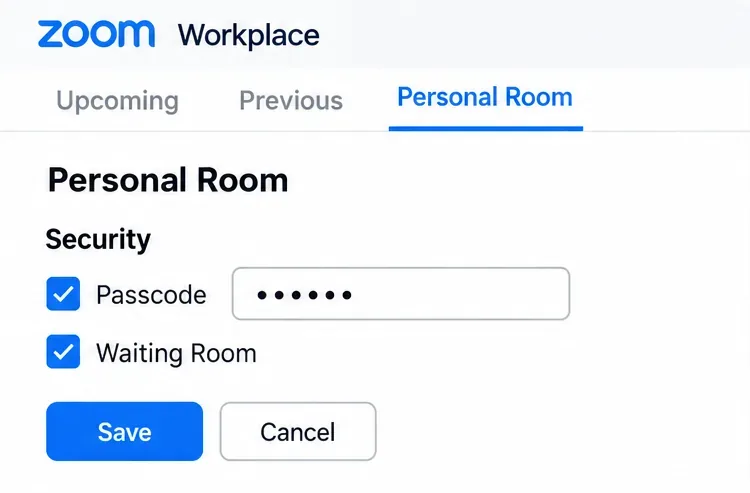
In the web portal, open Meetings > Personal Room > Edit. Under Security, enable a passcode and Waiting Room, then save. Check any Waiting Room bypass rules so admission works as intended.
Keep the room link private. On current desktop versions, Host tools > Lock meeting blocks new arrivals once everyone is present. Changing the PMI passcode can invalidate previously shared links, so send updated invitations afterward. See Zoom's PMI passcode instructions.
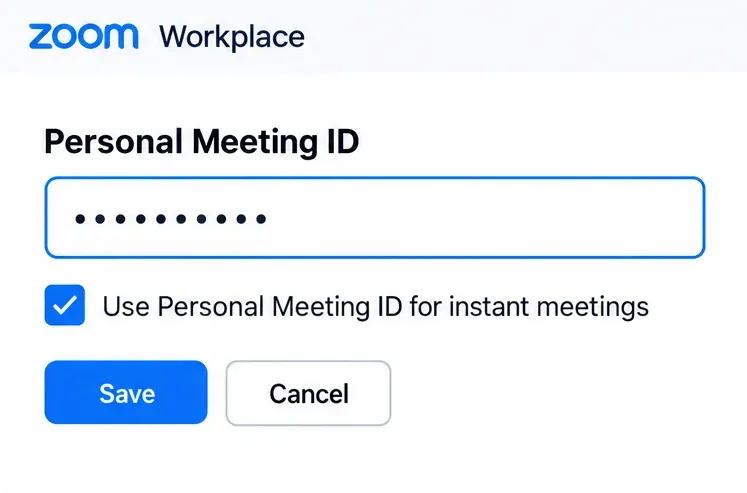
If your license permits customization, open Profile > Meeting > Personal Meeting ID > Edit in the web portal. Enter an available, valid 10-digit number and click Save. Update invitations and saved links afterward. Zoom lists eligibility and restrictions in its PMI customization documentation.
Learn how to create a poll in Microsoft Teams chats, channels, and meetings, choose response settings, review results, and close voting.
Learn how to mute channel and message notifications in Microsoft Teams, unfollow noisy threads, and control banners while understanding mention alerts.
Learn how to transfer a Microsoft Teams meeting between your computer and phone, use both devices together, and fix missing transfer options or audio issues.
Learn how to snooze a message in Microsoft Teams with Snooze Bot, return to it later, and use saved messages or mute controls when you need another option.
Learn how to create a team in Microsoft Teams, add members, choose channel types, manage permissions, and use the Teams admin center.
Learn how to download a Microsoft Teams recording from Teams, OneDrive, or SharePoint, and fix missing download options, access issues, and expired recordings.
Fix echo during Microsoft Teams meetings by removing duplicate audio connections, selecting the right headset and microphone, and checking audio settings.
Set up Microsoft Teams–Slack integration to launch Teams meetings from Slack. Learn account requirements, app permissions, setup steps, and quick fixes.
Unable to connect to Microsoft Teams meetings? Check the meeting link, account, network, and app, then learn when to contact the organizer or IT.
Microsoft Teams not syncing? Refresh messages across desktop, web, iPhone, and Android, identify account or file issues, and avoid unnecessary cache resets.








