How to Create a Poll in Microsoft Teams

Learn how to create a poll in Microsoft Teams chats, channels, and meetings, choose response settings, review results, and close voting.
To use Microsoft Forms in Microsoft Teams, add Forms to a channel and create a shared survey, or connect an existing form. You can let colleagues fill it out, display results, or work together on the questions. Choose the tab’s purpose carefully: answering a form and editing it are different permissions.
Use your work or school account for the shared channel workflow below. Your organization must enable Forms and allow the app in Teams. E3 or E5 is not the only option: Microsoft lists Business Basic, Standard, Premium, and several education and enterprise plans in its Forms service description. Check your assigned services rather than buying a particular plan based on an error message.
The screens below use an example survey called “Team feedback”; your layout may vary.
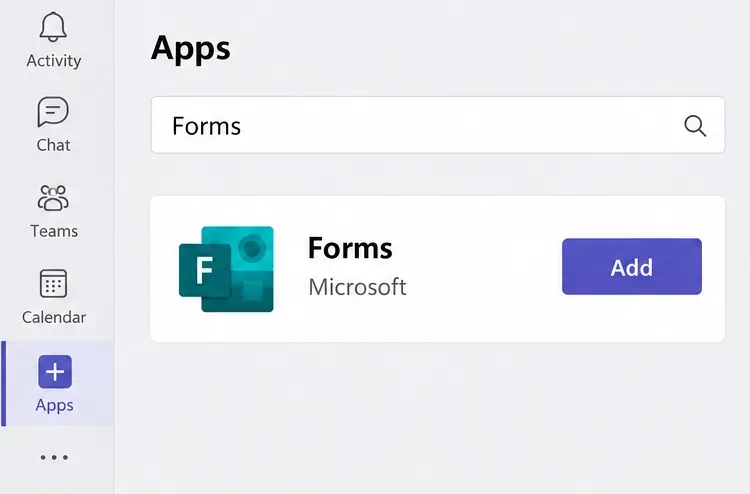
In Teams, select Apps, search for Forms, and select Add. Choose the channel where you want to use it. Skip installation if Forms is already available.
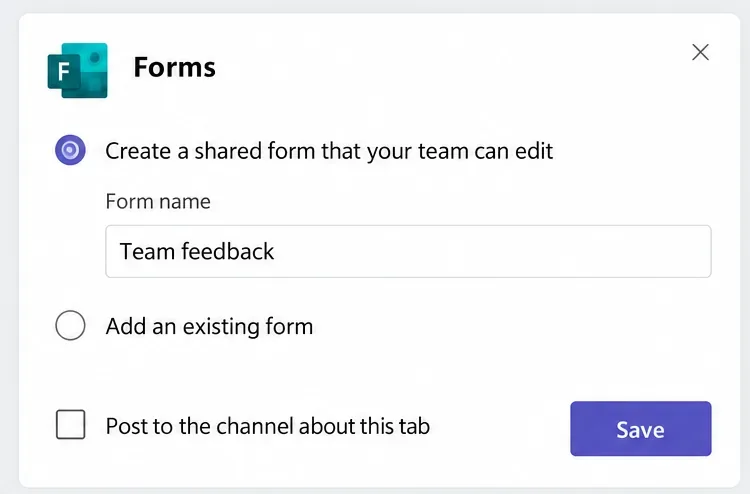
Open the channel, select Add a tab (+), then Forms. Choose Create a shared form that your team can edit, enter a name, and select Save. Clear Post to the channel about this tab if you are not ready to announce it.
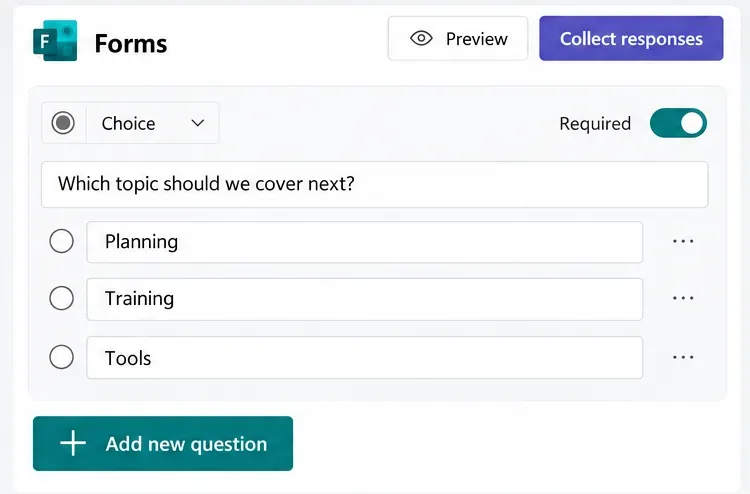
Choose a question type, enter the question and answer options, then add more questions as needed. Use a Choice question for predefined answers or Text for written feedback. Turn on Required only when an answer is essential.
Select Preview to check the computer and mobile views. For example, a short survey might ask which training topic colleagues want next, followed by an optional comments field. Microsoft’s form creation guide explains the question-building workflow.
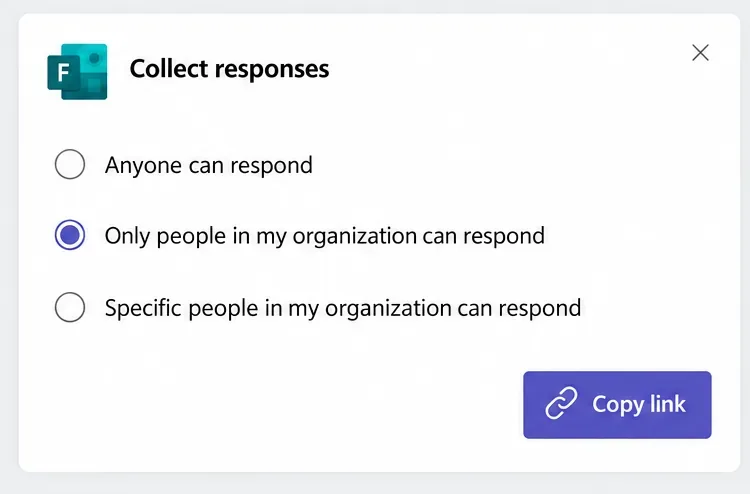
Select Collect responses and choose the audience:
In Settings, review Record name and One response per person when using an organizational audience. For unnamed feedback, clear Record name and avoid questions that identify respondents. Follow Microsoft’s response permission guidance when choosing these settings.
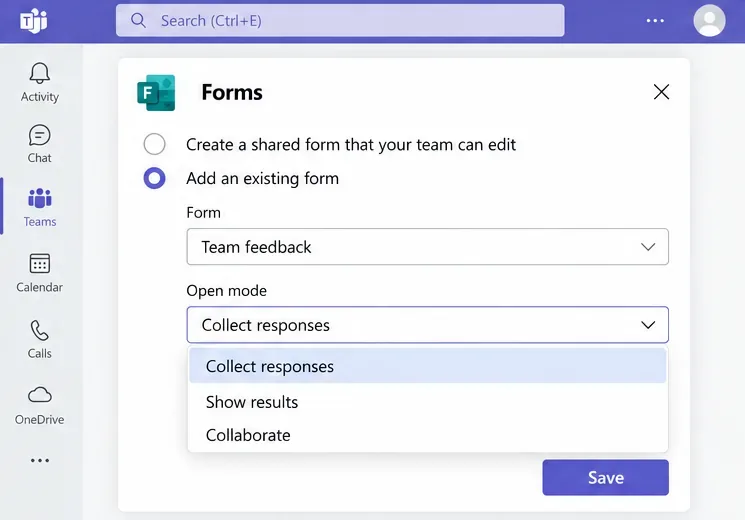
In the channel, choose Add a tab (+) > Forms > Add an existing form. Find your form, choose its purpose, and save.
| Mode | Purpose |
|---|---|
| Collect responses | Let people complete the form. |
| Show results | Display the response summary. |
| Collaborate | Let colleagues edit the form. |
See Microsoft’s Teams Forms tab instructions for this setup.
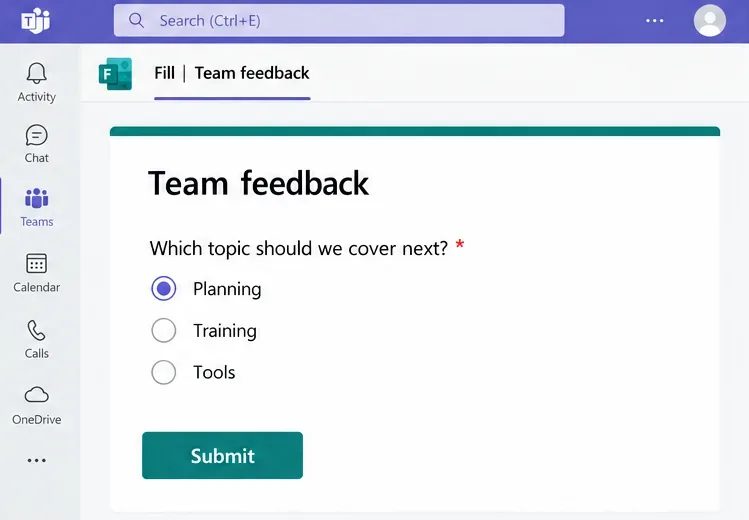
Open the response tab or copy the response link from Collect responses. Ask an intended respondent to check access before a wider rollout. They should see questions and a Submit button. If they cannot open it, check the selected audience and their signed-in account.
A collaboration link grants broader access: co-authors can edit questions and view response data. Microsoft explains these permissions in its collaboration guide. Share the response link when people only need to answer.
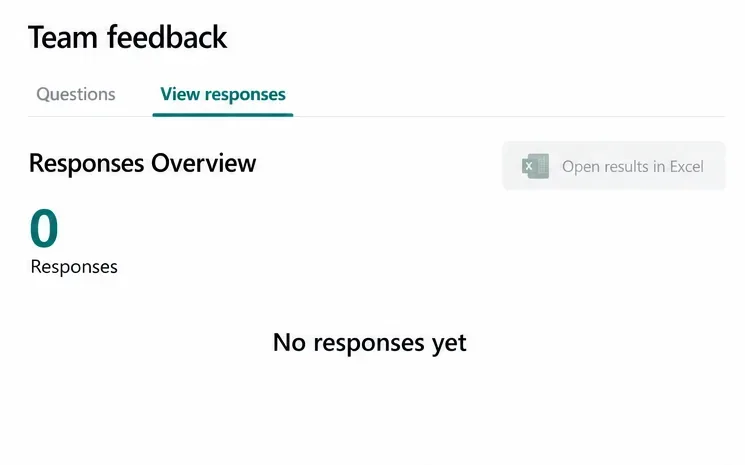
Open the form with owner or collaborator access and select View responses. Review the overview, use Check individual results for submitted answers, or select Open results in Excel for further analysis. Names appear only when recorded. Microsoft documents these controls in its results guide.
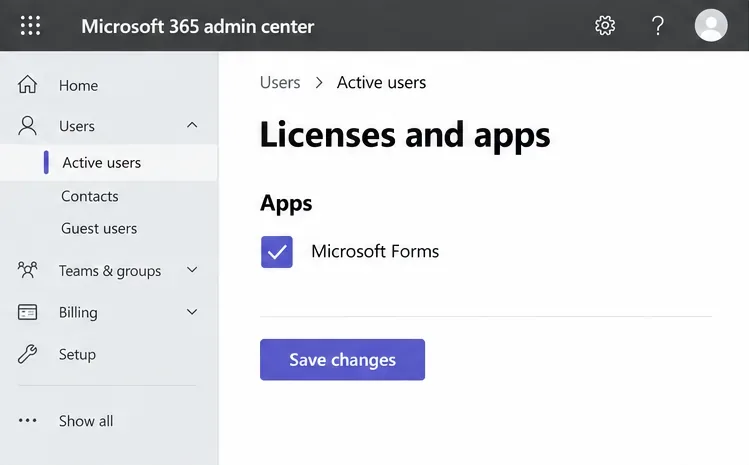
If you see “Your account is not enabled for Microsoft Forms,” first confirm you are using the correct work or school account. Ask a licensing administrator to open the Microsoft 365 admin center, go to Users > Active users, select your account, and check Licenses and apps > Apps > Microsoft Forms. They should enable Forms under an eligible assigned license and save changes.
If access still fails, Microsoft’s Forms administration guidance also calls for checking Microsoft Forms and Office Hive sign-in permissions in Entra ID, plus SharePoint service access.
If Forms works in a browser but is missing in Teams, ask your Teams administrator to check app availability for your account. These are separate checks.
For a simple alternative, create a form at Microsoft Forms and post its response link in Teams. Personal Microsoft accounts can use the standalone service; organizational collaboration features require an eligible work or school account.
Learn how to create a poll in Microsoft Teams chats, channels, and meetings, choose response settings, review results, and close voting.
Learn how to mute channel and message notifications in Microsoft Teams, unfollow noisy threads, and control banners while understanding mention alerts.
Learn how to transfer a Microsoft Teams meeting between your computer and phone, use both devices together, and fix missing transfer options or audio issues.
Learn how to snooze a message in Microsoft Teams with Snooze Bot, return to it later, and use saved messages or mute controls when you need another option.
Learn how to create a team in Microsoft Teams, add members, choose channel types, manage permissions, and use the Teams admin center.
Learn how to download a Microsoft Teams recording from Teams, OneDrive, or SharePoint, and fix missing download options, access issues, and expired recordings.
Fix echo during Microsoft Teams meetings by removing duplicate audio connections, selecting the right headset and microphone, and checking audio settings.
Set up Microsoft Teams–Slack integration to launch Teams meetings from Slack. Learn account requirements, app permissions, setup steps, and quick fixes.
Unable to connect to Microsoft Teams meetings? Check the meeting link, account, network, and app, then learn when to contact the organizer or IT.
Microsoft Teams not syncing? Refresh messages across desktop, web, iPhone, and Android, identify account or file issues, and avoid unnecessary cache resets.








