How to Create a Poll in Microsoft Teams

Learn how to create a poll in Microsoft Teams chats, channels, and meetings, choose response settings, review results, and close voting.
To use Microsoft Teams closed captioning, join a meeting, open More actions (the three dots), and select Captions. Teams displays speech as text while people talk. Live captions are not saved; use transcription if you need a written record afterward.
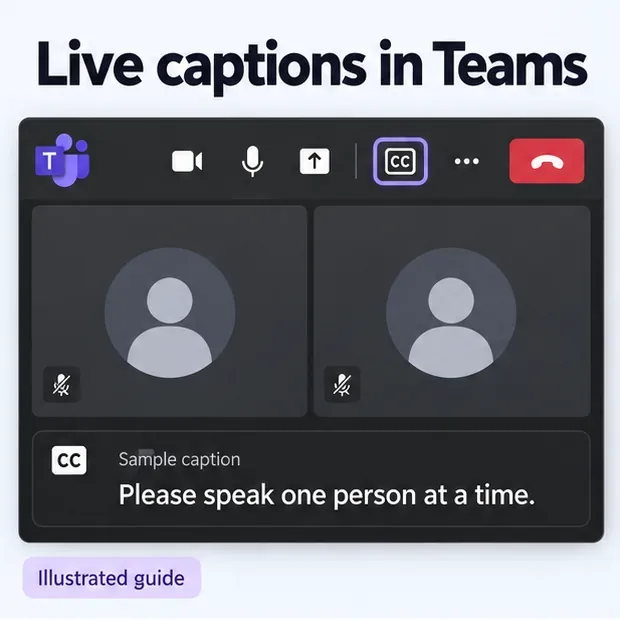
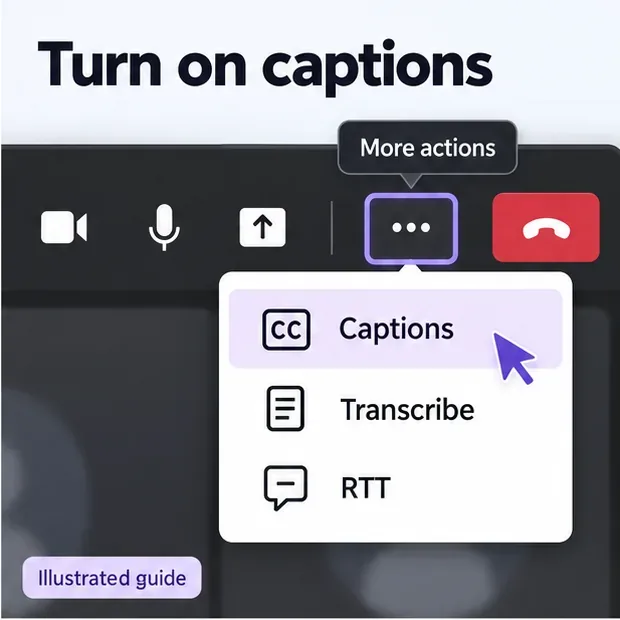
You do not need to start a channel meeting or create a new team. Look in the active meeting window, rather than the main Teams chat window. Microsoft now lets users reorder and pin supported meeting controls, so their positions can differ. Its meeting controls guide explains the toolbar and overflow menu.
On iPhone or Android, tap More options > Turn on live captions. Use Turn off live captions to hide them.
In caption settings, set Meeting spoken language to the language being spoken, then select Update. Under Caption styles, adjust text size, color, lines, or positioning where available.
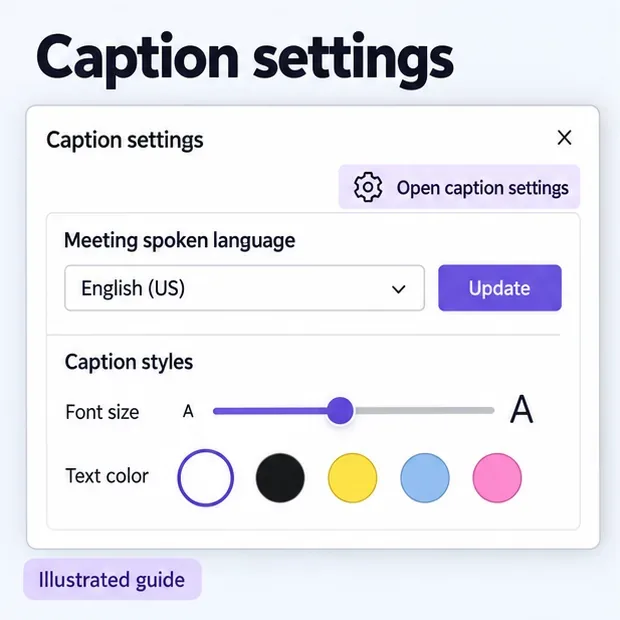
If transcription is running and you cannot change the spoken language, ask the organizer or transcription initiator to update it. Avoid stopping another person's transcript merely to change a setting.
Translation requires an eligible Teams Premium or Microsoft 365 Copilot license. An eligible organizer can make it available to everyone; an individually licensed attendee can use it personally. Choose Translate to in caption settings when available. See Microsoft's current caption instructions for the supported languages and interface.
Captions and transcription serve different purposes. Captions help you follow the conversation as it happens. A transcript creates a written record with speaker attribution and timestamps that authorized participants can revisit.
To start transcription without recording video, open More actions > Transcribe, choose the spoken language, and select Confirm. Teams notifies participants. Availability depends on your meeting role, organizer settings, and organization policy.
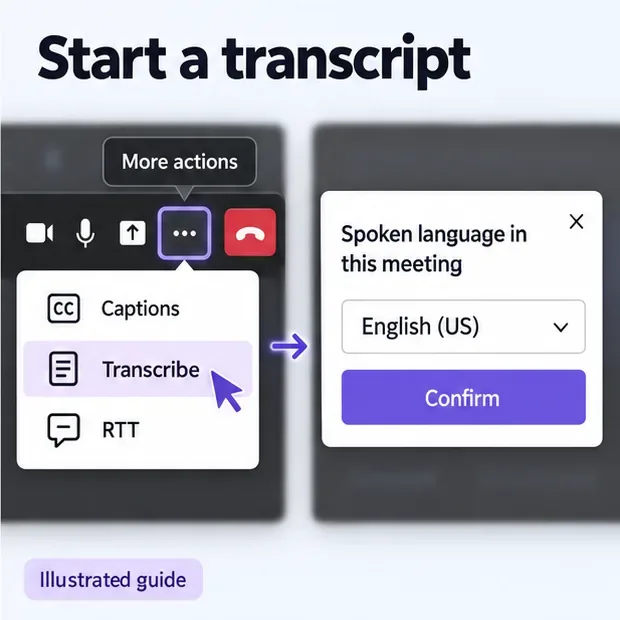
Afterward, open the past meeting chat and go to Recap > Transcript. Organizers and co-organizers can normally use Download to export a Word (.docx) or WebVTT (.vtt) file; other participants may have different permissions. Microsoft's transcript guide covers access and downloads.
The older workflow involving Stream Classic, an administrator account, and My Content > Meetings is unnecessary for this process. For important decisions, check names, numbers, and commitments against the discussion before treating an automatic transcript as final notes.
See Microsoft's caption and transcription policy documentation for the administrator settings. Give IT the affected account and meeting details so it can investigate the relevant policy.
For clearer speech recognition, reduce background noise, speak directly into the microphone, and let one person speak at a time. If a word matters, repeat it clearly or put it in meeting chat rather than relying on a caption guess.
For a meeting that needs a professional captioner, ask the organizer about Communication Access Real-time Translation (CART). This is a separate service delivered by a trained person, rather than automatic speech recognition. Arrange it before the meeting so the captioner can connect and check the setup. Microsoft explains the organizer's responsibilities in its CART captioning guide.
Learn how to create a poll in Microsoft Teams chats, channels, and meetings, choose response settings, review results, and close voting.
Learn how to mute channel and message notifications in Microsoft Teams, unfollow noisy threads, and control banners while understanding mention alerts.
Learn how to transfer a Microsoft Teams meeting between your computer and phone, use both devices together, and fix missing transfer options or audio issues.
Learn how to snooze a message in Microsoft Teams with Snooze Bot, return to it later, and use saved messages or mute controls when you need another option.
Learn how to create a team in Microsoft Teams, add members, choose channel types, manage permissions, and use the Teams admin center.
Learn how to download a Microsoft Teams recording from Teams, OneDrive, or SharePoint, and fix missing download options, access issues, and expired recordings.
Fix echo during Microsoft Teams meetings by removing duplicate audio connections, selecting the right headset and microphone, and checking audio settings.
Set up Microsoft Teams–Slack integration to launch Teams meetings from Slack. Learn account requirements, app permissions, setup steps, and quick fixes.
Unable to connect to Microsoft Teams meetings? Check the meeting link, account, network, and app, then learn when to contact the organizer or IT.
Microsoft Teams not syncing? Refresh messages across desktop, web, iPhone, and Android, identify account or file issues, and avoid unnecessary cache resets.








