How to Create a Poll in Microsoft Teams

Learn how to create a poll in Microsoft Teams chats, channels, and meetings, choose response settings, review results, and close voting.
To use Microsoft Teams emoji and GIFs, select Emoji, GIFs and Stickers in the message box. To react to someone’s message, hover over it and choose a reaction. During a meeting, use React in the meeting controls instead.
These built-in options do not require a separate messaging app. The instructions below focus on desktop and web use; the example screens show the relevant controls, although your layout may vary.
| Option | What it does | Useful example |
|---|---|---|
| Emoji | Adds a symbol to a message you compose. | A smile beside a thank-you. |
| Message reaction | Attaches an emoji to an existing message. | A thumbs-up acknowledging an update. |
| GIF | Adds animated visual content to a message. | A brief celebration in an informal chat. |
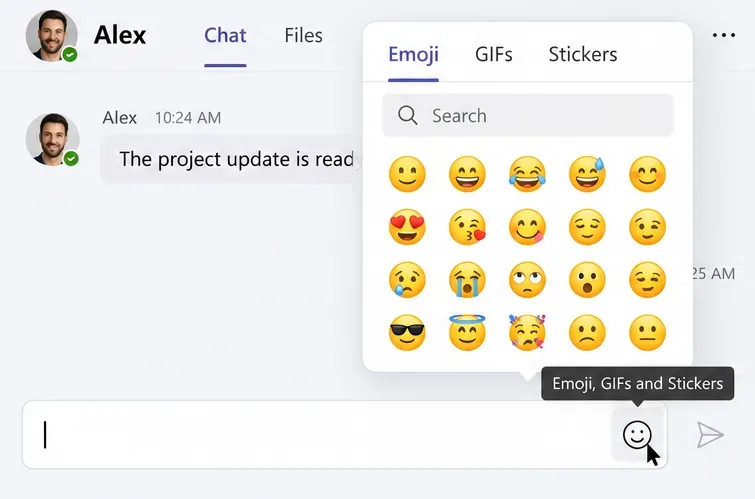
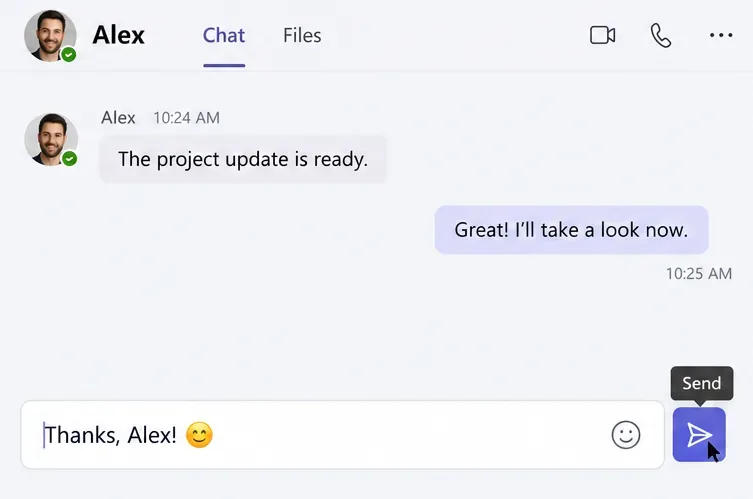
On Windows, Windows key + . (period) opens the Windows emoji panel while you are typing. An emoji entered this way becomes part of your message, rather than a reaction attached to someone else’s message.
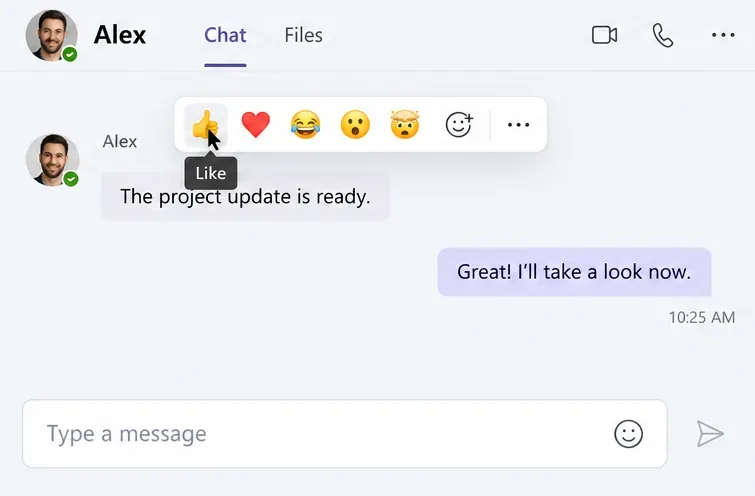
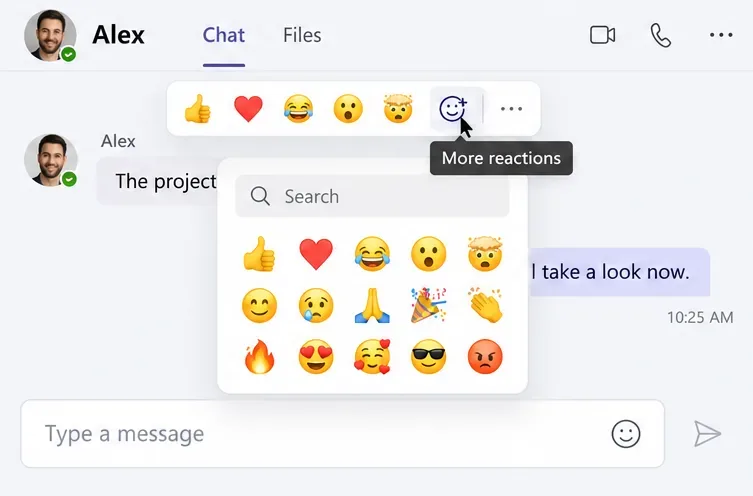
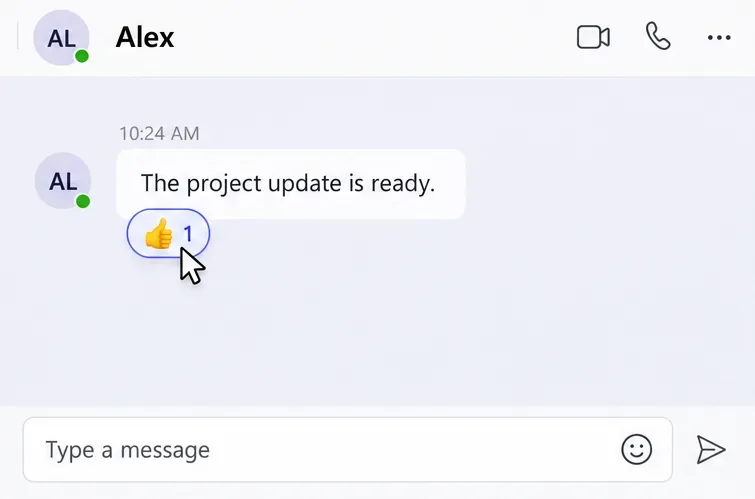
Teams is not limited to six message reactions. Current documentation describes up to five customizable quick choices and up to 20 reactions per message. See Microsoft’s message reaction guide for details.
A reaction can acknowledge an update, but it is not a complete record of who read a message or opened a shared file. Request an explicit reply when confirmation matters.
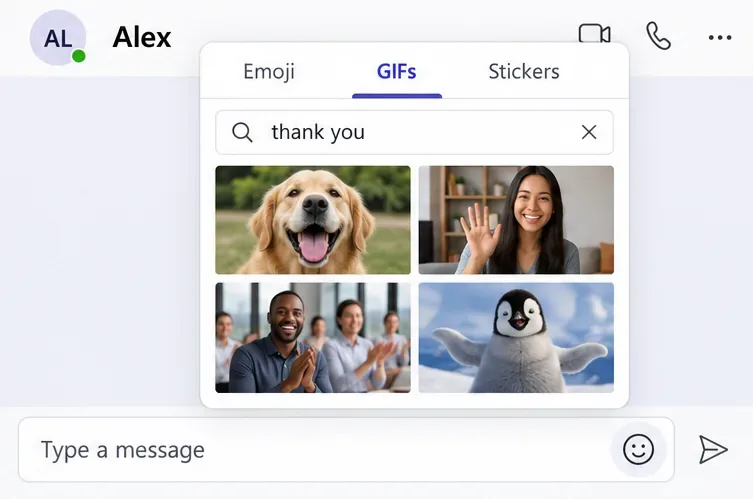
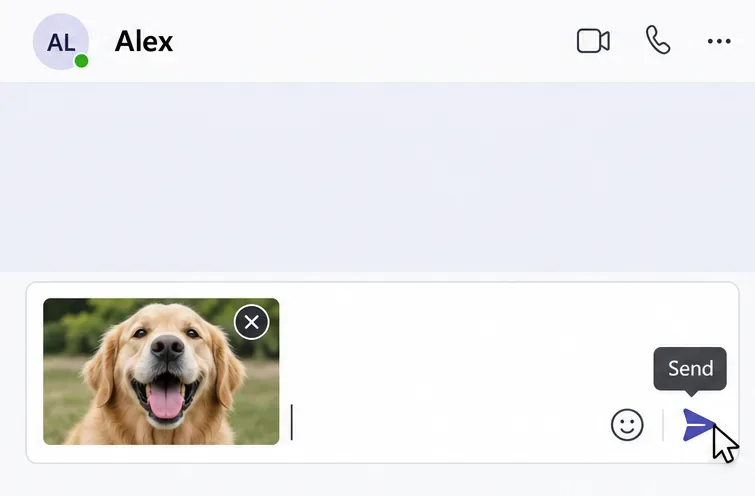
The same picker also includes stickers. For the shared insertion workflow, see Microsoft’s emoji, GIF, and sticker instructions.
Do not assume every GIF is appropriate for work. Organizations can disable Giphy or apply content restrictions through Teams messaging policies. Choose content that fits the audience, particularly in customer conversations or sensitive discussions.
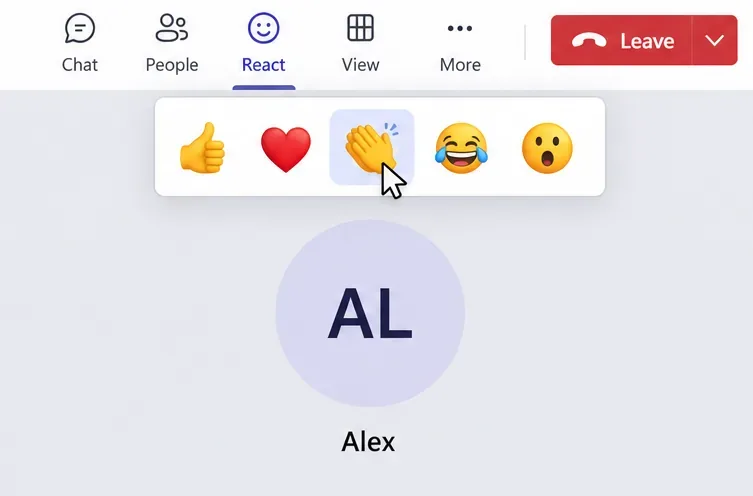
Live reactions appear temporarily over a participant’s video or profile picture and during shared content. They differ from reactions attached to chat messages. Microsoft supports them in the desktop and web apps; see Microsoft’s live reaction guidance.
For personalization, Teams offers emoji skin tone preferences for hand gestures and people emoji. Your default applies across chats, channels, and meetings, while emoji you receive retain the sender’s chosen tone. The preference does not change every symbol in the gallery. If it is missing, Microsoft recommends checking that you are using the latest Teams version.
Learn how to create a poll in Microsoft Teams chats, channels, and meetings, choose response settings, review results, and close voting.
Learn how to mute channel and message notifications in Microsoft Teams, unfollow noisy threads, and control banners while understanding mention alerts.
Learn how to transfer a Microsoft Teams meeting between your computer and phone, use both devices together, and fix missing transfer options or audio issues.
Learn how to snooze a message in Microsoft Teams with Snooze Bot, return to it later, and use saved messages or mute controls when you need another option.
Learn how to create a team in Microsoft Teams, add members, choose channel types, manage permissions, and use the Teams admin center.
Learn how to download a Microsoft Teams recording from Teams, OneDrive, or SharePoint, and fix missing download options, access issues, and expired recordings.
Fix echo during Microsoft Teams meetings by removing duplicate audio connections, selecting the right headset and microphone, and checking audio settings.
Set up Microsoft Teams–Slack integration to launch Teams meetings from Slack. Learn account requirements, app permissions, setup steps, and quick fixes.
Unable to connect to Microsoft Teams meetings? Check the meeting link, account, network, and app, then learn when to contact the organizer or IT.
Microsoft Teams not syncing? Refresh messages across desktop, web, iPhone, and Android, identify account or file issues, and avoid unnecessary cache resets.








