How to Create a Poll in Microsoft Teams

Learn how to create a poll in Microsoft Teams chats, channels, and meetings, choose response settings, review results, and close voting.
To use Microsoft Teams secret emoticons, type a colon followed by an emoji name, such as :smile, in the message box. Select a suggestion to insert it, then send your message. Microsoft documents this as an emoji keyboard shortcut; it does not unlock a separate hidden collection.
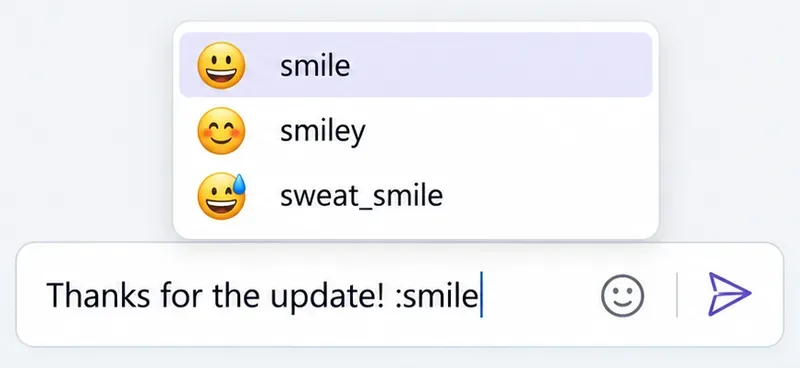
Start in a chat or channel message where you can compose a reply. Use an ordinary colon with no space before the emoji name. Microsoft's example is :smile:.
:smile. Continue typing to narrow the suggestions.These are the steps in Microsoft's emoji instructions. Pay attention to the selected suggestion: Enter can choose an emoji while that menu is open, so check the draft before sending.
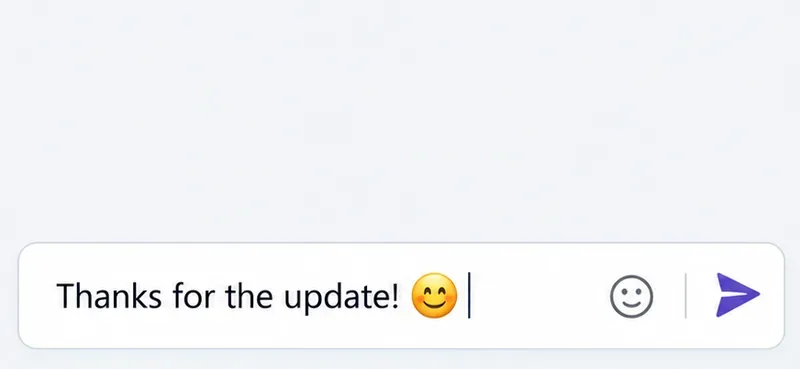
You do not need to memorize a long code list. Start with a familiar name and inspect the results. For example, add a smile after “Thanks for the update!” when that tone fits the conversation. Keep important instructions in words so the recipient does not have to interpret an emoji.
Select Emoji, GIFs and Stickers on the right side of the message box. Choose the Emoji tab, search for a name or browse the gallery, and select an emoji. It appears in your draft before you send it.
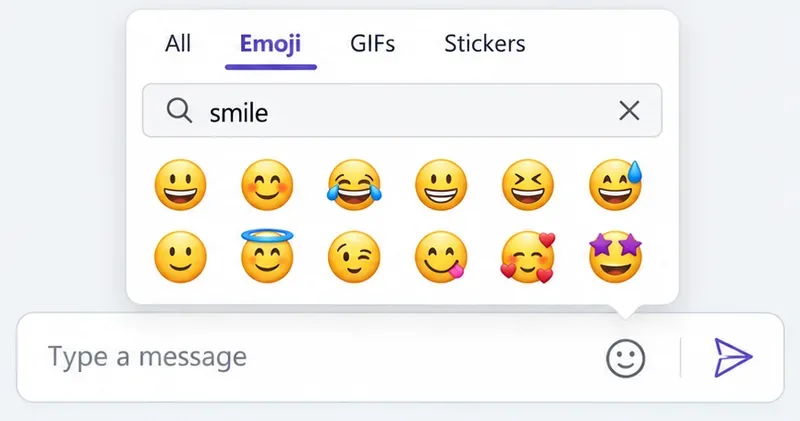
The picker is useful when you recognize a face but cannot remember its name. Interface examples here focus on the relevant controls; their layout can vary by Teams version.
Your computer also offers an emoji picker during text entry. Click where the emoji belongs before opening it.
| Platform | Shortcut | What opens |
|---|---|---|
| Windows | Windows key + . (period) | The Windows emoji panel |
| macOS | Control + Command + Space | Character Viewer, with emoji and symbols |
See Microsoft's Windows keyboard guide and Apple's Mac keyboard shortcuts. These open operating-system tools. For an emoji you found in Teams, use the Teams picker to locate it again rather than expecting an identical catalog in every picker.
An emoji in a draft becomes part of your message. A reaction attaches to a message already in the conversation. On desktop, hover over that message and choose a reaction. Select More reactions, shown as a smiley with a plus sign, for additional choices.
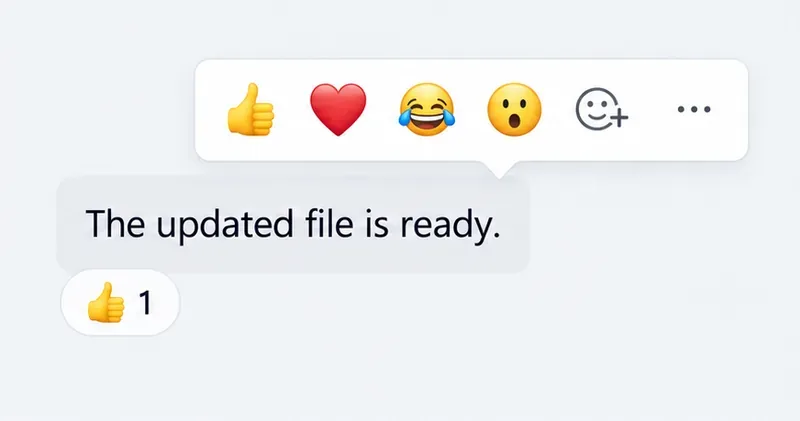
Microsoft's reaction guide also explains how to customize your quick reactions. Use a reaction for a simple acknowledgment; send a written reply when someone needs an answer, deadline, or clarification.
Custom emoji are images or GIFs added by people in an organization. They are a separate feature from typing standard emoji names. In supported work accounts, the picker includes Your org's emoji. Availability and upload permissions depend on your organization's settings.
Check Microsoft's custom emoji guide if a coworker uses an unfamiliar image. A missing upload option does not mean you need a secret shortcut.
:smile without a space after the colon. Select a visible suggestion rather than assuming any typed name will convert.The old desktop-only restriction is outdated. Microsoft's August–September 2026 mobile release notes list colon-based emoji shortcuts for iOS and Android. If your mobile app does not show them yet, use its emoji picker and check for an update.
Learn how to create a poll in Microsoft Teams chats, channels, and meetings, choose response settings, review results, and close voting.
Learn how to mute channel and message notifications in Microsoft Teams, unfollow noisy threads, and control banners while understanding mention alerts.
Learn how to transfer a Microsoft Teams meeting between your computer and phone, use both devices together, and fix missing transfer options or audio issues.
Learn how to snooze a message in Microsoft Teams with Snooze Bot, return to it later, and use saved messages or mute controls when you need another option.
Learn how to create a team in Microsoft Teams, add members, choose channel types, manage permissions, and use the Teams admin center.
Learn how to download a Microsoft Teams recording from Teams, OneDrive, or SharePoint, and fix missing download options, access issues, and expired recordings.
Fix echo during Microsoft Teams meetings by removing duplicate audio connections, selecting the right headset and microphone, and checking audio settings.
Set up Microsoft Teams–Slack integration to launch Teams meetings from Slack. Learn account requirements, app permissions, setup steps, and quick fixes.
Unable to connect to Microsoft Teams meetings? Check the meeting link, account, network, and app, then learn when to contact the organizer or IT.
Microsoft Teams not syncing? Refresh messages across desktop, web, iPhone, and Android, identify account or file issues, and avoid unnecessary cache resets.








