How to Create a Poll in Microsoft Teams

Learn how to create a poll in Microsoft Teams chats, channels, and meetings, choose response settings, review results, and close voting.
To use Microsoft Teams split screen in a meeting, select View > Gallery to see several participants together. To keep people visible beside a presentation, use the shared-content layout or open the content in a separate window. If you are presenting, Side-by-side presenter mode places your camera video beside your content.
These options serve different purposes; there is no single setting named “Split screen.” The instructions below focus on Teams for work or school on desktop. Menu wording can vary between Teams experiences.
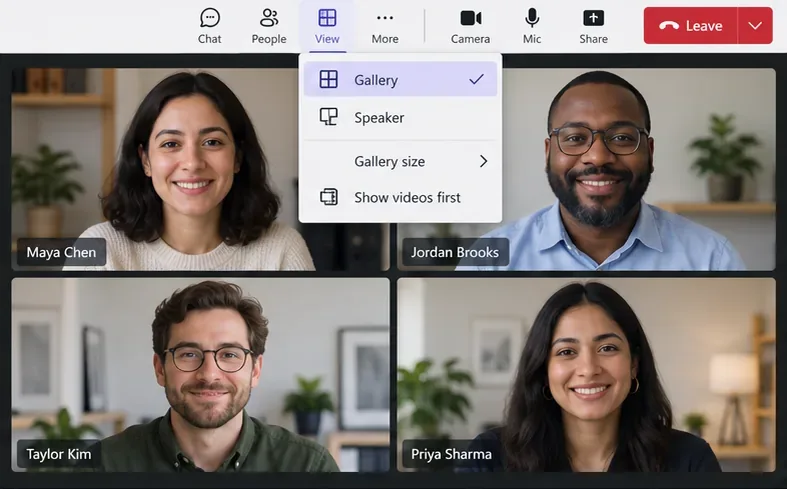
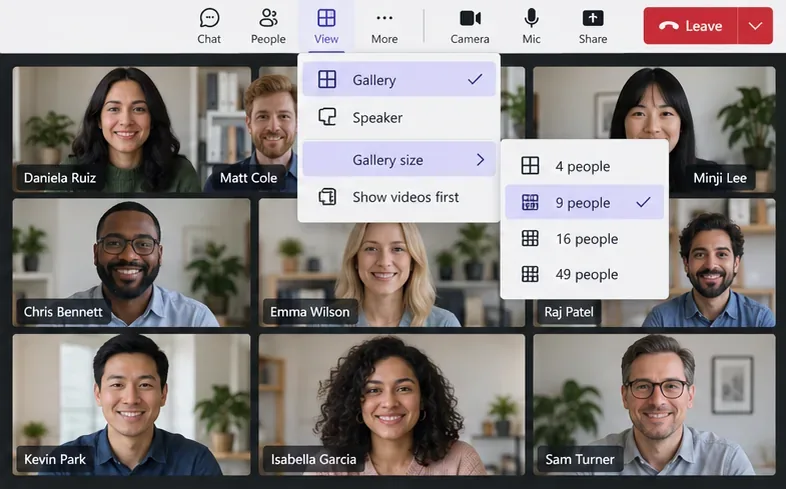
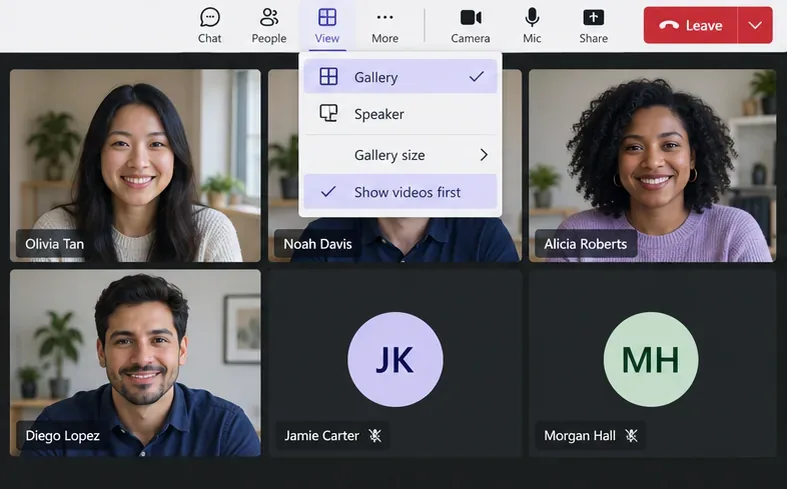
Microsoft lists 4, 9, 16, or 49 people for desktop Gallery and 4 or 9 for the web. The maximum depends on your device and meeting conditions. A selected size is a ceiling, not a guarantee that every tile will contain live video. See Microsoft’s video and gallery guidance.
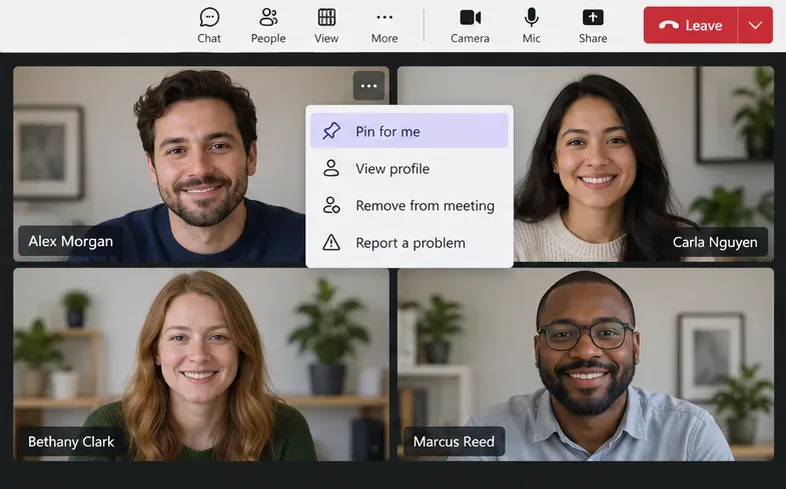
Pin for me changes your view. Spotlight for everyone, available to organizers and presenters, highlights a video for the meeting audience. Microsoft explains these controls in Customize your meeting view.
Changing someone to an attendee does not automatically hide their video. Camera access is controlled separately through attendee audio and video permissions.
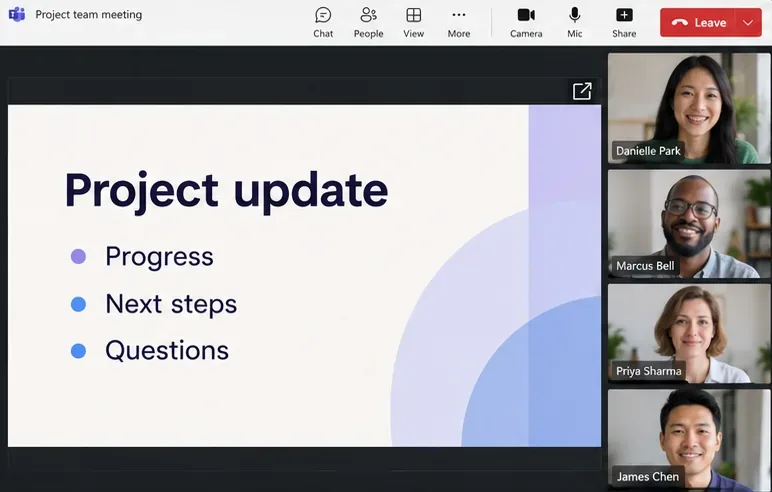
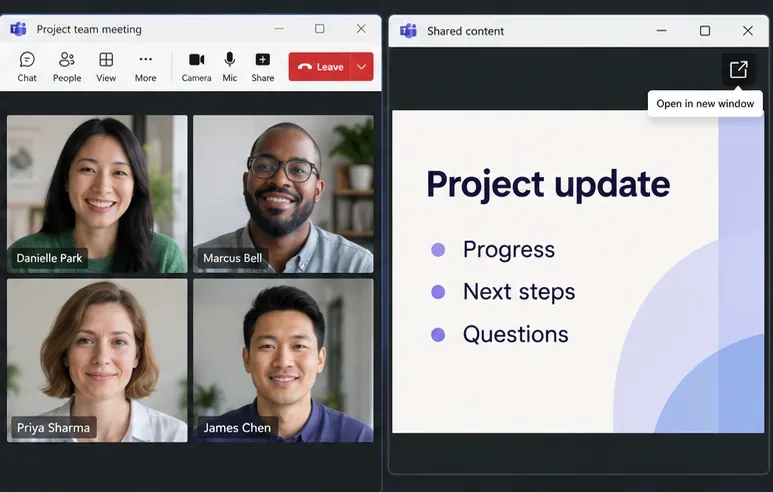
The separate-window option is documented in Microsoft’s content-sharing instructions. On a small display, keeping everything in the main meeting window may leave slides easier to read than squeezing two windows side by side.
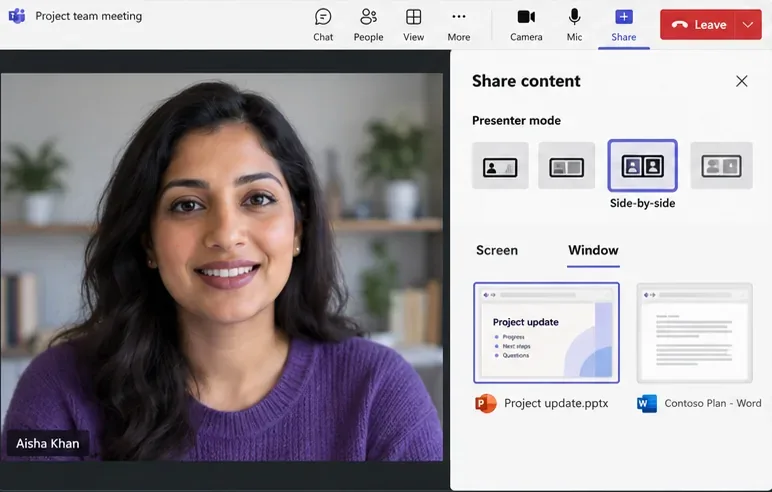
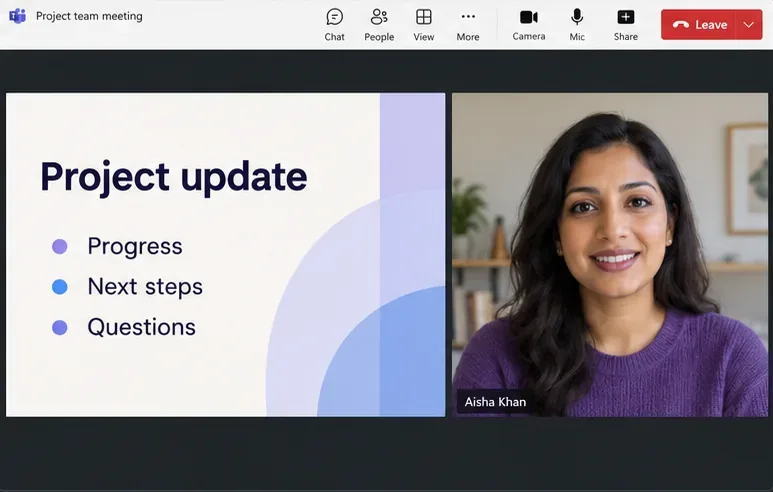
Interactive presenter modes require Teams for desktop. People attending through web or mobile see the shared screen or window and the presenter’s video separately. See Microsoft’s presenter-mode instructions for the supported layouts.
Learn how to create a poll in Microsoft Teams chats, channels, and meetings, choose response settings, review results, and close voting.
Learn how to mute channel and message notifications in Microsoft Teams, unfollow noisy threads, and control banners while understanding mention alerts.
Learn how to transfer a Microsoft Teams meeting between your computer and phone, use both devices together, and fix missing transfer options or audio issues.
Learn how to snooze a message in Microsoft Teams with Snooze Bot, return to it later, and use saved messages or mute controls when you need another option.
Learn how to create a team in Microsoft Teams, add members, choose channel types, manage permissions, and use the Teams admin center.
Learn how to download a Microsoft Teams recording from Teams, OneDrive, or SharePoint, and fix missing download options, access issues, and expired recordings.
Fix echo during Microsoft Teams meetings by removing duplicate audio connections, selecting the right headset and microphone, and checking audio settings.
Set up Microsoft Teams–Slack integration to launch Teams meetings from Slack. Learn account requirements, app permissions, setup steps, and quick fixes.
Unable to connect to Microsoft Teams meetings? Check the meeting link, account, network, and app, then learn when to contact the organizer or IT.
Microsoft Teams not syncing? Refresh messages across desktop, web, iPhone, and Android, identify account or file issues, and avoid unnecessary cache resets.








