How to Create a Poll in Microsoft Teams

Learn how to create a poll in Microsoft Teams chats, channels, and meetings, choose response settings, review results, and close voting.
Use Microsoft Teams survey tools in two ways: open Polls for a quick question in a chat or channel, or create a Microsoft Forms survey for several questions and share it in Teams. Forms also provides individual responses and Excel analysis.
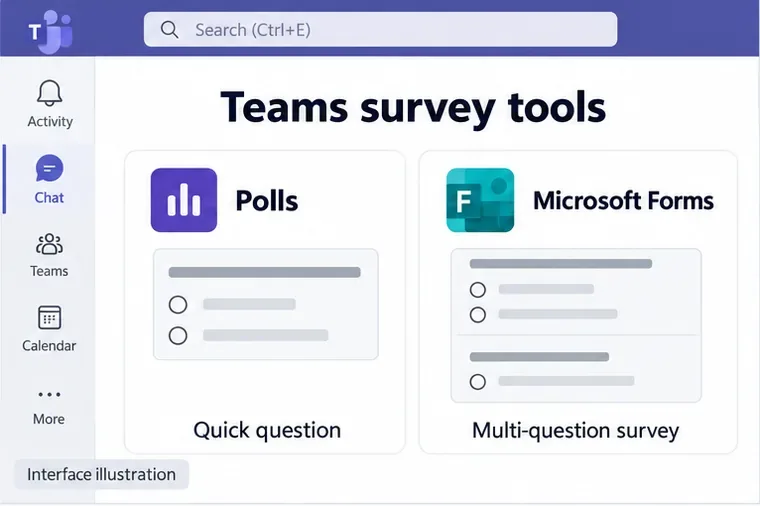
A poll works well for a simple decision, such as choosing a training format. A full survey lets you combine multiple-choice questions, written feedback, ratings, and other question types in one questionnaire. You do not need to post every survey question as a separate Teams message.
The instructions below focus on Teams for work or school on a computer. Available apps and controls depend on your organization and account.
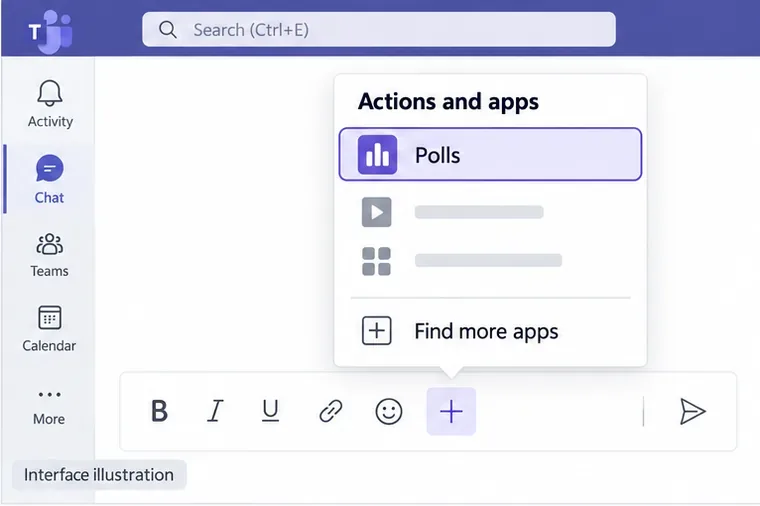
Open Polls. Go to the conversation or channel post where you want feedback. Select Actions and apps beside the message composer, then choose Polls. If it is missing, select Find more apps or open Apps on the left and search for it.
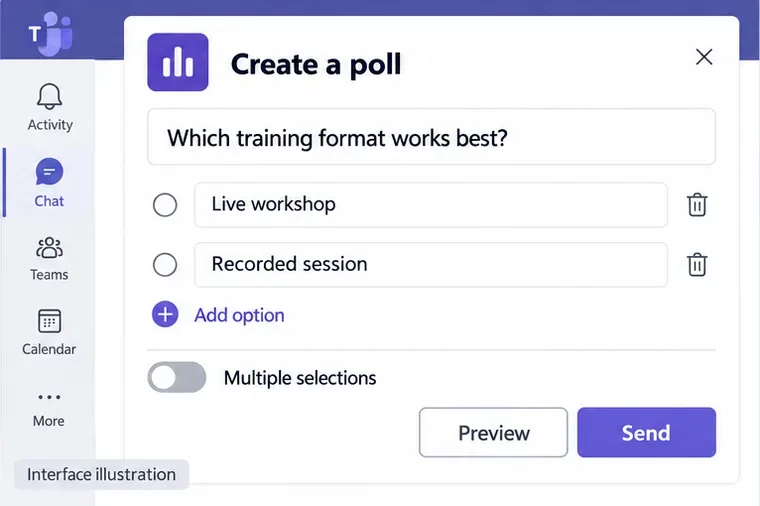
Build and publish the question. Enter your question and at least two answer choices. Turn on Multiple selections only if people may choose several answers. Review the options for recording respondents' names and sharing aggregated results. Select Preview, then Edit to correct it or Send to publish.
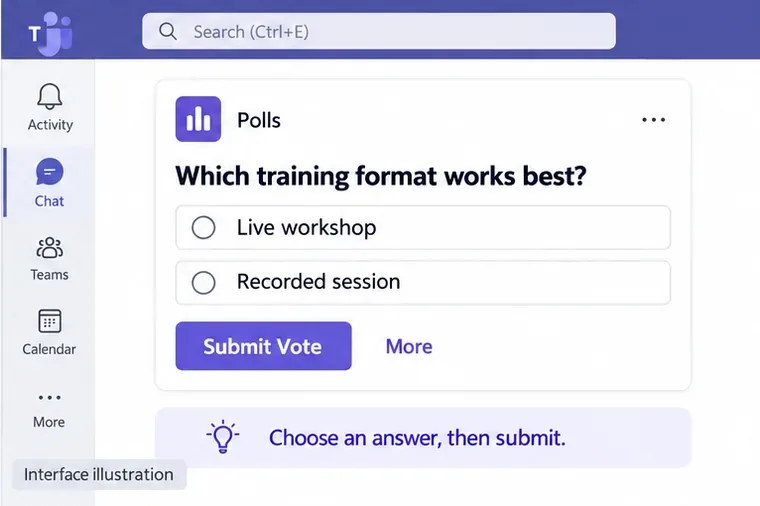
Collect votes. Participants choose an answer and select Submit Vote. The card's response summary updates as votes arrive. As the creator, select More on the card to open the detailed results in Forms.
Microsoft documents these controls in Create a poll in Microsoft Teams.
Build the survey in Forms. Sign in to Microsoft Forms and select New Form. Add a title and a short explanation of what you need. Use Add new to insert Choice, Text, Rating, or Date questions; other question types are available from the additional options. Select Preview to check the respondent's view before sharing.
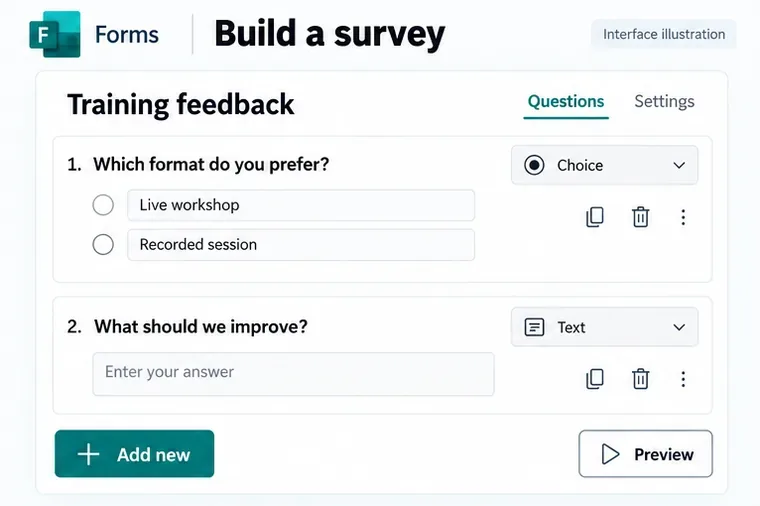
Forms saves your work automatically. You can return to edit the questionnaire, but deleting a question also permanently deletes its collected response data. See Microsoft's form creation guide.
Set the audience and copy the response link. Select Collect responses. Choose Anyone can respond for access without sign-in, or an organization-only option for signed-in colleagues. Organization-only and specific-person choices require a supported work or school subscription. Where available, review Record name and One response per person.
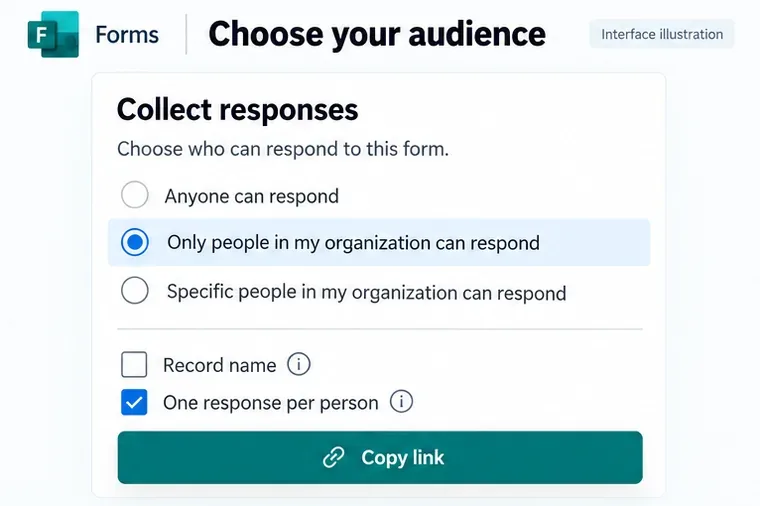
Select Copy link and paste it into a Teams chat, channel message, or meeting chat. Share the respondent link rather than an editing link. Microsoft's response-sharing instructions explain the audience options.
Optionally add the survey as a channel tab. In the channel, select Add a tab (+), choose Forms, and select Add an existing form. Find your survey, choose Collect responses, and select Save.
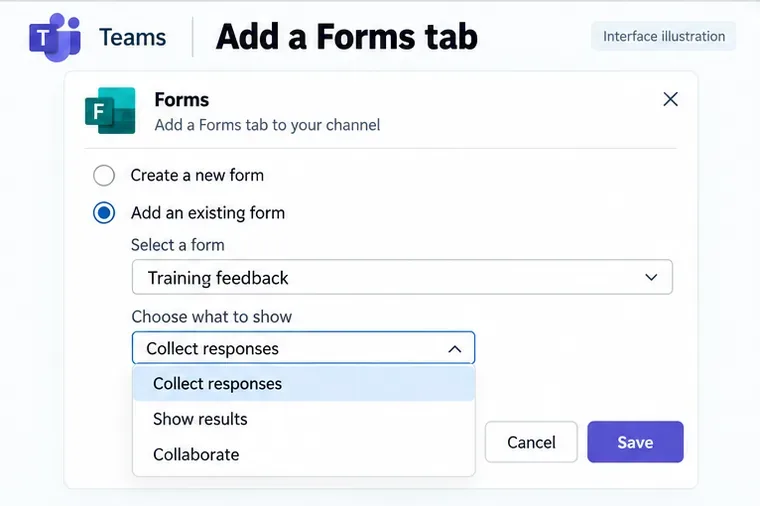
The alternative Show results mode displays survey results; Collaborate lets team members edit the form. Choose deliberately: people answering a survey usually need the response view. You can also create a shared form directly through a Forms tab. See Microsoft's Teams Forms tab guide.
Review responses and finish collection. Open the form and select View responses. The overview summarizes submissions; Check individual results opens individual answers. Select Open results in Excel for spreadsheet analysis, or Download a copy for an offline workbook without a live connection.
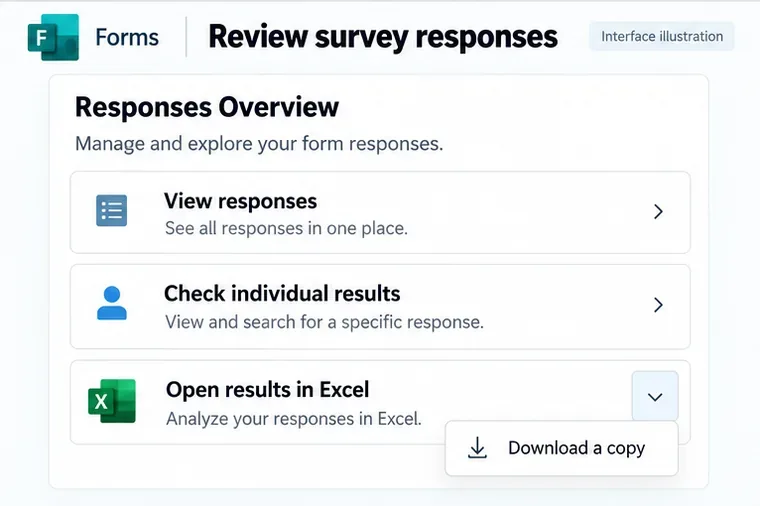
Be careful with a shared results-summary link: anyone who receives it can view the summary. Microsoft's results guide explains sharing and removing that link. To stop new submissions, open Settings and clear Accept responses, as described in the Forms settings guide.
Search Teams Apps first. If the app remains unavailable, ask your administrator to check Teams app access. If respondents cannot open a survey, check its audience restriction and which account they are using.
For live meeting polls, organizers and presenters can add the Polls tab and launch prepared questions. Attendees respond rather than edit polls. Follow Microsoft's separate meeting polling instructions for that workflow.
Learn how to create a poll in Microsoft Teams chats, channels, and meetings, choose response settings, review results, and close voting.
Learn how to mute channel and message notifications in Microsoft Teams, unfollow noisy threads, and control banners while understanding mention alerts.
Learn how to transfer a Microsoft Teams meeting between your computer and phone, use both devices together, and fix missing transfer options or audio issues.
Learn how to snooze a message in Microsoft Teams with Snooze Bot, return to it later, and use saved messages or mute controls when you need another option.
Learn how to create a team in Microsoft Teams, add members, choose channel types, manage permissions, and use the Teams admin center.
Learn how to download a Microsoft Teams recording from Teams, OneDrive, or SharePoint, and fix missing download options, access issues, and expired recordings.
Fix echo during Microsoft Teams meetings by removing duplicate audio connections, selecting the right headset and microphone, and checking audio settings.
Set up Microsoft Teams–Slack integration to launch Teams meetings from Slack. Learn account requirements, app permissions, setup steps, and quick fixes.
Unable to connect to Microsoft Teams meetings? Check the meeting link, account, network, and app, then learn when to contact the organizer or IT.
Microsoft Teams not syncing? Refresh messages across desktop, web, iPhone, and Android, identify account or file issues, and avoid unnecessary cache resets.








