How to Use the Google Meet Share Screen Feature

To use Google Meet screen sharing, join a meeting and choose Present now on a computer or More > Share screen in the mobile app. Select your content, approve the sharing prompt, and start presenting. Personal Google accounts and Workspace accounts can share, although meeting hosts or administrators may restrict access.

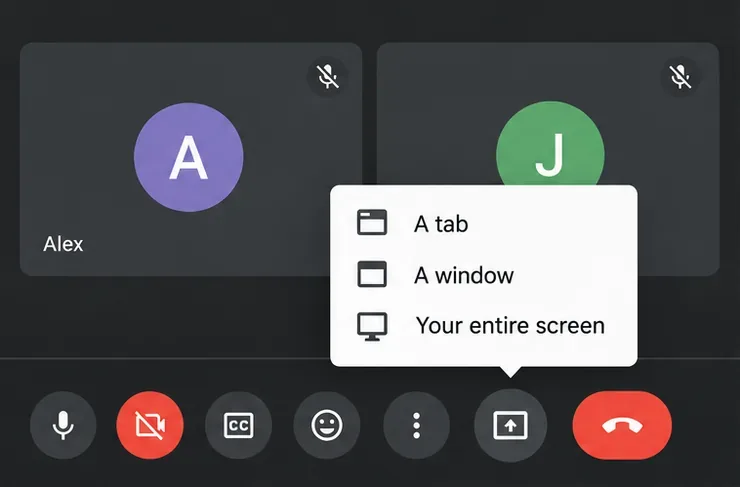
Google Meet Present now menu with A tab, A window, and Your entire screen options
The Present now menu lets you limit sharing to a tab or window.

Choose a tab, window, or entire screen

Share the smallest area that covers your task. This makes it easier to keep unrelated information private.

OptionBest forWhat participants see
A tabA website, online slides, or browser videoThe selected browser tab
A windowA document or desktop applicationThe selected application window
Your entire screenDemonstrations across several applicationsThe selected display, including visible notifications

Before presenting, open your content and silence notifications. Avoid sharing the Meet window itself, which can create a repeating mirror effect. Google recommends an updated Chrome browser for the fullest screen-sharing functionality; options in other browsers can differ.

How to share your screen on a computer

  1. Join the meeting and open Present now. Use the screen-with-an-up-arrow button in the bottom toolbar. Join normally first if you need your microphone and speakers: choosing Present from the pre-join screen puts you in Companion mode, where those are unavailable.
  2. Choose the sharing scope and content. Select A tab, A window, or Your entire screen, then select the specific source in the browser's picker. For a document walkthrough, choose its tab or application rather than your whole desktop.
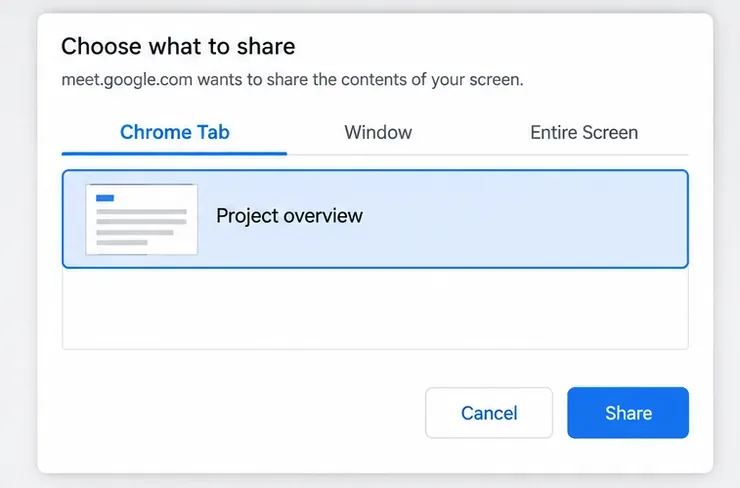
    Chrome sharing dialog with the Project overview tab selected and Share button available
    Select the actual tab or window before clicking Share.
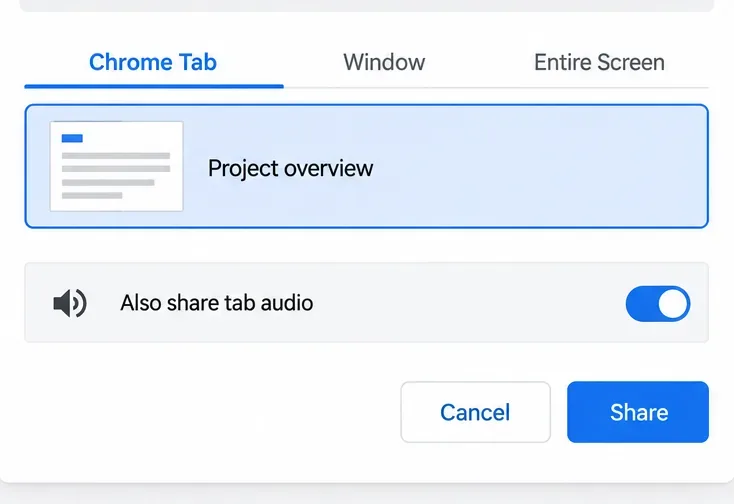
  3. Check audio, then click Share. For a Chrome tab, make sure Also share tab audio is enabled if viewers need to hear its video or music. Switch to the source you selected to demonstrate or edit its content.
    Chrome tab sharing dialog with Also share tab audio switched on
    Keep tab audio enabled when presenting a video with sound.
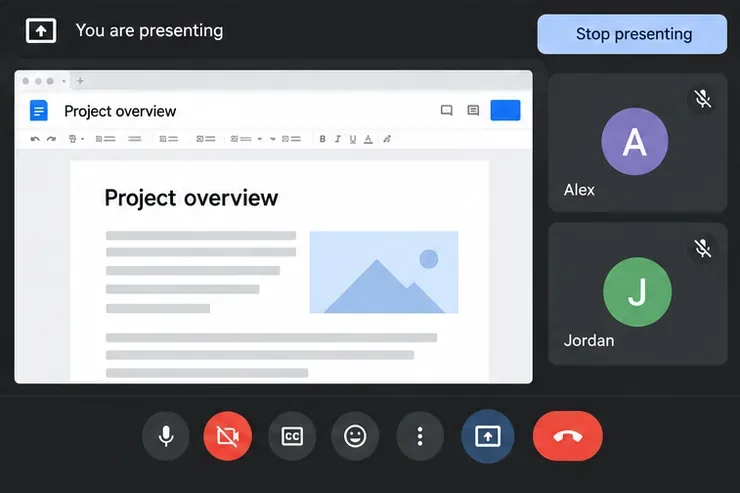
  4. Stop presenting when finished. Return to Meet and click Stop presenting, or open You are presenting and select the stop command. This ends the presentation without leaving the call.
    Google Meet presenting a Project overview document with Stop presenting visible
    Stop presenting ends the screen share while you stay in the meeting.

To move a presentation to another Chrome tab, open that tab and use Share this tab instead in its sharing banner when available. Google's meeting controls guide explains the desktop workflow.

Can Google Meet share computer audio?

Yes. In addition to tab audio, supported computers can share device audio while presenting a window or entire screen. Enable Also share system audio in the source picker. Google lists Chrome 142 or newer with Windows 11 or newer or macOS 14.2 or newer as the requirements. System audio sharing is off by default.

It is unavailable when your device's audio is merged with others through Adaptive Audio; tab audio remains an alternative. See Google's device audio sharing announcement for requirements.

How to share your screen on Android, iPhone, or iPad

Use the Google Meet app. Before sharing the whole phone screen, close private content and enable Do Not Disturb or Focus to reduce notification interruptions.

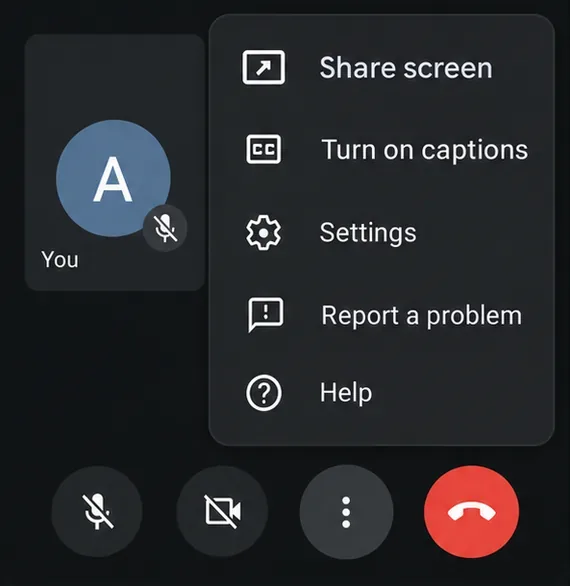
  1. Join a meeting and open the sharing menu. Tap the meeting screen to reveal controls, open More (three dots), and choose Share screen.
    Google Meet mobile More menu showing the Share screen command
    Open More to find Share screen in the mobile app.
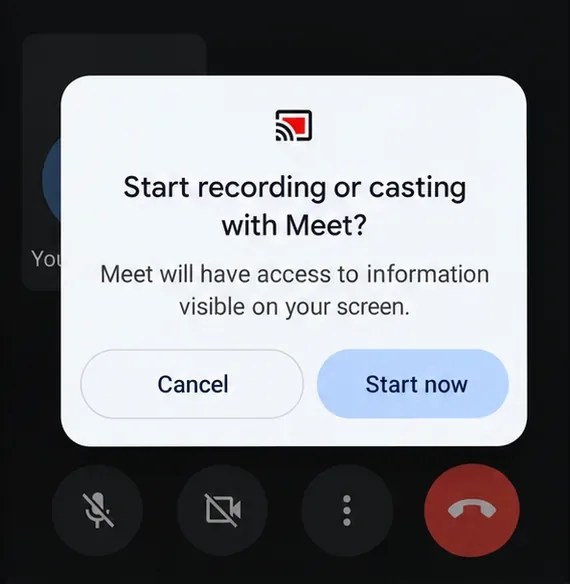
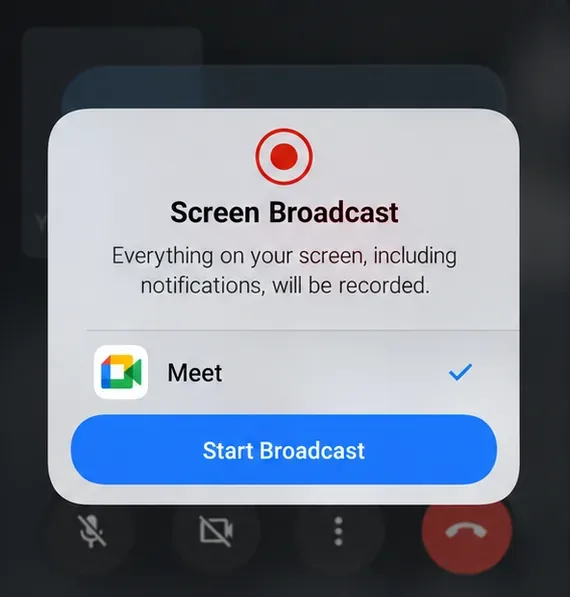
  2. Start sharing and approve the system prompt. Tap Start Sharing, then complete the device's confirmation. Android may show Start now; iPhone and iPad use a broadcast prompt with Start Broadcast. Follow the options actually displayed on your device.
    Example Android screen capture permission dialog for Meet with Cancel and Start now buttons
    Android asks for screen capture permission; wording varies by version.
    iPhone Screen Broadcast panel with Meet selected and Start Broadcast button
    On iPhone or iPad, approve the broadcast for Meet.
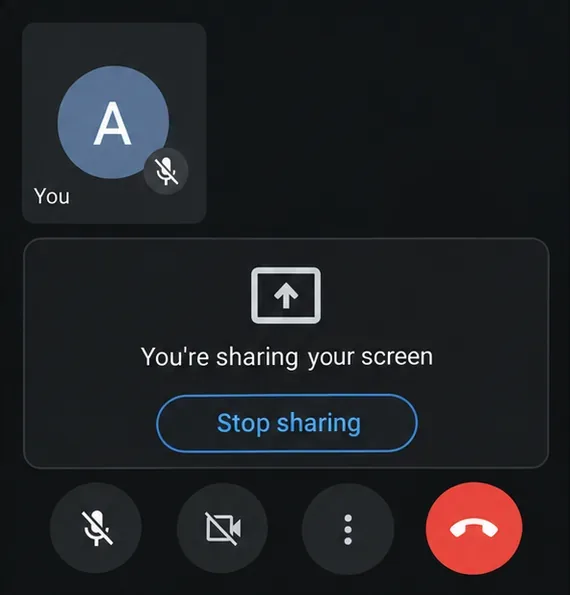
  3. Show your content, then stop sharing. Open the app or screen you want to demonstrate. When finished, return to Meet, tap Stop sharing, and confirm with OK if prompted.
    Google Meet mobile sharing status with a Stop sharing button
    Return to Meet and use Stop sharing when you finish.

If Meet offers a share-audio checkbox in its presentation prompt, enable it when needed. Availability can depend on the device; Google also notes that muting your microphone stops shared mobile audio. Check the official instructions for Android screen sharing or iPhone and iPad screen sharing.

Fix missing controls, permissions, or blank content

  • Sharing is disabled: Ask the host to check Host controls > Share their screen. Workspace administrators can also restrict presenting. You do not normally need to be the host, but host participation settings still apply.
  • A window is missing: Open it and restore it from its minimized state before trying the picker again.
  • Screen capture fails: Check browser and operating-system permissions. On a Mac, allow your browser screen-recording access in Privacy & Security settings, then restart the browser if requested.
  • A slideshow appears blank: Full-screen slides may use a different surface from the window originally selected. Try sharing the display containing the slideshow, after checking it for private content.

For persistent problems, update your browser and operating system and consult Google's screen-sharing troubleshooting guide and known issues and workarounds.

Leave a Comment

How to Create a Poll in Microsoft Teams

How to Create a Poll in Microsoft Teams

Learn how to create a poll in Microsoft Teams chats, channels, and meetings, choose response settings, review results, and close voting.

How to Mute Channel and Message Notifications in Microsoft Teams

How to Mute Channel and Message Notifications in Microsoft Teams

Learn how to mute channel and message notifications in Microsoft Teams, unfollow noisy threads, and control banners while understanding mention alerts.

How to Transfer a Microsoft Teams Meeting to Another Device

How to Transfer a Microsoft Teams Meeting to Another Device

Learn how to transfer a Microsoft Teams meeting between your computer and phone, use both devices together, and fix missing transfer options or audio issues.

How to Snooze a Message in Microsoft Teams

How to Snooze a Message in Microsoft Teams

Learn how to snooze a message in Microsoft Teams with Snooze Bot, return to it later, and use saved messages or mute controls when you need another option.

How to Create a Team in Microsoft Teams (and Manage It)

How to Create a Team in Microsoft Teams (and Manage It)

Learn how to create a team in Microsoft Teams, add members, choose channel types, manage permissions, and use the Teams admin center.

How to Download a Microsoft Teams Recording: Three Easy Solutions

How to Download a Microsoft Teams Recording: Three Easy Solutions

Learn how to download a Microsoft Teams recording from Teams, OneDrive, or SharePoint, and fix missing download options, access issues, and expired recordings.

Getting Echo During Microsoft Teams Meetings? Here’s How to Fix It

Getting Echo During Microsoft Teams Meetings? Here’s How to Fix It

Fix echo during Microsoft Teams meetings by removing duplicate audio connections, selecting the right headset and microphone, and checking audio settings.

Microsoft Teams–Slack Integration: How to Set It Up

Microsoft Teams–Slack Integration: How to Set It Up

Set up Microsoft Teams–Slack integration to launch Teams meetings from Slack. Learn account requirements, app permissions, setup steps, and quick fixes.

Unable to Connect to Microsoft Teams Meetings? How to Fix It

Unable to Connect to Microsoft Teams Meetings? How to Fix It

Unable to connect to Microsoft Teams meetings? Check the meeting link, account, network, and app, then learn when to contact the organizer or IT.

Fix Microsoft Teams Not Syncing: Full Guide

Fix Microsoft Teams Not Syncing: Full Guide

Microsoft Teams not syncing? Refresh messages across desktop, web, iPhone, and Android, identify account or file issues, and avoid unnecessary cache resets.