How to Create a Poll in Microsoft Teams

Learn how to create a poll in Microsoft Teams chats, channels, and meetings, choose response settings, review results, and close voting.
To use the Microsoft Teams multiple windows feature, open a chat’s More options (...) menu and select Open chat in new window. You can also open channel conversations, supported apps, and meeting chat in separate windows. Move them beside the main Teams window or onto another monitor to keep related work visible.
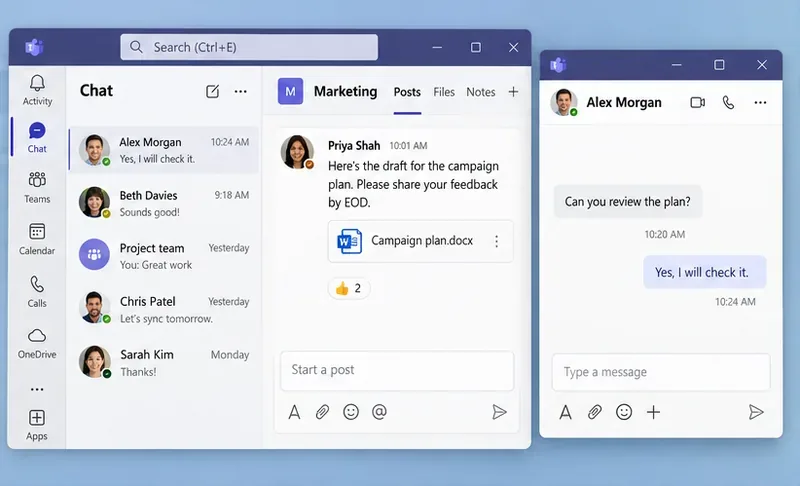
Use the current Teams desktop app for these instructions. Window commands and navigation can differ by app, channel layout, and Teams version. You do not need to launch duplicate copies of Teams to use its built-in window controls.
This works with both one-on-one and group chats.
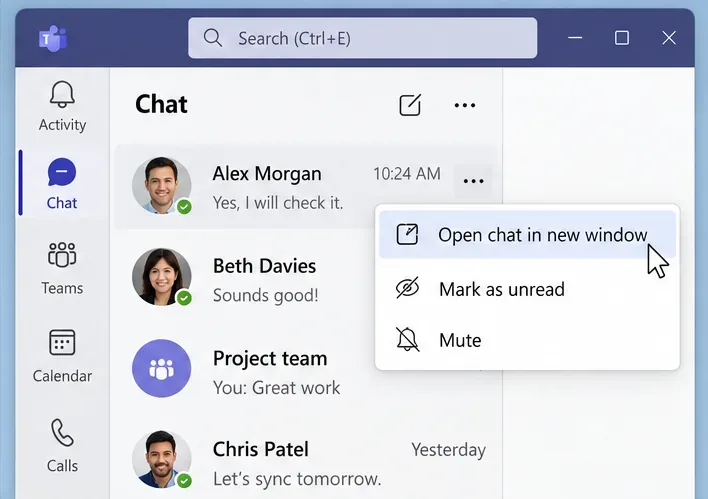
You can open several different conversations, but you cannot open the same chat twice. For tasks such as scheduling a meeting, attaching a OneDrive file, or adding apps, return to the main Teams window while leaving the chat open. See Microsoft’s chat window instructions.
Current Teams supports channel conversation windows; older instructions saying channels cannot be separated are outdated. The command depends on whether the channel uses Posts or Threads.
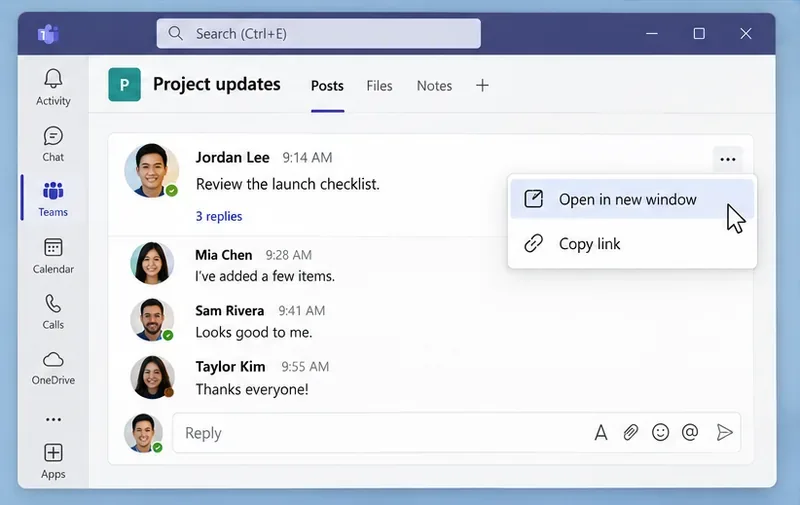
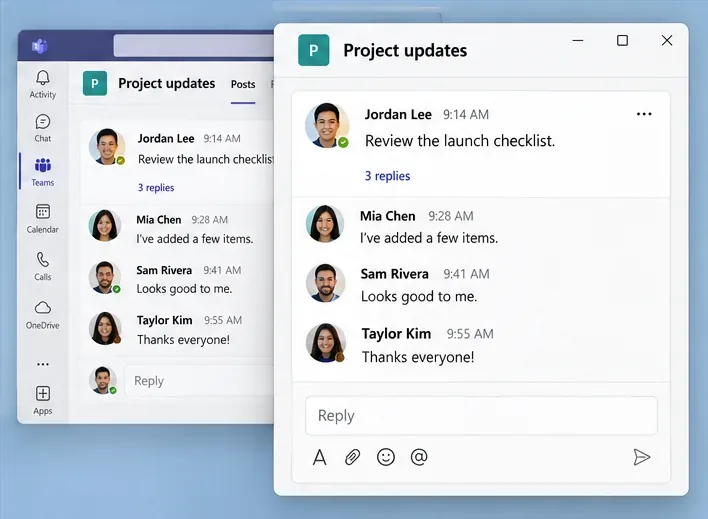
Microsoft documents More options > Open conversation in new window from a selected channel message for the main channel view. For an individual thread, open its reply summary and use the menu at the top-right of the thread pane. Follow Microsoft’s channel conversation guide for the layout you use.
Teams can open core apps such as Activity, Chat, Channels, Calendar, Calls, and Meet in separate windows. The apps shown on your left app bar depend on your setup.
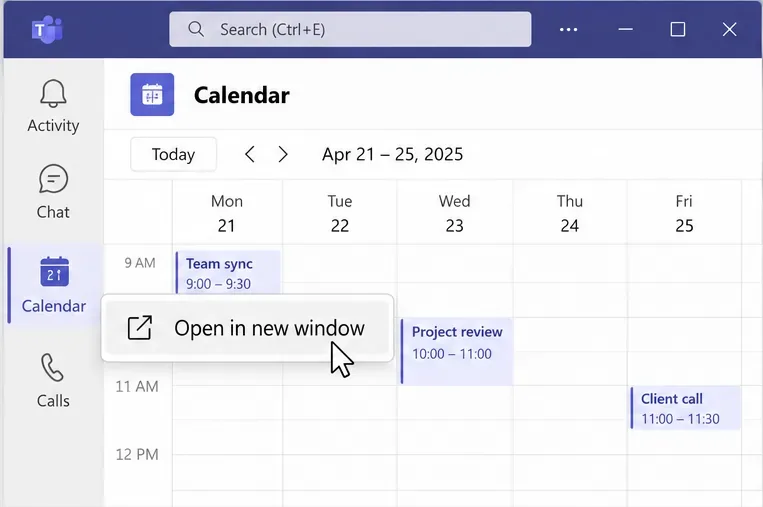
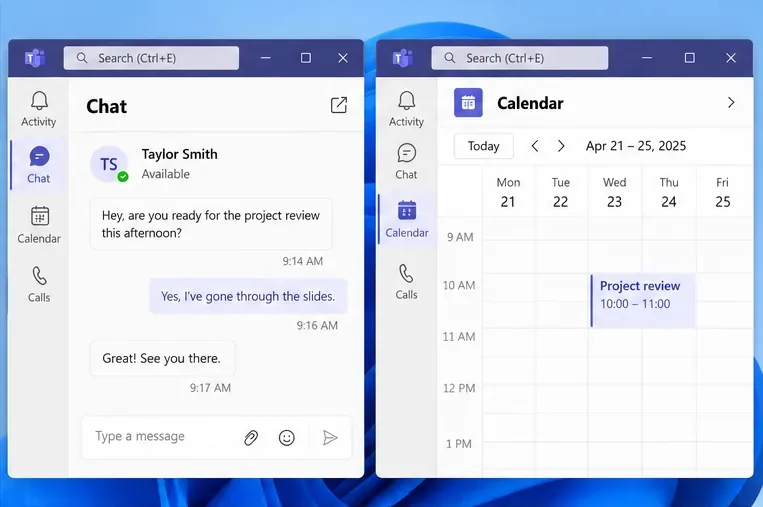
For an app or supported tab that is already open, look for Open in new window near the upper-right corner. Support varies: do not assume every tab has this control. Microsoft explains the difference in its Microsoft’s app window documentation.
After opening two core apps in new windows, Teams warns that opening more may slow your system. You can select Proceed, or close unused windows. See Microsoft’s core app window guide.
You can use other Teams windows while your meeting continues. To separate meeting chat:
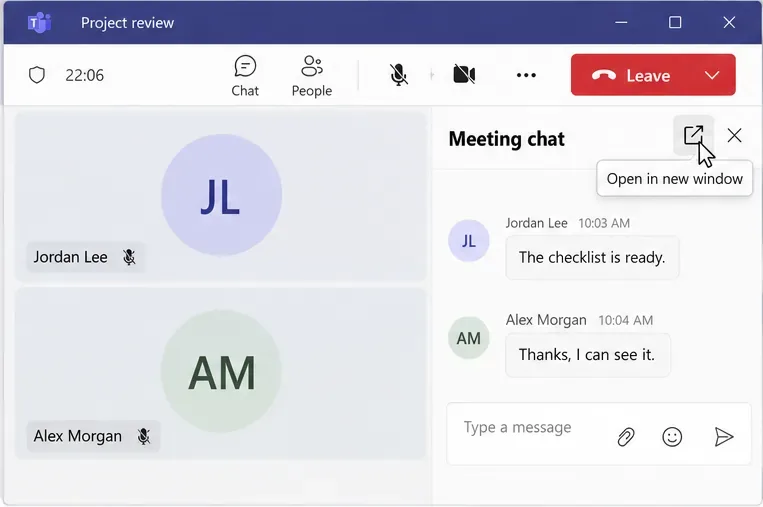
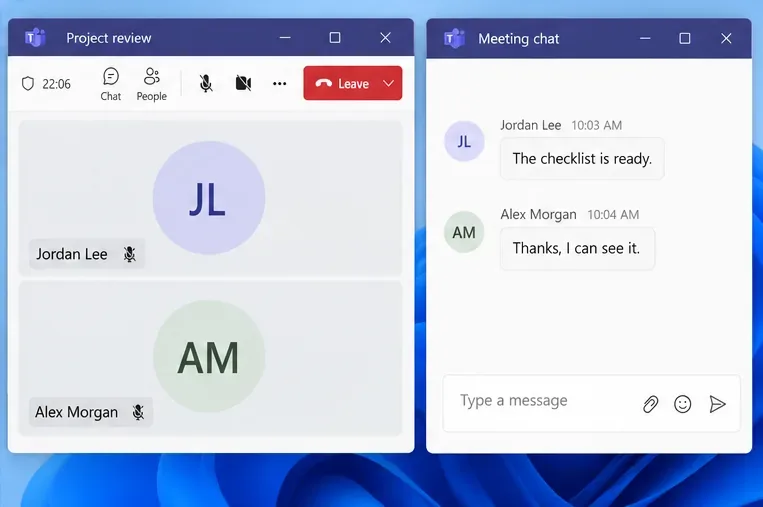
Available meeting panes can also have window controls; see Microsoft’s meeting multitasking guide. Multiple windows do not mean multiple active call connections: when you answer or start another call, Teams places the current call on hold.
Drag each window by its title bar to arrange your workspace. Keep only the windows you need open, especially if Teams becomes less responsive.
Learn how to create a poll in Microsoft Teams chats, channels, and meetings, choose response settings, review results, and close voting.
Learn how to mute channel and message notifications in Microsoft Teams, unfollow noisy threads, and control banners while understanding mention alerts.
Learn how to transfer a Microsoft Teams meeting between your computer and phone, use both devices together, and fix missing transfer options or audio issues.
Learn how to snooze a message in Microsoft Teams with Snooze Bot, return to it later, and use saved messages or mute controls when you need another option.
Learn how to create a team in Microsoft Teams, add members, choose channel types, manage permissions, and use the Teams admin center.
Learn how to download a Microsoft Teams recording from Teams, OneDrive, or SharePoint, and fix missing download options, access issues, and expired recordings.
Fix echo during Microsoft Teams meetings by removing duplicate audio connections, selecting the right headset and microphone, and checking audio settings.
Set up Microsoft Teams–Slack integration to launch Teams meetings from Slack. Learn account requirements, app permissions, setup steps, and quick fixes.
Unable to connect to Microsoft Teams meetings? Check the meeting link, account, network, and app, then learn when to contact the organizer or IT.
Microsoft Teams not syncing? Refresh messages across desktop, web, iPhone, and Android, identify account or file issues, and avoid unnecessary cache resets.








