How to Create a Poll in Microsoft Teams

Learn how to create a poll in Microsoft Teams chats, channels, and meetings, choose response settings, review results, and close voting.
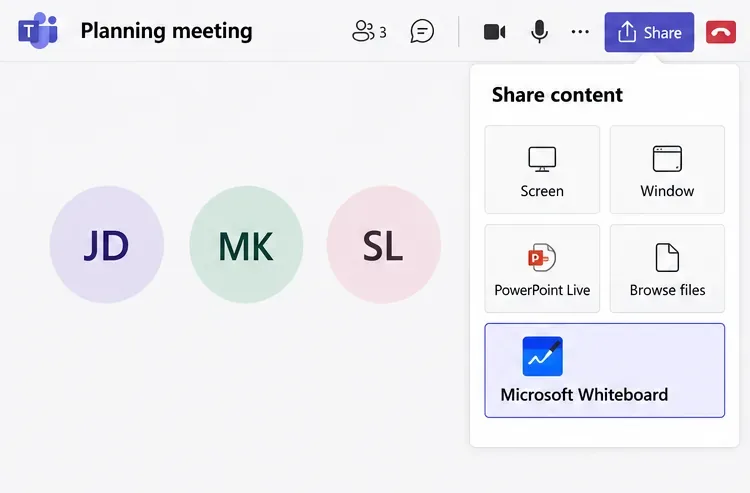
To use the Microsoft Teams whiteboard app, join a meeting and select Share > Microsoft Whiteboard, then create a board or open an existing one. You can draw, type, add sticky notes, and work together on the same canvas. For ongoing work, add Whiteboard as a tab in a Teams chat or channel.
This guide covers Teams with a work or school account. You do not need to install a separate Whiteboard application. Microsoft retired the standalone Windows, iOS, and Android apps on October 16, 2026; Whiteboard remains available in Teams and on the web for work or school accounts.
Menu placement can vary with your Teams version and organization settings. The examples below highlight the relevant controls.
In the meeting controls, select Share, then choose Microsoft Whiteboard in the Whiteboard section. Use this option to open the collaborative canvas directly inside the meeting.
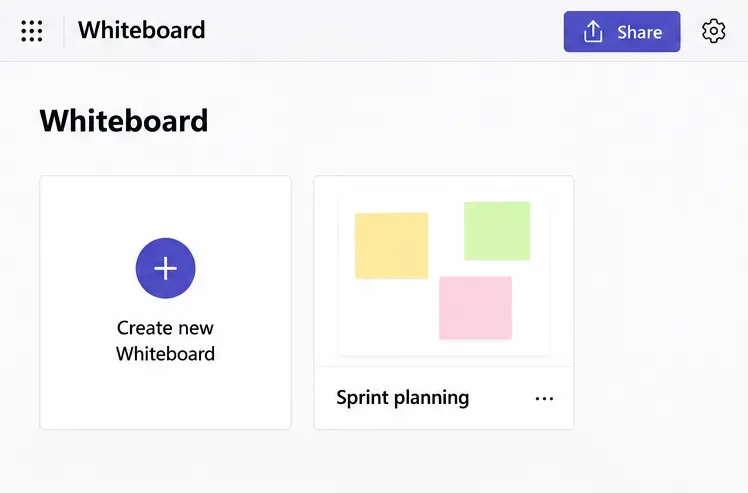
In the board picker, select an existing whiteboard or start a new one. Preparing a board beforehand lets you add your agenda or reference material before participants arrive.
If the meeting already has an associated board, Teams shares that board by default. Select Home in the upper-left corner to choose a different one. Microsoft documents this workflow in its Teams whiteboard sharing guide.
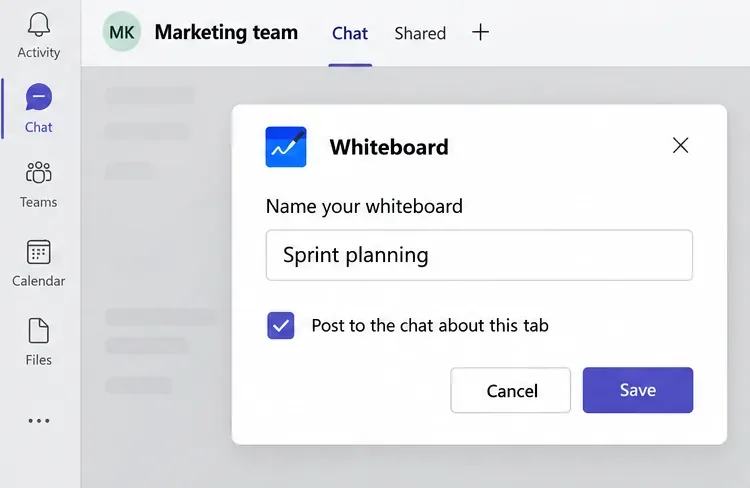
Open the chat or channel, select the plus button (Add a tab) near the top, search for Whiteboard, and select it. Enter a recognizable name, such as “Sprint planning,” then select Save.
You can clear the option to post a message about the new tab if you do not need an announcement. Reopen the tab whenever you want to continue working. Microsoft's Whiteboard tab instructions also explain keyboard navigation.
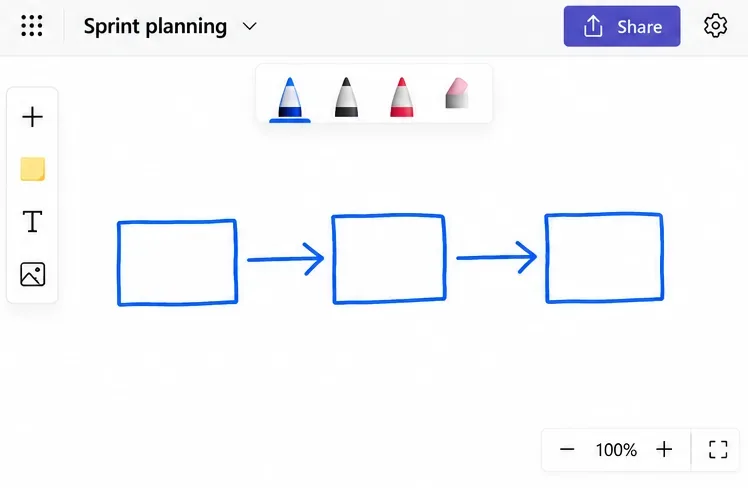
Select a pen and choose its color and thickness, then draw on the canvas. Use the eraser to remove ink or Undo to reverse a mistake. Switch to selection mode when you want to move objects.
A mouse or trackpad works; a touchscreen and stylus are optional. See Microsoft's Whiteboard getting-started guide for the main tools.
Use the Create tools to insert a note or text box, then type your content. Drag items to organize them into groups. For a planning session, keep ideas on separate notes and use a text heading to label each group.
Typed text is usually easier to read than handwriting when several people are contributing. Whiteboard also supports shapes, reactions, and templates, as described in Microsoft's meeting feature guide.
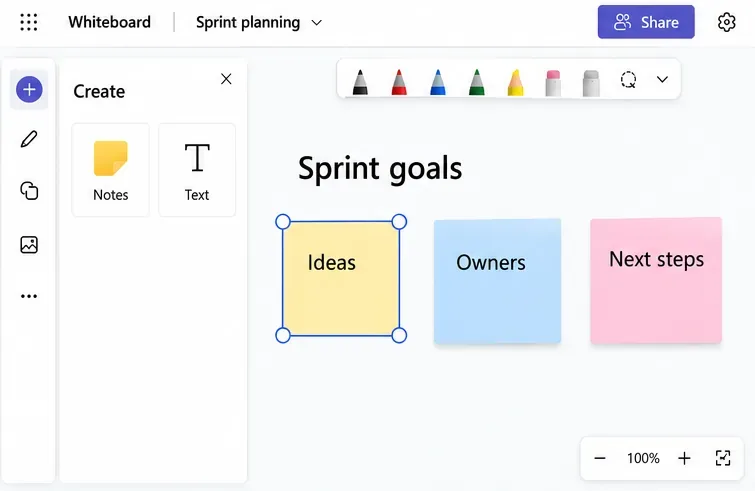
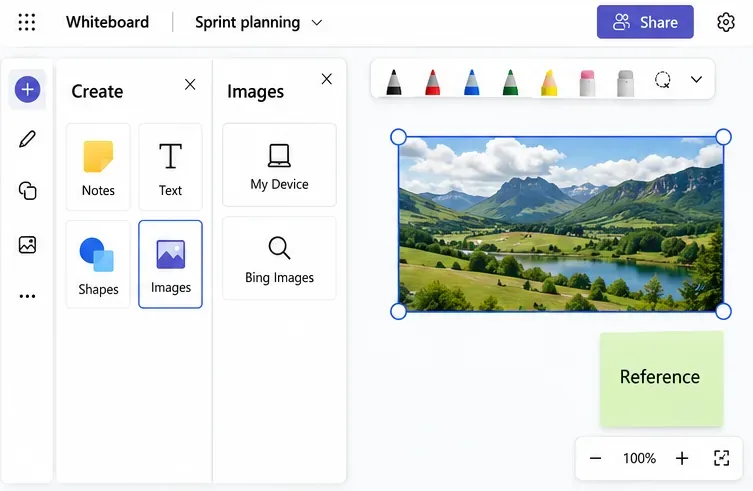
Select Create > Images > My Device, choose a picture, and select Open. Drag a corner to resize it. Select the picture and use Edit alt text to describe it for people using assistive technology.
Whiteboard also supports document insertion. These features require Optional Connected Experiences to be enabled; check Microsoft's image and document instructions if the options are unavailable.
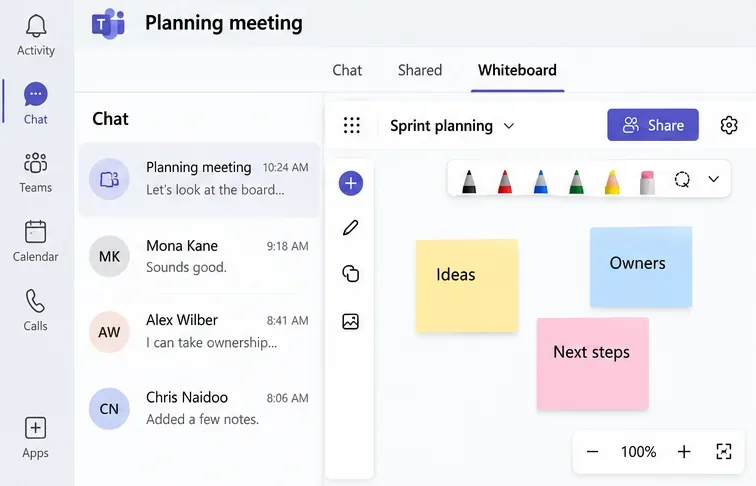
Open the meeting chat and select its Whiteboard tab. Participants inside your organization can continue collaborating there. For supported work or school accounts, OneDrive-backed boards also remain accessible through Whiteboard on the web.
According to Microsoft's after-meeting guidance, external participants cannot access the board after the meeting, and shared Whiteboard content is not included in the meeting recording.
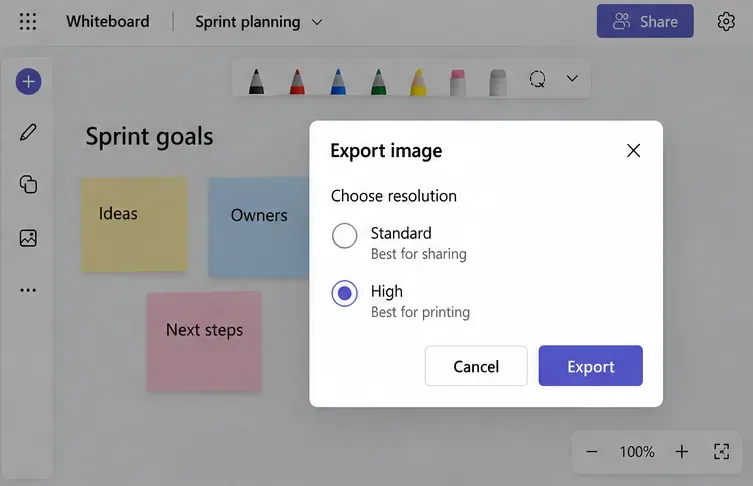
Select Settings in the upper-right corner, choose Export Image, pick standard or high resolution, and select Export. Microsoft's export instructions place the downloaded image in your Downloads folder.
Use the image for a meeting recap or a fixed, view-only copy. Keep the original board for future editing.
Learn how to create a poll in Microsoft Teams chats, channels, and meetings, choose response settings, review results, and close voting.
Learn how to mute channel and message notifications in Microsoft Teams, unfollow noisy threads, and control banners while understanding mention alerts.
Learn how to transfer a Microsoft Teams meeting between your computer and phone, use both devices together, and fix missing transfer options or audio issues.
Learn how to snooze a message in Microsoft Teams with Snooze Bot, return to it later, and use saved messages or mute controls when you need another option.
Learn how to create a team in Microsoft Teams, add members, choose channel types, manage permissions, and use the Teams admin center.
Learn how to download a Microsoft Teams recording from Teams, OneDrive, or SharePoint, and fix missing download options, access issues, and expired recordings.
Fix echo during Microsoft Teams meetings by removing duplicate audio connections, selecting the right headset and microphone, and checking audio settings.
Set up Microsoft Teams–Slack integration to launch Teams meetings from Slack. Learn account requirements, app permissions, setup steps, and quick fixes.
Unable to connect to Microsoft Teams meetings? Check the meeting link, account, network, and app, then learn when to contact the organizer or IT.
Microsoft Teams not syncing? Refresh messages across desktop, web, iPhone, and Android, identify account or file issues, and avoid unnecessary cache resets.








