How to Create a Poll in Microsoft Teams

Learn how to create a poll in Microsoft Teams chats, channels, and meetings, choose response settings, review results, and close voting.
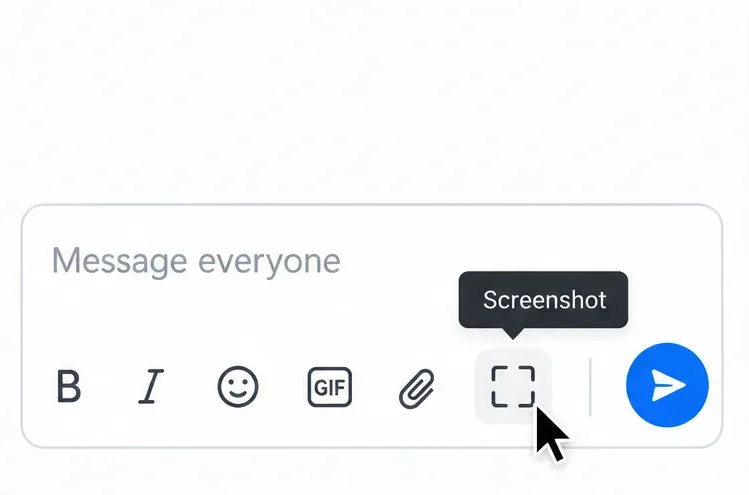
To use the Zoom meeting screenshot tool, open Chat during a meeting, select the Screenshot icon below the message box, and drag over the area you want to capture. Review the image and recipient before sending it. If you want a file for your own notes, use Windows Snipping Tool or the Mac screenshot shortcuts instead.
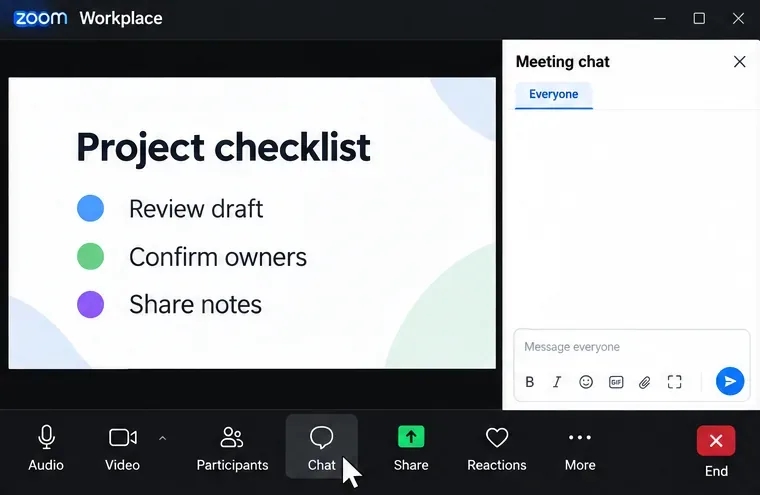
Ask permission before capturing people or confidential material, and follow the meeting's rules. A screenshot captures a single moment; it does not record the meeting's audio or ongoing video.
These instructions cover the Zoom Workplace desktop app. Controls can vary by version and account settings; Zoom documents the feature in its meeting chat guide.
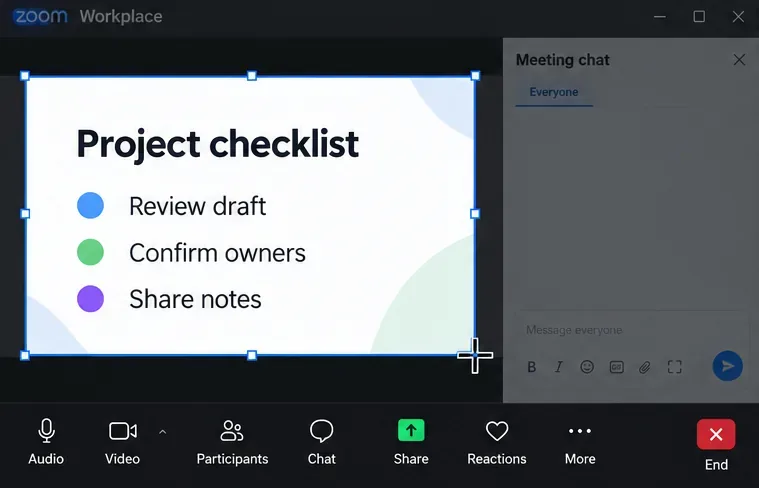
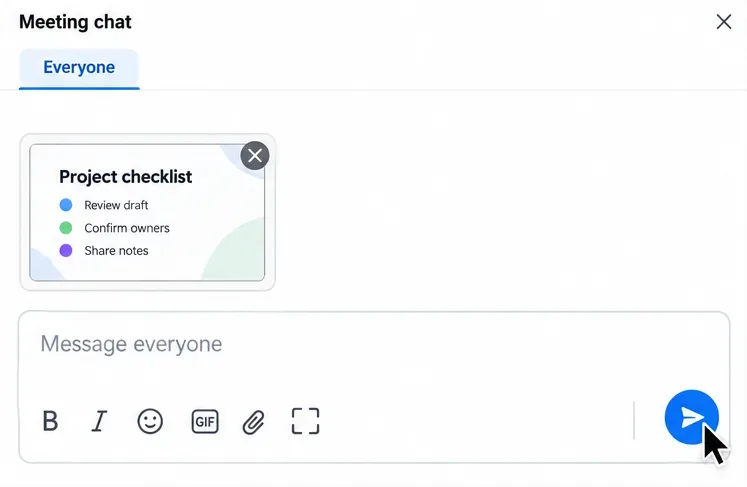
This workflow shares the image through chat. Do not assume it has also saved a separate file to your computer.
In the desktop app's Chat tab, select a conversation and use Screenshot in the composer. Its adjacent arrow lets you choose whether to hide the chat window while capturing. Zoom also supports adding arrows, shapes, and text after capture, as explained in its Zoom Chat instructions.
For a personal copy on Windows 11 or Windows 10, display the meeting content, press Windows+Shift+S, and choose a rectangular or window capture. Select the desired area or Zoom window, then open the capture in Snipping Tool to review and save it.
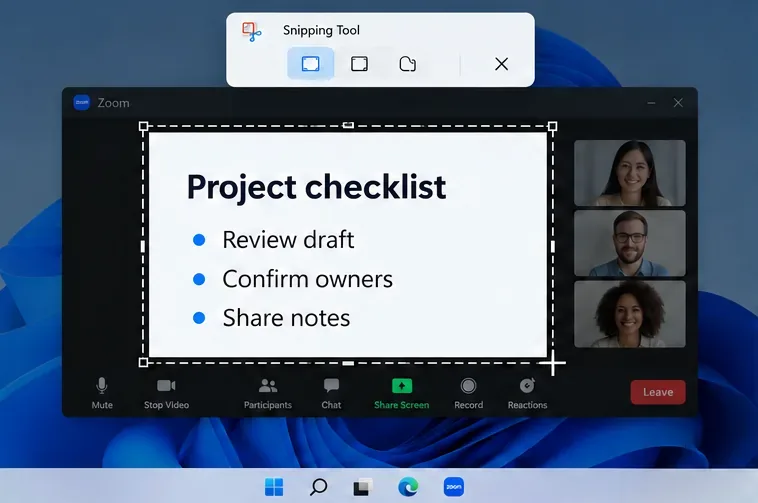
Current Windows 11 Snipping Tool versions support automatic saving to the Screenshots folder, with the behavior and location configurable in Settings. You can also use Save as to choose a filename and location. On older versions, save the image manually. See Microsoft's Snipping Tool guide.
Bring the meeting content into view and use the shortcut that matches what you need:
| Capture | Mac shortcut |
|---|---|
| Selected area | Shift+Command+4, then drag and release |
| Zoom window | Shift+Command+4, then Space, then click the window |
| Entire screen | Shift+Command+3 |
| Screenshot toolbar and save options | Shift+Command+5 |
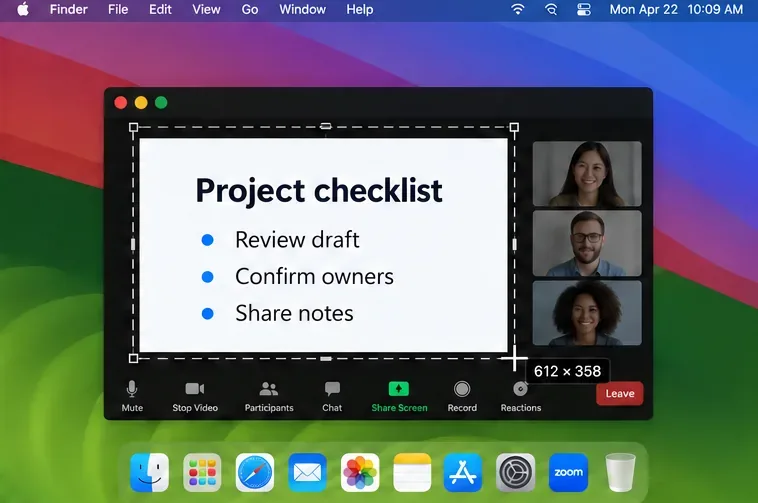
Screenshots save to the desktop by default, unless you changed the destination. Open the Screenshot toolbar's Options menu to check it. To copy a capture to the Clipboard instead, hold Control while using the screenshot shortcut. These options are covered in Apple's screenshot guide.
Zoom's published Chat shortcuts are Alt+Shift+T on Windows and Command+T on Mac. To inspect your assignment, open your profile picture, select Settings, and choose Keyboard shortcuts. Find Screenshot; select its shortcut field to assign another key combination.
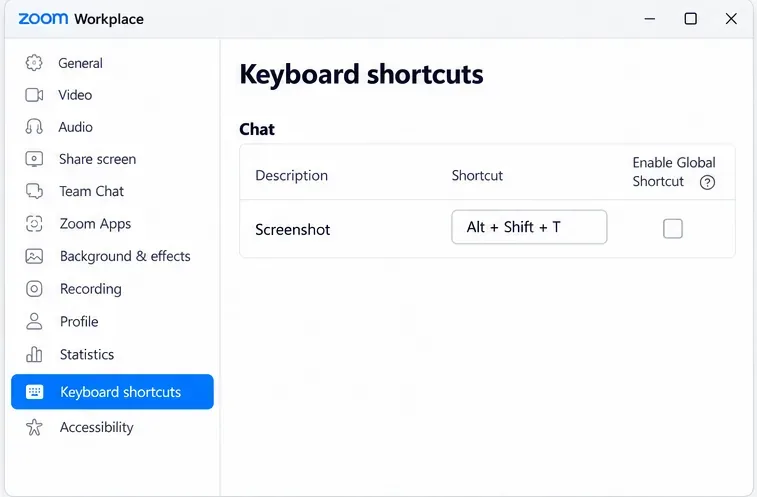
A global shortcut can work while another app has focus. If Zoom interferes with a browser shortcut, clear its global option or change the assignment. Check your installed settings rather than relying on older Ctrl+T instructions. See Zoom's keyboard shortcut reference.
The host can restrict chat, and administrators can disable screenshot sharing. Ask the host or admin to check Meeting chat and its Enable the Screenshot feature in meeting chat option, documented in Zoom's meeting chat settings. Update the desktop app if expected controls are missing.
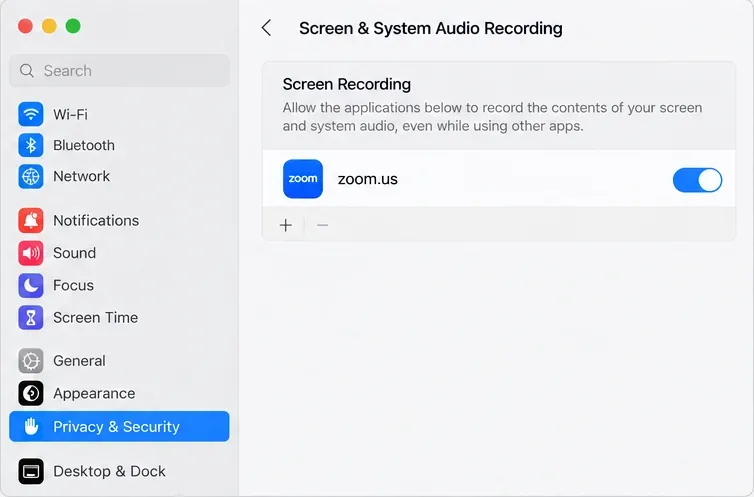
If Zoom requests screen access, review System Settings > Privacy & Security > Screen & System Audio Recording and allow Zoom to capture the screen when appropriate. Older macOS versions may call this Screen Recording. Follow any prompt to reopen Zoom. Apple explains where to review access in its screen-recording permissions guide.
Zoom's Prevent screen capture setting can exclude meeting windows and shared content from screenshots on supported devices. This is separate from enabling screenshots in chat. Ask the host or administrator whether protection is active and request an approved copy of the material. See Zoom's screen-capture protection guide.
Learn how to create a poll in Microsoft Teams chats, channels, and meetings, choose response settings, review results, and close voting.
Learn how to mute channel and message notifications in Microsoft Teams, unfollow noisy threads, and control banners while understanding mention alerts.
Learn how to transfer a Microsoft Teams meeting between your computer and phone, use both devices together, and fix missing transfer options or audio issues.
Learn how to snooze a message in Microsoft Teams with Snooze Bot, return to it later, and use saved messages or mute controls when you need another option.
Learn how to create a team in Microsoft Teams, add members, choose channel types, manage permissions, and use the Teams admin center.
Learn how to download a Microsoft Teams recording from Teams, OneDrive, or SharePoint, and fix missing download options, access issues, and expired recordings.
Fix echo during Microsoft Teams meetings by removing duplicate audio connections, selecting the right headset and microphone, and checking audio settings.
Set up Microsoft Teams–Slack integration to launch Teams meetings from Slack. Learn account requirements, app permissions, setup steps, and quick fixes.
Unable to connect to Microsoft Teams meetings? Check the meeting link, account, network, and app, then learn when to contact the organizer or IT.
Microsoft Teams not syncing? Refresh messages across desktop, web, iPhone, and Android, identify account or file issues, and avoid unnecessary cache resets.








