How to Zoom In Microsoft Teams: Text, Shared Screens, and Camera

To zoom in Microsoft Teams, press Ctrl + = on Windows or Command + = on Mac. This enlarges the interface, including chat text and controls. Zooming into a shared screen or changing your webcam framing uses separate controls, so choose the method that matches what you want to make bigger.

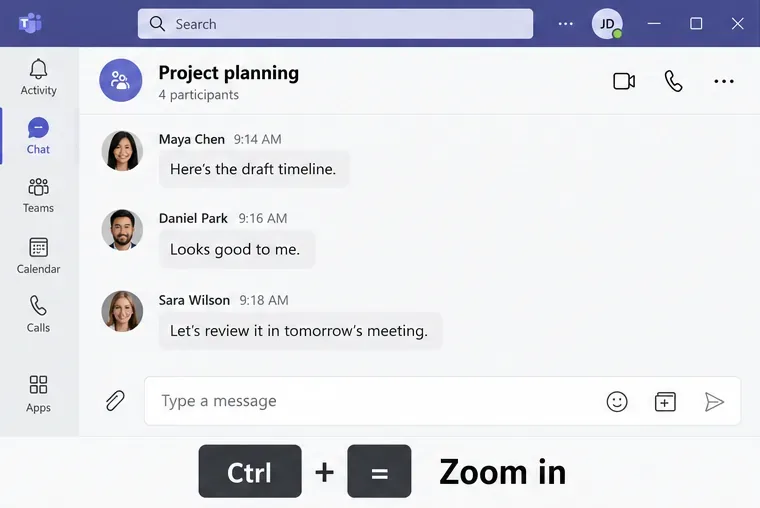
Teams Project planning chat with a Ctrl plus equals shortcut annotation for zooming in.
Use Ctrl + = to enlarge the Teams interface on Windows.

Make Teams text and controls bigger

For the desktop app, use these shortcuts from Microsoft's Teams zoom guide:

ActionWindowsMac
Zoom inCtrl + =Command + =
Reset zoomCtrl + 0Command + 0
Zoom outCtrl + -Command + -
  1. Enlarge the interface. Open Teams and select its window. Hold Ctrl on Windows or Command on Mac, then press the equals-sign key. Repeat until the text is comfortable to read. The equals key is usually the same key as the plus sign on a US keyboard.
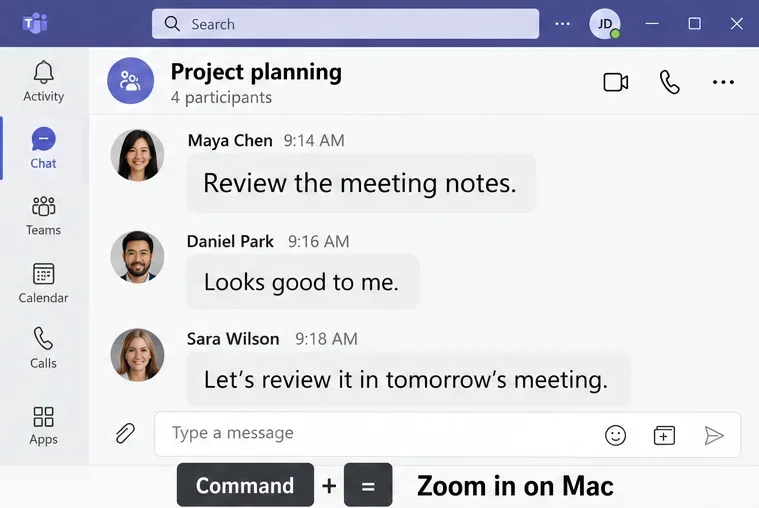
Enlarged Teams chat text beside a Command plus equals keyboard shortcut annotation.
On Mac, Command + = enlarges the interface.
  1. Return to the default size. Press Ctrl + 0 on Windows or Command + 0 on Mac. Use the number zero, not the letter O.
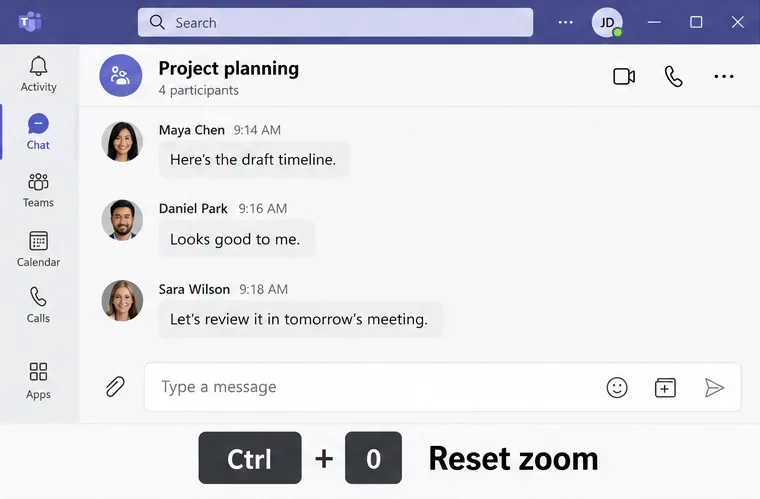
Teams chat at its normal scale with the Ctrl plus zero reset shortcut.
Ctrl + 0 returns the Windows app to its default zoom.
  1. Reduce the interface size. Hold Ctrl or Command and press the minus-sign key. Stop when the navigation and conversation fit comfortably in the window.
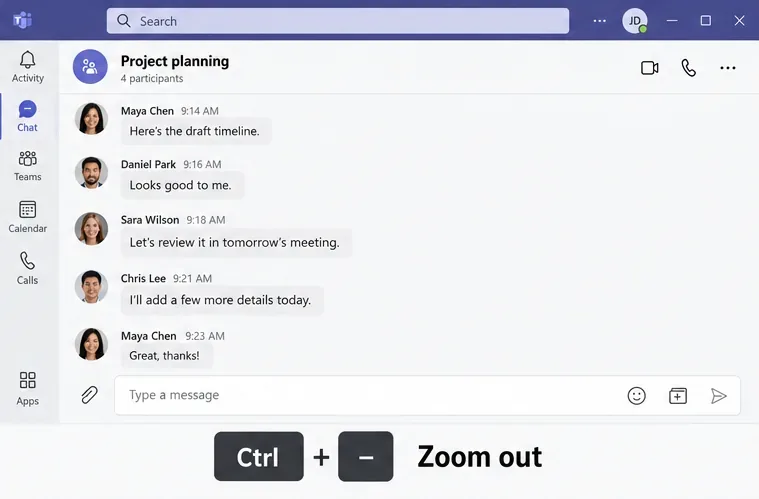
Teams conversation at a smaller scale with a Ctrl plus minus shortcut annotation.
Zooming out fits more of the conversation in the window.

You can also hold Ctrl on Windows or Command on Mac while rotating the mouse wheel up to enlarge the interface, or down to shrink it. These controls change your viewing scale; they do not rewrite a message or change its formatting for recipients.

Zoom into a shared screen during a meeting

If a presenter's spreadsheet or document is too small, use the shared-content controls. Increasing the Teams interface size is a different adjustment.

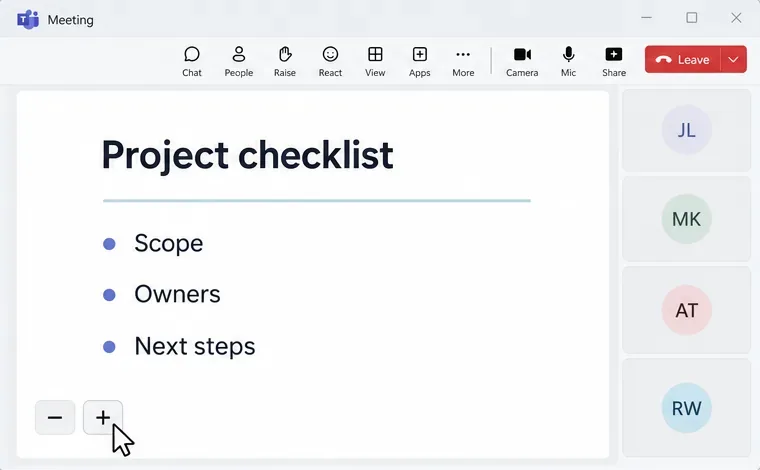
  1. Enlarge the shared content. While viewing another person's shared screen, select the + button in the corner of the meeting window. Select - to reduce it. On Windows, you can also use Alt + Shift + Plus sign to zoom in, Alt + Shift + Minus sign to zoom out, and Alt + Shift + 0 to reset.
Teams meeting showing a shared Project checklist with a pointer beside the plus zoom button.
Use the meeting content controls to enlarge a shared screen.
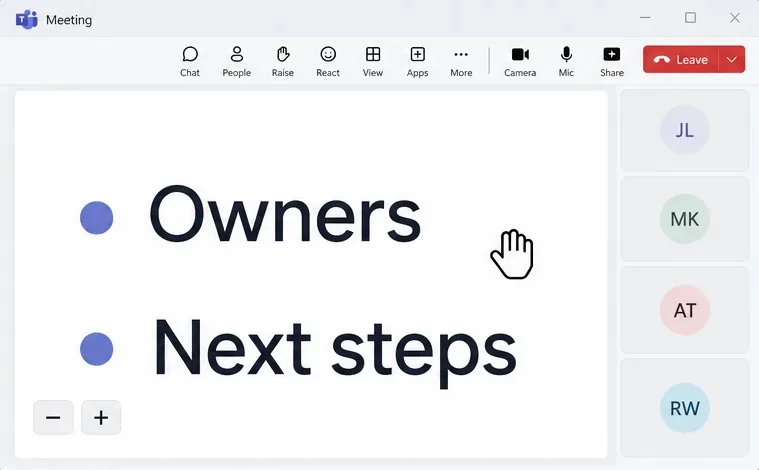
  1. Move around the enlarged view. Press and drag the shared content to inspect another area. On Windows, Alt + Shift with an arrow key pans in that direction.
Enlarged Owners and Next steps text in a Teams shared screen with a hand pointer.
Drag an enlarged shared view to inspect a different area.

Microsoft's screen-sharing instructions also describe Ctrl + mouse-wheel zoom. Mac trackpads do not support meeting zoom, so use the on-screen buttons instead. In the desktop app, Open in new window can give shared content more space without changing its magnification.

Zoom your camera in Microsoft Teams

Webcam zoom depends on your camera, driver, and supported settings. Teams provides access to device settings, but a zoom control is not guaranteed for every webcam. Check the available controls before installing another camera app.

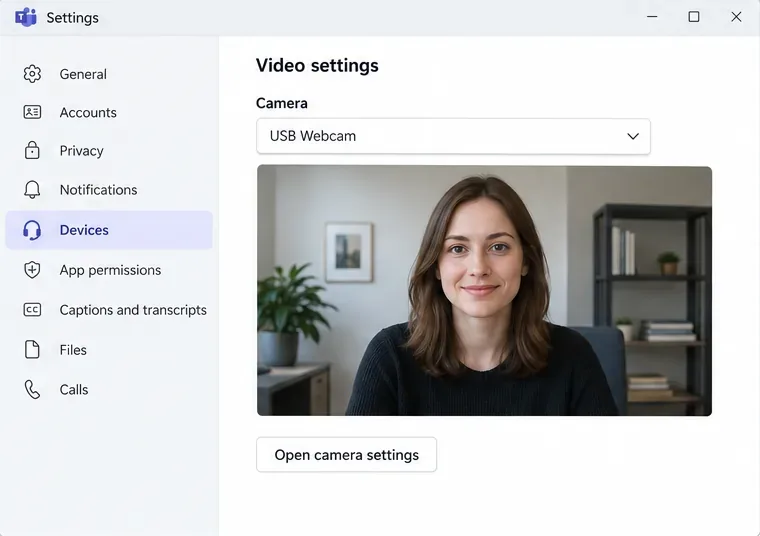
  1. Select the correct webcam. In Teams for desktop, open Settings and more (...) > Settings > Devices. Under Video settings, choose your webcam from the Camera dropdown and check the preview.
Teams Devices settings showing a USB Webcam selector, video preview, and Open camera settings button.
Select the intended camera before checking its available controls.
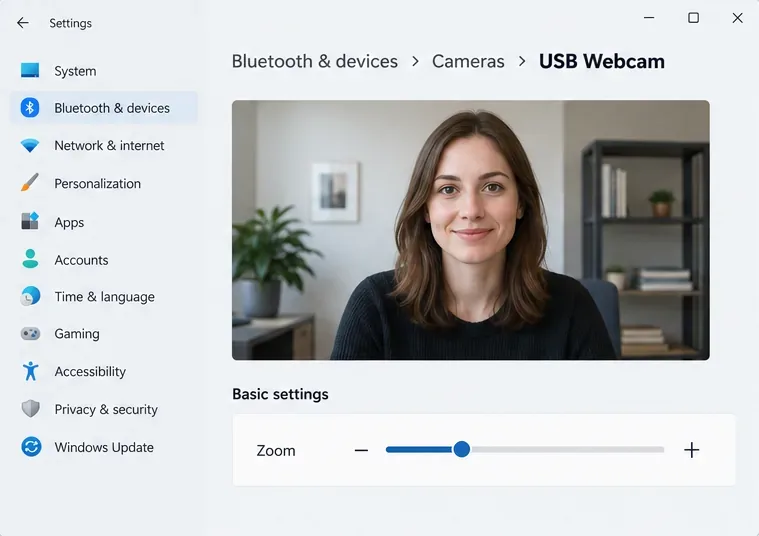
  1. Check supported camera controls. Open the camera settings if that option appears. On Windows 11, another route is Settings > Bluetooth & devices > Cameras > your camera. Look under Basic settings for Zoom; Microsoft says these controls are optional and may be absent.
Windows 11 USB Webcam settings with a camera preview and a Zoom slider under Basic settings.
Example of a supported webcam: the Zoom control appears only when available.
  1. Adjust and verify the framing. If Zoom is available, increase it gradually, then return to the Teams preview. Leave enough space around your head and shoulders. Digital zoom crops the image and can make it look softer.

See Microsoft's Teams device settings and Windows 11 camera controls. On Mac, or when Windows offers no zoom slider, check your webcam manufacturer's supported utility. For example, Logi Tune supports zoom on compatible Logitech models. Availability varies by model.

If zoom does not behave as expected

  • A shortcut does nothing: select the Teams window again. Open Settings and more > Keyboard shortcuts to check your current assignments. Microsoft's shortcut reference uses US keyboard layouts, and assignments can be customized.
  • You use Teams in a browser: use the browser's page-zoom control for the interface; shared-content zoom remains a separate meeting control.
  • Someone's video looks cropped: open More options on their video and choose Fit to frame, where available. Microsoft's video guidance explains that Fill frame gives a closer crop. This changes how you view that video, rather than the other person's camera settings.

Leave a Comment

How to Create a Poll in Microsoft Teams

How to Create a Poll in Microsoft Teams

Learn how to create a poll in Microsoft Teams chats, channels, and meetings, choose response settings, review results, and close voting.

How to Mute Channel and Message Notifications in Microsoft Teams

How to Mute Channel and Message Notifications in Microsoft Teams

Learn how to mute channel and message notifications in Microsoft Teams, unfollow noisy threads, and control banners while understanding mention alerts.

How to Transfer a Microsoft Teams Meeting to Another Device

How to Transfer a Microsoft Teams Meeting to Another Device

Learn how to transfer a Microsoft Teams meeting between your computer and phone, use both devices together, and fix missing transfer options or audio issues.

How to Snooze a Message in Microsoft Teams

How to Snooze a Message in Microsoft Teams

Learn how to snooze a message in Microsoft Teams with Snooze Bot, return to it later, and use saved messages or mute controls when you need another option.

How to Create a Team in Microsoft Teams (and Manage It)

How to Create a Team in Microsoft Teams (and Manage It)

Learn how to create a team in Microsoft Teams, add members, choose channel types, manage permissions, and use the Teams admin center.

How to Download a Microsoft Teams Recording: Three Easy Solutions

How to Download a Microsoft Teams Recording: Three Easy Solutions

Learn how to download a Microsoft Teams recording from Teams, OneDrive, or SharePoint, and fix missing download options, access issues, and expired recordings.

Getting Echo During Microsoft Teams Meetings? Here’s How to Fix It

Getting Echo During Microsoft Teams Meetings? Here’s How to Fix It

Fix echo during Microsoft Teams meetings by removing duplicate audio connections, selecting the right headset and microphone, and checking audio settings.

Microsoft Teams–Slack Integration: How to Set It Up

Microsoft Teams–Slack Integration: How to Set It Up

Set up Microsoft Teams–Slack integration to launch Teams meetings from Slack. Learn account requirements, app permissions, setup steps, and quick fixes.

Unable to Connect to Microsoft Teams Meetings? How to Fix It

Unable to Connect to Microsoft Teams Meetings? How to Fix It

Unable to connect to Microsoft Teams meetings? Check the meeting link, account, network, and app, then learn when to contact the organizer or IT.

Fix Microsoft Teams Not Syncing: Full Guide

Fix Microsoft Teams Not Syncing: Full Guide

Microsoft Teams not syncing? Refresh messages across desktop, web, iPhone, and Android, identify account or file issues, and avoid unnecessary cache resets.