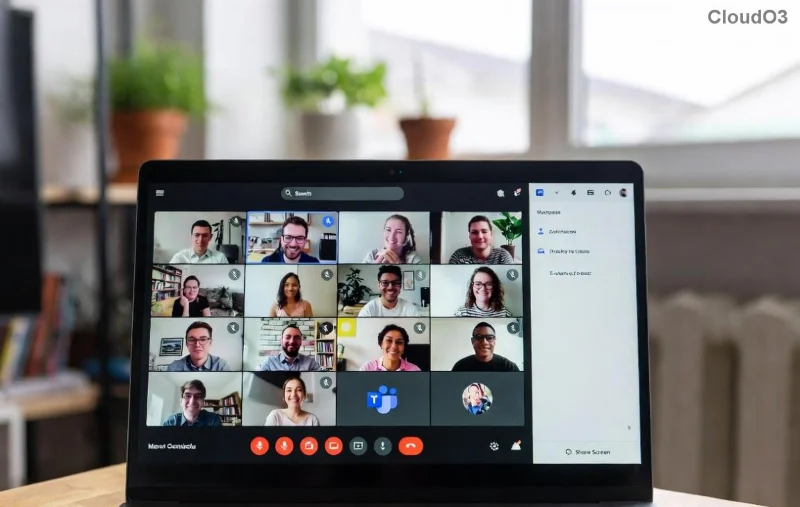
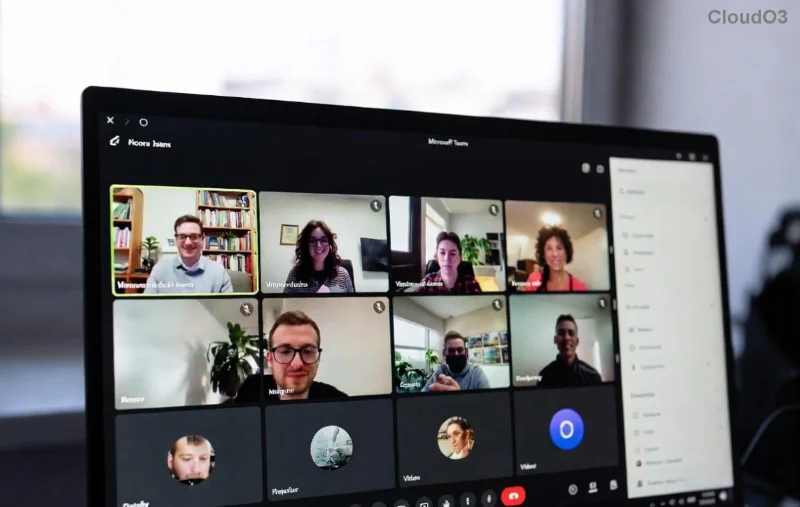
Imagine joining a Microsoft Teams meeting where your background instantly grabs attention, conveys professionalism, or adds a fun vibe—without distracting from your message. That's the power of Microsoft Teams background images. Whether you're presenting to clients, collaborating with teams, or hosting virtual happy hours, mastering these visuals can transform ordinary calls into engaging experiences. In this guide, we'll dive straight into how to use Microsoft Teams background images effectively, with actionable steps, insider tips, and best practices to make you a pro. Ready to level up? Let's jump in! 👍
What Are Microsoft Teams Background Images and Why Use Them?
Microsoft Teams background images replace your real-life surroundings during video calls with custom or pre-built visuals. Blur your messy room, showcase your brand, or transport everyone to a beach paradise—all with one click. Benefits include:
- 🔒 Enhanced privacy by hiding personal spaces.
- 📈 Professional polish for work calls.
- 🎉 Fun engagement for social or team-building sessions.
Teams offers a gallery of defaults, but the real magic happens with customs. Keep reading for setup mastery!
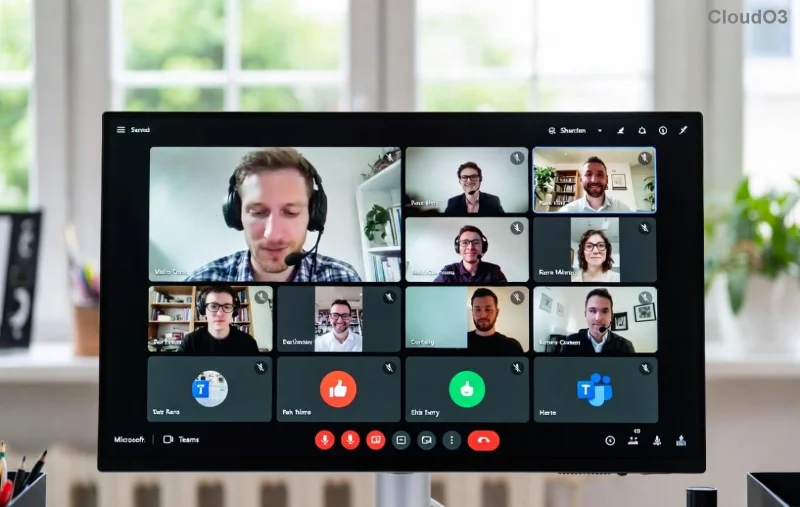
Step-by-Step: How to Use Microsoft Teams Background Images in Meetings
Setting a background is simple in the latest Microsoft Teams app (desktop, web, or mobile). Follow these steps before or during a call:
- 1️⃣ Join or Start a Meeting: Open Teams and enter your call.
- 2️⃣ Access Video Settings: Click the three dots (...) next to your camera icon in the toolbar, then select Show background effects.
- 3️⃣ Choose or Preview: Scroll the gallery. Hover to preview—your face stays sharp while the background swaps seamlessly.
- 4️⃣ Apply and Go Live: Hit Apply or Apply to Everyone (if you're the organizer). Done! ⭐
For mobile: Tap More options > Show background effects. Pro tip: Test in a solo preview to avoid glitches.
![Step-by-step preview of applying <strong>Microsoft Teams background images</strong>]()
Upload Custom Microsoft Teams Background Images: Personalize Like a Pro
Default options are great, but custom Microsoft Teams background images let your personality shine. Here's how:
- 1️⃣ In the background effects panel, click Add new or the + icon.
- 2️⃣ Select Images: Choose JPG or PNG files (under 4MB each). Ideal specs: 1920x1080 pixels for crisp HD quality.
- 3️⃣ Upload and Manage: Teams auto-crops; drag to adjust. Admins can enable/disable via policy for teams.
- 4️⃣ Organize: Pin favorites or delete via the three dots menu.
Hot Tip: Use high-contrast images so your face pops. Avoid busy patterns—they cause edge detection issues. For brands, upload logos or office scenes for instant credibility.
![Uploading custom <strong>Microsoft Teams background images</strong> for effective use]()
Best Practices: How to Use Microsoft Teams Background Images Effectively
To wow your audience, follow these Microsoft Teams background images tips:
| Do This ✅ |
Avoid This ❌ |
| High-res, subtle images (e.g., gradients, nature) |
Text-heavy or flashing graphics |
| Match your brand colors |
Overly dark/light backgrounds (face visibility drops) |
| Preview on different devices |
Small files under 1MB for quick loads |
- 🎨 Context Matters: Professional gradient for exec calls; fun memes for casual chats.
- ⚡ Performance Boost: Enable hardware acceleration in Teams settings for smoother effects.
- 👥 Team Sync: Share custom packs via admin portals for uniform looks.
Want more? Check Microsoft's official guide for advanced tweaks: Teams Background Support.
Common Pitfalls and Fixes for Microsoft Teams Background Images
Even pros slip up. Here's a quick troubleshoot:
- ❌ Background not showing? Update Teams app and restart.
- ❌ Blurry edges? Sit 2-3 feet from camera; good lighting helps AI segmentation.
- ❌ No custom option? Check if your org admin disabled it—request access!
- 😩 Slow performance? Switch to blur or fewer effects.
FAQs: Your Microsoft Teams Background Images Questions Answered
Q: Can I use videos as backgrounds? A: Yes, in the latest updates—upload MP4s for dynamic flair! 🎥
Q: What's the best size for custom images? A: 1920x1080 @ 72 DPI for optimal sharpness.
Q: Do backgrounds work in breakout rooms? A: Absolutely—settings carry over.
Elevate Every Call with Microsoft Teams Background Images
Now that you know how to use Microsoft Teams background images effectively, experiment today! Start with a custom upload, test in a call, and watch engagement soar. Your virtual presence deserves to shine—go make those meetings unforgettable. Share your fave backgrounds in the comments! 👏