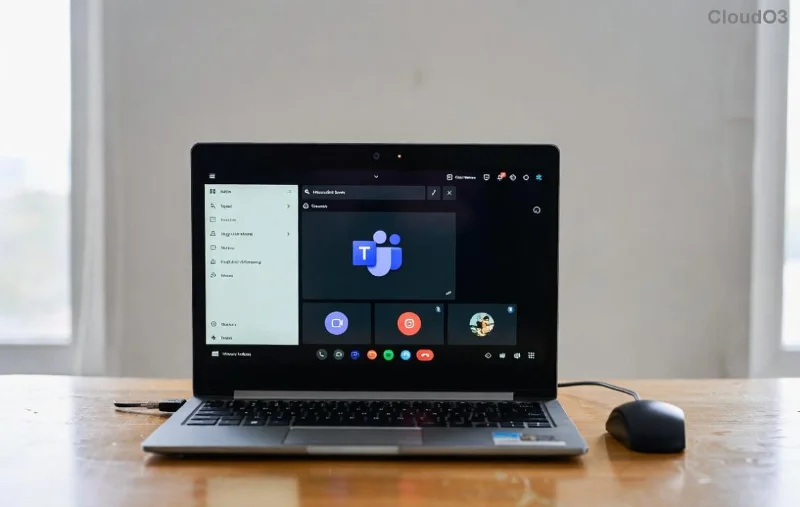
Imagine transforming your next Microsoft Teams meeting into interactive workshops where everyone participates actively. That's the magic of Microsoft Teams Breakout Rooms in 2026! Whether you're a teacher dividing students into discussion groups or a manager running brainstorming sessions, this feature boosts engagement like never before. Ready to get started? Let's dive into this beginner-friendly Microsoft Teams Breakout Rooms Tutorial for Beginners (2026) – you'll be a pro in minutes! 🚀
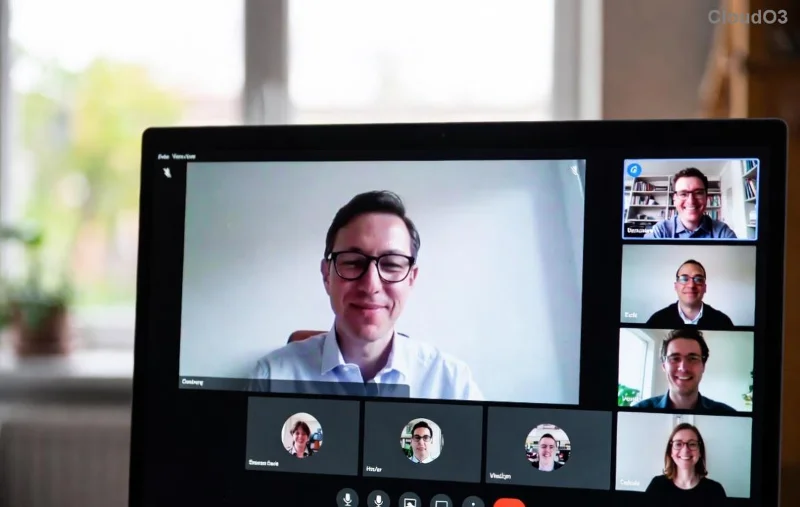
What Are Microsoft Teams Breakout Rooms & Why Use Them?
Breakout Rooms in Microsoft Teams let meeting organizers split participants into smaller, private groups during a session. It's perfect for focused discussions, problem-solving, or role-playing without overwhelming the main chat.
- ⭐ Up to 50 rooms with 200 participants total.
- 👍 Auto-assign or manually choose who goes where.
- 🔄 Move people between rooms seamlessly.
In 2026's latest updates, enjoy enhanced features like AI-suggested room assignments and integrated timers for smoother facilitation. No more chaotic large meetings – create collaborative magic! Learn more from Microsoft.
Prerequisites: What You Need Before Starting
Before launching your first Breakout Room, ensure:
| Requirement |
Details |
| Account Type |
Microsoft 365 license with Teams (free version supports basic rooms) |
| Role |
You must be the meeting organizer or have co-organizer permissions |
| App Version |
Latest Teams desktop, web, or mobile app (2026 updates auto-install) |
| Participants |
At least 2 people in the meeting |
Pro tip: Test in a practice meeting to build confidence. 😊
Step-by-Step: How to Create & Use Microsoft Teams Breakout Rooms
Follow these exact steps for your Teams Breakout Rooms tutorial. We'll keep it simple and visual.
1️⃣ Schedule or Start a Meeting
Open Microsoft Teams, go to Calendar, and create a new meeting. Invite participants. Start the meeting as usual.
2️⃣ Access Breakout Rooms
Once live, look at the meeting toolbar. Click Breakout rooms (it looks like a grid icon). If not visible, ensure you're the organizer.
![Step-by-step guide to adding Breakout Rooms in Microsoft Teams 2026]()
3️⃣ Create Rooms
- Choose number of rooms (1-50).
- Select size: Equal (auto-divides) or custom.
- Assign: Automatically, Manually, or From pre-assigned (upload Excel for planned groups).
- Click Create.
Watch participants vanish into their rooms – magic! Participants see a Join button; click to enter.
4️⃣ Manage Your Rooms Like a Pro
From the main meeting, use the Breakout rooms window:
| Action |
How-To |
| Add Room |
Click Add room anytime |
| Reassign Participant |
Drag & drop or select Move |
| Set Timer |
Enable countdown (new 2026 feature: 5-60 mins) |
| Recess (End Rooms) |
Ask to return or Close rooms |
| Visit Room |
Select room > Join (you can hop between) |
Announce via Announce to all rooms for updates. Seamless!
5️⃣ Bring Everyone Back
Click Close rooms – participants return to the main session. Recap highlights together. 🎉
Advanced Tips for Teams Breakout Rooms Mastery in 2026
Level up your sessions:
- Pre-assign Rooms: In meeting options, upload an Excel file with participant emails and room numbers. Ideal for classes!
- Room Settings: Enable wait room or noise suppression per group.
- AI Assist: New 2026 tool suggests rooms based on chat history or polls.
- Record Rooms: Recordings save separately – review later.
- Mobile Magic: Full support on iOS/Android for on-the-go management.
Want more engagement? Pair with polls or Whiteboard before splitting. Your meetings will shine! ✨
Common Issues & Quick Fixes
Stuck? Here's troubleshooting:
- ❌ Button missing? Check organizer role or update Teams.
- ❌ Can't join? Refresh or restart app.
- ❌ Uneven groups? Manually adjust post-creation.
- ❌ Timer not working? Ensure latest version.
For deeper dives, check Microsoft Learn.
Ready to Transform Your Meetings?
With this Microsoft Teams Breakout Rooms Tutorial for Beginners (2026), you're set to host dynamic, productive sessions. Practice today – your team or students will thank you! Share your first success in the comments below. What's your next meeting theme? 👇
Stay tuned for more Teams tips – engagement guaranteed!