How to Create a Poll in Microsoft Teams

Learn how to create a poll in Microsoft Teams chats, channels, and meetings, choose response settings, review results, and close voting.
The Microsoft Teams add-in for Outlook normally installs automatically with the Teams desktop app in classic Outlook for Windows. You do not download it separately from the Outlook add-in store. In new Outlook, Teams meetings are built in, so there is no separate add-in to install.
Use the instructions for your Outlook version below. The classic Windows add-in is different from the meeting integration available in Outlook on the web, Mac, and mobile.
You need an eligible work or school account with Teams access and an Exchange mailbox configured in Outlook. Microsoft’s Outlook meeting guidance specifies Microsoft 365 Business Exchange accounts; personal accounts and POP/IMAP mailboxes such as Gmail or Yahoo are not supported for this scheduling workflow.
For classic Outlook, install the Teams desktop client on the same PC. Using Teams only in a browser does not install the Windows meeting add-in. Keep both applications updated and use a supported Outlook release, such as Outlook for Microsoft 365.
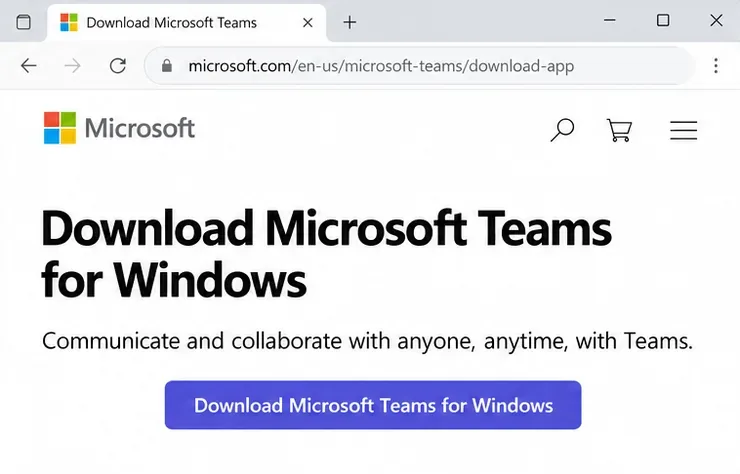
Close Outlook. Get the Windows installer from Microsoft’s Teams download page and complete the installation, or use your organization’s software portal. If Teams is already installed, you can skip the download.
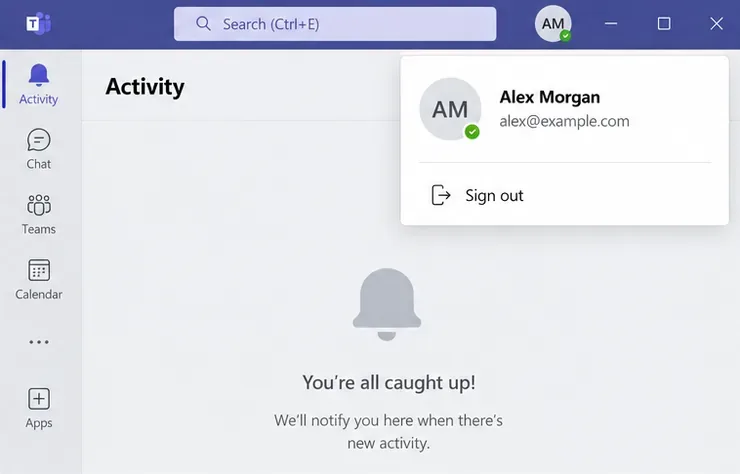
Open Teams and sign in with the work or school account you use in Outlook. Complete any sign-in prompts, then reopen Outlook normally. Microsoft documents automatic add-in installation through Teams; there is no standalone public add-in download link. Teams handles the appropriate 32-bit or 64-bit add-in.
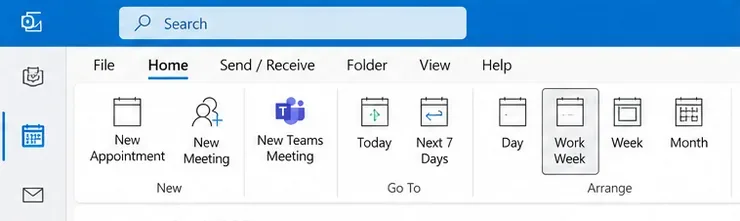
In classic Outlook, switch to Calendar and look for New Teams Meeting. Ribbon layouts vary, so you may instead see a Teams Meeting command inside a new meeting window. Its presence is the first indication that the integration has loaded.
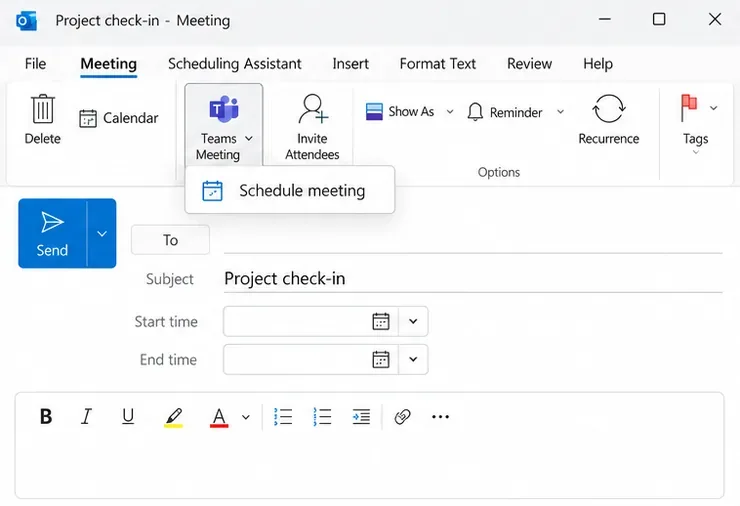
Open a meeting form and, where shown, choose Teams Meeting > Schedule meeting. Add attendees, a subject, and the meeting time, then send the invitation. Check that the invitation includes Teams join information. This confirms the scheduling workflow, rather than merely confirming that Teams is installed.
Open Calendar > New event and enable Teams meeting beside the title. Enter the meeting details and attendees, then select Send. In new Outlook, join details are added after sending; saving a draft does not add them.
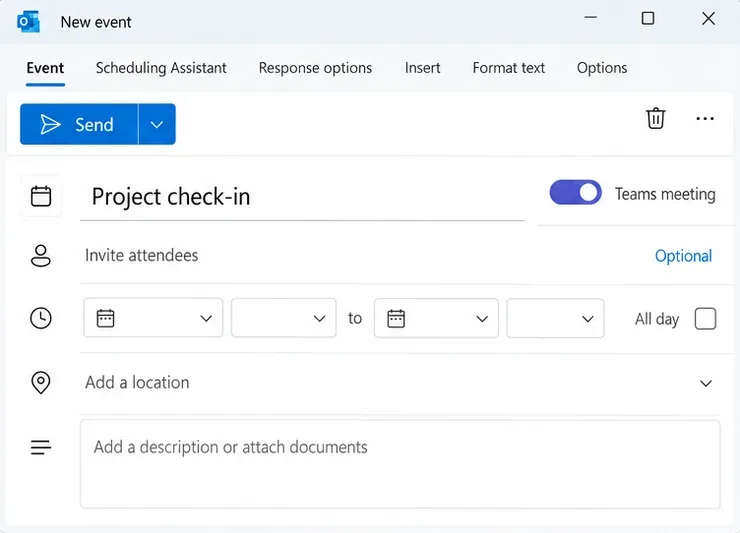
If the toggle is missing, check that Teams and Outlook use the same work or school account and that the current Teams desktop client is installed. Close both apps completely, start Teams and sign in, then reopen Outlook. Microsoft’s missing-toggle instructions apply here. Classic COM add-in settings do not apply to new Outlook.
Open File > Options > Add-ins. Look for Microsoft Teams Meeting Add-in for Microsoft Office under Active Application Add-ins. If it appears under an inactive or disabled section, continue with the next step. If it is absent entirely, use the troubleshooter below.
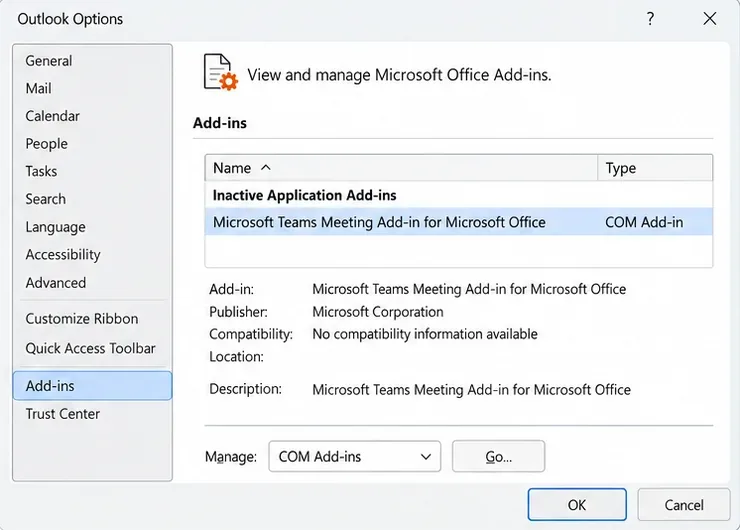
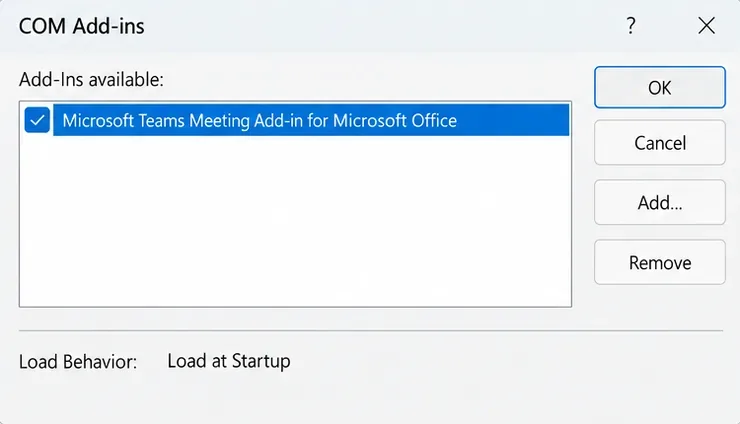
At the bottom of the Add-ins page, choose COM Add-ins from Manage and select Go. Check the Teams meeting add-in, select OK, and restart Outlook. Microsoft’s classic Outlook troubleshooting guide explains this recovery process and further installation repairs.
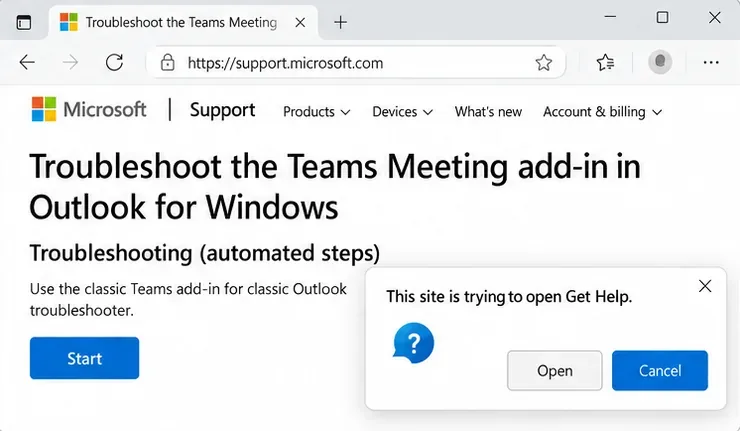
On the affected Windows PC, open Microsoft’s Teams add-in troubleshooting page. Select Start, allow the browser to open Get Help, and follow its prompts. This tool requires Windows 10 or later and works with classic Outlook, not new Outlook.
If the problem persists, ask IT to verify your Teams license and the meeting policy assigned to your account. The policy must permit the Outlook add-in and private meeting scheduling. Reinstalling software cannot override an organization’s policy.
Classic Outlook’s add-in also requires Modern Authentication. That is a sign-in framework that supports MFA, rather than another name for MFA. Complete verification when your organization requests it; Microsoft explains the distinction in its Modern Authentication documentation.
Outlook and Teams should run normally under your Windows user account. Microsoft’s eligibility and troubleshooting guidance warns that mismatched administrator privileges can prevent the add-in from appearing. Leave advanced registration repairs to IT. For channel meetings, schedule directly in Teams.
Learn how to create a poll in Microsoft Teams chats, channels, and meetings, choose response settings, review results, and close voting.
Learn how to mute channel and message notifications in Microsoft Teams, unfollow noisy threads, and control banners while understanding mention alerts.
Learn how to transfer a Microsoft Teams meeting between your computer and phone, use both devices together, and fix missing transfer options or audio issues.
Learn how to snooze a message in Microsoft Teams with Snooze Bot, return to it later, and use saved messages or mute controls when you need another option.
Learn how to create a team in Microsoft Teams, add members, choose channel types, manage permissions, and use the Teams admin center.
Learn how to download a Microsoft Teams recording from Teams, OneDrive, or SharePoint, and fix missing download options, access issues, and expired recordings.
Fix echo during Microsoft Teams meetings by removing duplicate audio connections, selecting the right headset and microphone, and checking audio settings.
Set up Microsoft Teams–Slack integration to launch Teams meetings from Slack. Learn account requirements, app permissions, setup steps, and quick fixes.
Unable to connect to Microsoft Teams meetings? Check the meeting link, account, network, and app, then learn when to contact the organizer or IT.
Microsoft Teams not syncing? Refresh messages across desktop, web, iPhone, and Android, identify account or file issues, and avoid unnecessary cache resets.








